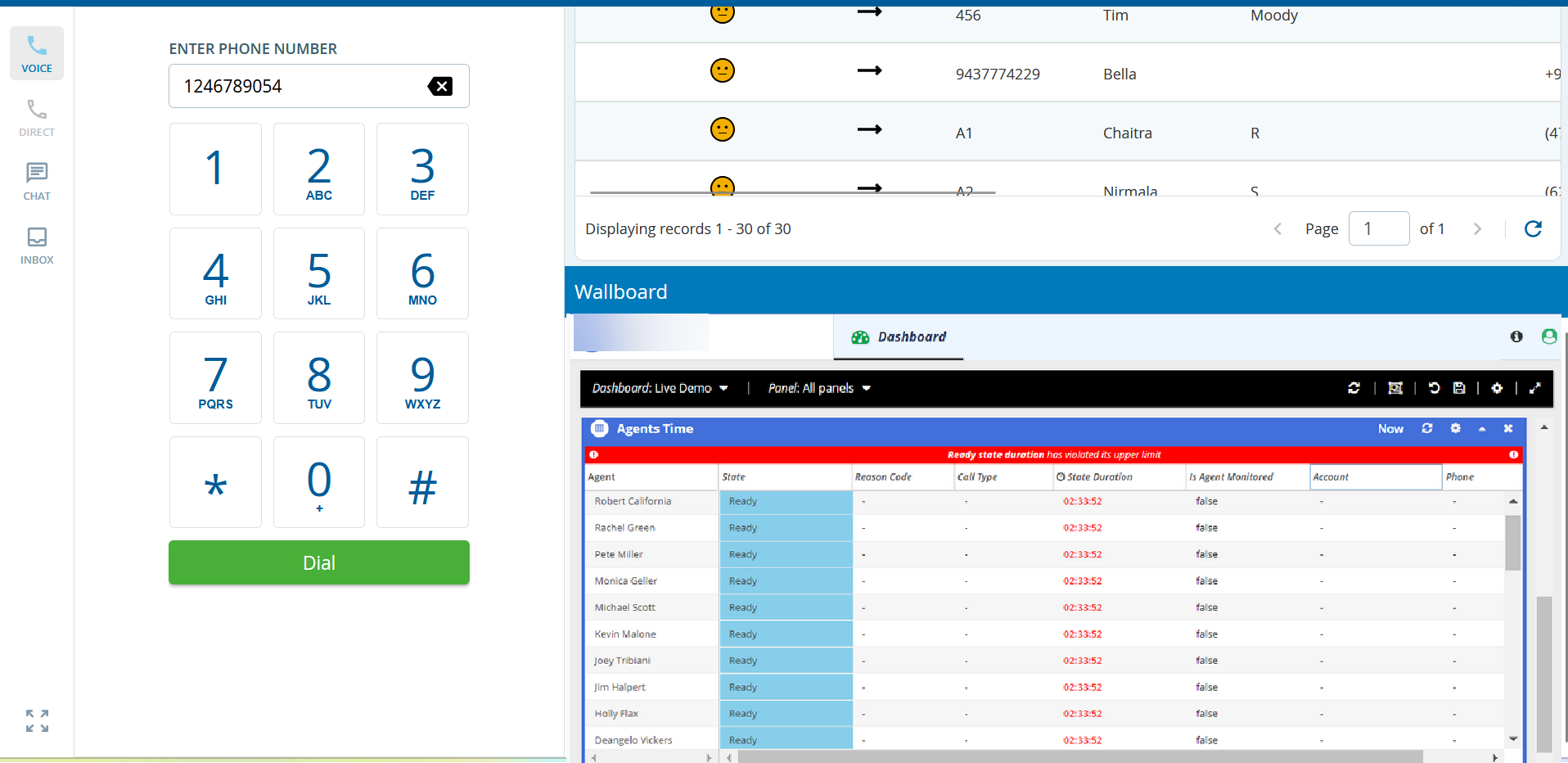
You can enable your agents to view SmartReach Wallboards from a Contact Center CRM Agent Desktop.

Before You Begin

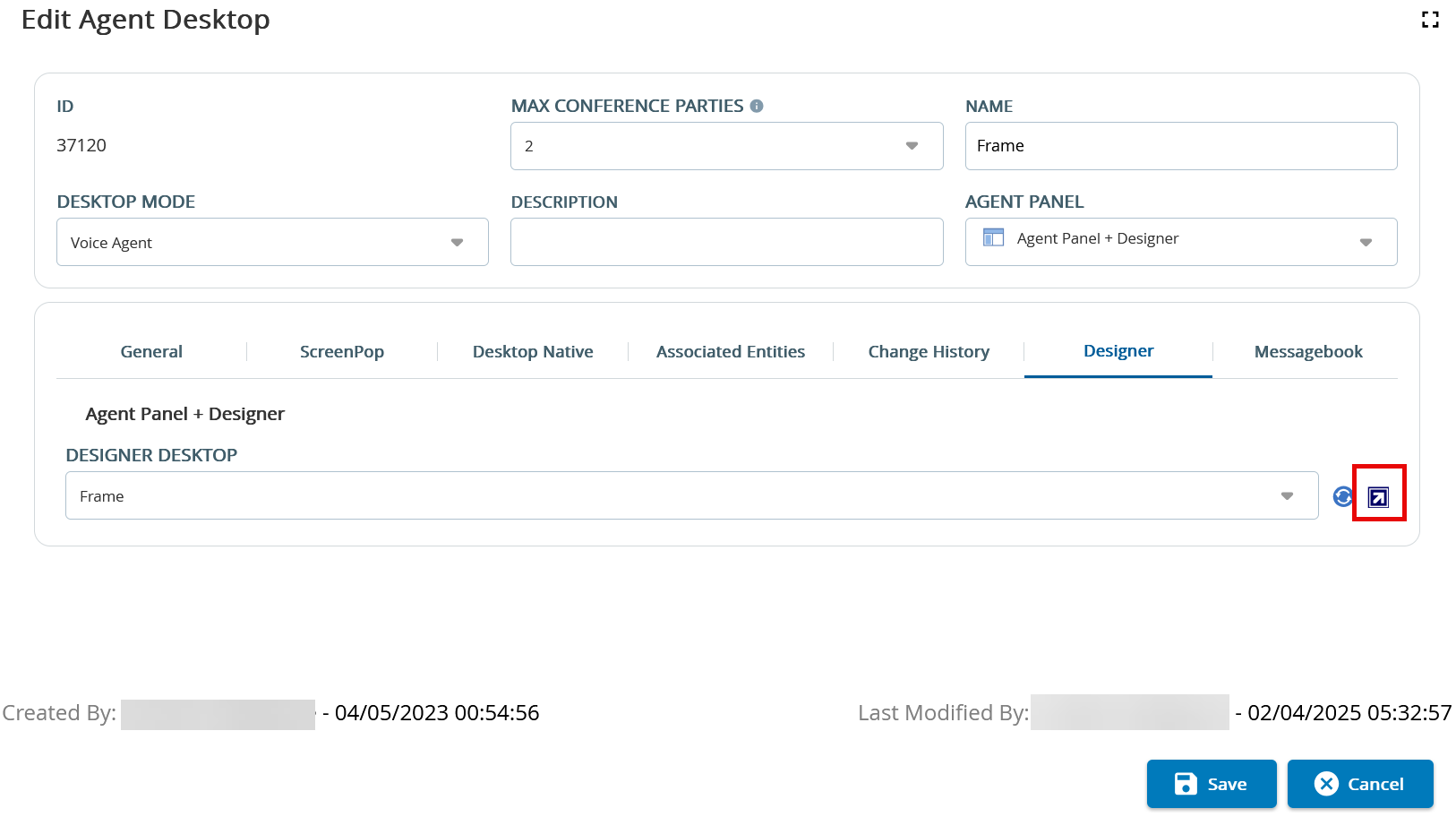
  • Ensure that an Agent Desktop - Designer Tab has been created.
  • Record the name of the Designer Desktop associated with the Contact Center CRM Agent Desktop.

To integrate Wallboards with a Contact Center CRM Agent Desktop:

  1. Log in to the SmartReach Portal.
  2. Access the Designer Desktop.

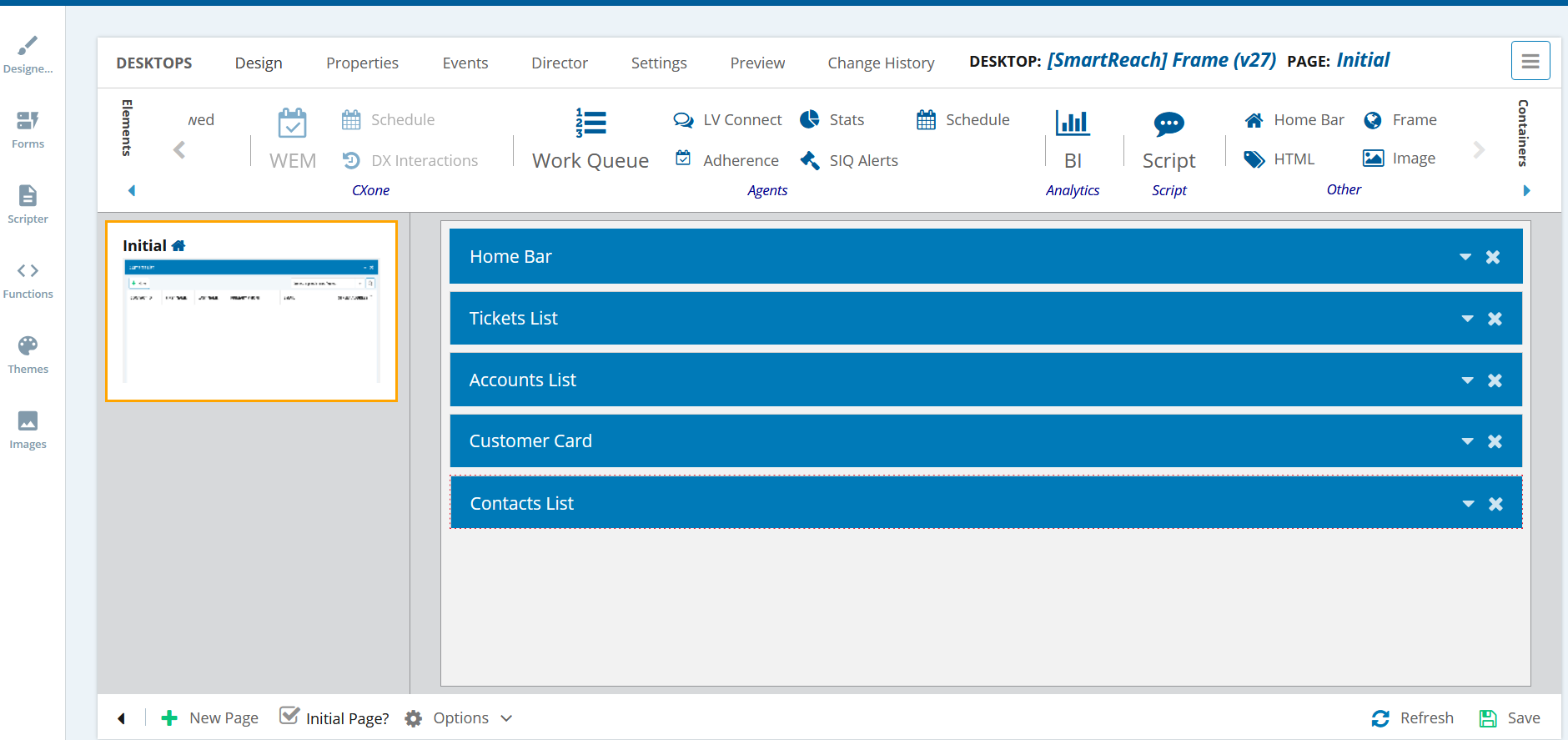
    The Designer tool displaying the Design subtab appears.

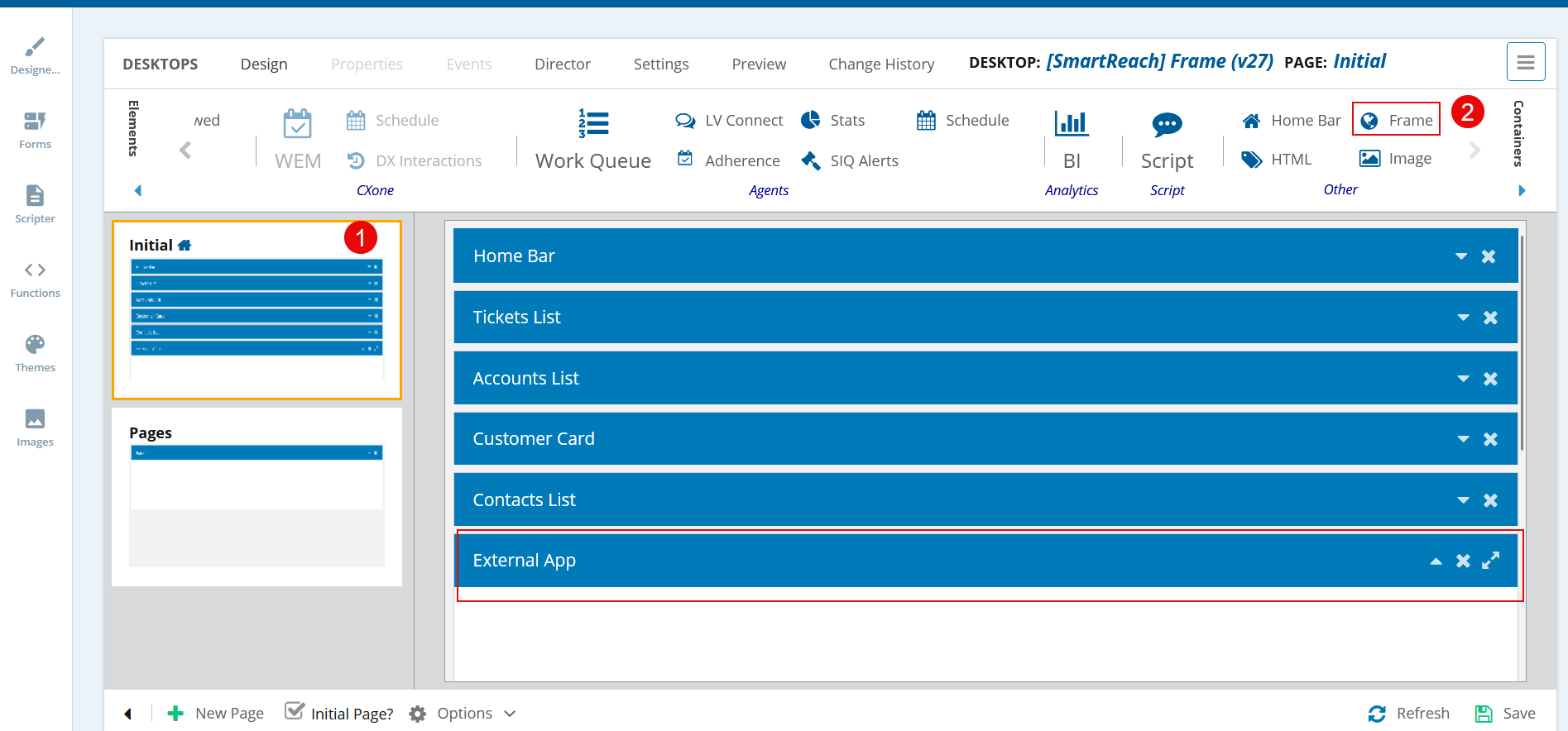
  3. In the left pane, select the page where you want Wallboards to appear, and then, in the Elements section, click Frame.
    The External App section appears on the canvas.
  4. Optional: On the Properties tab, in the Title field, enter a title for the External App section.
    The default title is External App. The title displayed in the Title field appears on the Agent Desktop.

  5. In the URL field, enter the Wallboards link provided by SmartReach.
  6. Optional: To automatically fill the client name in the Wallboards Sign-In window when the window appears on the Agent Desktop:
    1. On the Properties tab, click the URL Parameters icon.
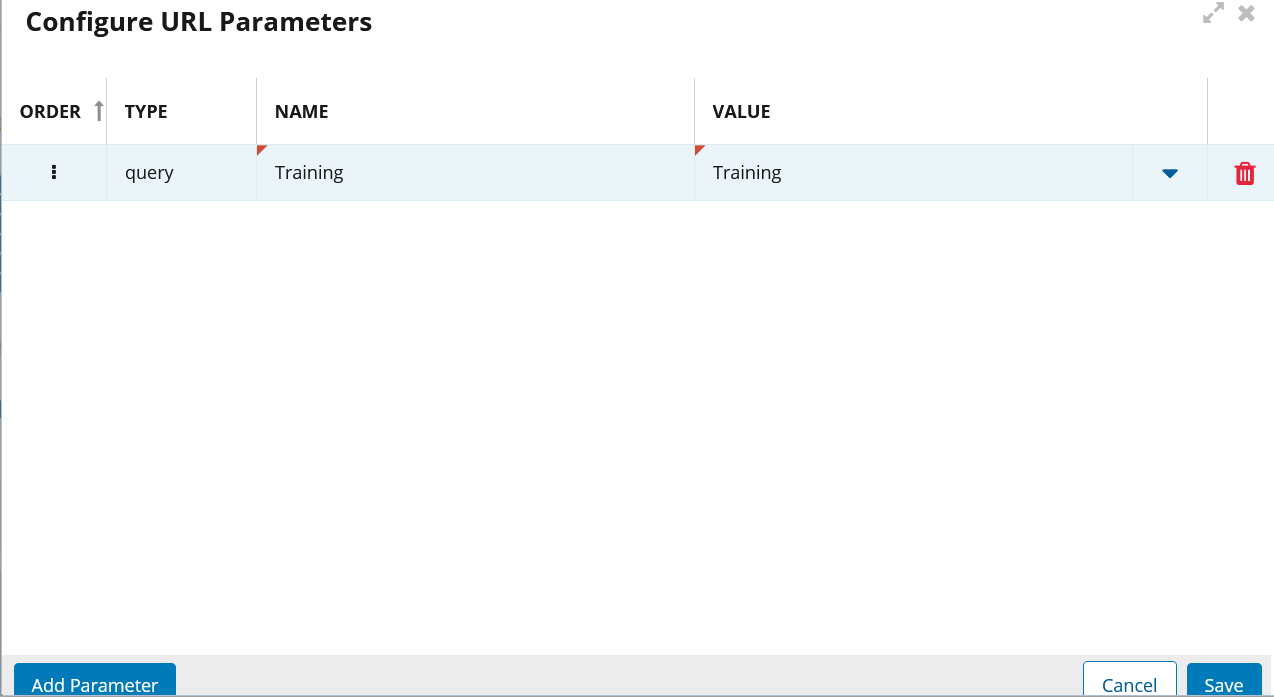
      The Configure URL Parameters window appears.
    2. Click Add Parameter.
    3. In the Enter a key cell of the Name column, enter clientName.
    4. In the Enter a value cell of the Value column, enter your client's name.
    5. Click Save.
  7. On the Desktops tab, click Save.
    SmartReach Wallboards is integrated with the Contact Center CRM Agent Desktop.

An agent logging in to the Contact Center CRM Agent Desktop can now sign in to the SmartReach Wallboards application to view the performance dashboards.

If you performed the optional Step 6, the value you entered in the Value column appears as the client name in the Wallboards Sign-In window of the Agent Desktop, as seen in the following image.

If you embed Wallboards into an Agent Desktop, the agent can change the state of other agents, which is not just limited to the managers or supervisors. As a best practice, do not insert Wallboards into a Designer Agent Desktop, but use it as an overview display for a group.