Accessing and Logging In to LiveVox / SmartReach
The SmartReach Customer Care team assists you in initiating the login process. They provide you with login information, such as the SmartReach URL, login credentials for the system administrator, and the Client Code. You can provide your own Client Code, or the SmartReach team can create a client code, as per your specifications. The SmartReach Customer Care team creates only a system administration user. After the system administrator gains access to the SmartReach portal using the provided URL and user credentials, the system administrator can create additional user accounts based on the organization's requirements. For detailed instructions on user creation, refer to the User section.
Password
When a new user is created, a default password is applied to that account. You may be requested to change your password in the following scenarios:
- On your first login as a new user
- After a set number of days, as configured in the Security tab.
For more information on managing your passwords, see Customizing and Resetting GUI Settings.
Domain Links
To learn more about the available domain names, see Domain Names.
Logging in to the SmartReach Portal
To log in to SmartReach:
- Log in to SmartReach using the link provided by the SmartReach Customer Care team.
The login window appears.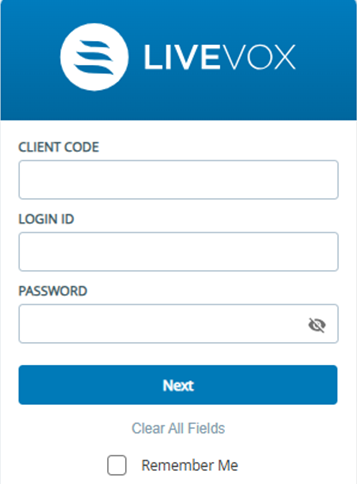
- Specify the Client Code, Login ID, and Password.
The SmartReach Customer Care team will share the login credentials including the Client Code. You might be prompted to change your password during your first login.
- Click Next.
You are logged into SmartReach portal.If Single Sign-On (SSO) is configured for your environment, you can be signed in automatically if you are signed in to the SSO system. Currently, SmartReach supports Okta and Azure Identity Providers (IdPs) for the SSO.
Single Sign On
Single Sign-On (SSO) is an authentication process that allows a user to access multiple applications or services with a single login credential (username and password). The SmartReach portal allows you to log in using a third-party IdP. Currently, SmartReach supports Okta and Azure. For detailed information on configuring Idp, see Configuring the Single Sign On Capability.
It provides the following advantages:
- Mitigates risk for access to third-party sites by requiring additional security steps.
- Enables users to remember and manage fewer passwords and usernames for each application.
- Streamlines signing on and using applications. You don't need to re-enter passwords.
The following is an example showing the authentication process through Okta for logging in to SmartReach portal.
Accessing SmartReach from a Mobile Device
You can also access SmartReach from your mobile device. Before accessing SmartReach on a mobile device, ensure an email address is assigned to your SmartReach user account. You can add the email address from the SmartReach page > Profile > Edit User. For more information on adding an email address, see the Edit User section on the LiveVox / SmartReach Portal page.
You can view the application on the following device types:
- Android 5.1+
- iPhone 6+
- iPad 3+
- Surface 2+
SmartReach opens on mobile-supported browsers. For more information, see Supported Browsers.
To access SmartReach Mobile:
- On the SmartReach portal, in the upper-right corner, click the Applications icon
 , and then click Portal Mobile.
The Portal Mobile Promo window appears.
- Click TRY NOW.
An invitation email is sent to the email address assigned to your SmartReach account. - Click the link provided in the email to access SmartReach portal on a mobile device.
Logging Out of SmartReach
To log out of the SmartReach:
- In SmartReach, click
 ,
- Select Log Out from the list.
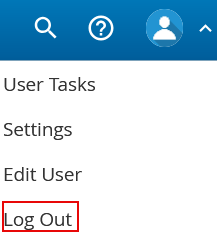
You are logged out of SmartReach, and the SmartReach login window appears.