Home Bar and Icons
The Home Bar helps you navigate to different pages and use a few features like Agent Assist, Notes, Omni-Search, and LV Connect. You can add elements to help the agent use the desktop effectively.
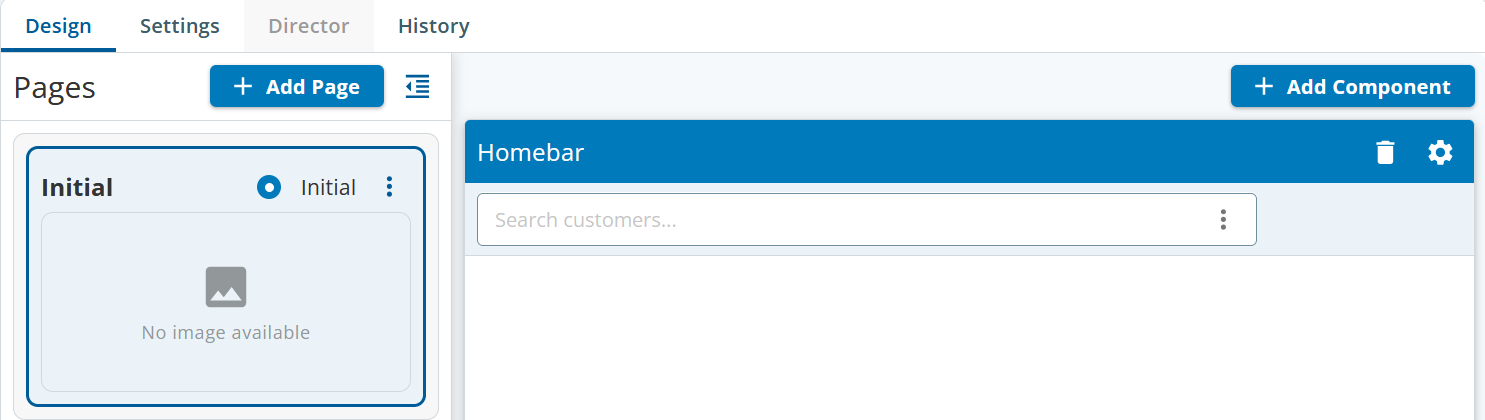
Click the gear icon to view the following properties:
| Category | Home Bar Properties | Description |
|---|---|---|
| General | Title Header Position Theme | Enables you to change the title, position, and theme of the home bar. |
| Shortcuts | Shortcuts | Enables you to add function buttons to the home bar. |
| Options | Notes | The agent can enable Notes and add any information that needs to be recorded or noted during the call with the customer. This option acts as a notepad for an agent. |
| Recently Viewed | Shows an agent's recently viewed contacts, tickets, or accounts. | |
| Omni Search | Omni Search, Search By | The search functionality in the Contact Center CRM agent desktop has been enhanced to provide personalized search options. Based on the agent roles and permissions, a personalized search experience is provided to the agents so they can quickly access the data they need. You can enable the omni-search function for the agent, which means that the agent can search using a single parameter using the operators for Contacts, Accounts, and Ticketing records. |
| Call Details | Call Details | This will enable the agent to pop-up the active window during the call interaction. |
| Auto-Pop On In Call | Shows a pop-up window when an agent is on call. | |
| LV Connect | LV Connect | LiveVox Connect (LV Connect) acts as a notification or a bulletin board channel specifically designed for the agent desktop. LV Connect displays real-time alerts, posts, and notifications to ensure that agents and managers have up-to-date information about their team and tasks. It acts as a centralized tool for the managers to post updates or reminders to their respective teams, individuals, or an entire group. For more information on adding a LV connect, see .Adding LV Connect. |
| Allow Create Posts | Allows an agent to create new posts. | |
| Agent Assist | Agent Assist | With Agent Assist, agents can interact with customers more efficiently, provide information about existing offers, resolve customer issues quickly, and avoid errors during interactions. |
| Enable Notes | When the Enable Notes option is selected, the agent can add notes in the LV Connect window. | |
| Enable Suggestion | When the Enable Suggested option is selected, the agent can add suggestions in the LV Connect window. | |
| Enable Summary | When the Enable Summary option is selected, the agent can add a summary in the LV Connect window. | |
| Enable Transcript | The agent can view the transcript of the Fresh/Spanish text. | |
| Manual checkoff | The agent can manually check out from the LV Connect window. |

You can create and design multiple pages. Ensure you add the Home Bar element on each page for better navigation.
Adding the Home Bar
To add a home bar and icons to the page:
- Open the desktop in which you want to add the Home Bar.
- Click the Add Component button.
The Components page appears. - Drag and drop the Home Bar icon to the page.
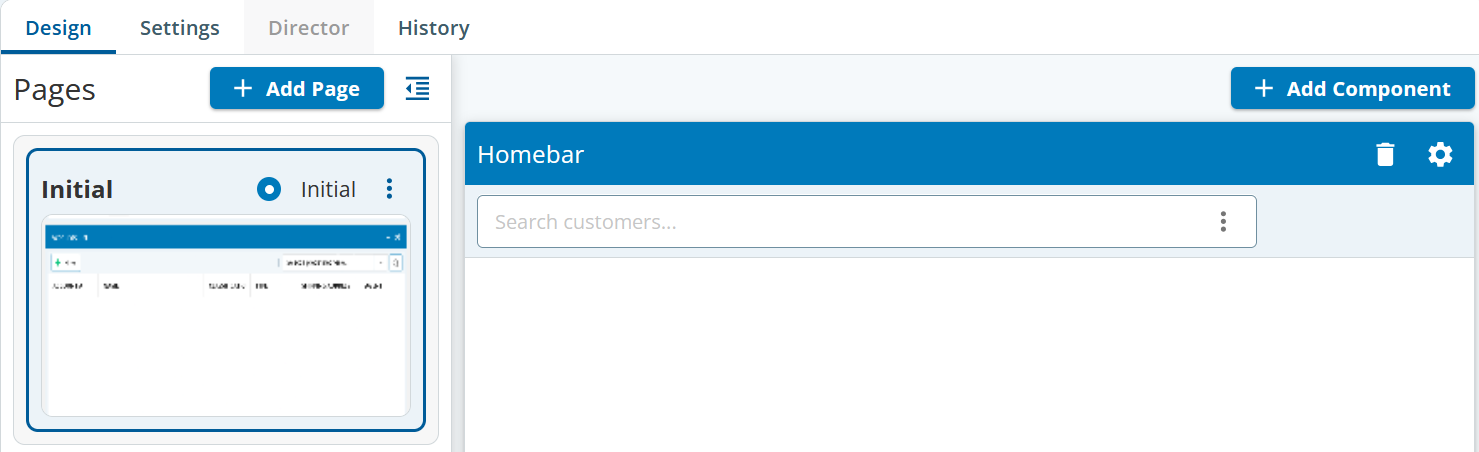
Adding Custom Buttons
Custom buttons enable you to define specific actions on the Home Bar. To add custom buttons, click the gear icon.
The Home Bar Buttons Setup appears.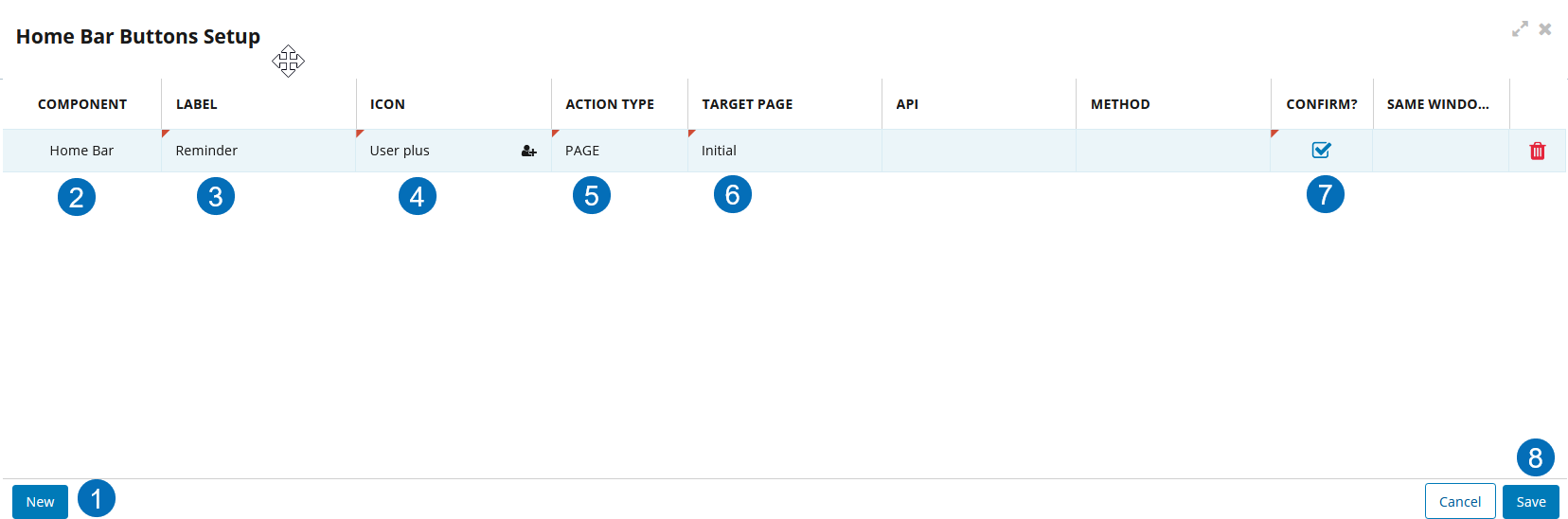
- Click New.
- By default, the Component is Home Bar.
Specify the Label as Home.

Since you want to add a Home button to the Home Bar, specify it as Home. To add any other icon, you must select the relevant name accordingly.
- Select the Home icon from the drop-down list.
Select the Action Type as Page.
The available Action Types are:
- API: This field appears when the value in the Action Type field is FUNCTION CALL or POP URL.
- Page: Displays all the created pages.
- Pop URL: Displays an external webpage on a new browser tab.
- Push URL: Displays an external webpage on an existing browser tab.
Select Initial from the drop-down list for the Target Page.
The initial page is the first or the landing page.
- Enable the Confirm? Option.
- Click Save.