Creating Saved Search
If you frequently search for a recorded interaction or report in the SpeechIQ section, by using the same search criteria, you can save your search criteria for future use. A saved search refers to the saved search criteria.
To create a saved search:
- On the WFO tab, go to Conversation Reporting, and then select the report for which you want to create a saved search. If you are searching for a recorded interaction, go to SpeechIQ > Search and Score.
A window displaying the list of reports or recordings for the current week appears. - Click the Filter icon (
 ).
The Filter window appears. As required, specify values in the following sections.
Section
Description
Date Selector Time period (either a date range or a custom period) for the report or recordings.
The Date Filter Option field contains the following options:
- Start Date: Date from when you want the report or recording.
- Added Date: Date when the interaction was added to QM.
- Transcribed Date: Date when the transcript was created.
- Scored Date: Date when the interaction was scored.
- Acknowledge Date: Date when the scoring was acknowledged.
- Arbitration Date: Date when the interaction was reviewed by an arbitrator.
Accounts List of Accounts you can include in the report. Agent Assist Rules List of rules for agents during real-time calls that are triggered when a match is found in the call transcript. These are the rules defined in the Agent Assist → Action Rules UI. For more information, see Action Rules. Agent Teams Agent team to which the interaction belongs.
Agents Agents who performed the interaction.
- To add agents, in the Available section, select their names, and then click
 . To remove agents, in the Selected section, select their names, and then click
 .
- You can filter the names in the sections by using the Filter by name box.
- Select the Exclude Selected checkbox to either include or exclude the selected items.
- You can revert your changes by clicking
 .
Bit Rate Options to select the bitrate for an audio interaction. Bitrate is the rate at which audio is encoded or transferred. It determines the sound quality and the file size of the audio file.
Call Centers Call centers that are applicable for the interactions. For information about how to add or remove call centers, see Working with Call Centers.
Campaigns List of campaigns applicable for interactions. Campaigns are directed at customers that a business wants to contact through voice, email, SMS, or chat channels.
Duration Minimum and maximum duration of calls (in seconds) for the report or recordings. Emails List of emails applicable for interactions. Interaction Disposition List of possible interaction dispositions, such as agent hang up, customer hang up, or no response. You use interaction dispositions to categorize or record the outcome of an interaction (call, chat, or email). Interaction Intent Types Interaction intent types that are applicable to the interactions. For information about how to add or remove interaction intent types, see Interaction Intent Types.
Interaction Intents List of possible intents, such as Billing Inquiry or Complaints. Interaction Intents help identify the purpose of the customer call. For more information, see Interaction Intent.
Intent Models List of published collections of Client Intents. An Intent model leverages existing interactions and creates intents from these historical transactions and then derives Intent models for future interactions. For more information, see Managing Intents.
Interaction Types Types of Interactions:
- Voice
- SMS
- Chat
Interaction UUIDs Interaction UUIDs (identifiers for recordings) that are applicable for the interactions.
You can specify multiple interaction UUIDs by pressing Enter after entering each UUID in the text box.
Key Phrases Key phrases are specific words or short expressions that the platform detects in conversations (calls, chats, or transcripts) in Agent or Customer channels You can specify the Key Phrases for the following options:
- Agent
- Customer
- Either
- None
Keywords Keywords used by agents or customers.
- To add a keyword, in the Keyword List field, select the keyword. To specify your own keyword, in the Keyword field, enter the keyword, and then press Enter or click
 .
- If you want the order of the keywords in the report to match the order of the keywords in the table, select the Exact Order checkbox.
- You can customize the table by using the arrow next to a column heading. For more information, see Customizing a Table.
- You can delete a keyword by hovering over it in the table and then clicking
 .
Languages List of languages used in the interactions, such as French or Spanish.
Metadata Metadata that are available for the interactions.
When filling out a metadata field, you can quickly select from a pre-loaded list of suggested values or type in your own entry. Relevant options that match your search are displayed making the filter faster and more accurate.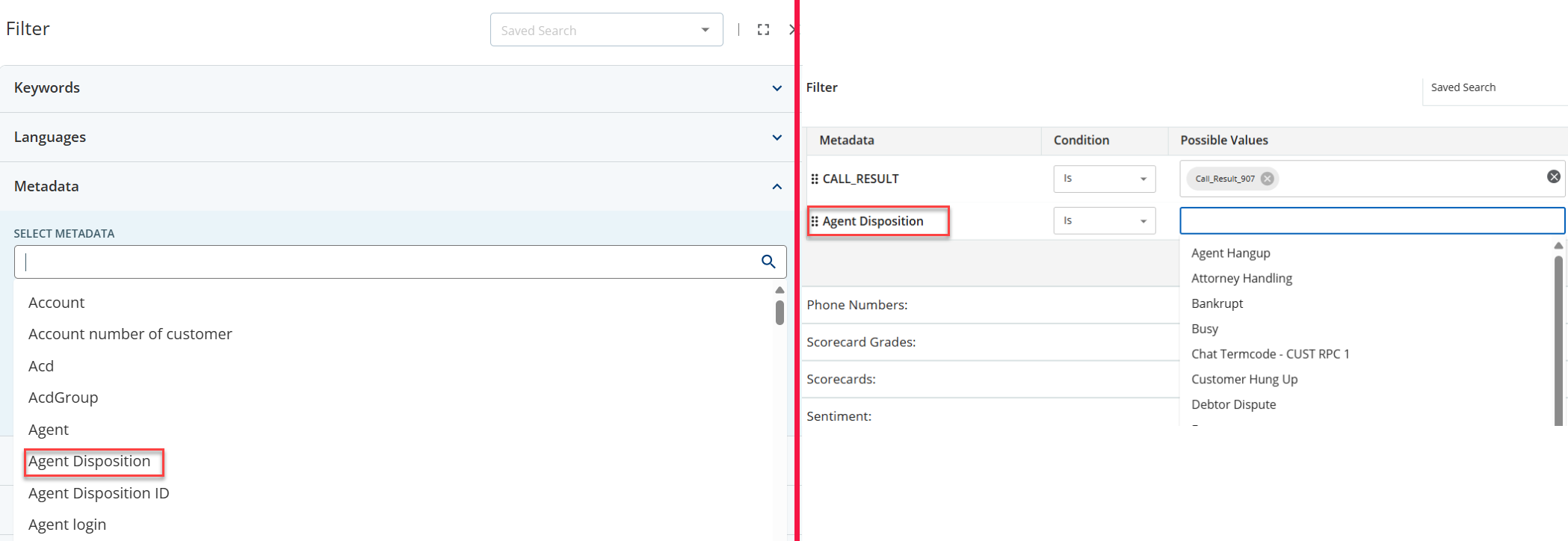
Phone Numbers Phone numbers of the inbound or outbound interaction.
You can specify multiple numbers by pressing Enter after entering each number in the text box.
Scorecard Grades Scorecard grades that apply to the interactions. For information about how to add or remove scorecard grades, see Adding a Grade to a Scorecard in the Scorecards section.
Scorecard Methods Scoring method: Automatic or Manual
Scorecards Scorecards that apply to the interactions. For information, see Scorecards.
Sentiment The sentiment (positive, neutral, or negative) of customers, agents, or both.
Services Services that apply to the interactions.
Silence Percentage Minimum and maximum duration of silence in calls (in percentage).
Skills Skills assigned to the agents.
Tags Tags that apply to the interactions.
Talk Over Percentage Minimum and maximum duration of talk in calls (in percentage). Transcript Status List of available statuses for transcripts, such as Received, Requested, or Error. The Transcript Status indicates the current processing stage of the call transcript. Trusted Partners The clients that are identified as trusted partners on the Trusted Partners tab under Client Editor in LiveVox Portal. Interaction Intent UUIDs Interaction intent UUIDs that are applicable for the interactions.
You can specify multiple interaction intent UUIDs by pressing Enter after entering each UUID in the text box.
Assessors Assessors that apply to the interactions.

- You can revert your changes by clicking Reset.
- If you want to immediately view the report or recorded interactions to which all your search criteria are applied, click Apply.
In the Search window, click Save.
If you had clicked Apply, in the report window, click the Advanced Search icon (
 ), and then, in the Search window, click Save.
The Save Search window appears.
In the Name field, enter a name with which to identify the search, and then click Save.
The saved search is created, and it appears as an option in the Saved Search drop-down list box in the window displaying a SpeechIQ report or recorded interactions.
- You can access a saved search by selecting the search in the Saved Search drop-down list box in the window displaying a SpeechIQ report or recorded interactions.
- You can modify a saved search by first accessing the saved search and then clicking the Filter icon ().