For scalability, the platform limits call conferences to 4 hours. Ten minutes before the conference ends, the platform sends a message to all participants about ending the conference in ten minutes. When the conference stops, the platform notifies all participants about the conference's end status.
Depending on the status of the agent or the customer, the following scenarios can apply:
- When an agent is in a Wrap-Up state for more than 4 hours, the platform wraps up the call with a default call result (For example, Caller Hung Up).
- When an agent is in the InCall state, the conference call will continue for the past 4 hours until the customer or agent ends the call.
- When an agent calls a customer and manually transfers the call to a supervisor or another party for assistance, then merges the calls and leaves the conference, the agent enters the Wrap‑Up state. In this scenario, the conference does not automatically end after four hours; it remains active until the customer or supervisor disconnects.
Previously, voicemail only allowed up to 50 voicemails to be viewed in the agent desktop inbox. Now, you are not restricted on the number of voicemails in your inbox.
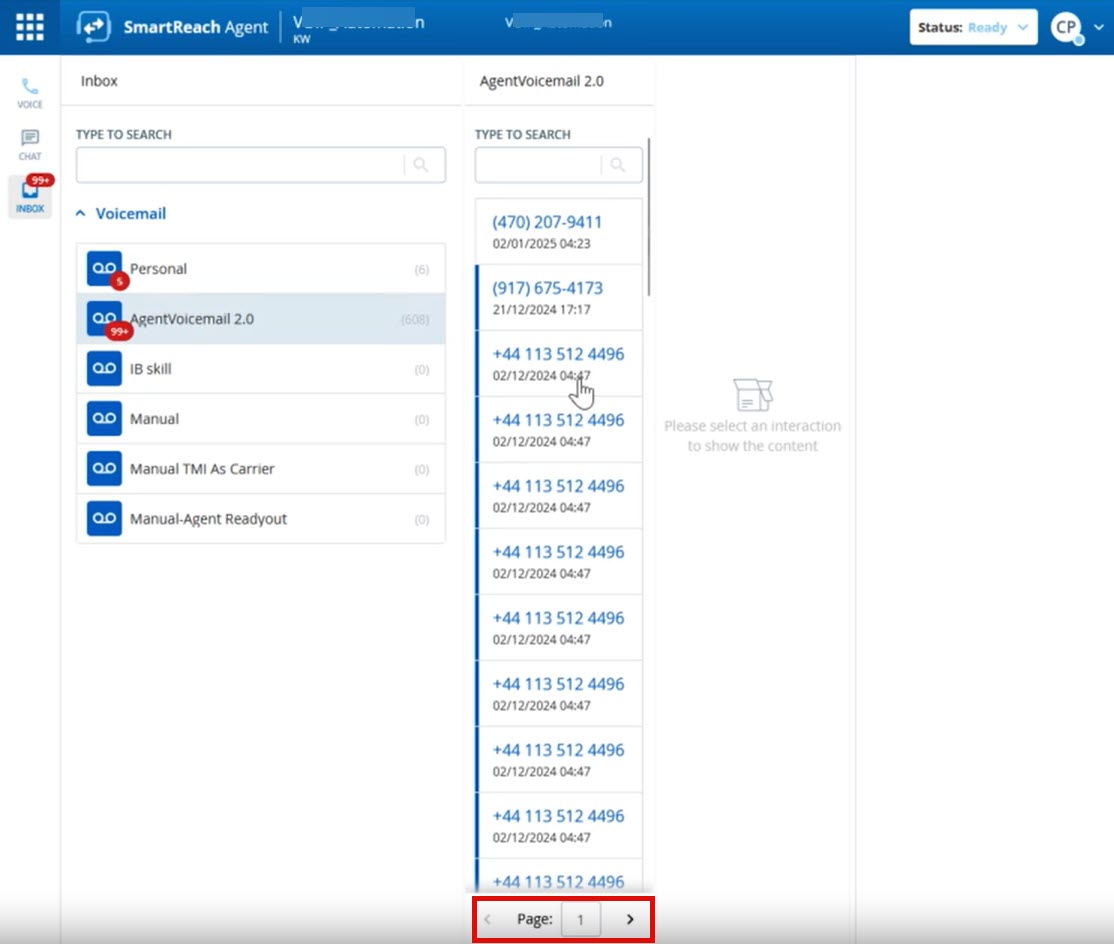
This enhancement is available starting with the Fall 24 Release.
Enhanced Search
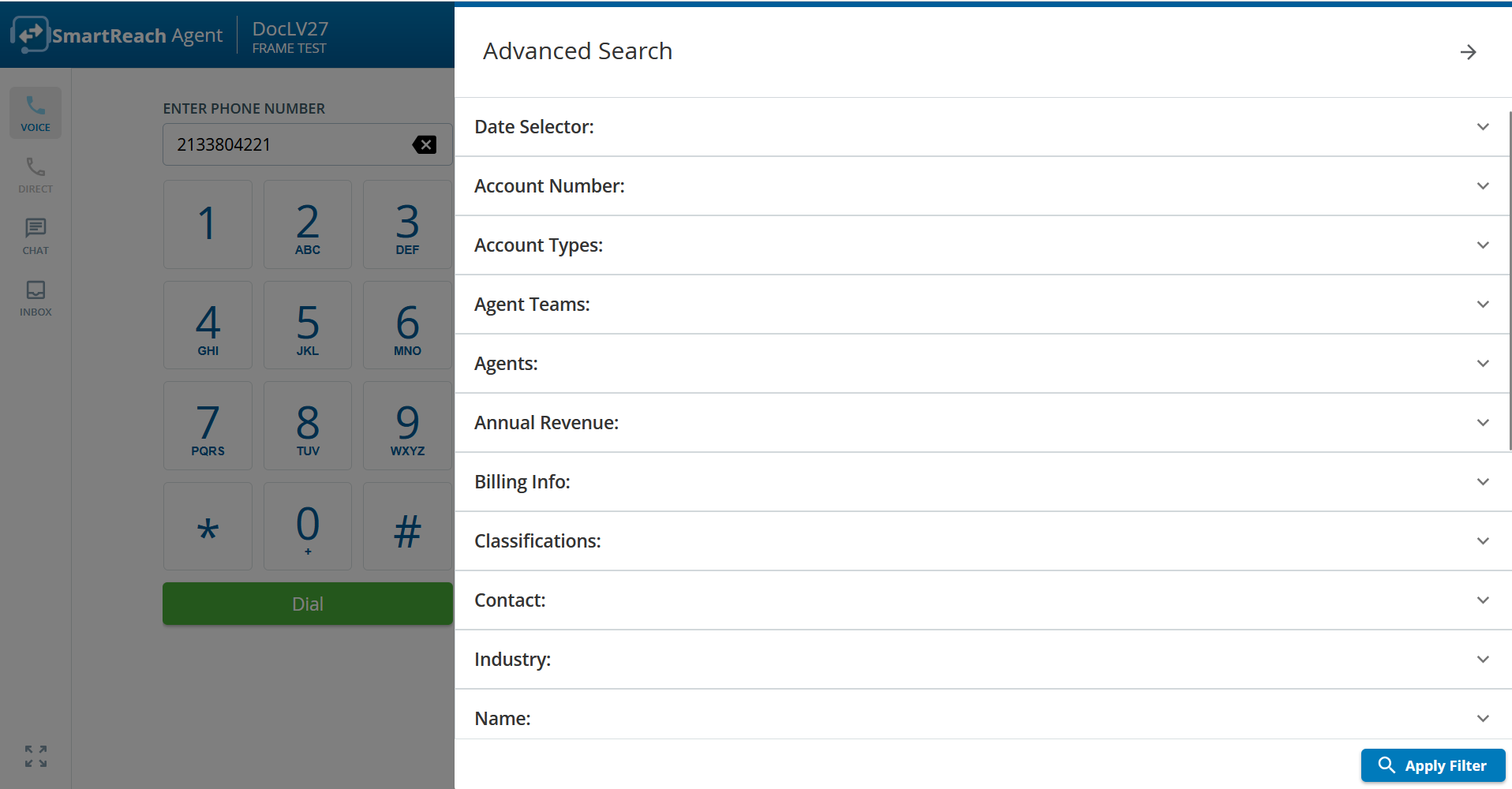
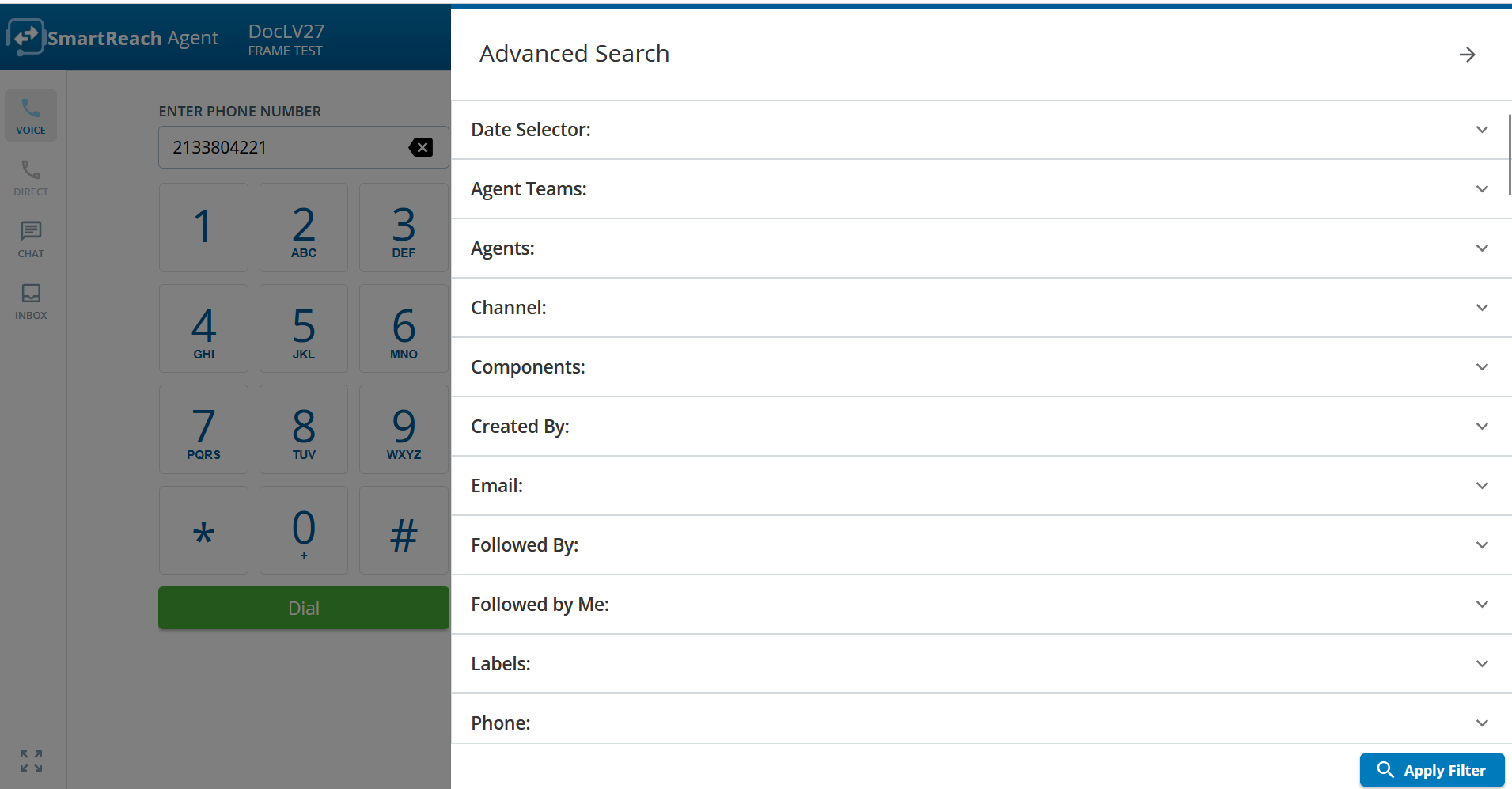
Account and Ticket search functionalities have been enhanced. If your administrator has added specific search parameters, you can use those search parameters from the Advanced Search icon from the Agent panel.
Account Advanced Search
Ticket Advanced Search
Enhancements to Interaction List and Interaction Details
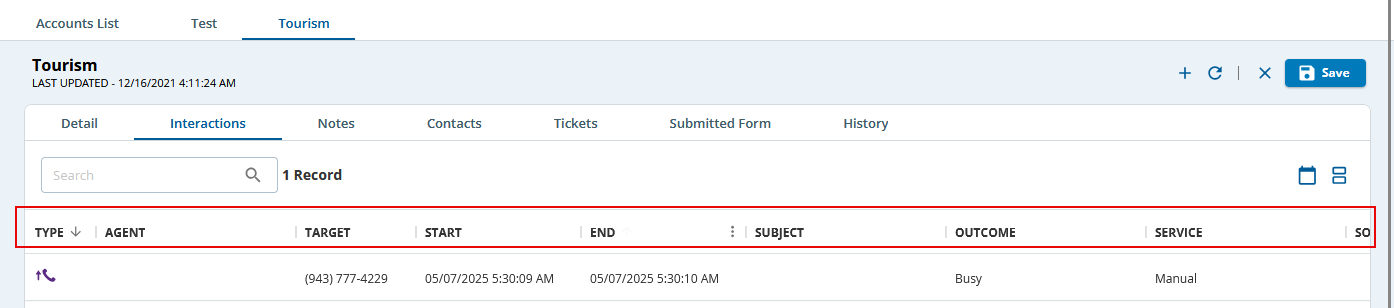
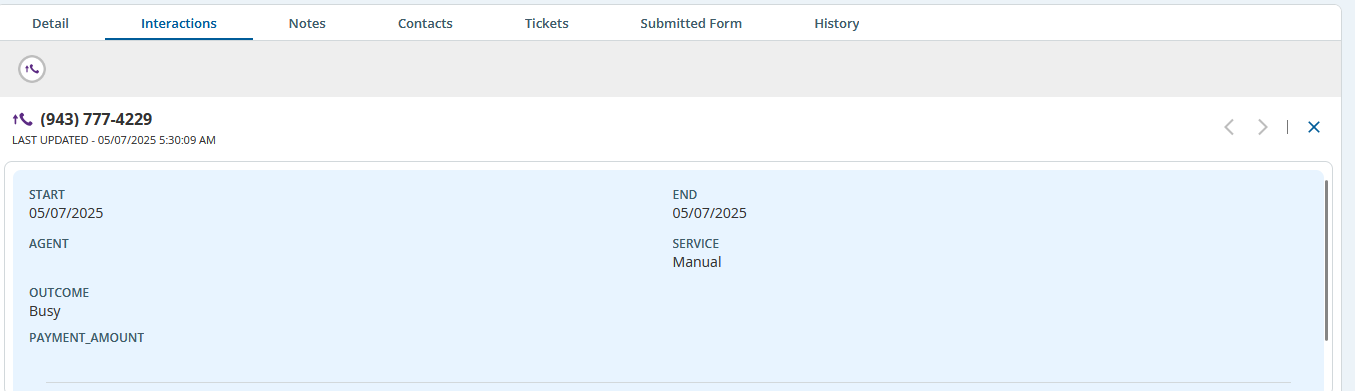
When you view an interaction list, only the fields configured by your administrator are displayed as columns in the interaction list. Similarly, when you view the details of an interaction, only the fields configured by your administrator are displayed.
Interaction List
In the following image, the columns displayed have been configured by your administrator.
Interaction Detail
In the following image, Start, End, Agent, Service, Outcome, and Payment_Amount fields have been configured by your administrator.
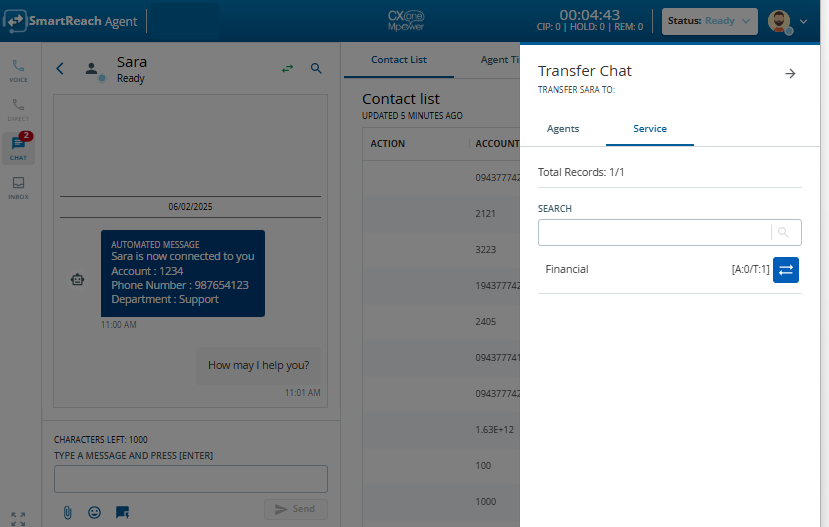
Transferring a Web Chat to
An agent engaged in a web chat with a customer can now redirect the chat to another service, another agent, or to an agent team. The following scenarios describe when an agent might want to transfer the chat:
- The customer might have unintentionally started a chat with an incorrect agent group. For example, the customer might have a contacted technical support instead of contacting sales.
- The customer might have multiple inquiries. For example, the customer starts the chat with a technical support issue, the support agent addresses the question, and then the customer follows up with a billing question.
In these scenarios, the agent who receives the chat might want to transfer the chat to a different service, agent, or an agent group that can address the customer's specific request.
The following types of web chat transfers are possible:
- Agent-to-agent transfer
- Agent-to-service transfer
- Service or service group transfer
The agent cannot transfer the chat to a service where no other agents are available to chat for the service.