Download PDF
Download page Voicemail 2.0 Infosheet.
Voicemail 2.0 Infosheet
The LiveVox/SmartReach Voicemail 2.0 features two types of inbound voicemail boxes - an agent's personal voicemail box and a group voicemail box. While many agents can access group voicemail, the agent's personal voicemail is specific only to that agent.

A group voicemail allows access to voicemails to all the agents who can log into the specific service so that they can take the expected actions on the messages left there.
With Voicemail 2.0, agents can view, play, record unavailable messages, and download voicemail messages directly from the agent desktop. Administrative users can configure unavailable messages through the Contact Flow editor for inbound group voicemail boxes. For more information on adding unavailable group voicemail messages, see the Voicemail Module. Also, administrative users can check group voicemails through the Voicemail Recording Report, which is available on the LiveVox/SmartReach portal.
Upgrade Requirements
The Voicemail 2.0 features are available in all supported versions of the LiveVox/SmartReach portal. Contact LiveVox/SmartReach Customer Care for assistance with scheduling your upgrade if you are still on Voicemail 1.0.

Regarding Updates
- Voicemail 1.0 is not recommended on LV19 and is not supported with the release of Fall 23 onwards.
- All voicemails (personal or group) are deleted during the migration to Voicemail 2.0. Old voicemails are no longer available after the upgrade. To save voicemail messages:
- Review and clean up your voicemails before requesting an upgrade.
- Back up your existing voicemails with the help of the LiveVox/SmartReach Customer Care Team. The LiveVox/SmartReach Customer Care Team can help you back up your voicemails to a .zip file and provide instructions on how to download the file.
- "Day of" voicemails may not be included in this .zip file process.
Features
Voicemail 2.0 contains the following features:
| Feature | Description |
|---|---|
| Download | Ability to download voicemails in MP3 format. |
Personal Agent Greeting | Ability to record or upload a personal greeting message (supported file format is .WAV). |
| Storage | Voicemail storage capacity of up to 500 MB. |
| Number of voicemails | There is no restriction on the number of voicemails to be viewed in the agent desktop inbox. |
| Visual Voicemail | Access to voicemail is visual. You can perform all actions through the agent desktop. The phone number of the caller (Caller ID) is available on the screen. You can listen to voicemail messages in any order and also play the messages. |
| Real-time notification | Real-time notifications are provided in the agent desktop for both personal and group voicemail boxes. |
| Voicemail duration | The maximum length of time available to record a voicemail is five minutes. |
| Voicemail Recording Report | Users can access group voicemails through the LiveVox/SmartReach Portal by navigating to Review > Agent Reports > Voicemail Recording Report. For more information about the Voicemail Recording Report, see the Voicemail Recording Report section in this document. |
| International caller ID support | Voicemail 2.0 supports international caller ID in E.164 format. This enables you to identify the country of origin for the incoming call.
|
| Voicemail transcription | Agents and Administrative users can receive real-time voicemail (VM) notifications through email. You can check an email as an alternative to playing the voicemail on the agent desktop. The system supports voicemail notifications with the following options:
|
Configuring Voicemail 2.0 Functionality
Personal Agent Voicemail
Once Voicemail 2.0 is enabled by LiveVox/SmartReach Customer Care, complete the following steps to configure Voicemail 2.0 features:
- Navigate to Configure > Agents > Agents. The Agents window appears.
- Under the General tab, double-click the agent row for which you want to configure the personal Voicemail 2.0. The Agent Details window appears.
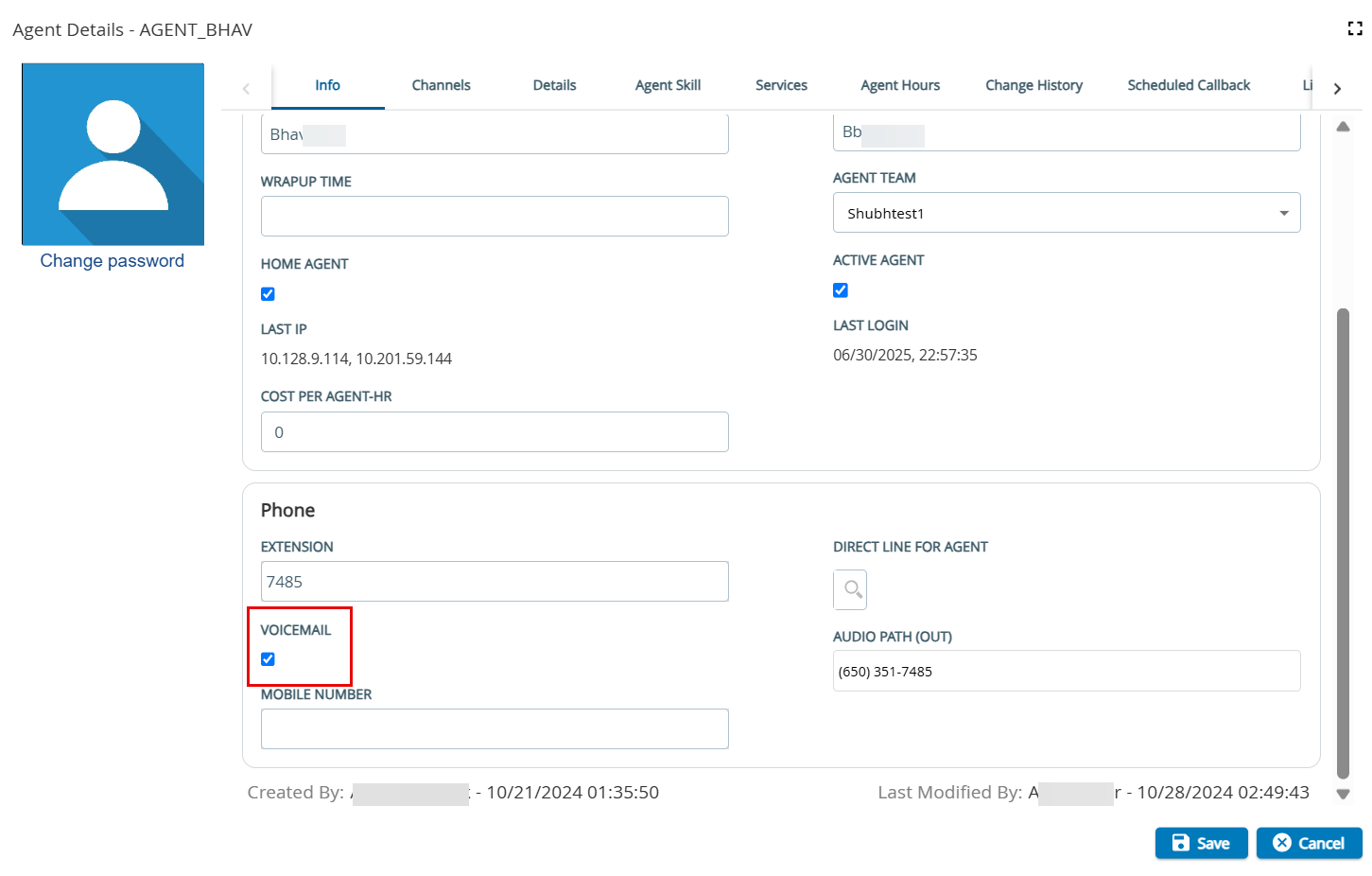
- Enter the Agent's Extension or specify the Direct Line for Agent by using the search option to select the agent's Direct Inward Dialing (DID) number.
- Select the Voicemail checkbox to enable the personal voicemail for the agent.
- Click Save.
- To configure the inbound message, navigate to Configure > Services > Services. Double-click the required service from the Services editor. The Edit Service window appears.
Go to the Phone Numbers tab.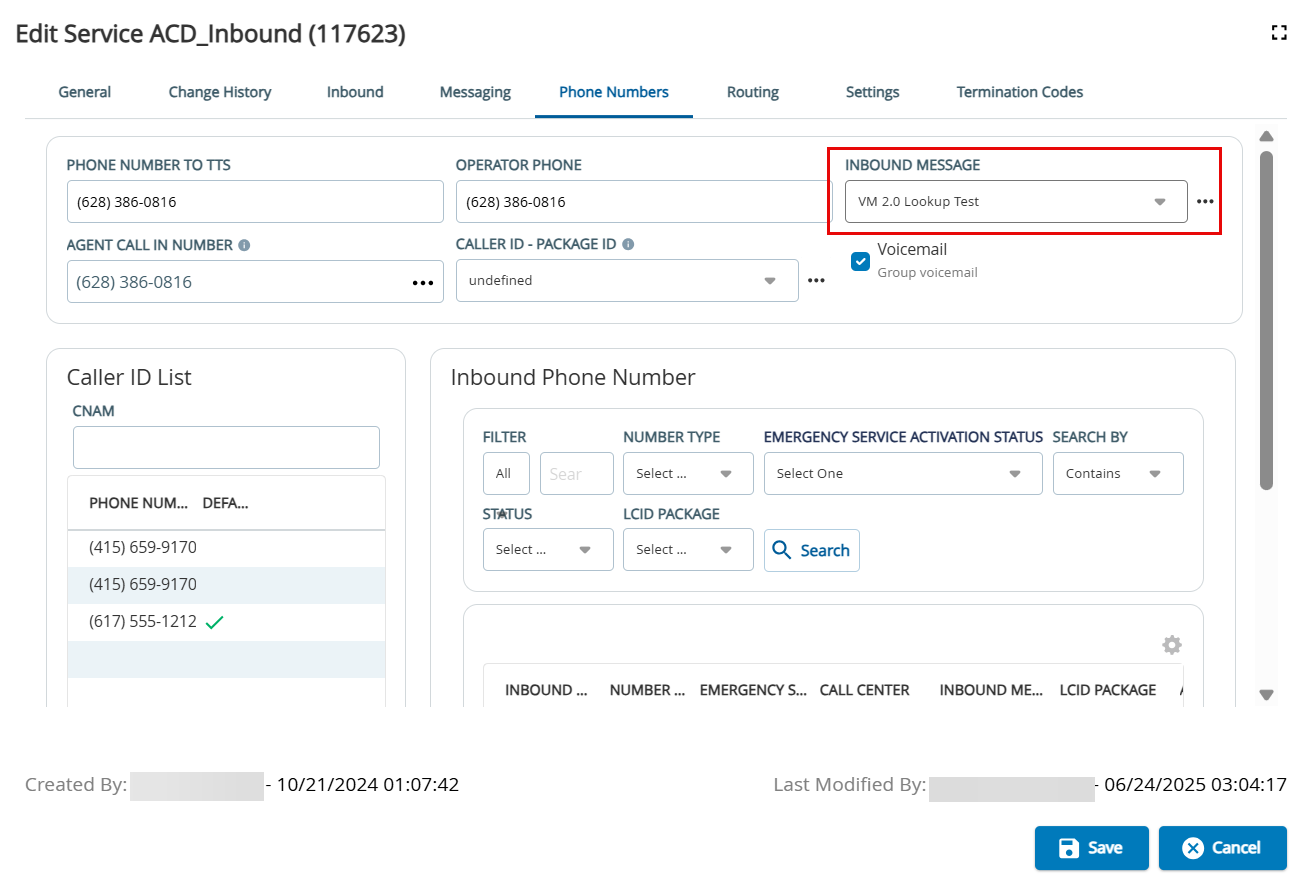
- From the Inbound Message drop-down list, select the corresponding inbound message where Voicemail has been configured.
- Click Save.
Group or Service Voicemail
Complete the following steps to configure the group Voicemail 2.0 feature:
- To configure the inbound message, navigate to Configure > Services > Services.
- Double-click the required service from the Services editor. The Edit Service window appears.
- Click the Phone Numbers tab.
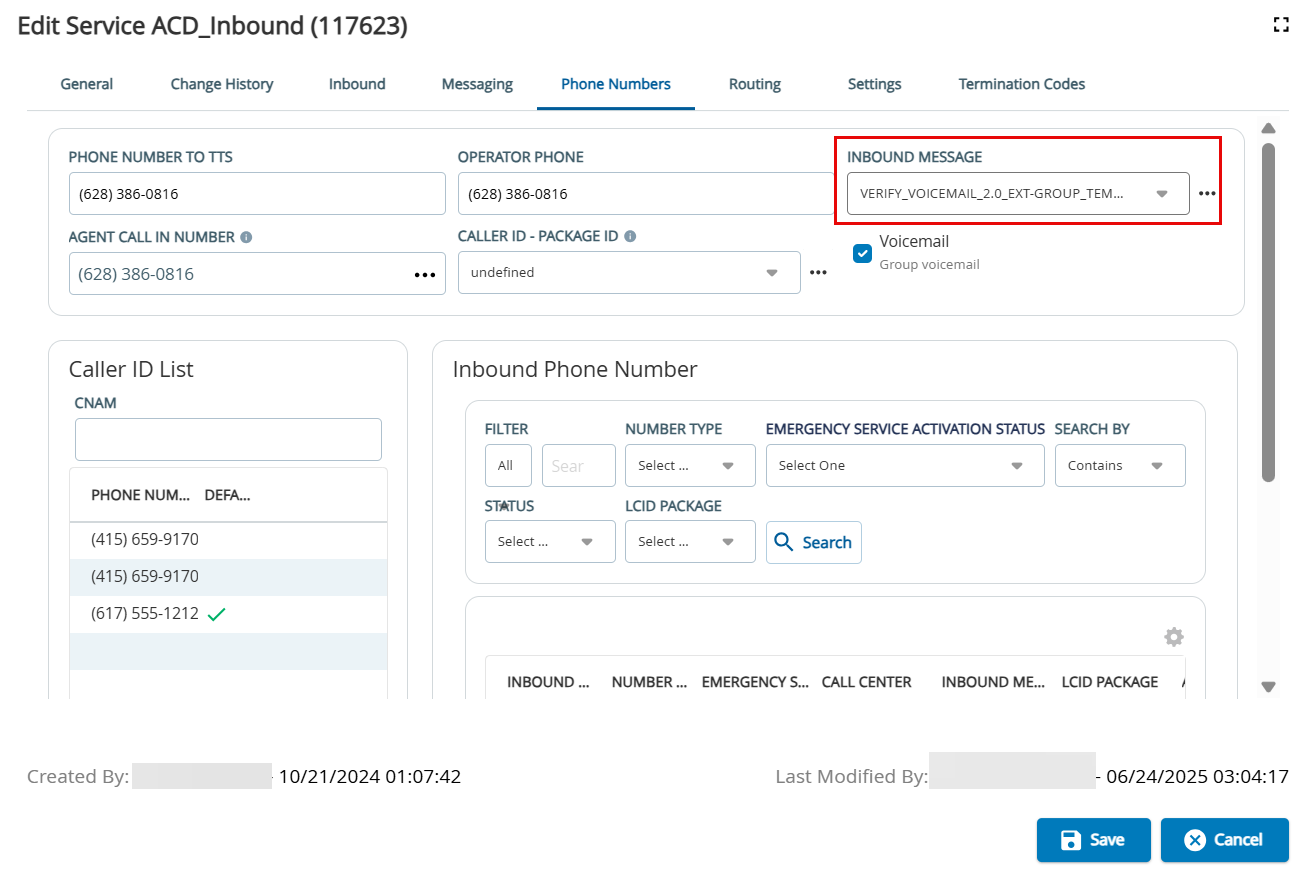
- From the Inbound Message drop-down list, select the corresponding inbound message where Voicemail has been configured.
Select the Voicemail checkbox to allow callers to leave a group voicemail with a corresponding contact flow.
Click Save.
- The group voicemail PIN for Voicemail 2.0 is not applicable.
- Access to Group Voicemail is configured by the Service assignment in the Agent editor.
- For more information on adding unavailable group voicemail messages, see the Voicemail Module.
Checking Voicemail 2.0 from the Agent Desktop
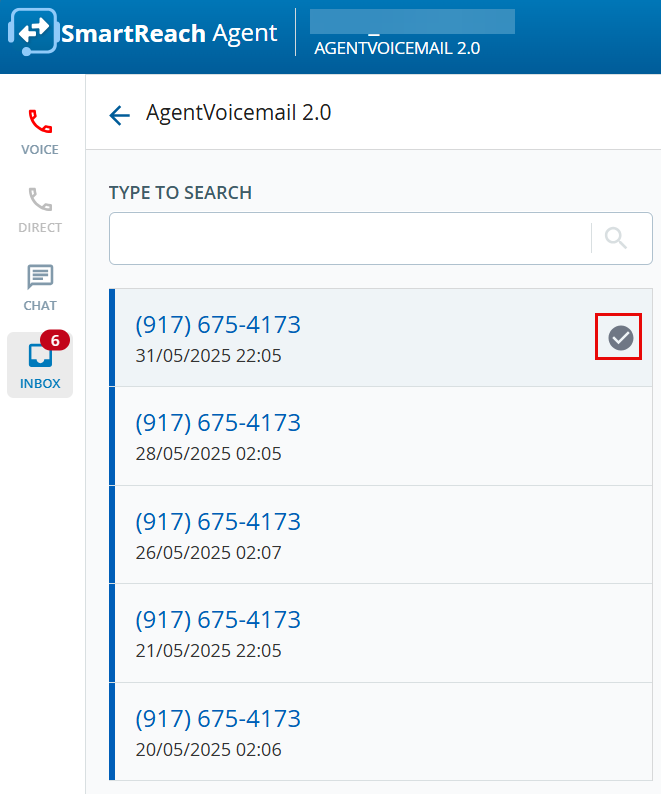
Agents can access personal and group (service name) voicemails from the INBOX tab of the agent desktop. To check group or personal voicemail on the agent desktop, follow the procedure below:
Click the INBOX tab to access voicemail. The tab displays the personal and group voicemail boxes to which you have access and the number of unheard messages out of the total message count.
- Only messages from the current and previous months are displayed to agents.
- The Voicemail inbox displays the number of unread voicemails in a red circle and the total number of voicemails in round brackets next to the inbox.
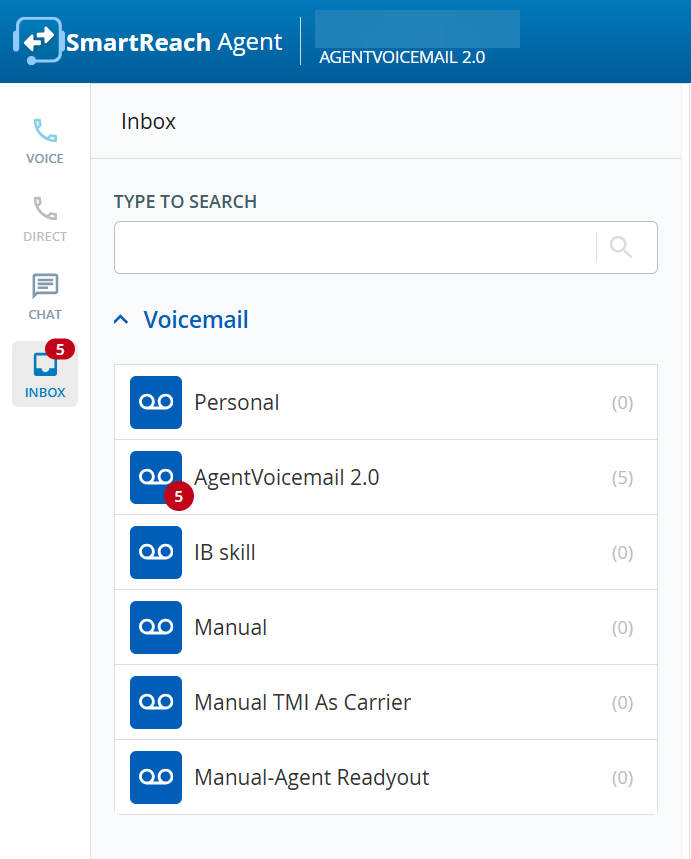
The default naming conventions for personal and group voicemail boxes are as follows:
- Group Voicemail Box: An agent desktop displays the group voicemail name as the service name. If the service name is long, then it shows a partial service name with an ellipsis (...).
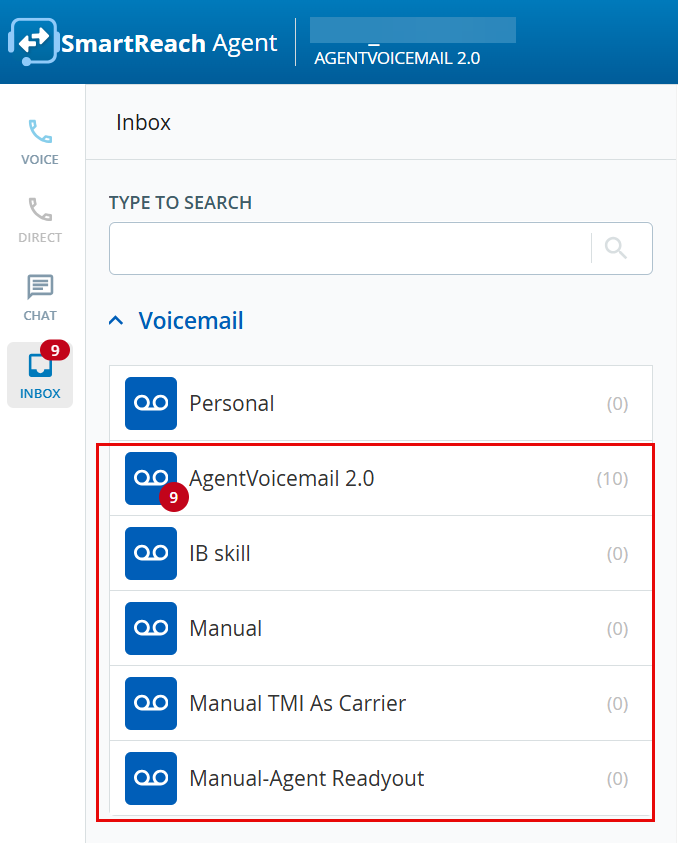
- Personal Voicemail Box: An agent desktop displays a personal voicemail name.
If the agent has more than one direct line for the agent or up to 10 extensions, the agent desktop displays Personal followed by the phone number.
For example, suppose, the Home Country is configured as the UK for the site, then the Voicemail box name scenarios are as follows:- The Voicemail box now displays as Personal.
- If the second direct line for the agent's voicemail phone number is 441225982446, then the Voicemail box displays as Personal 01225 982446 (the local home country phone number is displayed using the E.164 format).
- If the third direct line for the agent's voicemail phone number is an international number 16142853713 or +16142853713, then the voicemail box displays as Personal +1 614-285-3713 (the international phone number of the home country is displayed using the E.164 format).
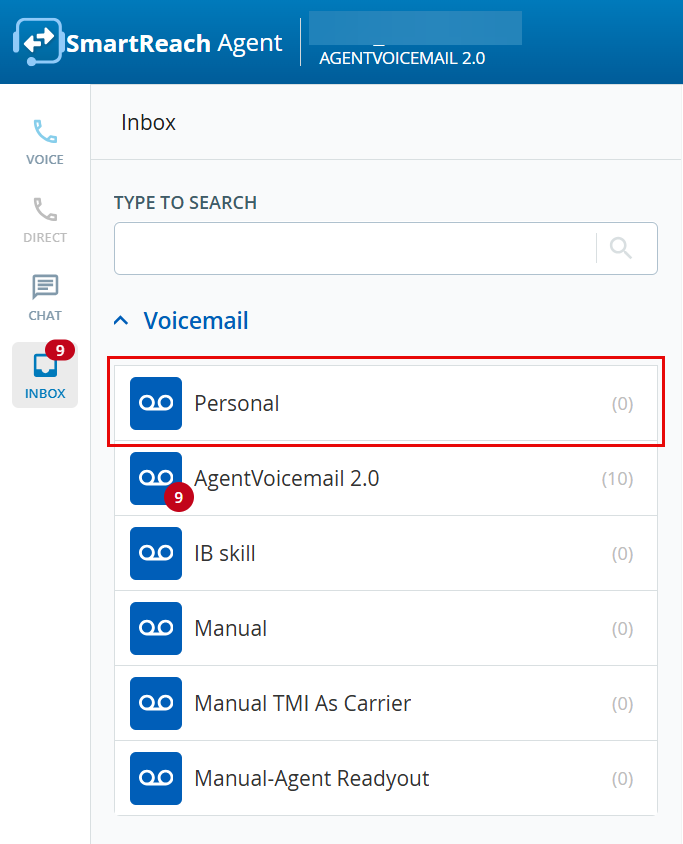
- Select the desired mailbox from the list of personal or group voicemails.
- The caller ID, date, and time are displayed on the agent desktop.
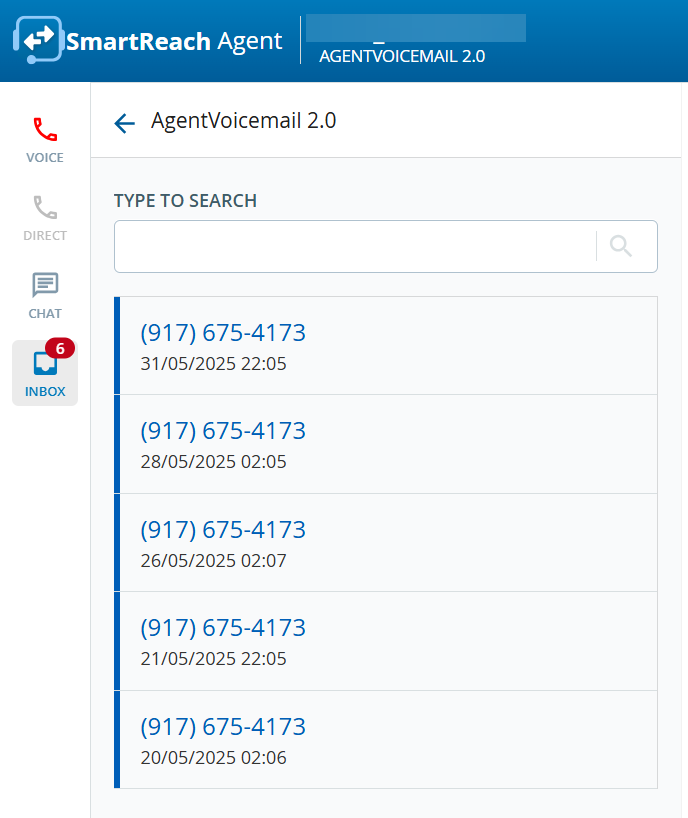
- Click the required voicemail row to listen to the voicemail.
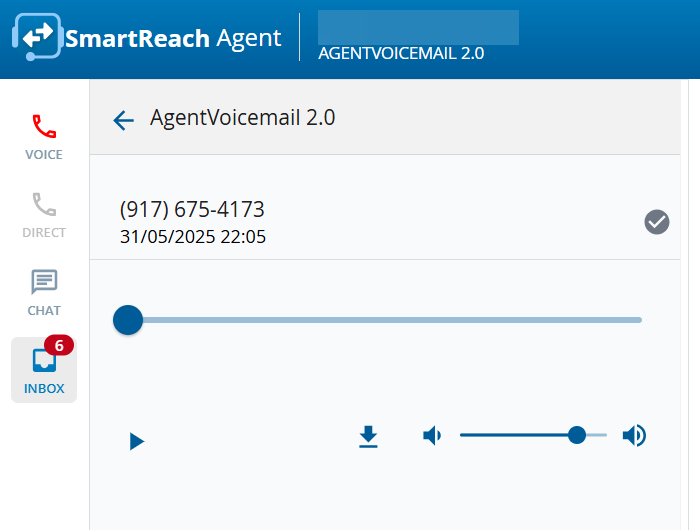
- To play the audio, click the play button (
 ).
- To download the voicemail, click the download button (
 ).
- To adjust the playback volume, click the volume slide (
 ).
Voicemail audio is stored in MP3 format.
- To play the audio, click the play button (
- Hovering over the caller ID number displays the resolve (
 ) icon. Click the resolve icon to remove the voicemail from your inbox after listening to the message.
Agent and group voicemail boxes cannot be accessed by a user outside the agent desktop. However, Public APIs for VM 2.0 are available if needed.
Recording a Personal Greeting
Agents can record a personal greeting message or upload a pre-recorded message using the supported .WAV file format in the Agent Desktop. To record/upload a personal greeting message, go to your personal voicemail. Click the cog icon ( ), as shown below. The Record Greeting window appears.
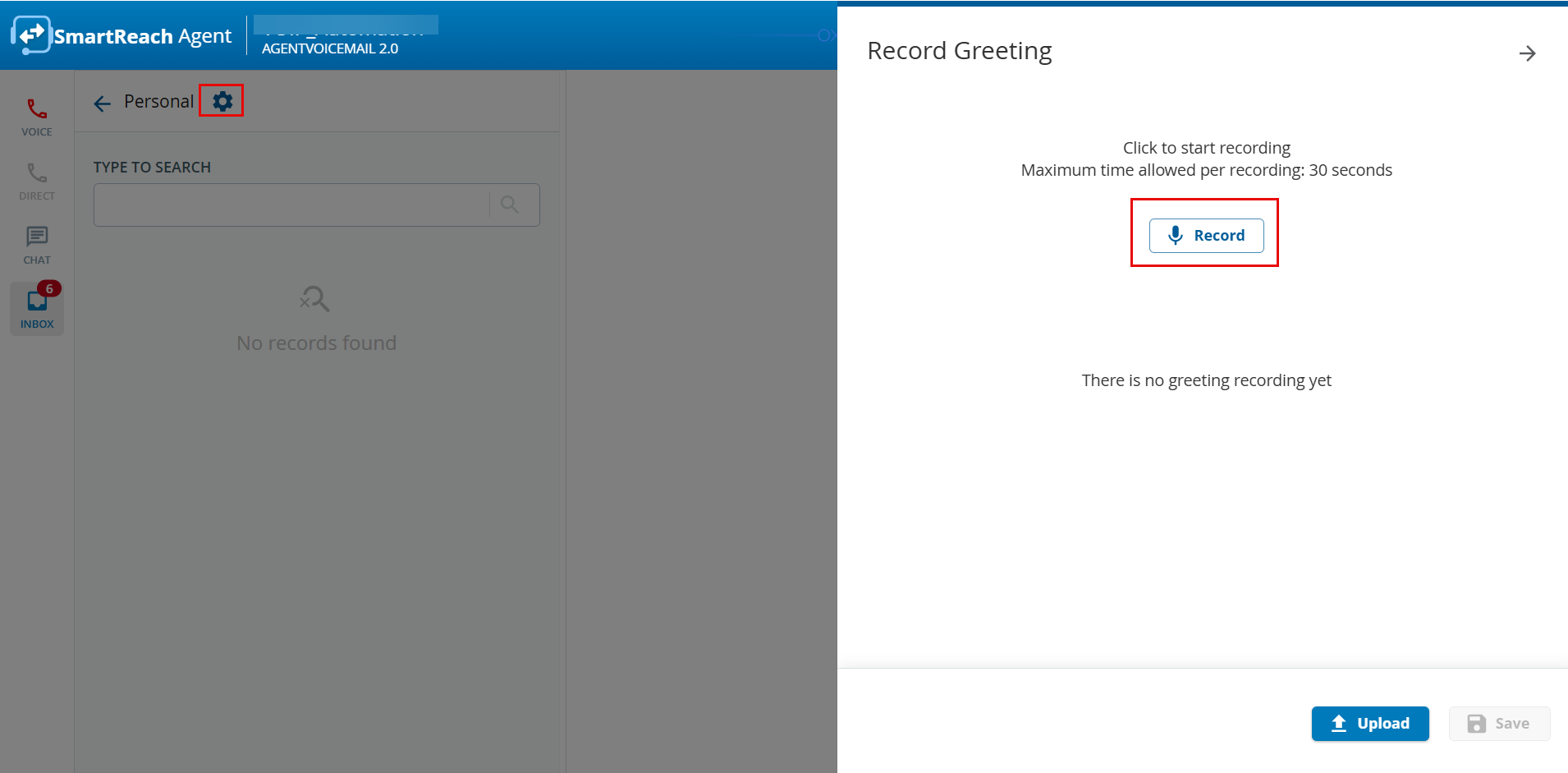
To record a personal message:
- Click the Record button. Start recording your message. You can use the Stop or Pause buttons to stop or pause your recording.
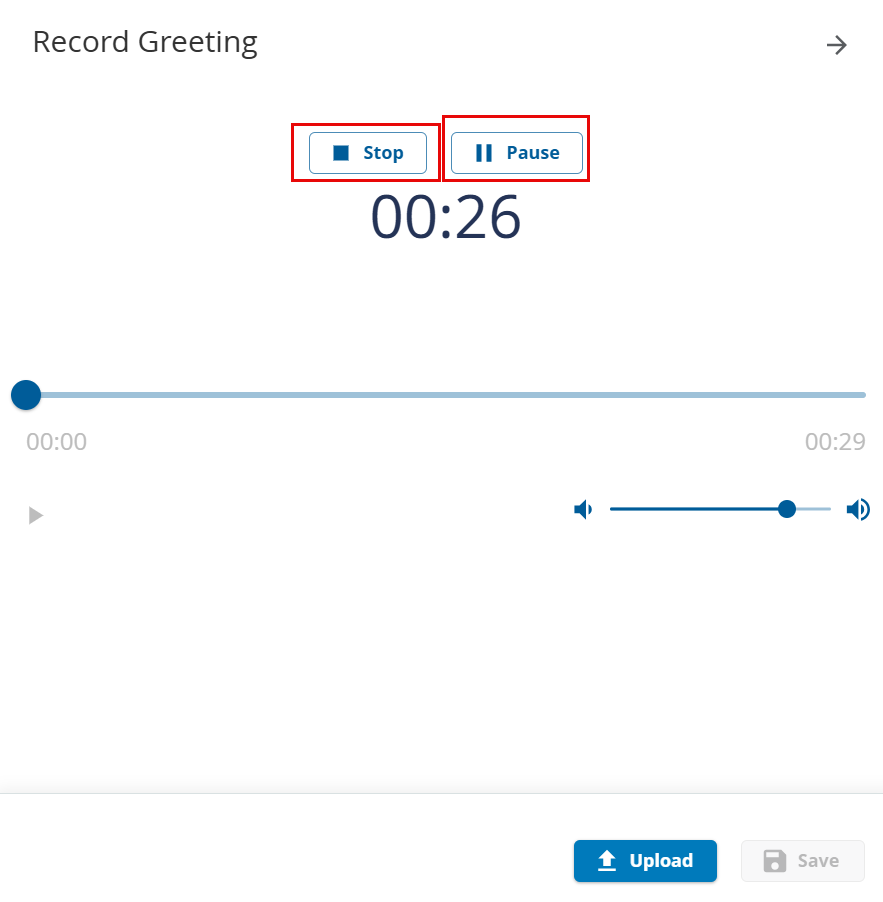
Click the Stop button when you have finished recording your message. The maximum time allowed for the recording is 30 seconds.
When you are recording a personal greeting message and only 10 seconds are left from the maximum allowed time, the following message appears.

- Click the play button to listen to your recorded personal message.
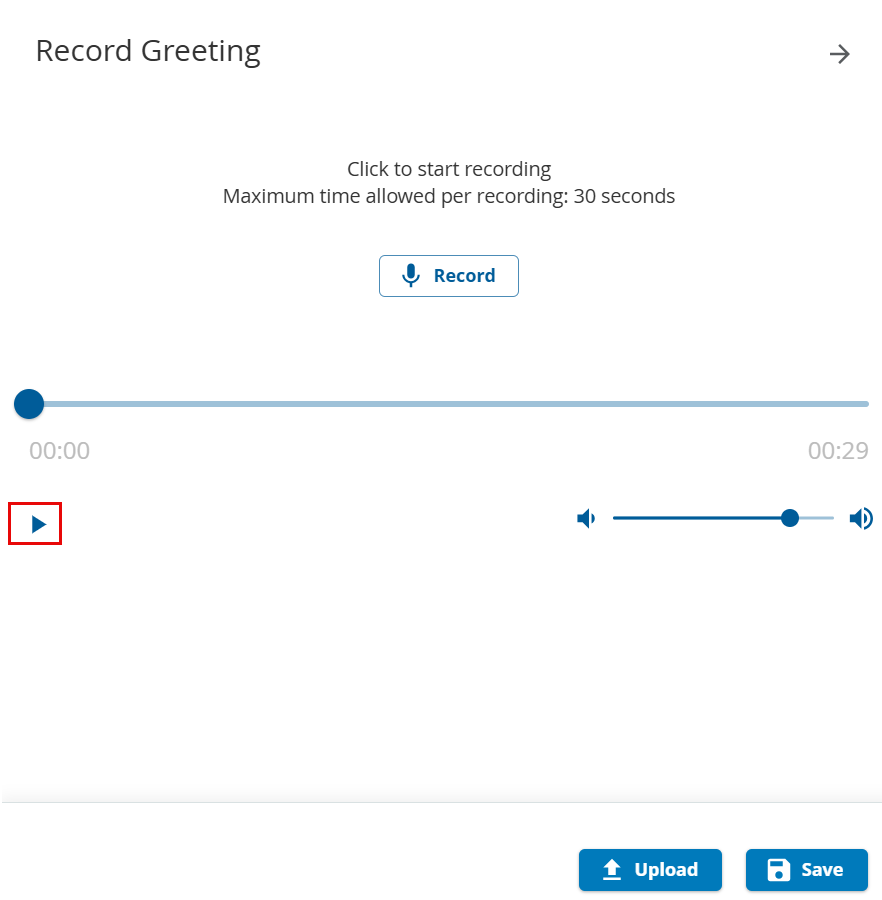
- Click Save to store the recorded greeting message. The following message appears:

To upload a personal greeting message:
- Click the Upload button from the Record Greeting window.
- Select the file from your computer that you want to upload (supported file format is .WAV).
- Click Save. The following message appears:
Voicemail Playback for Agents without Sound Cards: Agents who do not have a sound card on their PCs or virtual machines can still play voicemail using the Play button. A voicemail plays over the agent's audio connection and the agent is moved to the Not Ready status. When the voicemail has completed playing, the agent is moved back to the previous status.
- Enter about:config in the URL bar.
- Click the Enter button.
Search for media.setsinkid.enabled and set that flag to true.
Ensure that you have microphone is active before you log in as an agent.
Voicemail Recording Report
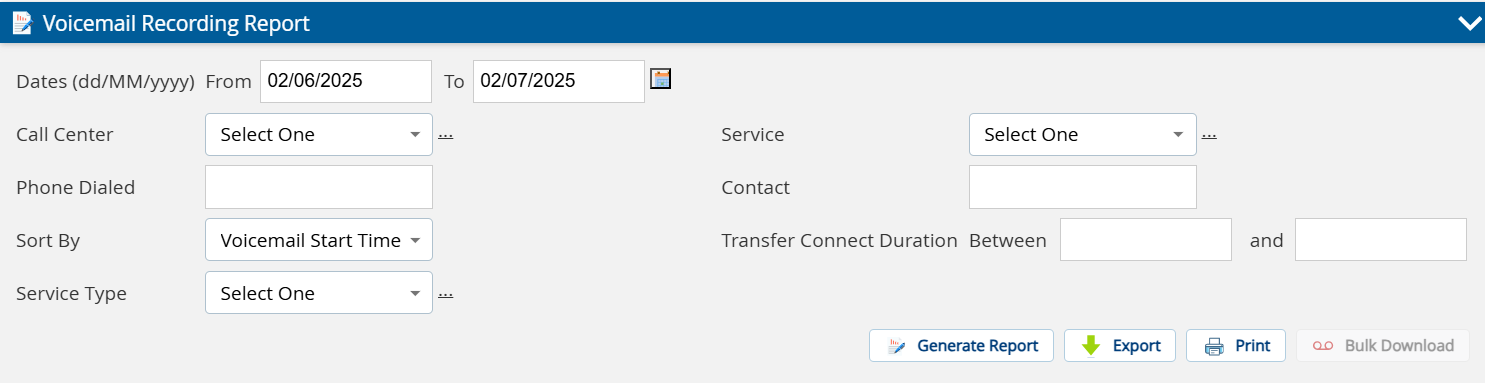
The Voicemail Recording Report is a standard report available to users through the portal. The Voicemail Recording Report is generated depending on the search criteria. Users can play and download the Group Voicemail recordings from the list of records in the Voicemail Recording Report. However, users cannot play or download an agent's personal voicemail recordings from the Voicemail Recording Report. The agent's personal voicemail recordings are only available for them to access through the Agent Desktop Voicemail Inbox.
To access the Voice Recording Report, navigate to Review > Agent Reports > Voice Recording Report .
If a Group Voicemail is resolved by an agent on the agent desktop, then that Group Voicemail recording is no longer available in the Voicemail Recording Report. However, the corresponding Group Voicemail metadata is reflected in the report.
You can use the following search criteria to generate the Voicemail Recording Report:
- Dates
- Call Center
- Phone Dialed
- Sort By
- Service Type
- Service
- Contact
- Transfer Connect Duration
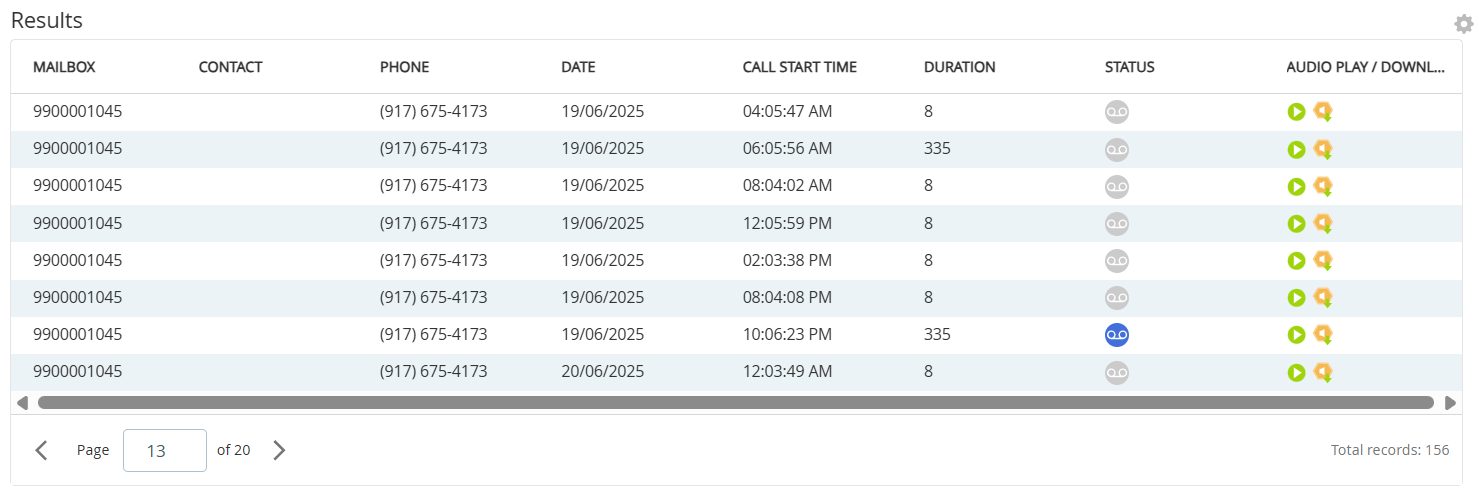
The Voicemail Recording Report contains the following columns:
- Mailbox
- Contact
- Phone
- Date
- Start Time
- Duration
- Status
- Audio Play / Download
- The Voicemail Recording Report can be generated with a start and end date range no greater than 90 days.
- You can export the Voicemail Recording Report to PDF, Excel, and CSV formats by clicking on the Export button. However, you cannot access the voicemail recordings from within these exported files. The links to the sound files are available only from the LiveVox/SmartReach portal.
- To download up to 5 recordings at a time from the generated report, select the recordings using the CTRL key and click the Bulk Download button. The output is a zip file.
LiveVox/SmartReach Customer Care Contacts
24-Hour Customer Care Line: (888) 477-3448
To submit a ticket, please reach out through our Community platform at https://community.niceincontact.com/s/
This document is proprietary to inContact, Inc. (“inContact”) (successor to LiveVox, Inc.) and is protected by applicable copyright laws. This document is provided to inContact customers and other users authorized under applicable agreements solely for use in connection with inContact products and services. Except as expressly permitted for such internal business use, this document may not be reproduced, distributed, modified, translated, or otherwise used without the prior written consent of inContact.
This document is provided for informational purposes only and does not constitute legal, regulatory, or compliance advice. Customers are solely responsible for ensuring their use of inContact products and services complies with all applicable laws and regulations.
Certain features or services may rely on third-party products or services. inContact does not control and is not responsible for the performance of such third-party products or services and disclaims any liability arising from the acts or omissions of third-party providers. inContact makes no representations or warranties regarding content or services provided by third parties.
For Internal and Client Use only