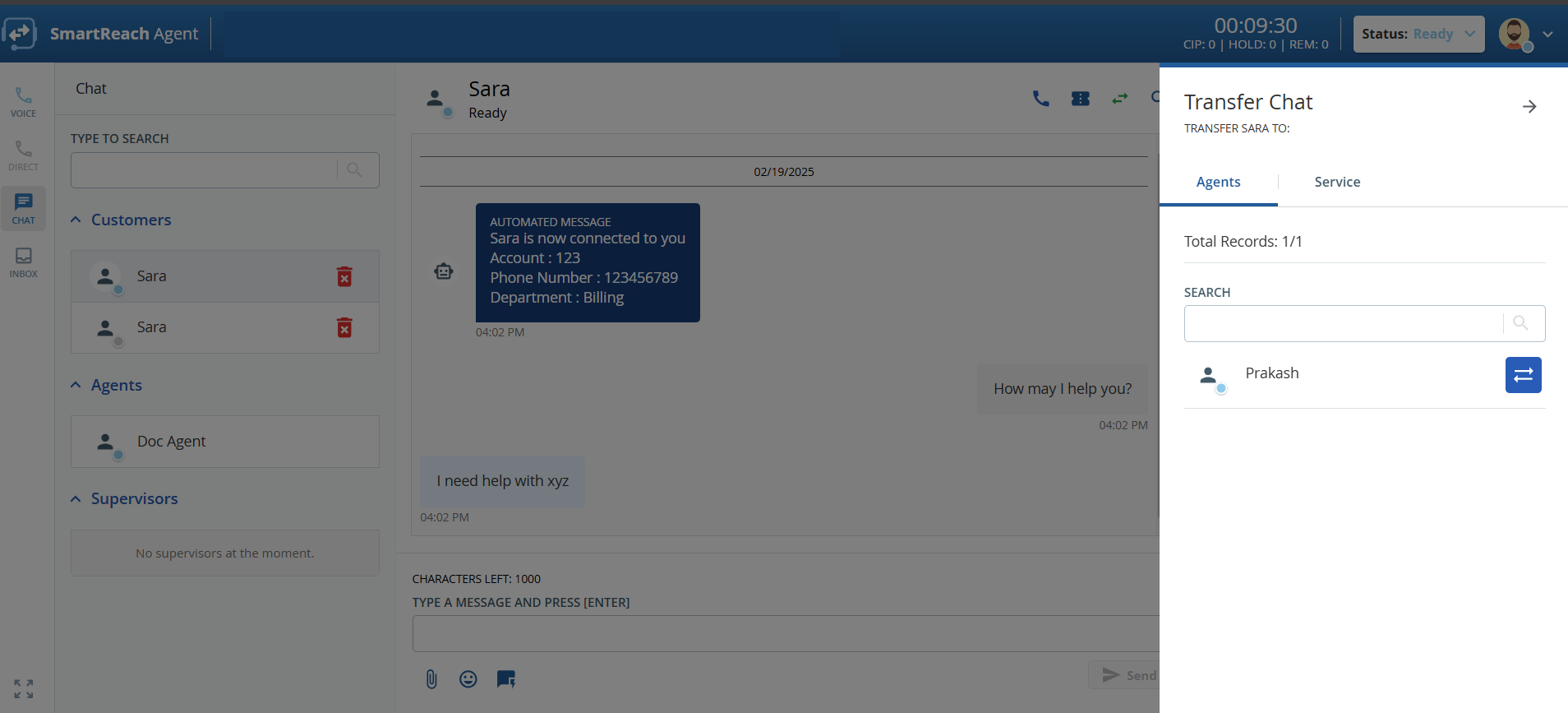
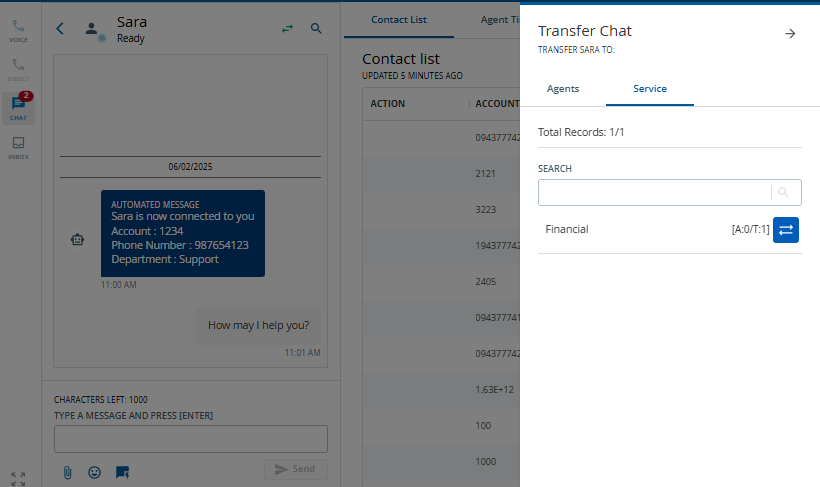
You can transfer a chat (the entire thread) from a customer to another service, another agent, or to an agent team to ensure that the conversation is handled by the appropriate personnel and escalated when required.
The following scenarios describe when an agent might want to transfer the chat:
The customer might have unintentionally started a chat with an incorrect agent group. For example, the customer might have a contacted technical support instead of contacting sales.
The customer might have multiple inquiries. For example, the customer starts the chat with a technical support issue, the support agent addresses the question, and then the customer follows up with a billing question. In these scenarios, the agent who receives the chat might want to transfer the chat to a different service, agent, or an agent group that can address the customer's specific request.
The following types of web chat transfers are possible:
Agent-to-agent transfer
Agent-to-service transfer
Service or service group transfer
The agent cannot transfer the chat to a service where no other agents are available to chat.
To transfer a chat:
On the Chat tab of the Agent Desktop, in the Customers section, select the chat that you want to transfer.
In the chat thread, click the Transfer icon . The Transfer Chat window appears.
In the Transfer Chat window, click the Transfer icon next to the name of the agent to whom you want to transfer the chat to the agent. To transfer the chat to a service, under the Service tab select the service, and click the Transfer icon. The Confirm window appears.
Click Yes. A message stating that the transfer is successful appears and the chat is transferred to the selected agent. You can no longer view the chat. In addition, a message stating that the chat is transferred to a different agent is displayed to the customer.