As a digital agent, you can access chat, email, SMS, and voicemails, and manually link an interaction to a contact or a ticket from the agent's desktop.
To manually link an interaction to a ticket:
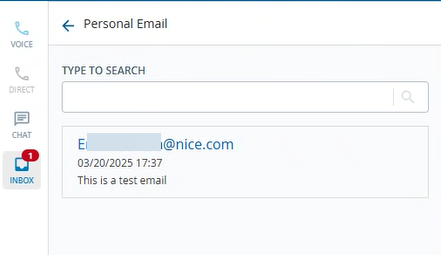
In the agent desktop window, click on the INBOX. All the emails, SMSes, and voicemails appear under the respective section.
The list of emails you received from customers appears in theEmailsection. Emails can appear under the services or personal email section of an agent. Click and open the respective email.
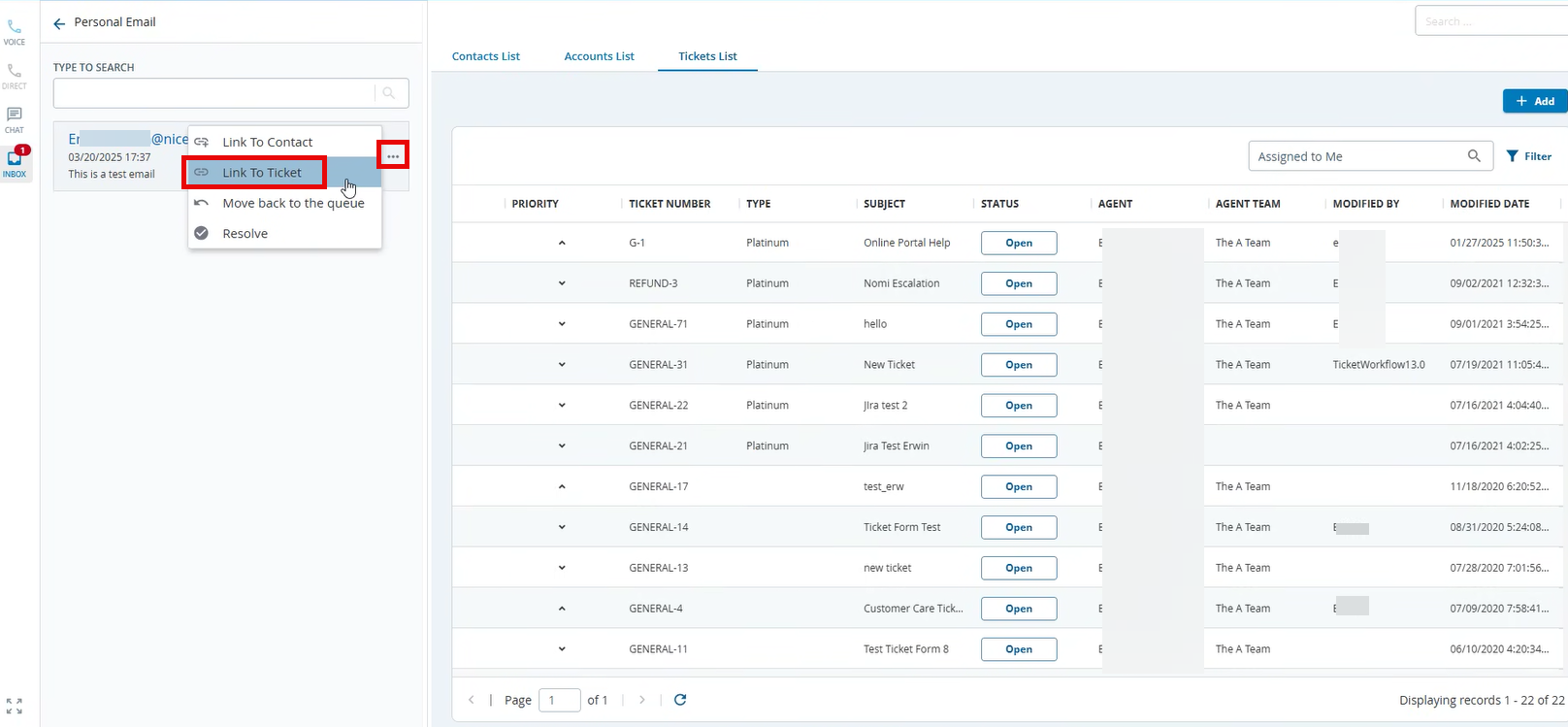
Hover on the email, and three dots appear.
Click on three dots, select theLink to Ticketoption. TheTicket Listappears.
You can view the tickets only if the Contact Center CRM feature is enabled.
Search and select the required ticket from the list to link.
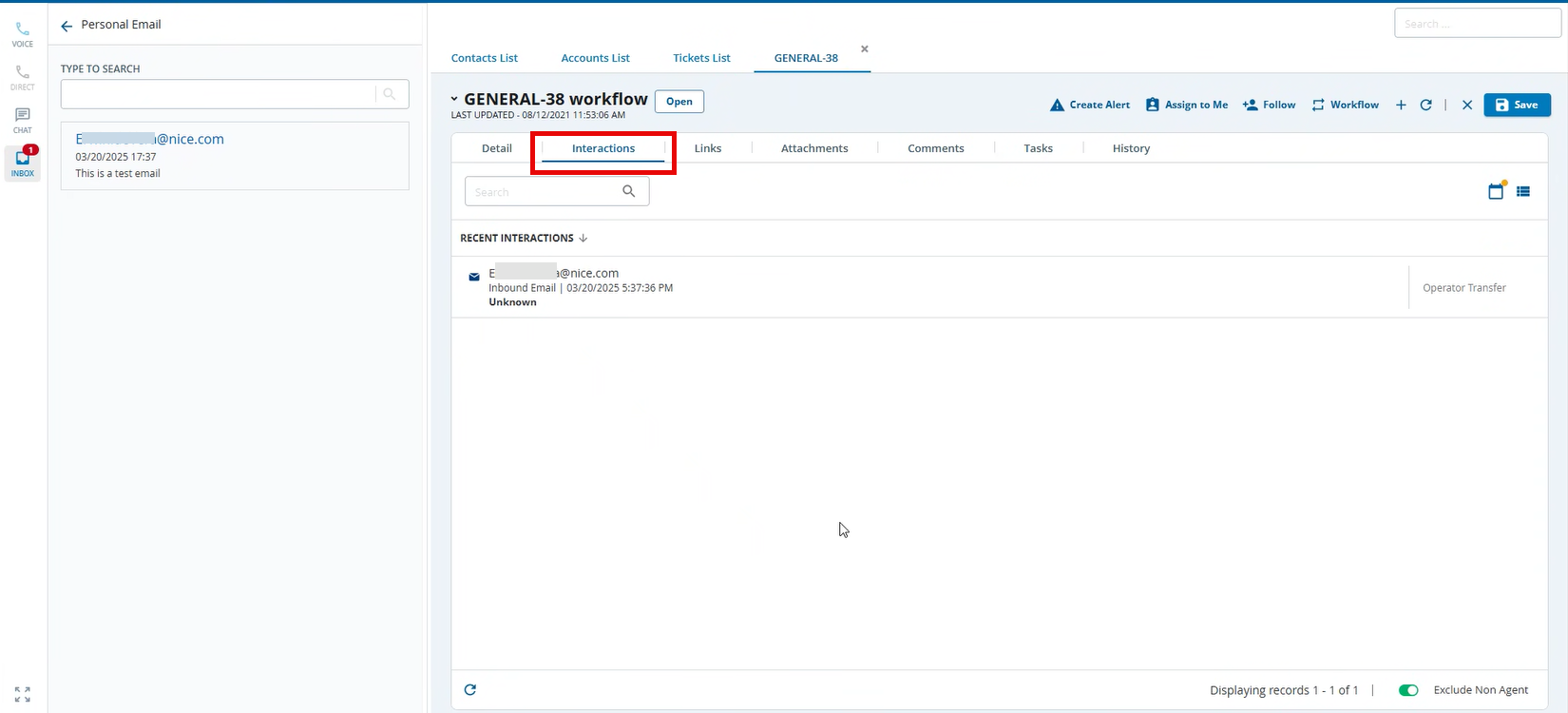
Now, click theInteractionstab underTickets. The selected interaction appears in theInteractionstab.
You can link chat, SMS, and a voicemail message to a ticket using the above steps.