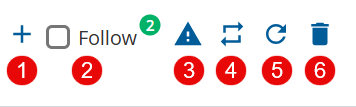
After you create a ticket, you can create alerts, follow a ticket, and change the workflow status.

Navigate to Config > TICKETING >Tickets > Tickets List. Double-click a ticket from the list to view ticket details and execute the following tasks:

  1. New Ticket: Create a new ticket. Click the New Ticket  icon. For more details, see Creating a Ticket.
  2. Follow: The agent/user receives notifications for all updates by following a ticket. You can follow or unfollow a ticket; to follow a ticket, select the Follow checkbox. 
  3. Create Alert: Create an alert.
    1. Click the Create Alert  icon.
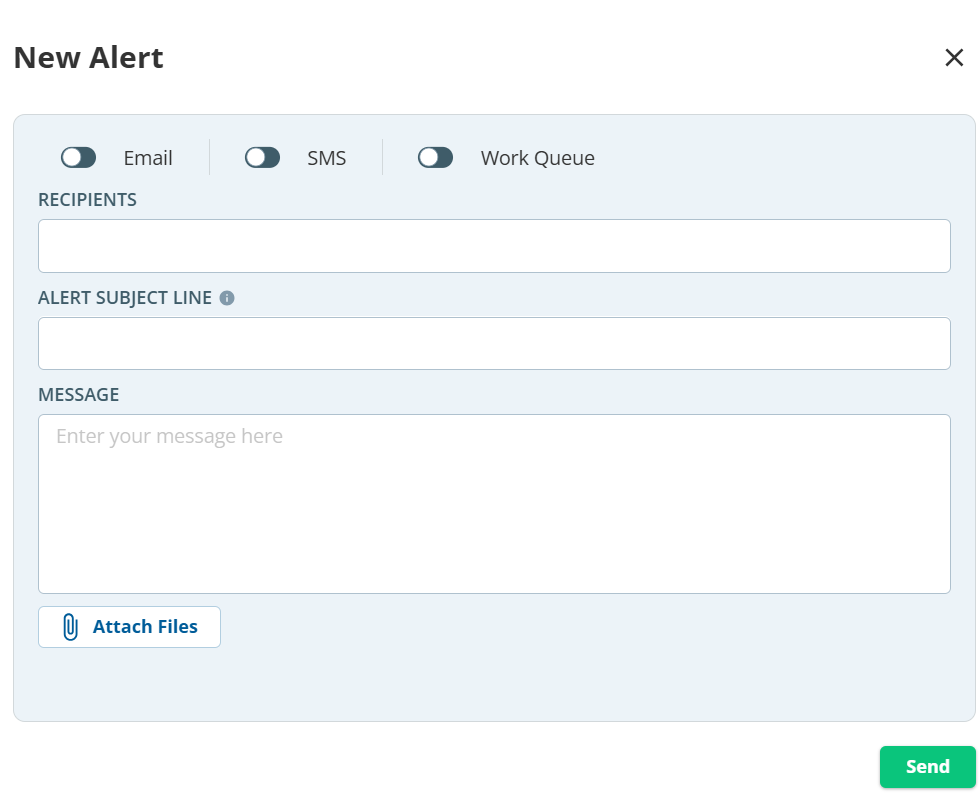
      The Create Alert popup appears.

    2. Specify the values, as required.

      The following are the field descriptions in the Create Alert window:

      FieldDescriptions
      EmailThe alerts are sent using email. Click Email to enable this option.
      SMSThe alerts are sent using SMS. Click SMS to enable this option.
      Work QueueThe alerts are sent using the Work Queue window. Click Work Queue to enable this option.
      RECIPENTS 

      Select the recipients for whom you want the alert to be triggered.

      ALERT SUBJECT LINE

      Specify the subject for the alert.

      MESSAGE

      Specify the required alert.

      Attach Files

      Attach the file to alert.

      PRIORITY

      Set the required priority for the alert:

      • High
      • Medium
      • Low
      • Critical
      DAYS TO COMPLETE

      An alert is triggered after completing the set number of days.

      Allow replies

      When you enable this option, the recipient can respond to the alert.

    3. Click Send and Save.
      The alert is saved to the ticket.
  4. Workflow: You can modify the workflow status of the ticket. Click the Workflow  icon. The following are the workflow states:
    • Cancelled
    • Closed
    • Duplicate
    • Escalate
    • In-Progress
    • On-Hold
    • Open
    • Pending Customer
    • Review
  5. Refresh: Refreshes the ticket screen. If you want to refresh a ticket to see if there are any new updates, click the Refresh  icon.
  6. Delete: Removes a ticket from the system. If you want to delete a ticket, click the Delete  icon.