Navigating the SMS Channel Window
Using the SMS Channel window, you can:
- View the configured long code and short code SMS numbers from which you can send SMS messages to customers, on the Codes tab.
- Assign the SMS numbers to specific services, using the Codes tab.
- View the names of the active agents who can access the SMS channel, on the Agents tab.
- View the SMS settings for all services, on the Services tab.
Accessing the SMS Channel Window
To access the SMS Channel window, on the Configure tab of the SmartReach Portal, click SMS > SMS Channel.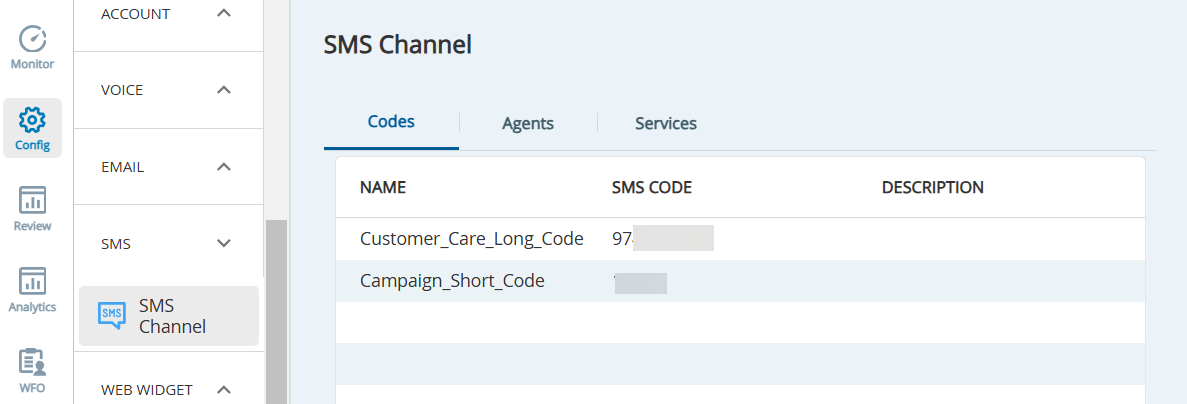
The SMS Channel Window
The following table describes the columns that appear on the tabs in the SMS Channel window.
Codes | |
| Column | Description |
|---|---|
| Name | Name that indicates the use of the SMS number. |
| SMS Code | SMS number used to send and receive SMS messages. |
| Description | Description of the SMS number. |
Agents | |
| Column | Description |
| Logon ID | Login ID of the agent who can access the SMS channel. |
| First Name | First name of the agent. |
| Last Name | Last name of the agent. |
| Last Login | Date and time when the agent last logged in to the Agent Desktop. |
| Active | Checkmark to indicate that the agent is active. |
| SMS | Checkmark to indicate that the agent can access the SMS channel. |
| Voice | Checkmark to indicate that the agent can access the voice channel. |
| Indicates through a checkmark if the agent can access the email channel. | |
| Chat | Indicates through a checkmark if the agent can access the chat channel. |
Services | |
| Column | Description |
| ID | ID of the service associated with the SMS channel. |
| Name | Name of the service. |
| Inbound SMS Code | Short code or long code for routing inbound SMSes to the service. |
| SMS Opt-In Message | Message displayed in the SMS when an SMS campaign is launched for the service. |
| Inbound Message | Inbound message template for inbound SMSes. |
| SMS Compliance Enabled | Indicates through a checkmark if the SMSes sent to customers comply with the policies in the profile assigned to the service. |
| SMS Consent Required | Indicates through a checkmark if the customer's consent is required for sending an SMs to the customer. |
If you want to modify the SMS channel information, contact the SmartReach Customer Care Team.
Assigning an SMS Number to Services
You can assign an SMS number to specific services so that only the assigned SMS number is available to the agents logged in to those services when the agents send an SMS message (transactional).
When an agent responds to an SMS, by default, the SMS number used in the response is the same as that associated with the original SMS thread; the agent cannot modify that SMS number.
To assign an SMS number to services:
- On the Configure tab of LVP, click SMS > SMS Channel.
The SMS Channel window appears. - On the Codes tab, double-click the row displaying the SMS number that you want to assign to services.
The SMS Channel pop-up window for the selected number appears.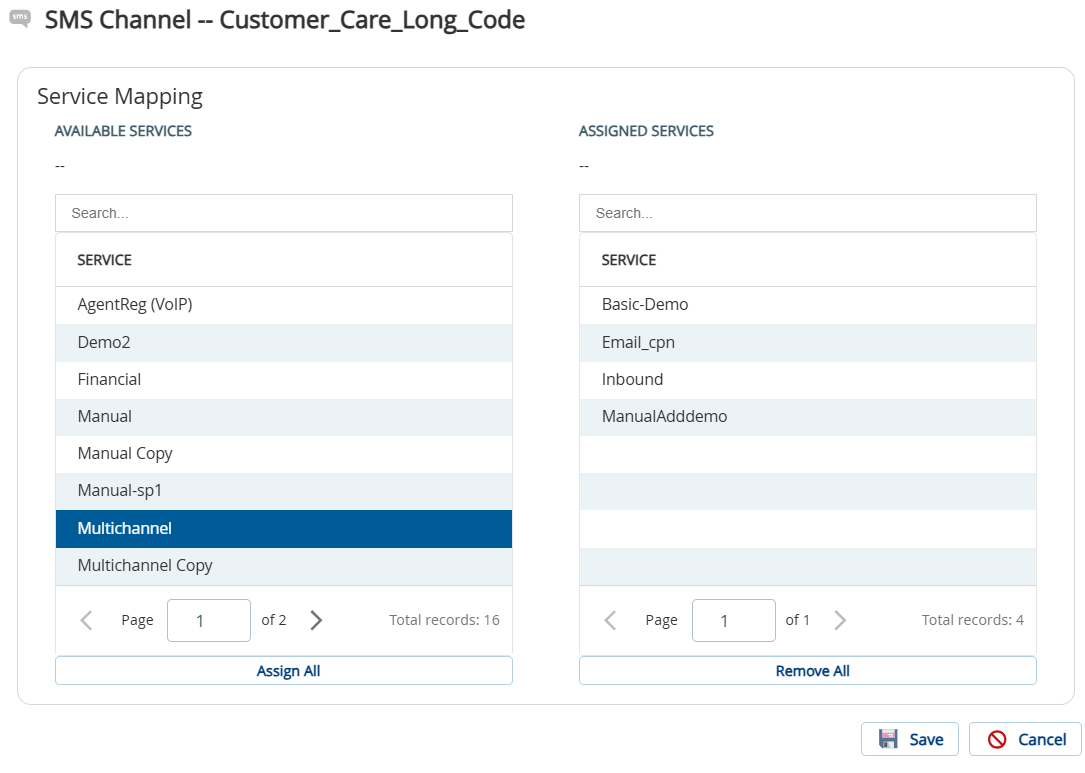
In the Available Services section, select the services to which you want to assign the number.
You can select all services together by clicking Assign All in the Available Services section.
The selected services appear in the Assigned Services section.
Click Save.
The SMS number is assigned to the selected services.
Unsupported File Formats
When you attach files to SMS the following file formats are not supported:
.app | Executable application file |
.bat | Batch script file for command execution |
.cmd | Windows command script file |
.com | DOS command executable file |
.exe | Windows executable program |
.gadget | Windows desktop gadget file |
.hta | HTML application file |
.msc | Microsoft Management Console file |
.pif | Program information file |
.scr | Screensaver executable |
.asp | Active Server Pages script |
.bas | BASIC source code file |
.csh | C shell script file |
.js | JavaScript source file |
.jse | Encoded JavaScript file |
.jsx | JavaScript XML/component file |
.ksh | Korn shell script file |
.pl | Perl script file |
.ps1, .ps1xml, .ps2, .ps2xml, .psc1, .psc2 | Windows PowerShell scripts and configuration files |
.ts | TypeScript source file |
.tse | Encoded TypeScript file |
.tsx | TypeScript JSX component file |
.vb | Visual Basic source file |
.vbe | Encoded VBScript file |
.vbs | VBScript file |
.ws | Windows script file |
.wsc | Windows script component |
.wsf | Windows script file |
.ade | Microsoft Access compiled project file |
.adp | Microsoft Access project file (SQL Server database) |
.mad | Access module shortcut |
.maf | Microsoft Access file |
.mag | Access diagram shortcut |
.mam | Access macro shortcut |
.maq | Access query shortcut |
.mar | Access report shortcut |
.mas | Access stored procedure file |
.mat | Access table shortcut |
.mav | Access view shortcut |
.maw | Access data access page |
.mda | Access add-in file |
.mdb | Access database file |
.mde | Compiled Access database file |
.mdt | Access add-in data file |
.mdw | Access workgroup information file |
.mdz | Access wizard template |
.ops | Office user profile settings file |
.vbp | Visual Basic project file |
.vsmacros | Visual Studio macro project |
.vsw | Visio workspace file |
.inf | Setup or configuration information file |
.ins | IIS internet settings file |
.isp | IIS service provider settings file |
.msi | Windows installer package |
.msp | Windows installer patch/update |
.mst | Installer transform file |
.osd | Virtualized application descriptor file |
.prf | System profile/settings file |
.reg | Windows registry file |
.wsh | Windows Script Host settings |
.cer | Security certificate file |
.crt | Digital certificate file |
.der | DER-encoded X.509 certificate file |
.lnk | Windows shortcut file |
.scf | Windows Explorer command file |
.shb | Document shortcut file |
.url | Internet shortcut file |
.xnk | Exchange public folder shortcut |
.chm | Compiled HTML help file |
.cnt | Help file index |
.hlp | Windows help file |
.hpj | Help project file |
.jar | Java archive package |
.cla | Java class file |
.class | Java compiled class file |
.bak | Backup file |