Ring Groups
After you have added users, you can use Ring Groups to club multiple users or numbers with a single inbound number. When a call is placed to a ring group number, the strategy you set will decide if it rings on the grouped phones simultaneously or sequentially, or at random.
Add a ring group
- Navigate to Phone System > Ring Groups and click Add Ring Group. The Add a Ring Group screen appears.
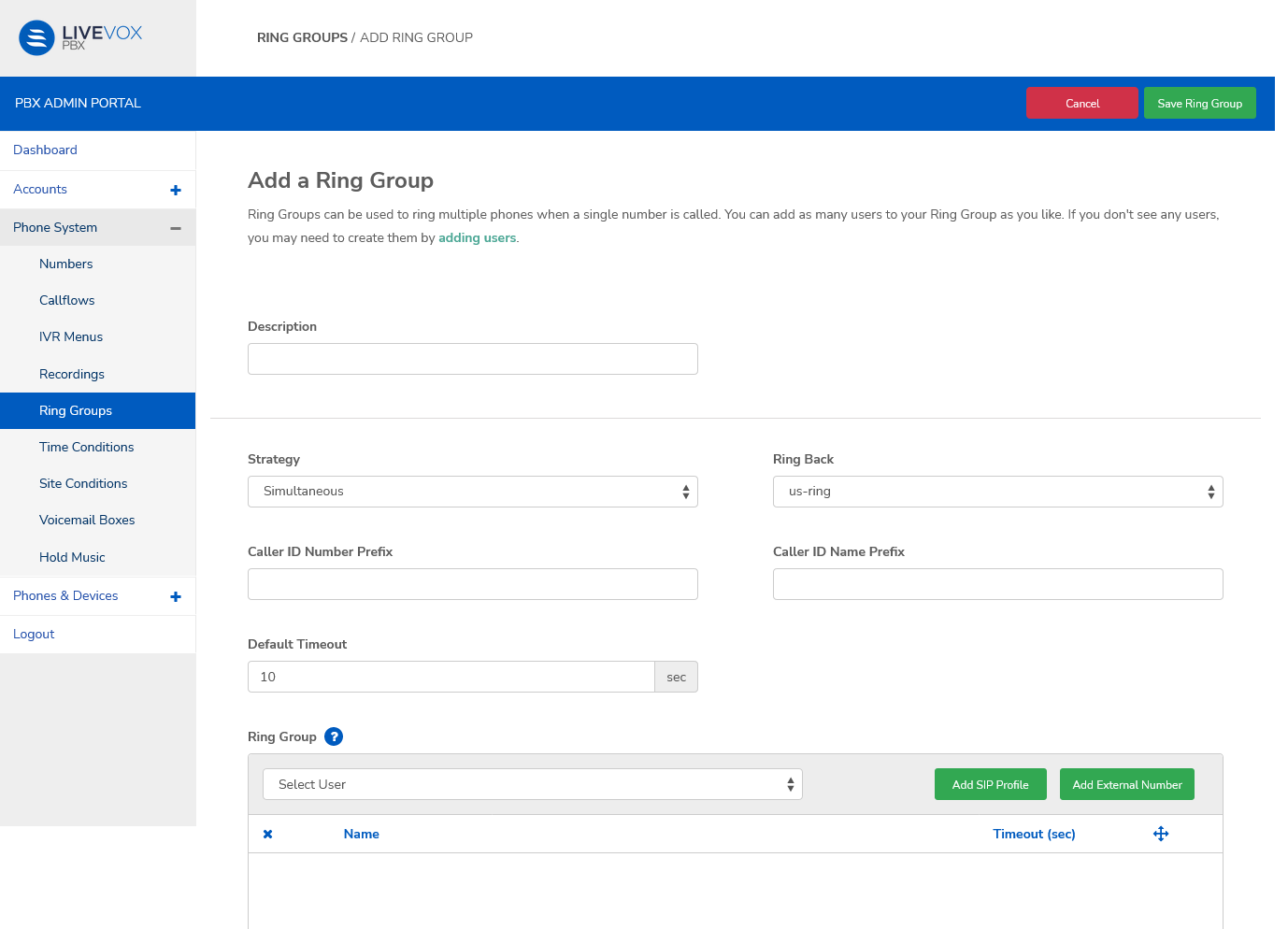
Enter the required details in each field.
Field Description Description Enter a description of the ring group. Strategy Choose how you want the users or numbers in the ring group to be dialed.
Simultaneous: All the numbers are dialed at the same time. As soon as an extension in the ring group answers the call, the other phones are freed up.
Sequence: The numbers are dialed in the order they appear in the Ring Group table. The timeout value set for each entry determines how long a call will ring unanswered before the next number in the sequence is dialed.
Random: If no extension in the group answers the call, the call will end when the timeout value is reached.
Ring Back Music on Hold
Recordings
Ring Back
Caller ID Number Prefix Caller ID number of the ring group Caller ID Name Prefix Caller ID of the ring group Default Timeout Time in seconds that a call to the ring group can go unanswered before it is either redirected or ended. Ring Group To add users, select from the dropdown options and click Add SIP Profile.
To add numbers, click Add External Number and enter the details in the Name field.
Set the Timeout value (in seconds) for each entry in the Ring Group table. This value overrides the Default Timeout setting.
Click and drag the entries to change the order within the table.
You can add any number of users to your ring group.
- Click Save Ring Group to complete the process and return to the Ring Groups screen where the new ring group appears in the table.
Edit or delete a ring group
- Click the required row in the table on the Ring Groups screen. The Edit Ring Group screen appears.
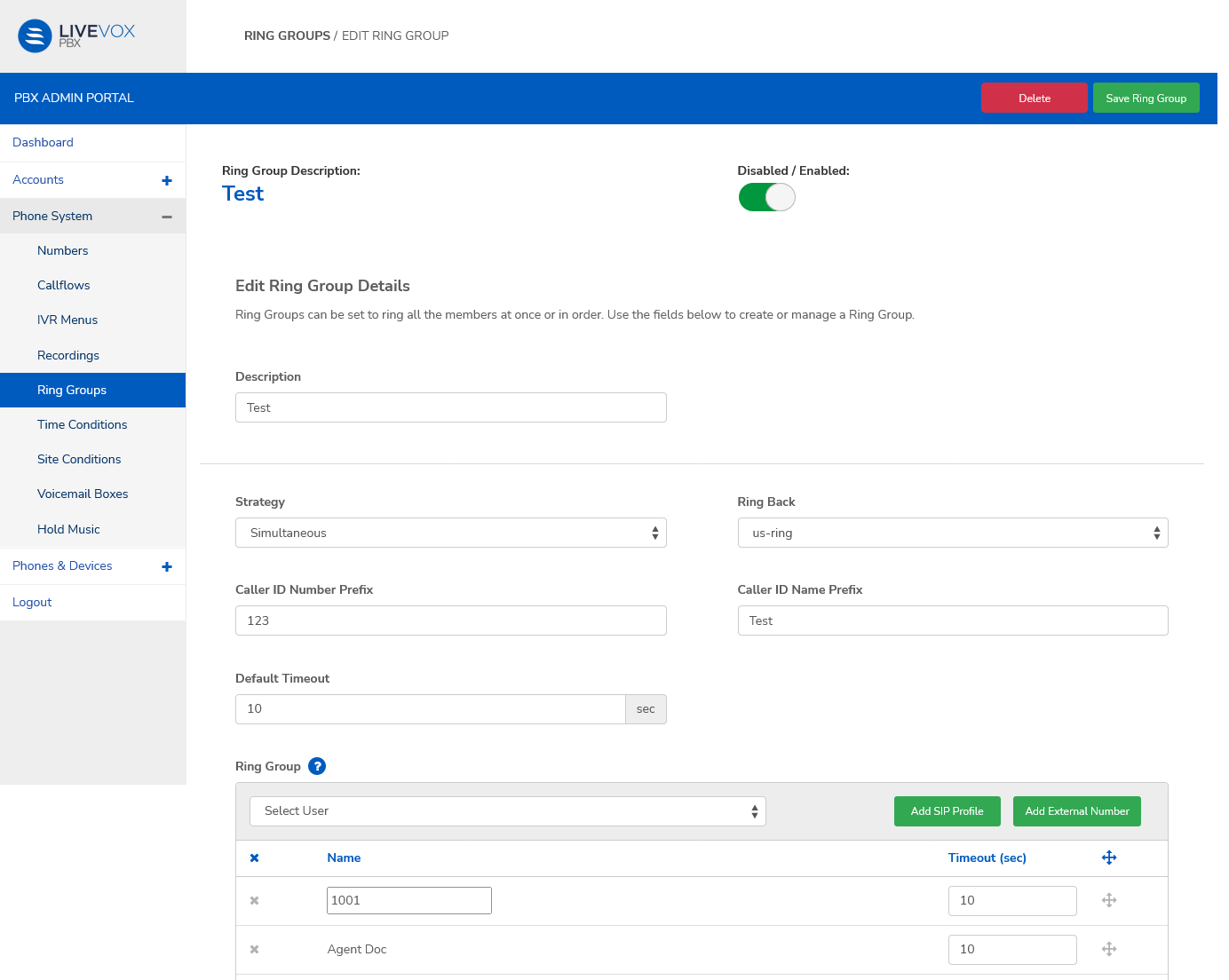
Edit the fields if required.
The next actions you may take on this page are:
UI element Description Disabled/Enabled
Use the slider to set the availability of the Ring Group in the phone system. Delete Click to delete the ring group. In the confirmation popup window, click Yes, Delete!
On deletion, the page redirects to the Ring Group screen.
Save Ring Group Click to save your edits and return to the Ring Groups screen.