-
Created by
 Sabita Rao on May 31, 2023
2 minute read
To access the Export Format configuration window, on the Configure tab of the LiveVox Portal, click Input / Output > Export Format.
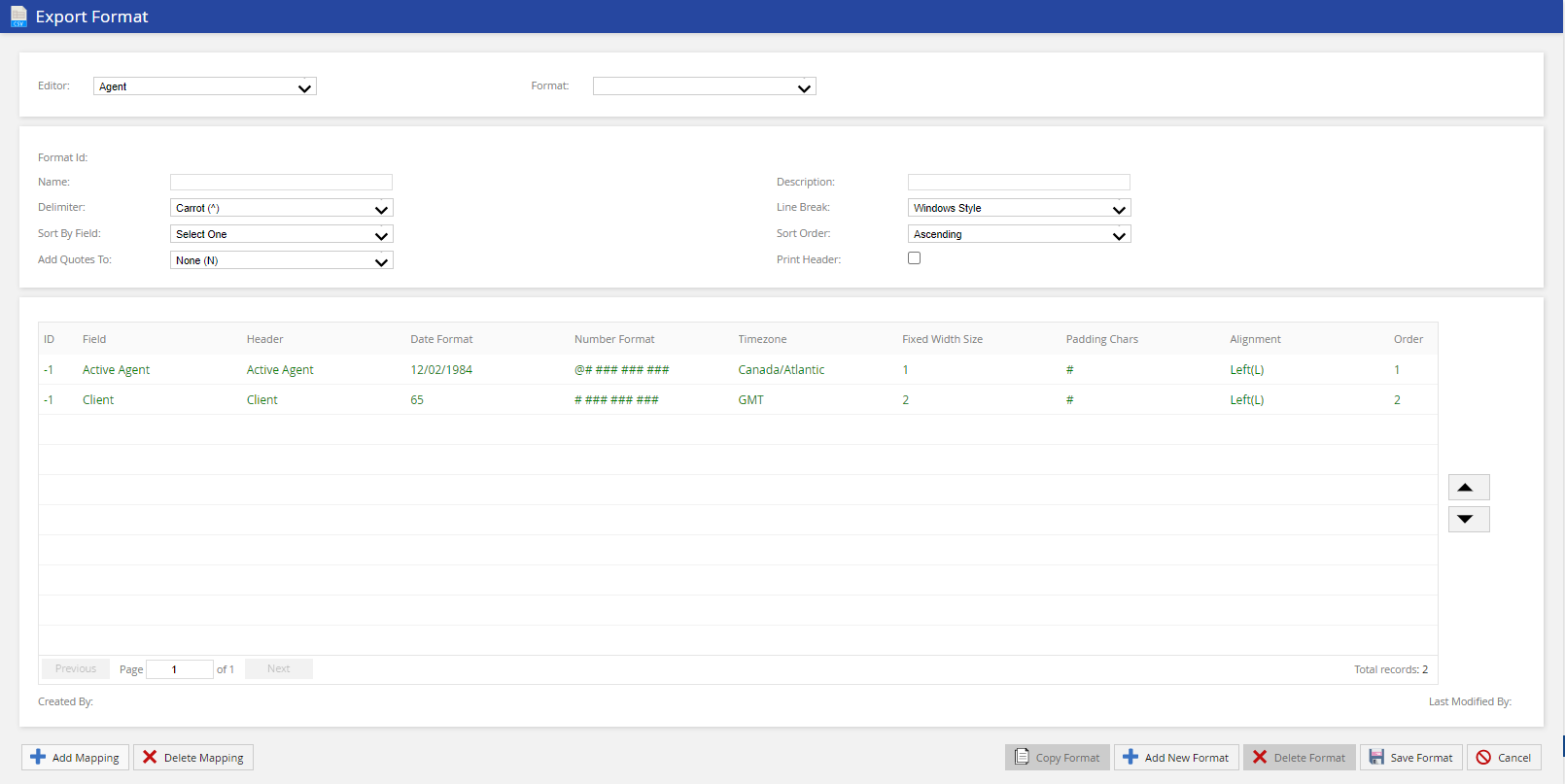
Select the editor and format you want to view/adjust, from the Editor and Format drop-down lists.
The Export Format window displays the following fields:
| Field | Description |
|---|---|
| Editor | Enables you to select the editor where the format will be available. Currently, you have three options; Agent, Contact, and Report Map. |
| Format | Enables you to select the required format for the selected editor. |
| Format Details |
|
| Column Mapping Details |
|
The Export Format window displays the following buttons:
| Button | Description |
|---|---|
| Add Mapping | Creates a new mapping column. For more information, see Adding a Mapping. |
| Delete Mapping | Deletes the selected column mapping. For more information, see Deleting a Mapping. |
| Copy Format | Copies the selected format. |
| Add New Format | Creates a new format. For more information, see Creating a New Export Format. |
| Delete Format | Deletes the selected format. For more information, see Deleting an Export Format. |
| Save Format | Saves updates on the selected format. |
| Cancel | Discards the changes. |