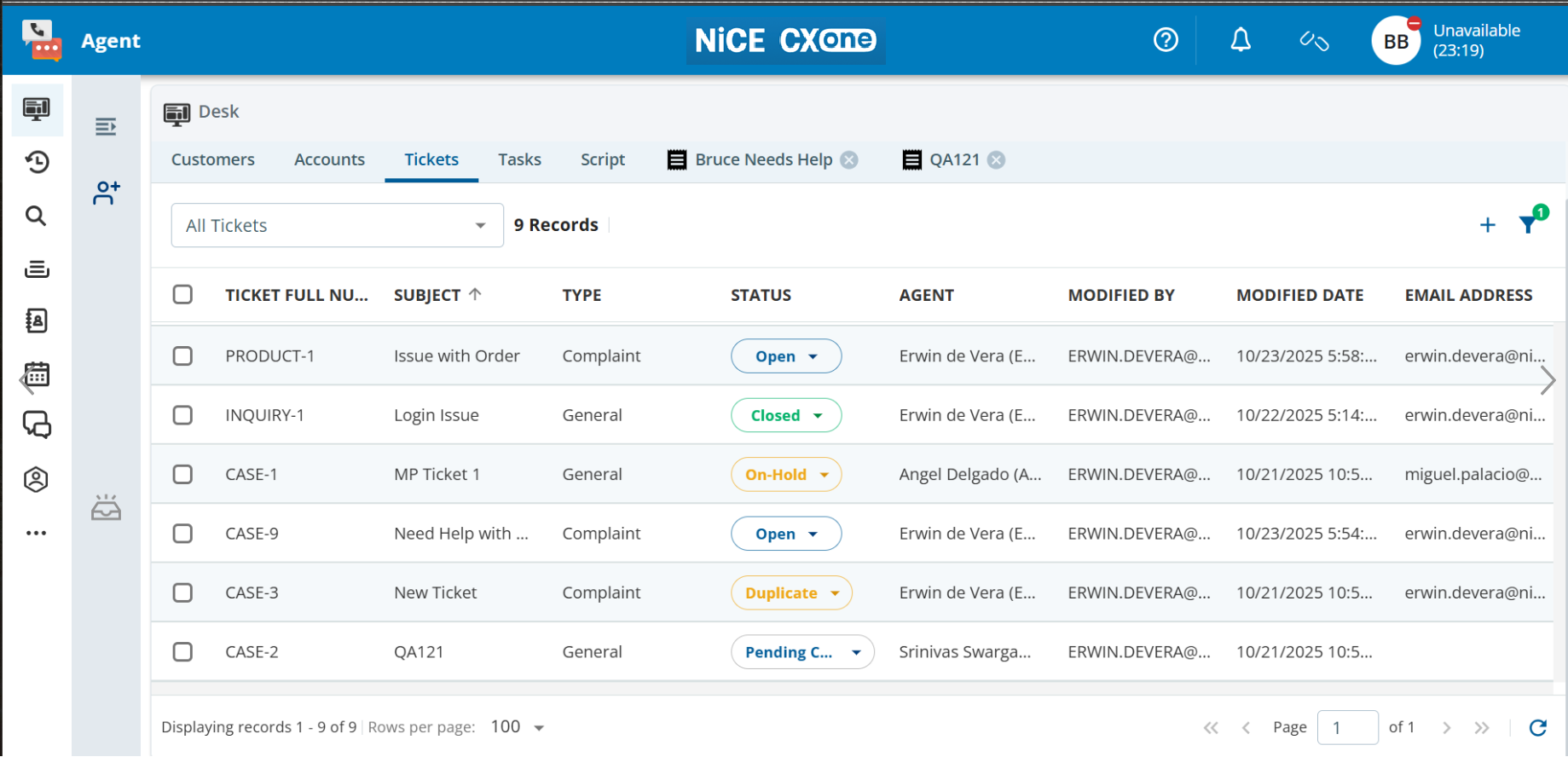
A ticket is a record of a customer issue or request. The Ticket List and Ticketing components of the Ticket feature display a table of tickets and enable you to create, modify, and track tickets, regardless of the communication channel from which the tickets originate. You can create a ticket at any time, including when interacting with a customer.
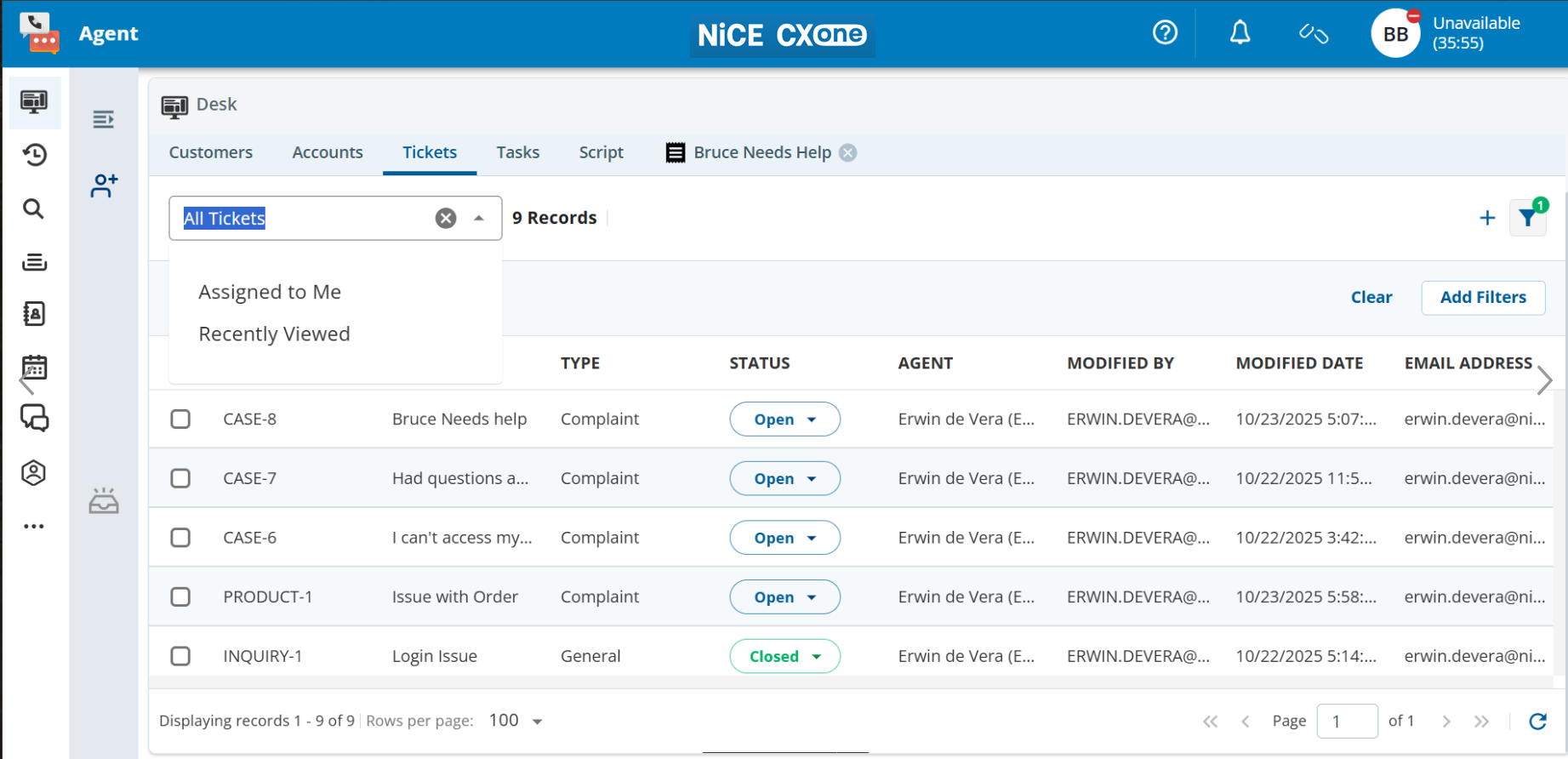
Filtering the Ticket List:You can use ticket filters to sort and search the tickets. Managers create the filters.
Filters might look different depending on the manager configuration.
To filter the Ticketlist:
In the Ticket list section, click theAdd Filter ()button. TheAdd Filterswindow appears.
Expand the required sections, and then specify the filter criteria.
ClickApply. The records that meet your filter criteria appear in the Ticket list section.
Creating a Ticket
To create a ticket:
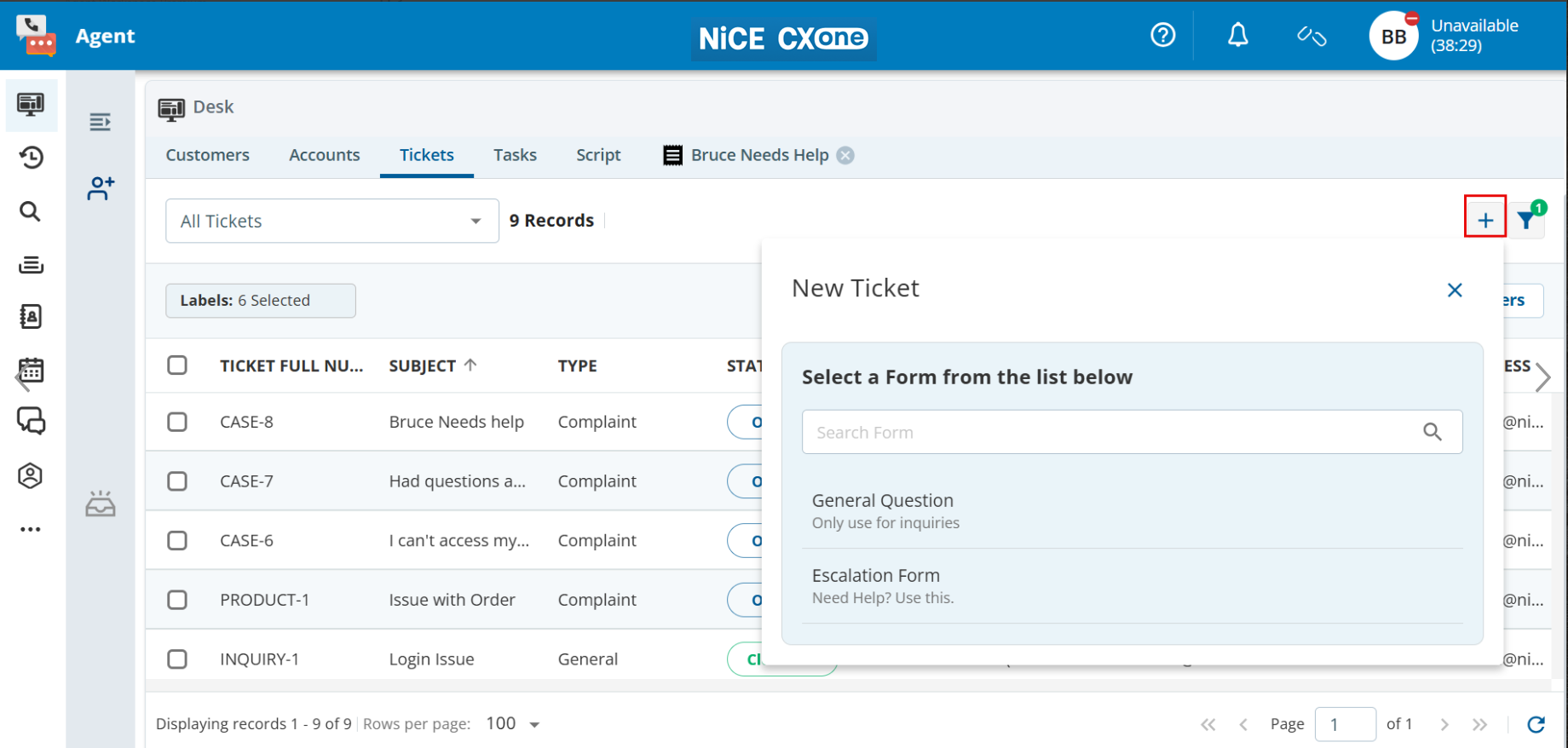
In theTicket Listsection, click.
The New Ticketwindow appears.
Select a required Form from the list.
Forms will be different depending on the manager configuration.
If you don't select a form from the drop-down list, the default form is applied when creating a ticket.
Specify values in the fields.
Available fields depend on the selected form.
You can link an existing account and contact for the ticket by clicking the search iconin theACCOUNT andCONTACT fields.
You can create an account and a contact for the ticket by clicking the plus iconin theACCOUNT andCONTACT fields.
ClickCreate. A message stating the ticket has been created and the new ticket details are displayed.
Customizing the List of Accounts
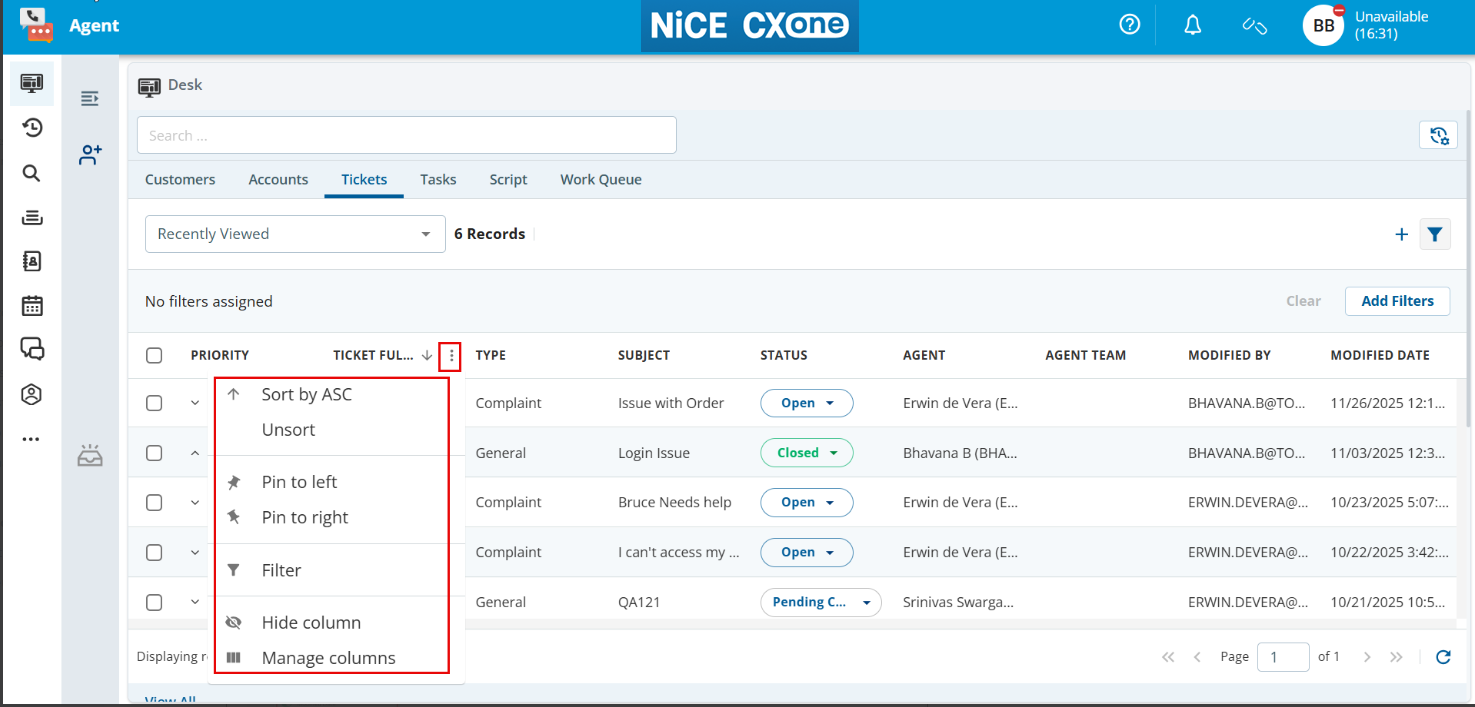
You can customize the Ticket list by arranging the records in ascending or descending order; filtering the values in the list; and showing or hiding columns.
To customize the Ticket list:
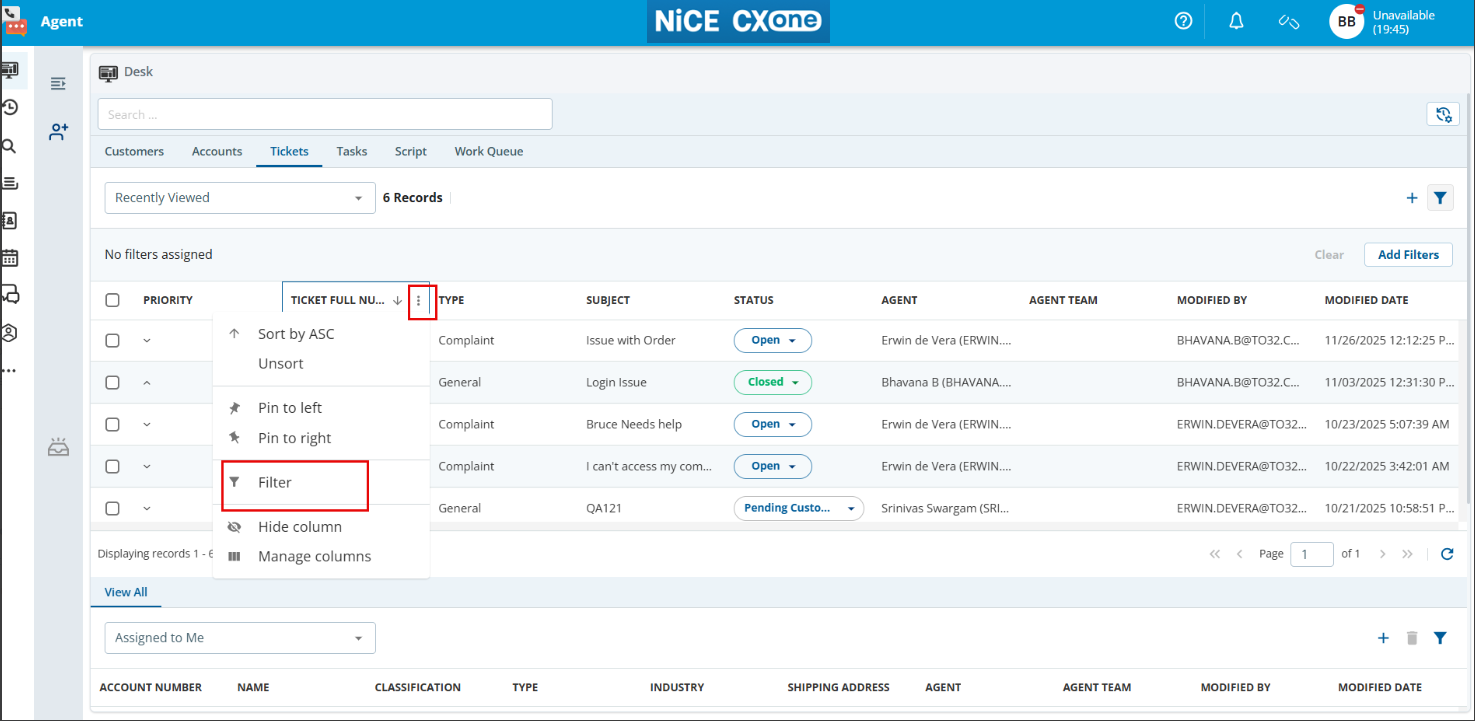
To sort the values in a column in ascending or descending order, click the arrow next to the column heading, and then clickSort AscendingorSort Descending. The sorting applies to the entire custom fields available in the list.
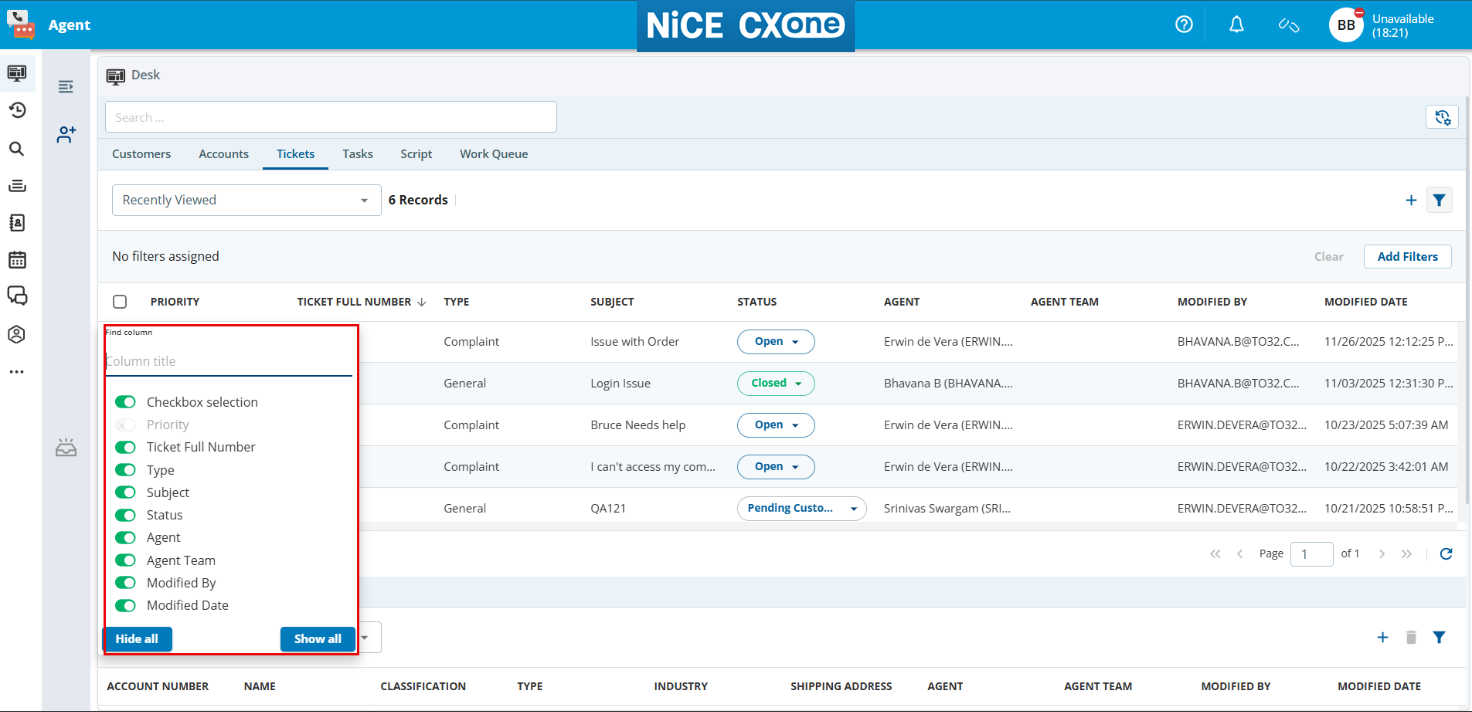
To display certain columns, click the arrow next to any column heading, clickManageColumns. Use the toggle buttons next to the names of the columns that you want to display in the table.
To hide certain columns, click the arrow next to any column heading, clickHideColumns.
To filter records based on a column, click the arrow next to the column heading, clickFilter, and then select the column values or specify the text based on how you want to filter the records.
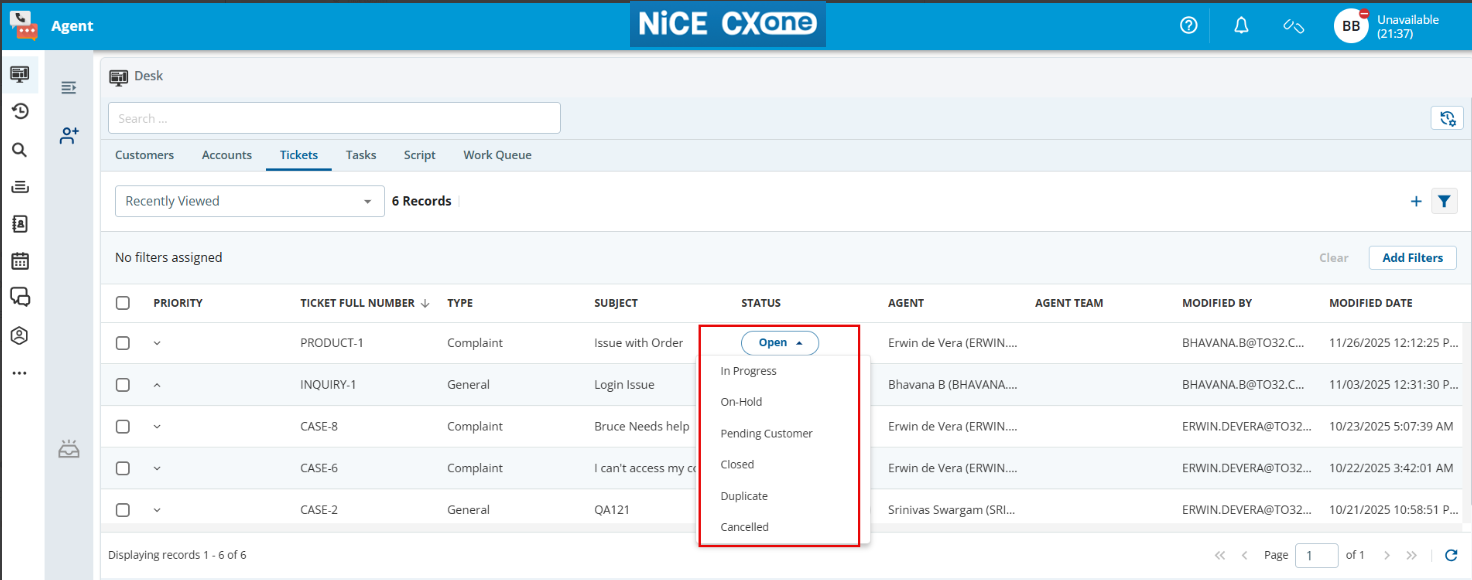
To change the status of the ticket, click on the existing status, and select the required status from the drop-down list.