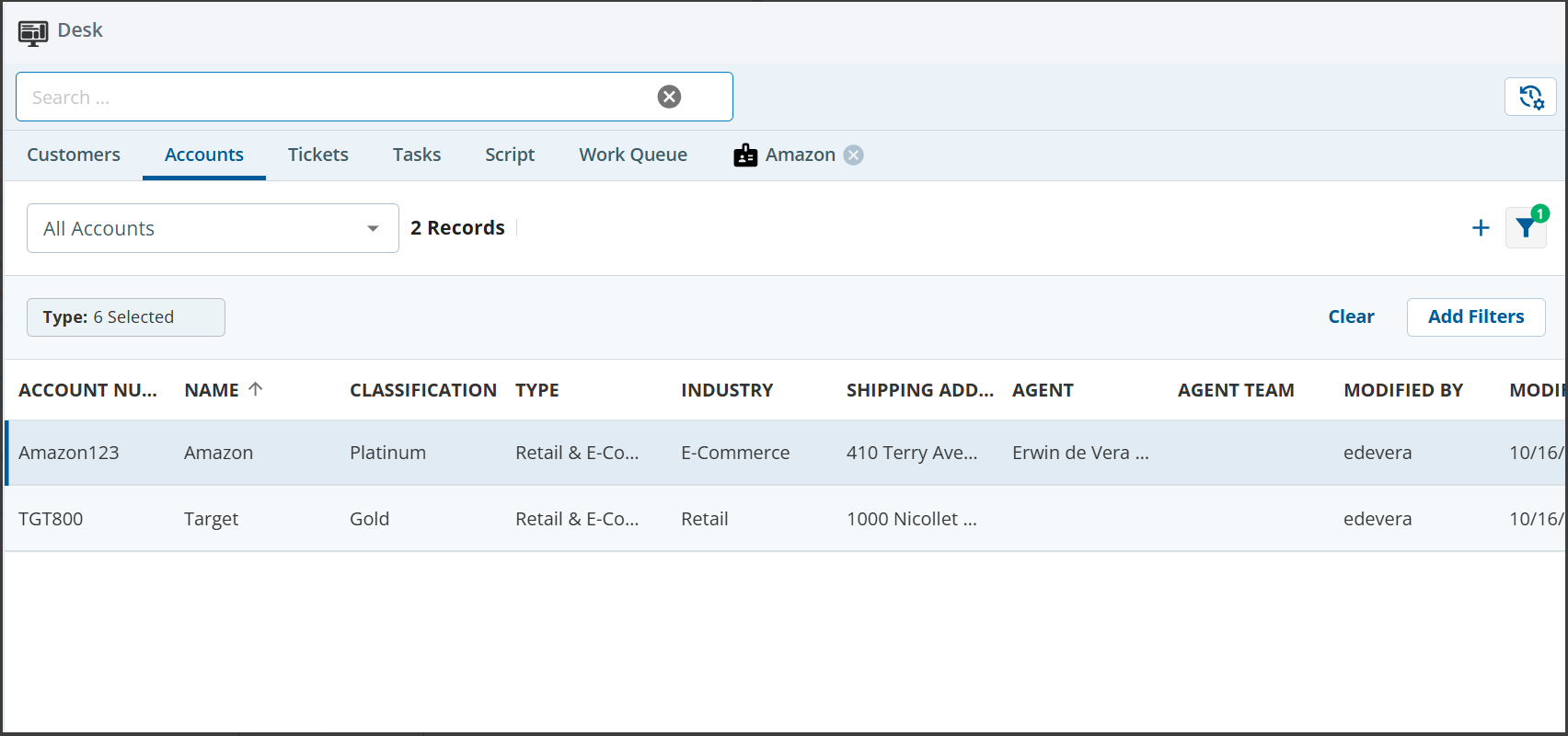
In Agent Workspace Premium, your accounts are listed in a table. You cancreate an account, filter the list of accounts, view your assigned accounts, and manage the information displayed in the table columns.
Creating an Account
To create anaccount:
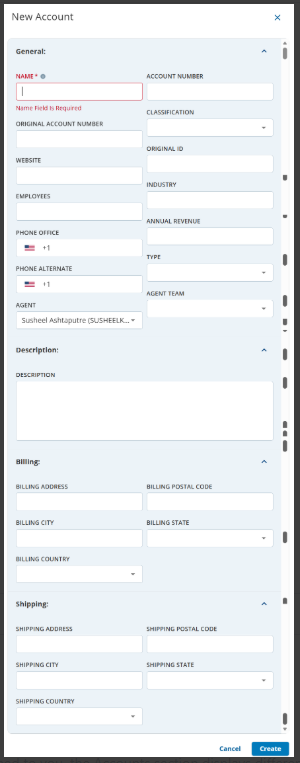
In the Accounts list section, click theNew Account () icon. The New Accountwindow appears.The fields in theNew Accountwindow might look different based on the Forms assigned to you.
The fields in theNew Accountwindow might look different based on the Forms assigned to you.
Specify values in the fields. For information about fields, see Account Fields.
Click Save.
Filtering the List of Accounts
You can filter the Accounts list basedon the available filter options such as date, account number, agent, and so on.
To filter the Accounts list:
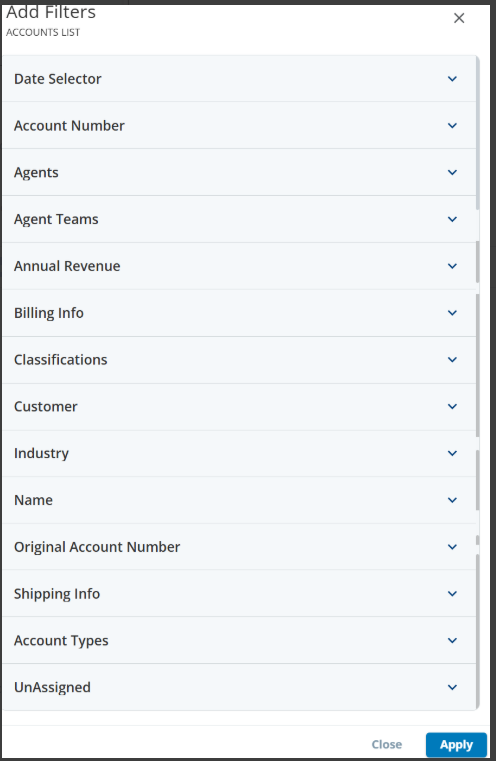
In the Account list section, click theAdd Filter ()button. TheAdd Filters window appears.
Fields in the Filter window might be different depending on what is configured on Desk.
Expand the required sections, and then specify the filter criteria.
ClickApply. The records that meet your filter criteria appear in the Accounts list section.
Customizing the List of Accounts
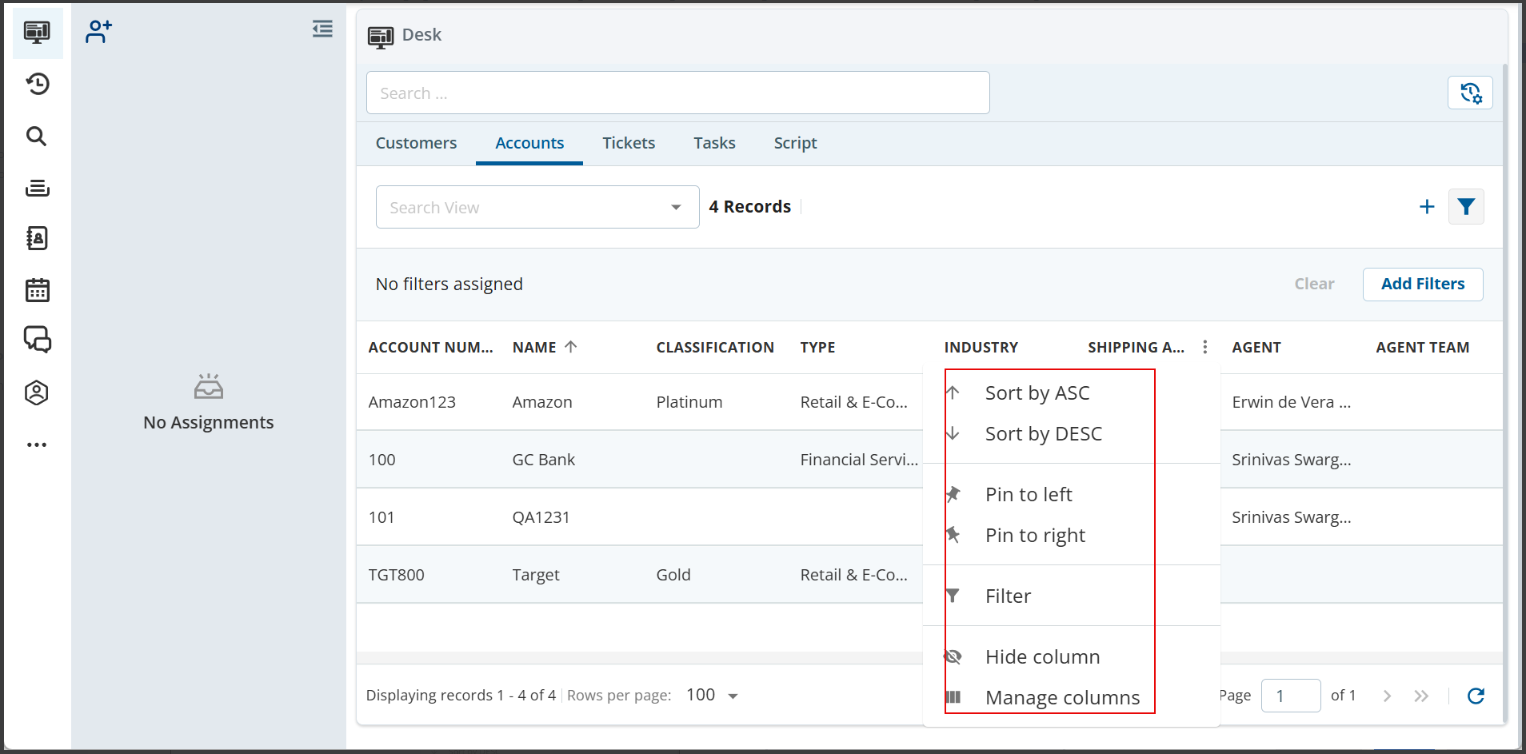
You can customize the Accounts list by arranging the records in ascending or descending order; filtering the values in the list; and showing or hiding columns.
To customize the Accounts list:
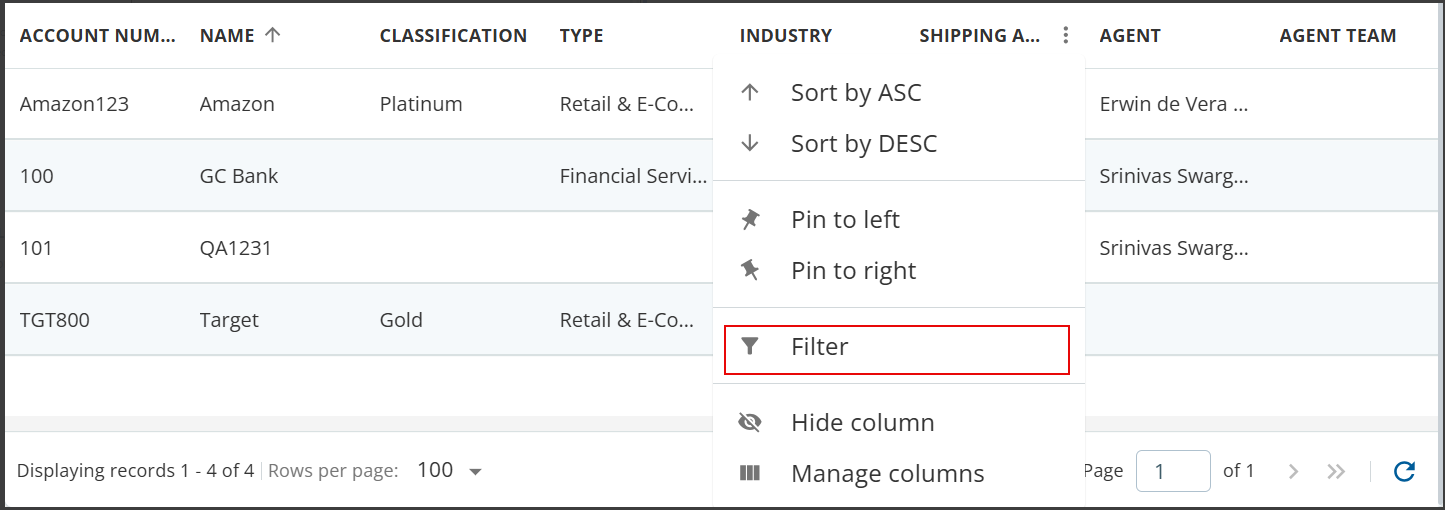
To sort the values in a column in ascending or descending order, click the arrow next to the column heading, and then clickSort AscendingorSort Descending. The sorting applies to the entire custom fields available in the list.
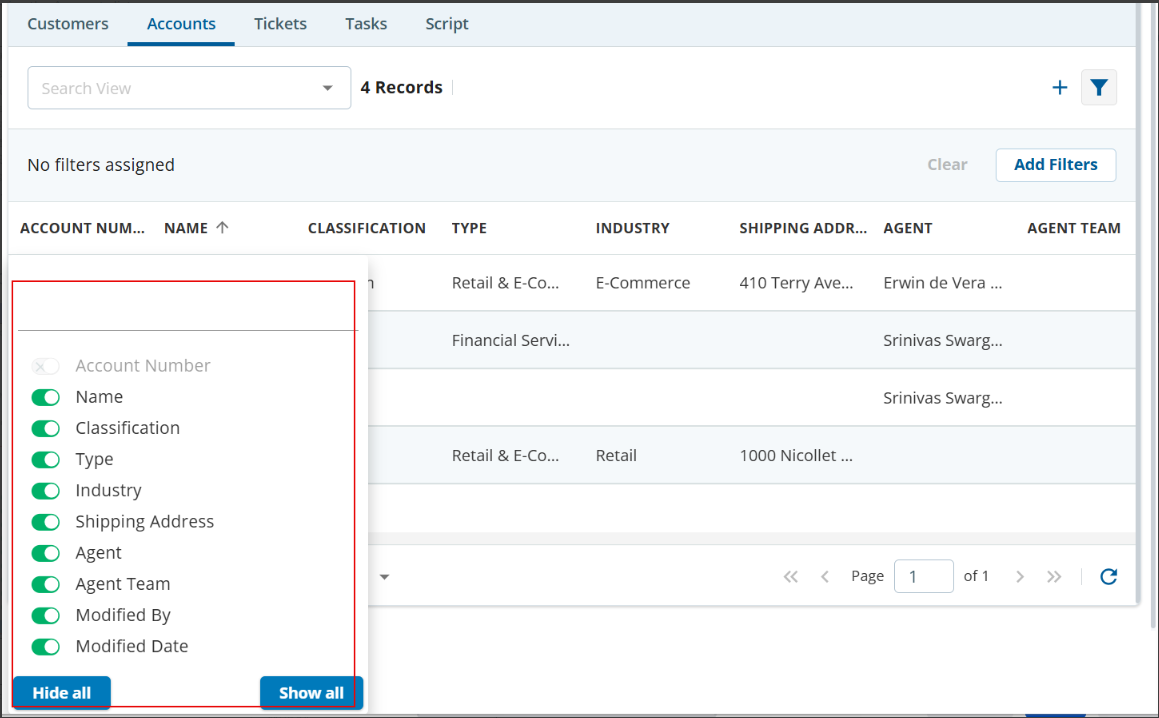
To display certain columns, click the arrow next to any column heading, click ManageColumns. Use the toggle buttons next to the names of the columns that you want to display in the table.
To hide certain columns, click the arrow next to any column heading, clickHideColumns.
To filter records based on a column, click the arrow next to the column heading, clickFilter, and then select the column values or specify the text based on how you want to filter the records.