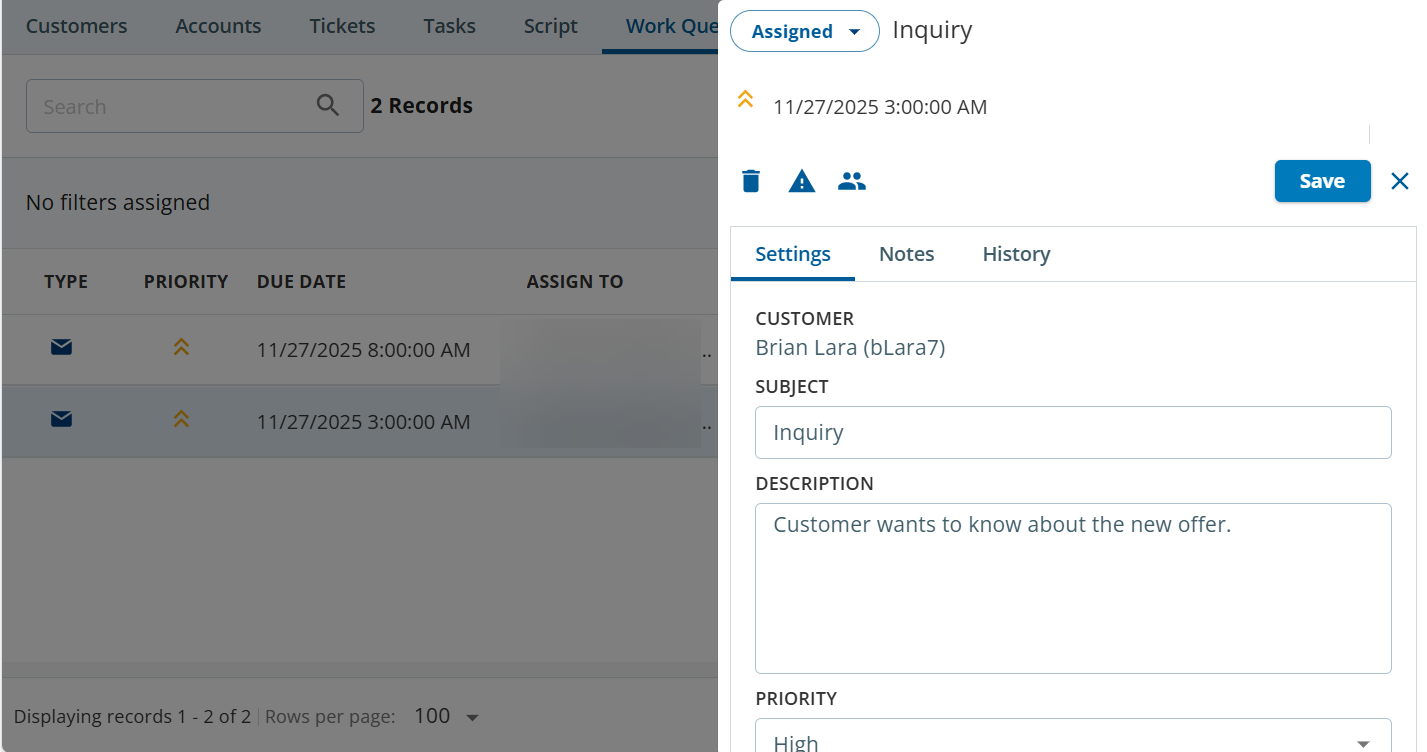
From the list of work queue (task) records, click on an individual work queue record to display the record in a new window. You can update the status, add an alert, make updates, add notes, and view the history of the record.
In the work queue window, you can perform the following tasks:
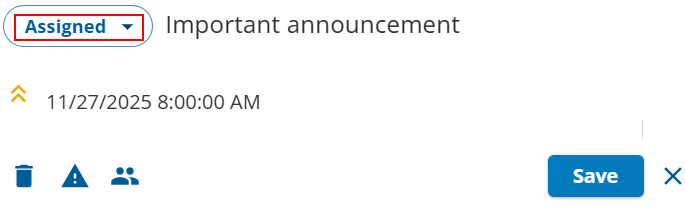
Update the Status: Double-click a task, and then update the status of the task. For example, in the following image, the status of the task has been changed to Assigned.
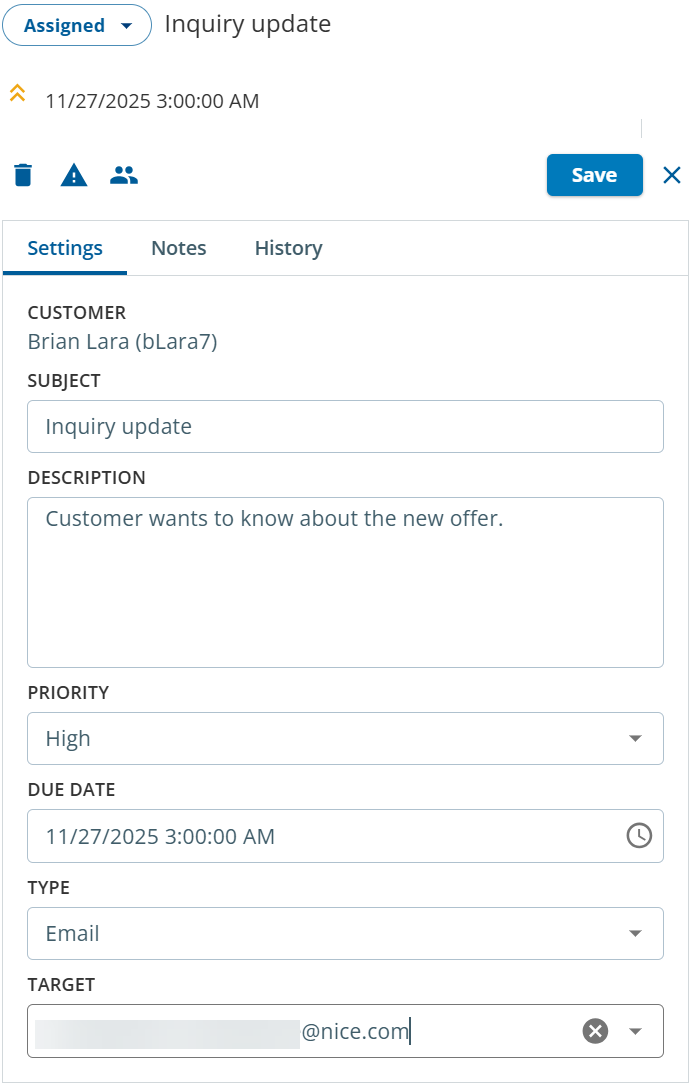
Update the Settings: From the Settings tab, you can update the following fields related a specific task:
Subject
Description
Priority
Due Date
Type
Target
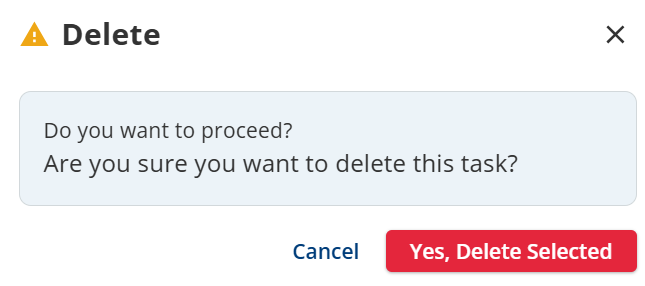
Delete a Task: Click the Delete ()icon, and the click Yes, Delete Selected in the Delete window.
Create an Alert: You can create an alert and send it to customer via SMS (Beta) or email.
In the Task window, click the New Alert () icon. Provide the details in the New Alert window.
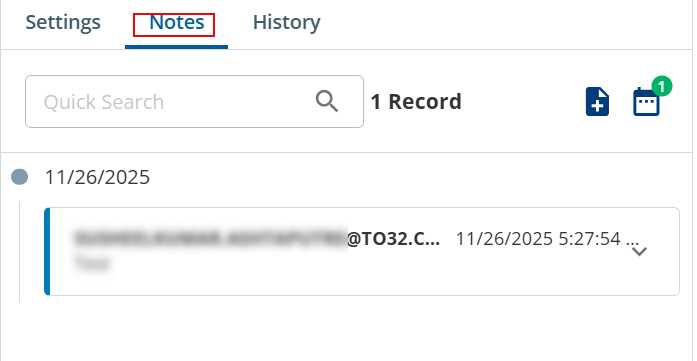
Add Notes: You can add notes to a task that is in your queue. In the Task window, click the Notes tab, and then click the New Notes () icon. Add the required note. You can also filter the existing notes by using the Calendar () icon and then selecting the date range.
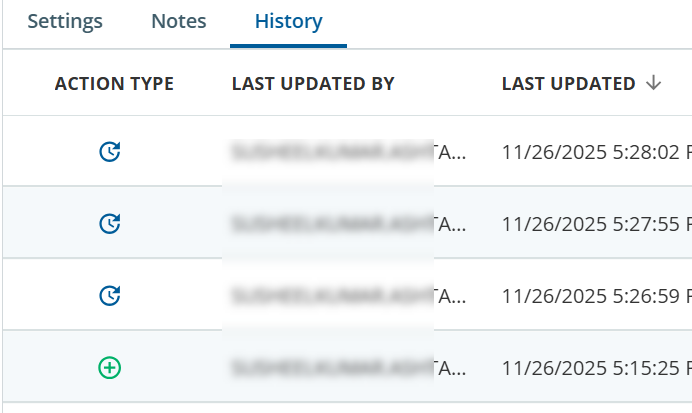
View History: You can view the history of a task from the History tab. The History tab provides information such as whether a task was created or updates, updated date and time, fields changed, and so on.