This topic provides information about Settings, Preview, and History tabs.
Settings Tab
You can view the settings for the agent desktop in the Settings tab.
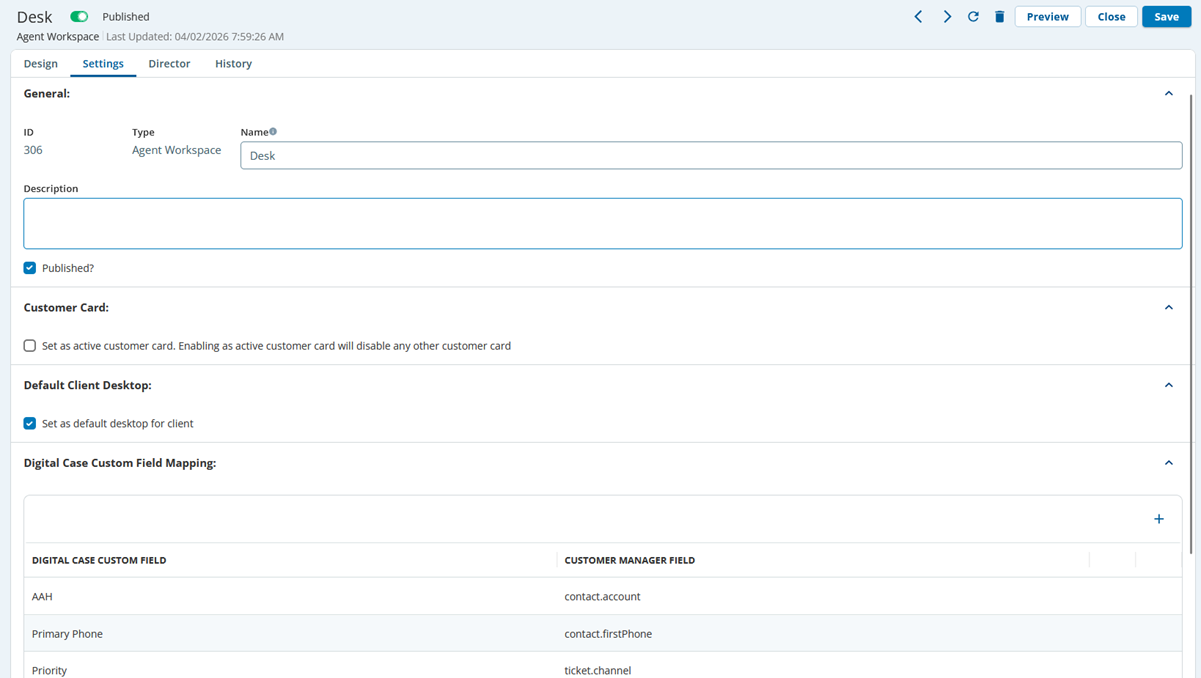
The Settings tab contains the following sections:
General
- ID: ID of the Agent Desktop.
- TYPE: Agent Desktop Type Agent Workspace or SmartReach.
- NAME: Agent Desktop Name.
- DESCRIPTION: Description of the desktop.
- Published: State of the desktop.
Customer Card
Indicates whether the desktop is set as active customer card.
Default Client Desktop
Indicates whether the desktop is the default desktop.
Digital case custom field mapping
This feature enables clients to map Customer Manager fields to Digital (DX) Case Custom Fields. When an agent initiates communication using click-to-email or click-to-text, the system automatically transfers the mapped attributes to the corresponding Digital Custom Fields.
Custom fields can be added under CXone Custom Fields.
These Digital Custom Fields can then be leveraged within downstream workflows, allowing clients to drive automation, personalization, or case handling processes based on the transferred data.
- Go to Designer and Select the desk layout.
- Navigate to Settings > Digital Case Custom Field Mapping.
- Use the Add Mapping button to map customer manager fields to digital case customfields
- To change the title or the description of the desktop, you can update it in the respective Name and Description field.
- The Published? check box indicates whether the page has been published. To either publish or unpublish, enable/disable the option.
Preview Tab
The Preview tab allows you to view what the desktop page will look like in actual use. The Preview option allows you to walk through or test the pages.
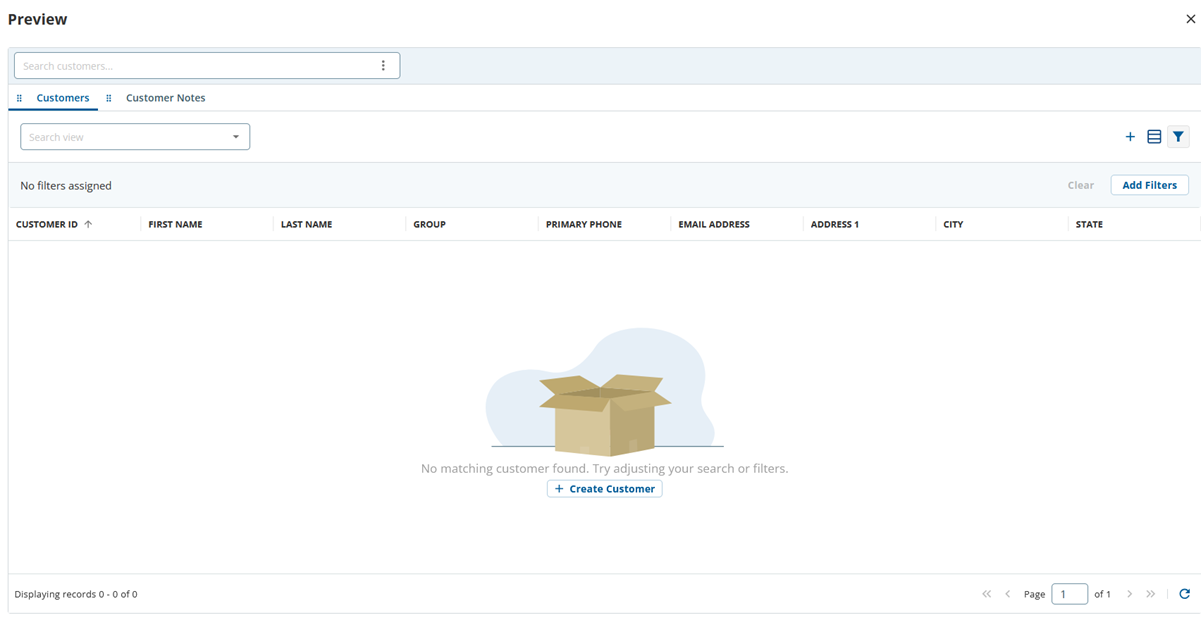
History
The History tab allows you view the change history of the selected desktop.
