The Home Bar component enables you to search for records that are present in Customers, Accounts, or Tickets sections; view recently accessed records; and add notes.
These Home Bar appears that appears on Desk might look different. The appearance is based on the configurations done by your manager. Depending on the configuration, following are the features you might see on the Home Bar:
- Omni Search
- Recently Viewed
- Notes
- Custom Buttons
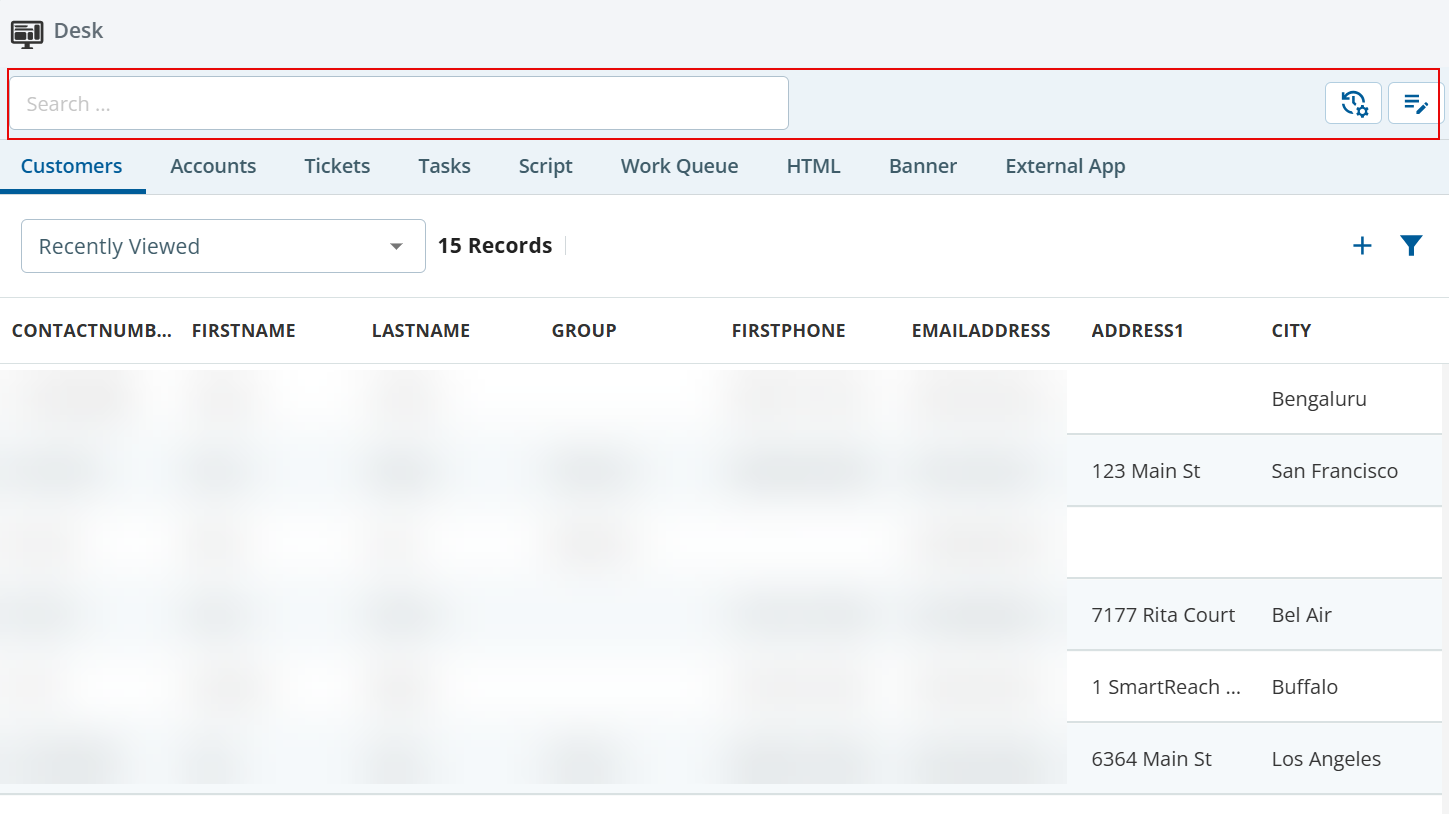
Searching for Records
When you search for records using the Search field, the results include records from the Customers, Accounts, and Tickets sections if omni search is configured. If only a specific section is configured for search, the search results include only those sections. For example, if your manager has configured Customers for the search, search results include information from the Customers section only.
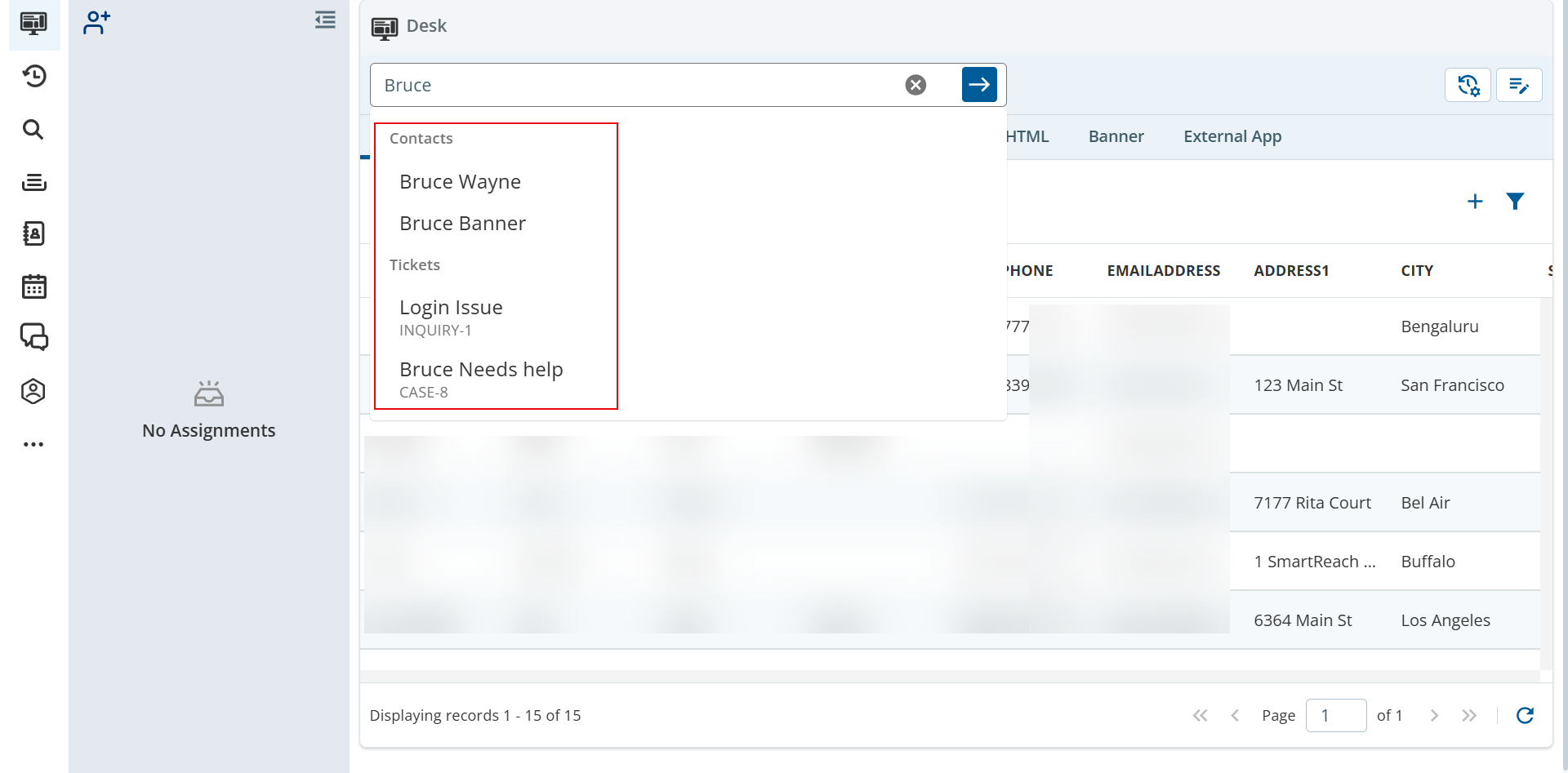
If omni search is enabled, when you enter a record in the search field, the search shows results from different sections.
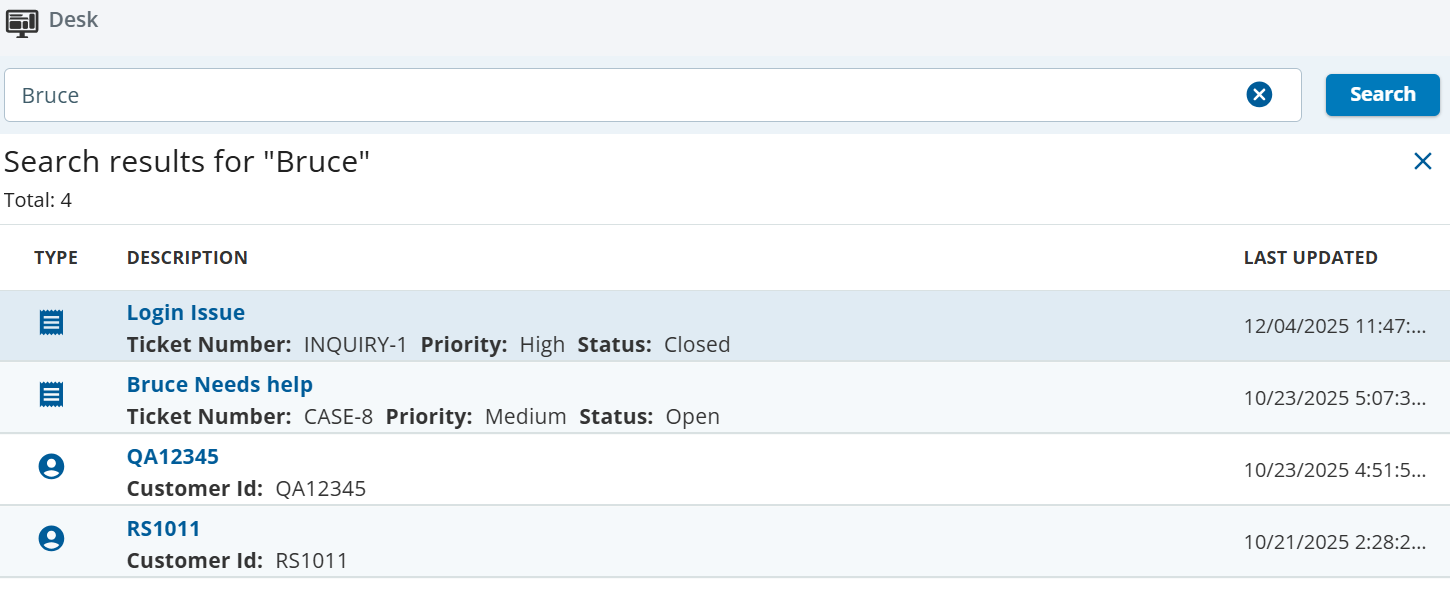
If you press Enter in the search field, results for that search are displayed. The information displayed in the Description section includes the fields configured for your Desk. For example, if you search for a customer and the customer phone number field is included for the search, the Description section shows the phone number of the customer.
Viewing Recently Accessed Records
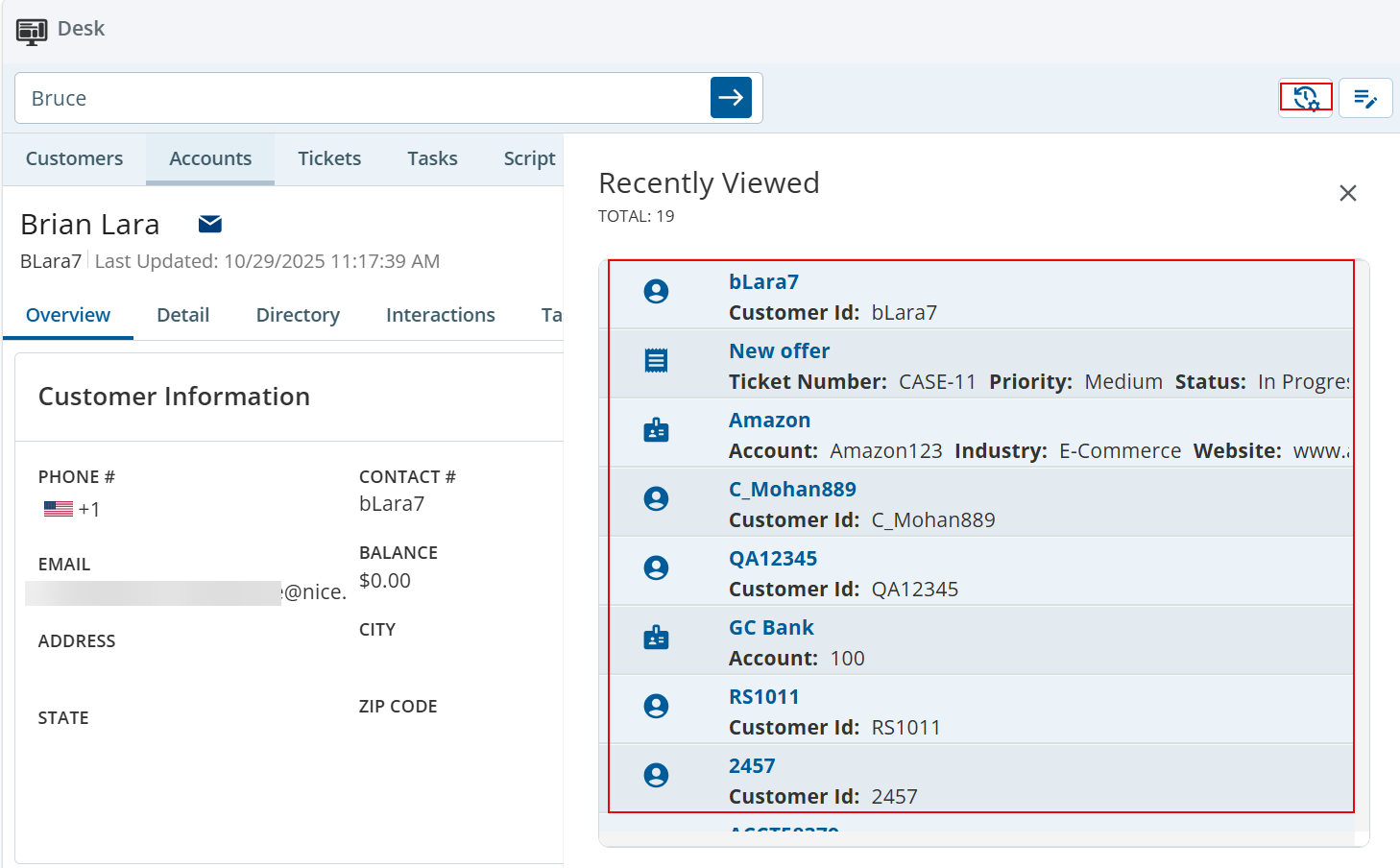
You can see the 30 most recently accessed records by clicking the Recently Viewed ( ) button on the Home Bar. When you click a specific record, the record opens in a new tab.
Adding Notes
You can add free-form notes by clicking the Notes ( ) button. The notes that you add are visible during an active session. After you log out of the session, these notes are deleted.
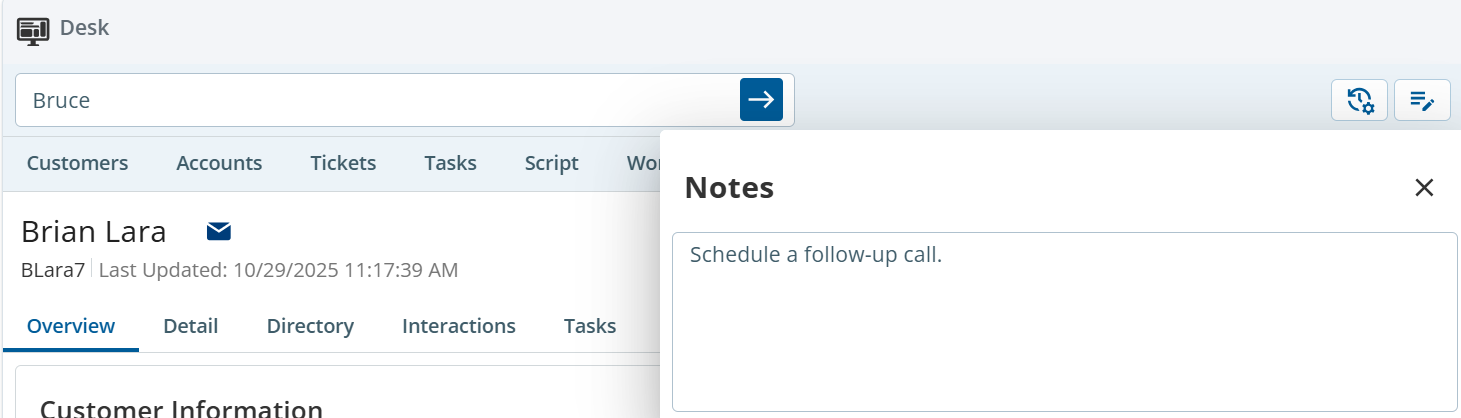
The Home Bar might have additional buttons such as calling an API or opening a third-party URL and so on.
