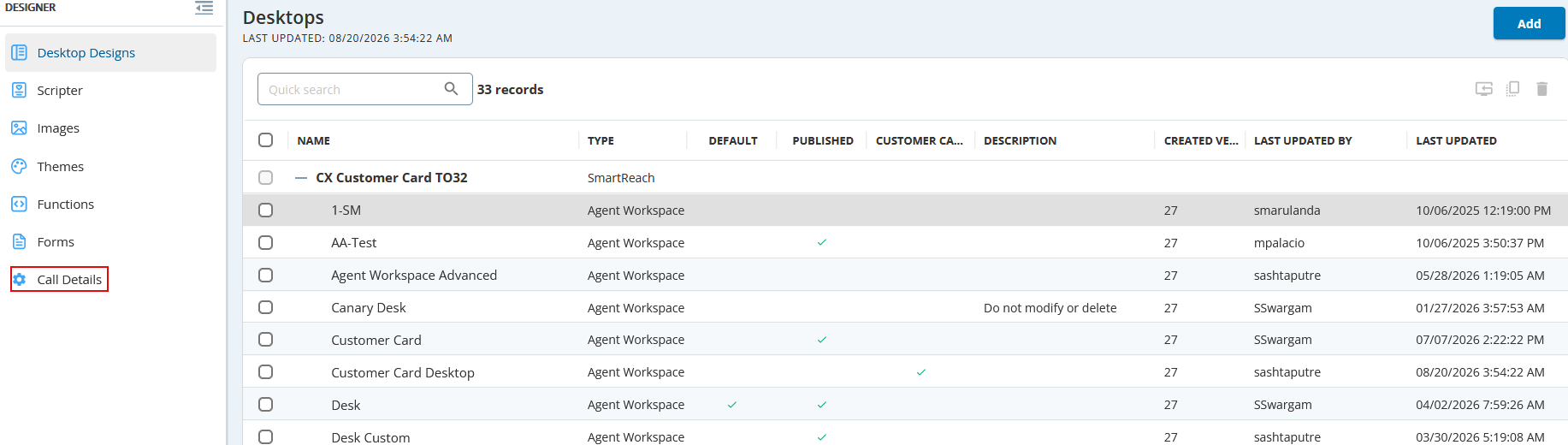
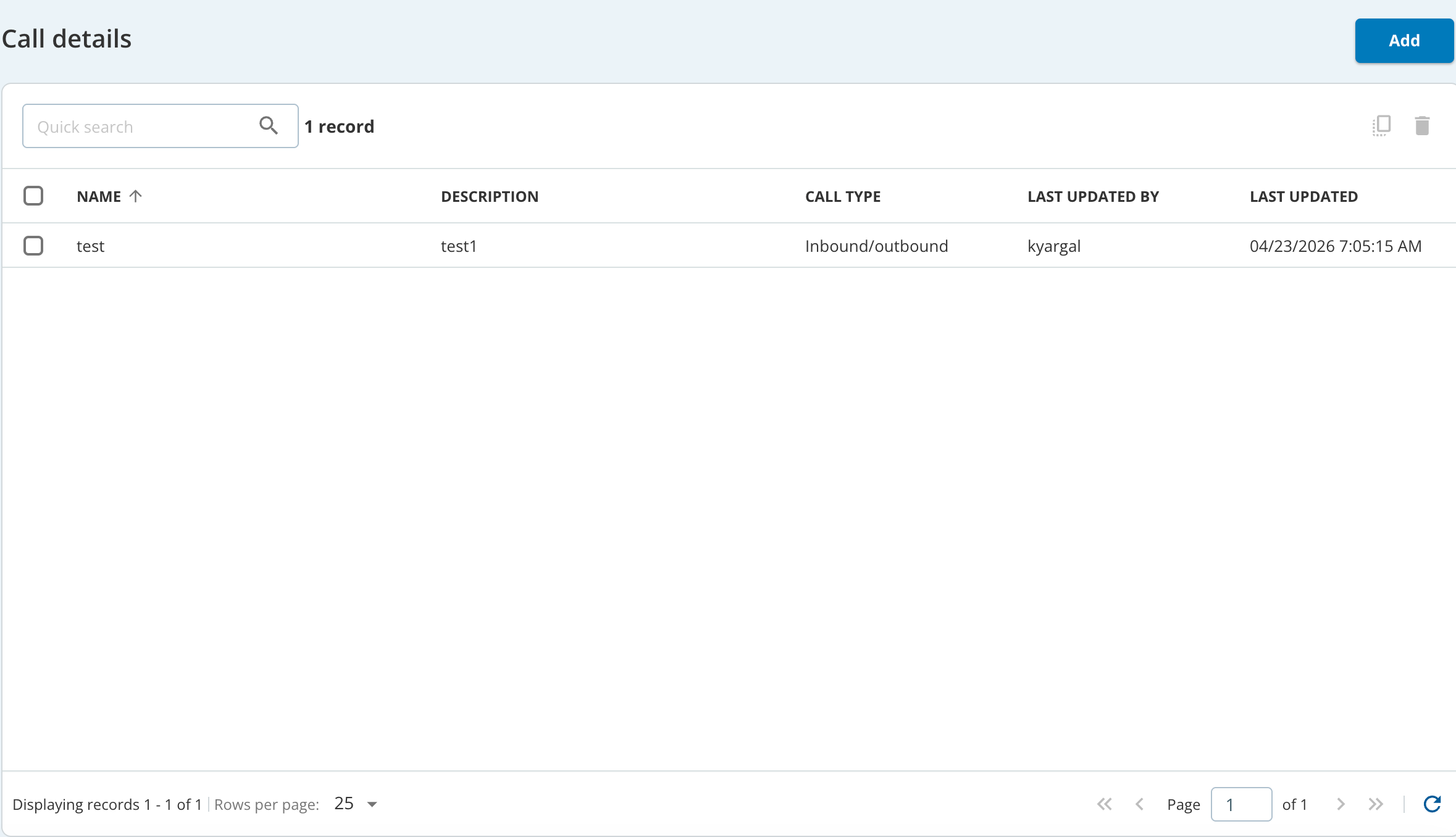
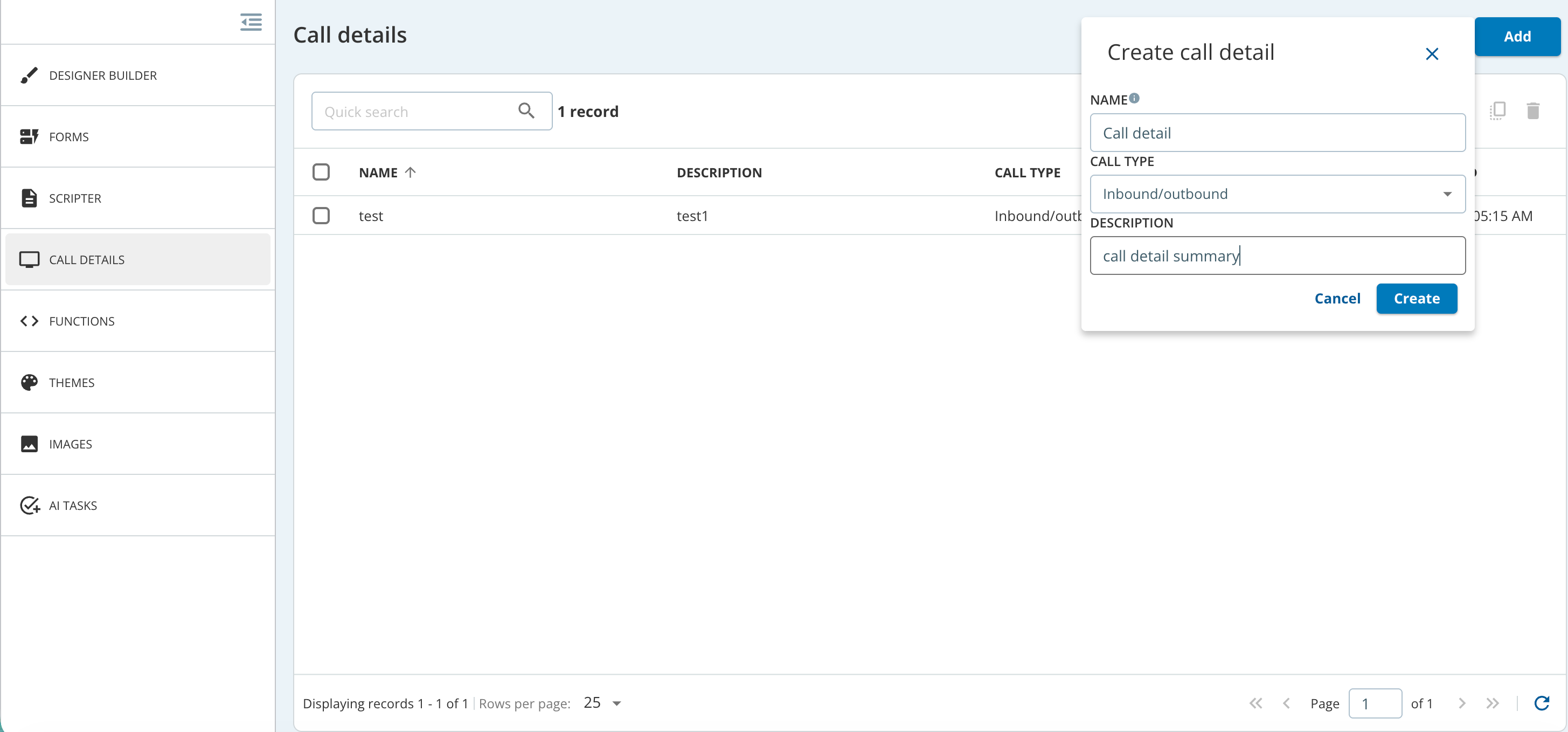
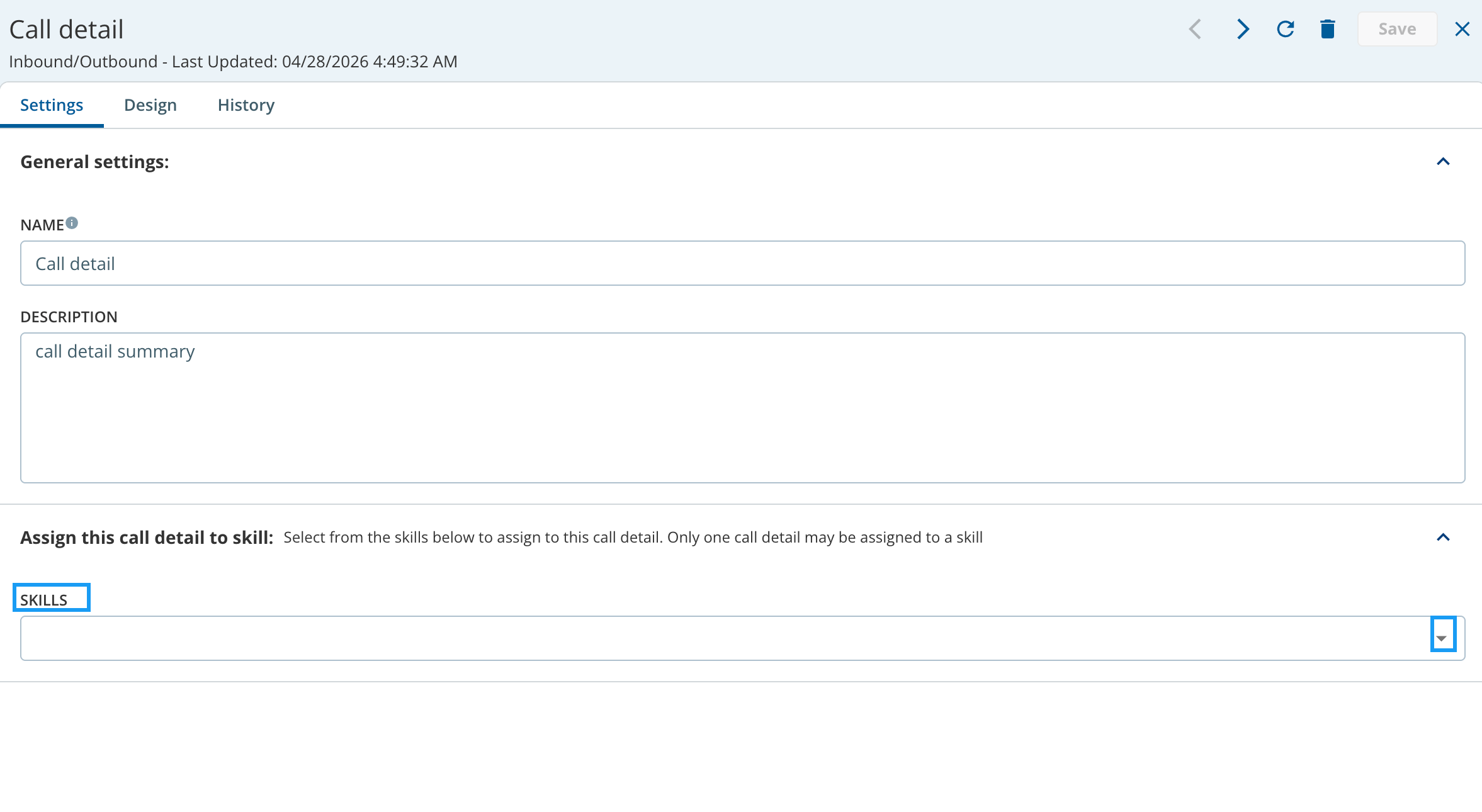
Enter a name and description, select your Call Type, and then clickCreate. The Call detail window is created under the Settings tab.
Assign Skills from theSkillsdrop-downmenu, for more information about Skills, see ACD Skills
The call information is displayed when the call is bridged to an agent assigned to that skill.
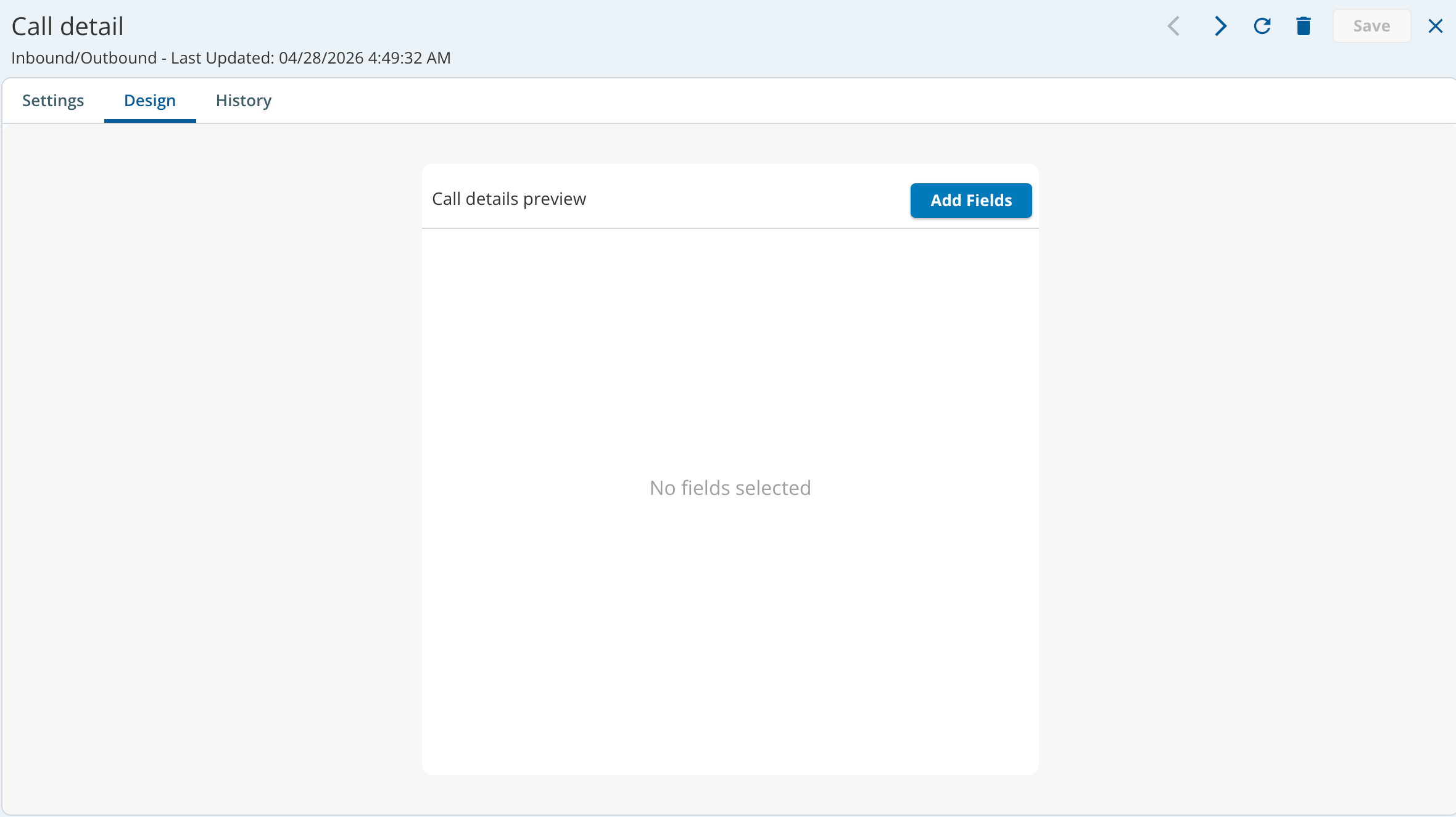
Click theDesigntab.
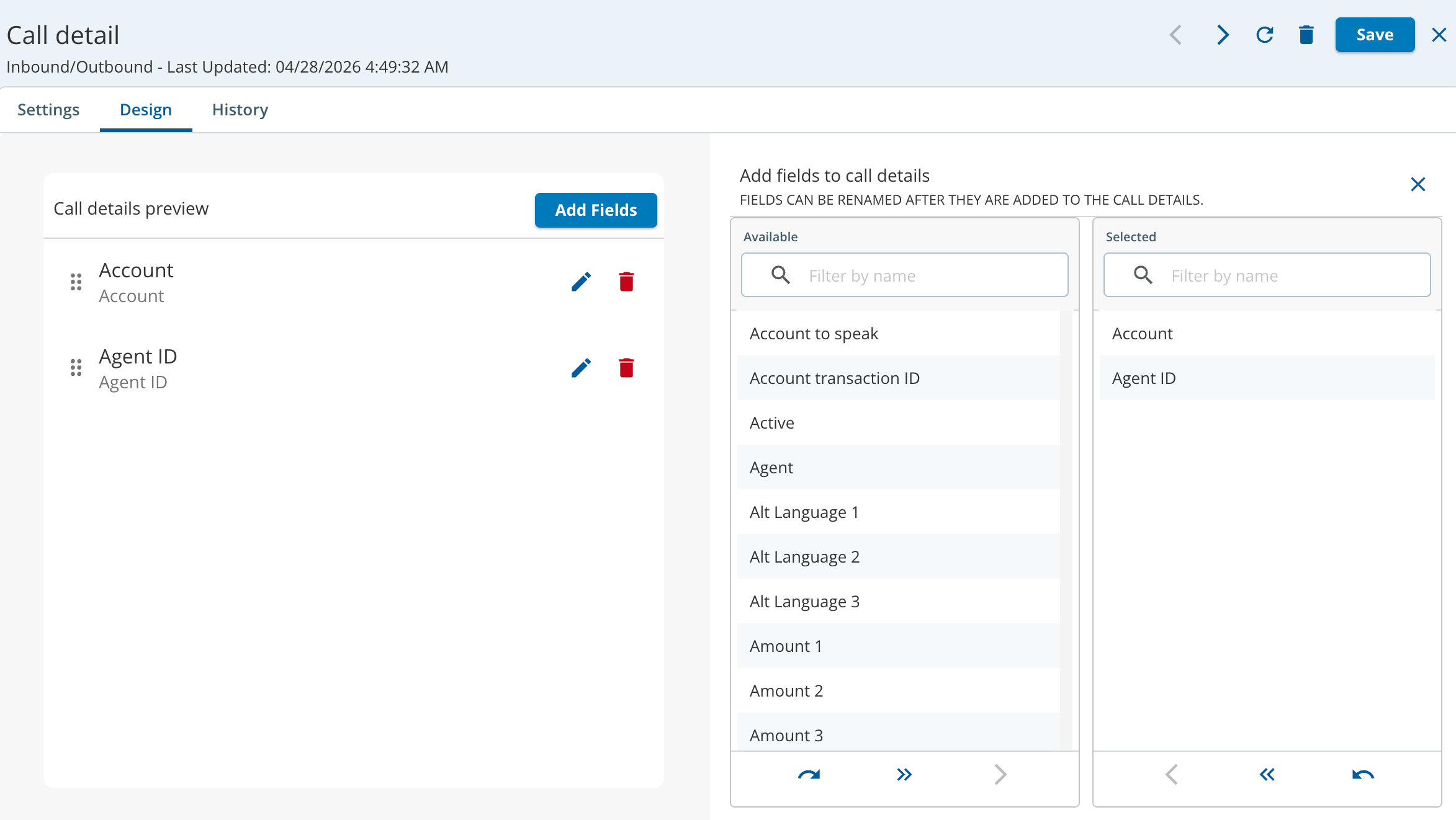
ClickAdd Fields, select the fields according to your requirement. You can edit these fields if necessary. Click the >>icon to select all the fields. Click the > icon to select an individual field.