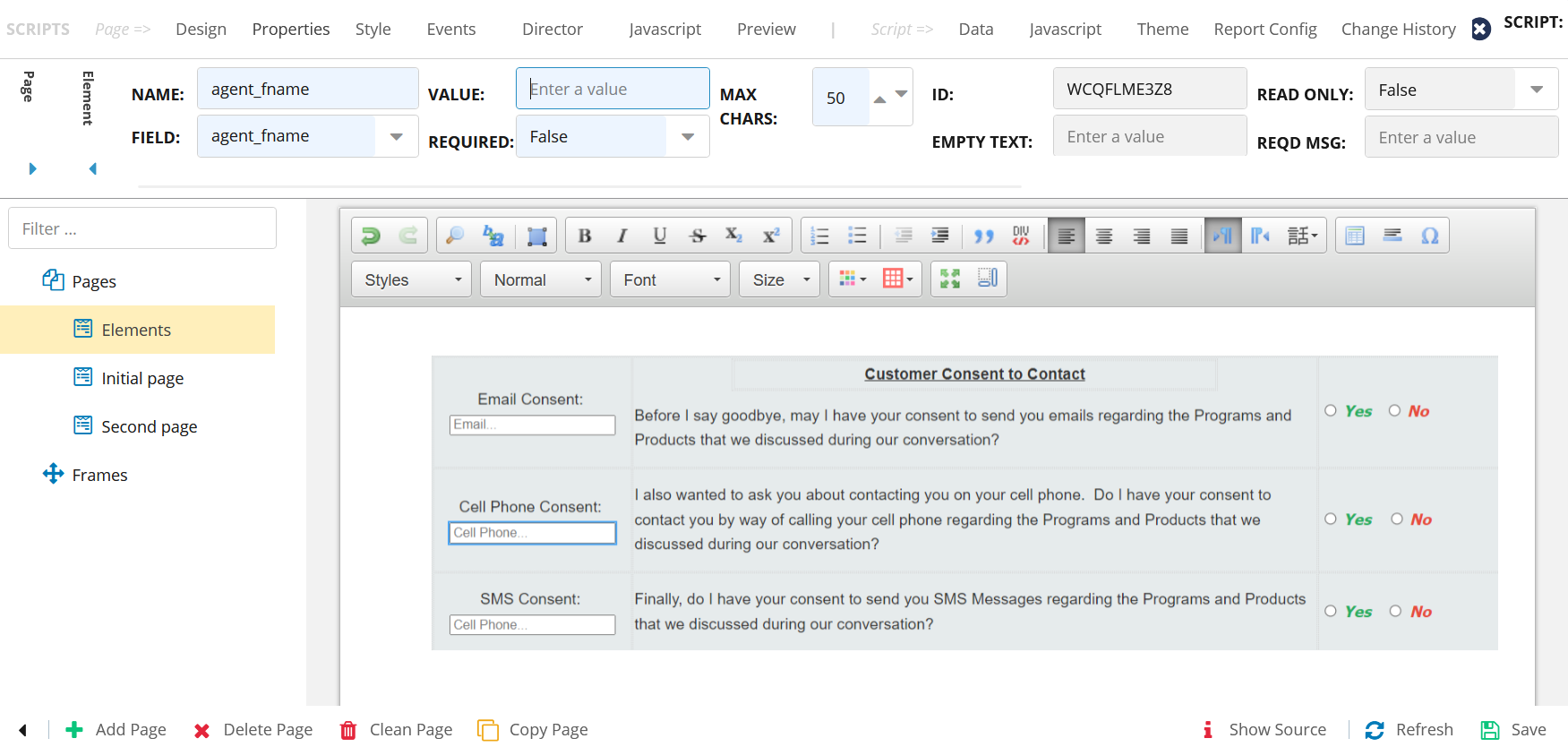
From thePropertiestab, you can set the values for thecontrols, such as text fields. For detailed information on the controls in the Element area, seeElementsand for more information on how to set the elements, seeSetting the properties for the elements.
Example
As an example, for theTextfield, the following values appear in thePropertiestab.Depending on your requirement, set the values for the Text field to function in thescript.
Text Field Values
Description
Name
Specify the name of the label.
Field
Select the data from the drop-down list. For information about adding the data, see theData Tab.
Value
You can specify the value if required.
Required
Specify that is the field is either True or False
Max Chars
Set the maximum number of characters that are required for this label.
ID
Specify the identification name for the label. By default, the script provides a random identification name for the field.
Empty Text
Specify the text that should appear on the label. For example, if you want the label to capture a mobile number, specify "Mobile or Cell phone" as an identification.
Read Only
Specify that you want the label to be a read-only field. If you do not want the field to be a read-only field, selectFalse.
Reqd Msg
If you want any required message to appear in the text field, specify the same in the text area.
Clear Previous
If you want the previous value to be cleared when you refresh the form, selectFalseelse selectTrue.
Pattern
Specify the following pattern values:
Alpha Numeric Space
Alpha Numeric
Alpha Numeric Underscore
Alpha Numeric Dash
Alpha Numeric Dash and Underscore
Numeric
Title
Specify the label title.
Match Fields
When you want to create a relationship between two labels, select the value as True else select False.
The values in thePropertiestab change based on the selected field.
You must drag-drop the controls from theElementsarea to the page, and then click thePropertiestab. The properties for the control are displayed.