This section covers the steps to configure and set property values for the Tasks (Work Queue) components. 

The Tasks component enables you to capture information regarding task type, subtype, subject, priority, and duration Days. For example, type Email to list the information for Task Type 'Email'.

To configure and set Tasks component:

  1. Click the Tasks component in the Agent section.
    The Work Queue window appears on the page.
  2. Select the Work Queue component and then click the gear icon.
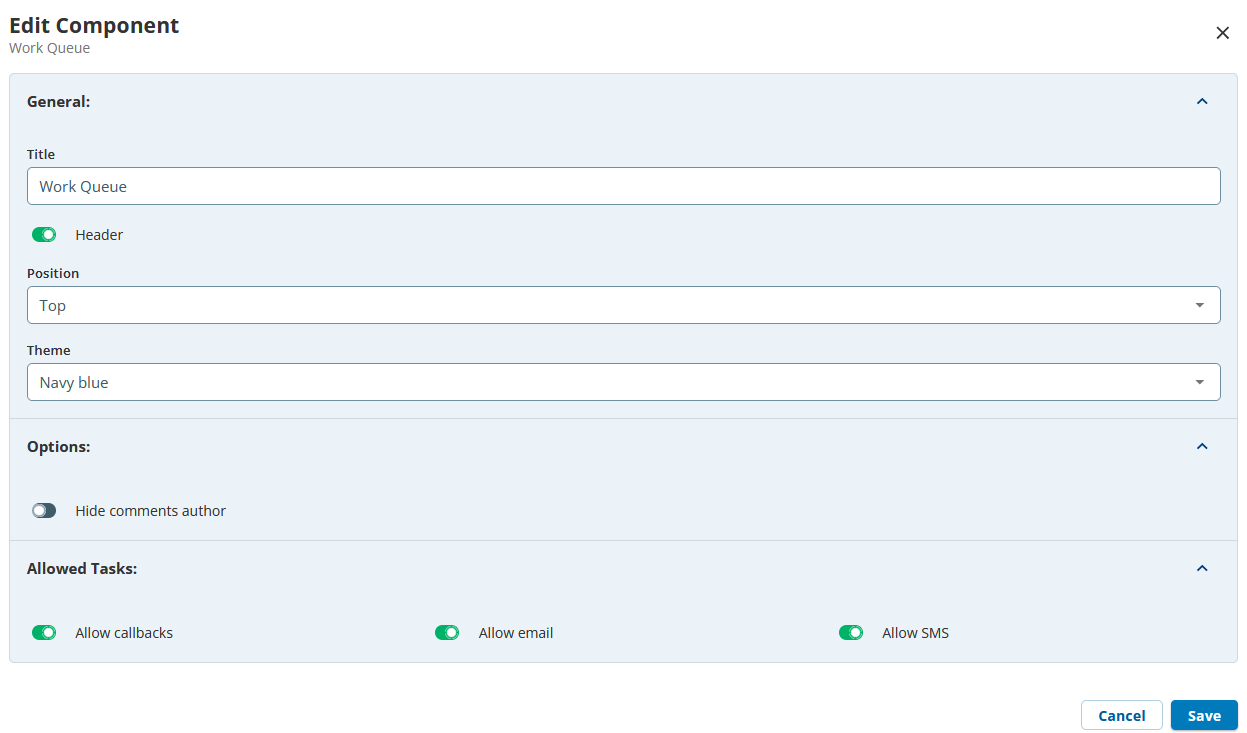
    The component properties for Work Queue are listed here:

    Number

    Property

    Feature

    Description

    TitleTitleYou can change the default title of an component. When you change the title, the component name on the canvas is updated to the new title. 

    PositionHeader, Header Position, and ThemeTo change the current formatting, change the Header Position and Theme. When you enable the Header Position option and select the Header Position in the drop-down menu, the header position is updated.

    Options

    Hide Comments Author

    When you enable this option, an agent cannot view the evaluating manager's name in the agent panel. 

    Allowed Tasks

    Allow email

    Allow SMS

    Allow callbacks

    You can use these buttons to enable the work queue type task. On the agent desktop, calls are classified based on the agent's interaction with the customer. The agent can then accept the interaction and assign a name corresponding to the customer interaction. For more information, see Agent Work Queue.
  3. After updating the required information click Save.