Managing a script involves copying, deleting, importing, and exporting a script. TheScript tabenables you to manage scripts.
Copying a Script
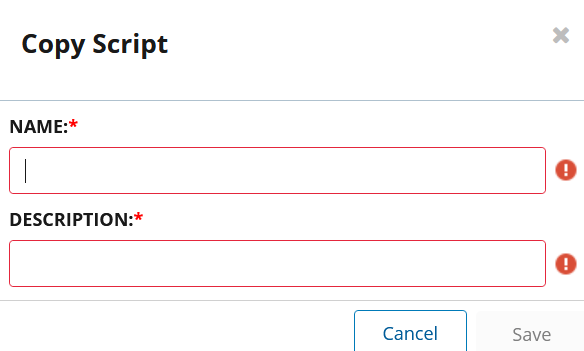
To copy the properties of an existing script to a new script, use theCopyoption present in theSCRIPTSwindow.
To copy a script:
Go to Scripts > SCRIPTS. A table of scripts appears.
Select the row displaying the script that you want to copy, and then clickCopy. TheCopy Scriptwindow appears.
Specify values in theNameandDescriptionfields, and then click Save. A copy of the script is created, and it appears in the table on theSCRIPTS subtab.
Deleting a Script
To delete a script, use theSCRIPTS window.
To delete a script:
Go to Scripts > SCRIPTS. A table of scripts appears.
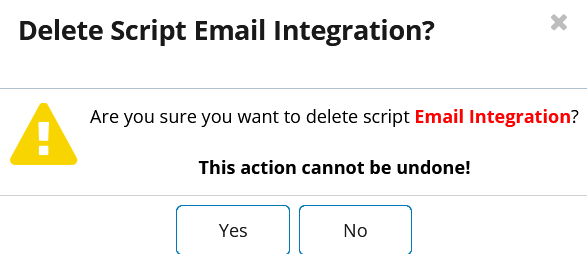
Select the row displaying the script that you want to delete, and then clickDelete. TheDelete Scriptwindow appears.
Click Yes. The script is deleted, and it does not appear in the table on theSCRIPTS subtab.
Once the script is deleted from theSCRIPTwindow, it is also deleted from the SmartReach database.
Importing a Script
You can import a script from your local system to the Desk. Contact the SmartReach customer team if you run into issues while importing a script. To import a script:
Go to Scripts > SCRIPTS. A table of scripts appears.
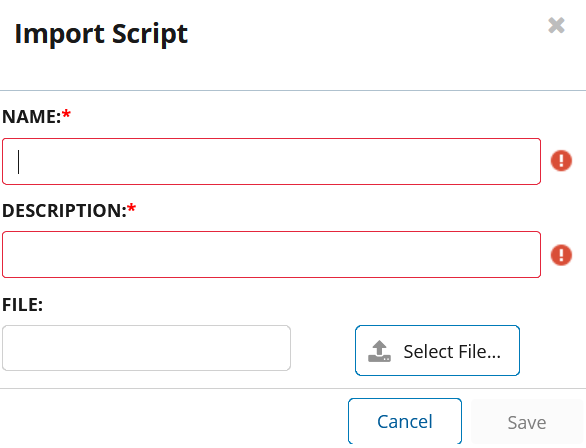
ClickImport. TheImport Scriptwindow appears.
Specify theName,Description, and then select the file from your local system. After the file is imported successfully, the script appears in the Script table.
info
The script should be in either HTML or JSON format
Exporting a Script
You can download a script using the Export option present in the SCRIPT window. The script gets downloaded to your local system in JSON format.
To export a script:
Go to Scripts > SCRIPTS. A table of scripts appears.
Select the script that you want to download.
ClickExport. The script is downloaded to your local system in JSON format.