The Home Bar helps you navigate to different pages and use a few features such as Notes, Omni-Search, and Recently Viewed.
Adding the Home Bar
To add a home bar to the page:
On the Desktops page, select a desktop for which you want to add the Home bar.
Click Add Component. The Components window appears.
Click the Home Bar option. The Home Bar appears on the desktop.
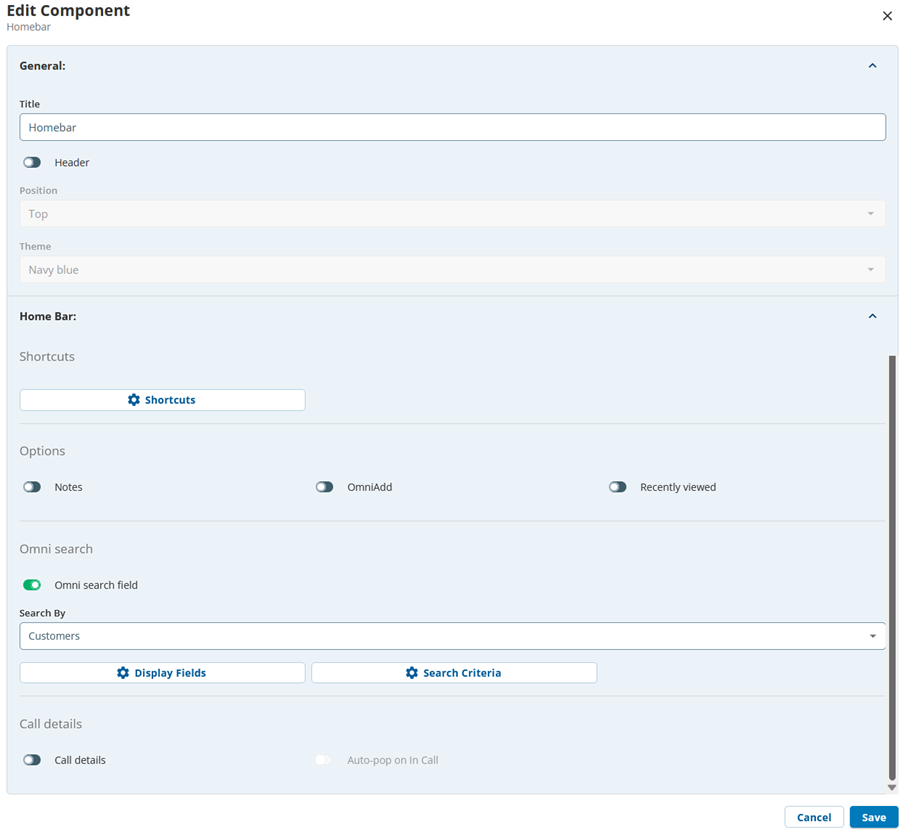
To add icons and change the properties of theHome Bar, click the gear icon. The following properties are displayed:
Category
Home Bar Properties
Description
General
Title
Title of the Home bar.
Header
Enables you to update the header position and the theme.
Home Bar
Shortcuts
Enables you to add buttons to the Home bar.
Options
Notes
The agent can enableNotes and add any information that needs to be recorded or noted during the call with the customer. This option acts as a notepad for an agent.
OmniAdd
Enables agents to add customer records.
Recently Viewed
Shows an agent's recently viewed customers, tickets, or accounts.
Omni Search
Omni Search, Search By
The search functionality in the Contact Center CRM agent desktop has been enhanced to provide personalized search options. Based on the agent roles and permissions, a personalized search experience is provided to the agents so they can quickly access the data they need. You can enable the omni-search function for the agent, which means that the agent can search using a single parameter using the operators for Contacts, Accounts, and Ticketing records.