This section covers steps to configure and set the property values for the components in the CXone section. This section contains the following elements:

Displays CXone WEM records. For information about CXone WEM, see Workforce Engagement.

To configure the WEM component:

  1. Click the CXone component and then click WEM.
    The WEM component gets added to the canvas.
  2. Update the properties of the WEM component by using the gear icon.

Enables you to schedule working hours, time off days, and other activities for agents. 

To configure the Schedule component:

  1. Click the CXone component and then click Schedule.
    The Schedule component gets added to the canvas.
  2. Update the properties of the Schedule component by using the gear icon.
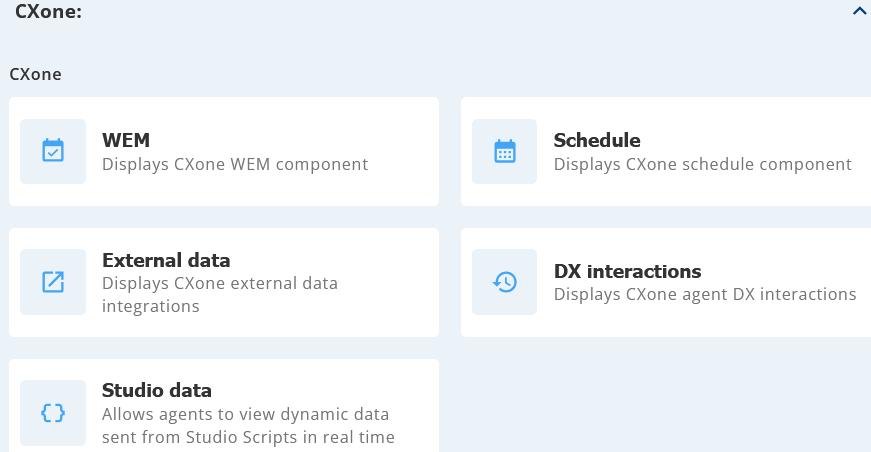
Enables you to configure external data.

To configure the External Data component:

  1. Click the CXone component and then click External Data.
    The External Data component gets added to the canvas.
  2. Update the properties of the External Data component by using the gear icon.

Displays DX Interaction data. 

To configure the DX Interaction component:

  1. Click the CXone component and then click DX Interaction.
    The DX Interaction component gets added to the canvas.
  2. Update the properties of the DX Interaction component by using the gear icon.

Displays Studio Data record. 

To configure the Studio Data component:

  1. Click the CXone component and then click Studio Data.
    The Studio Data component gets added to the canvas.
  2. Update the properties of the Studio Data component by using the gear icon.