You can design a contact view or a ticket viewbased on advanced filter criteria (conditional logic). To use the advanced criteria mode:
On theConfigtab, click Contacts > Contact Views. TheViewswindow appears
Go to theFilter Criteriasubtab.
Select theAdvanced Modeoption. The Query Builder section appears displaying the following buttons:
Add rule:Used to add a condition within a group.
Add group: Used to add a condition through a new group.
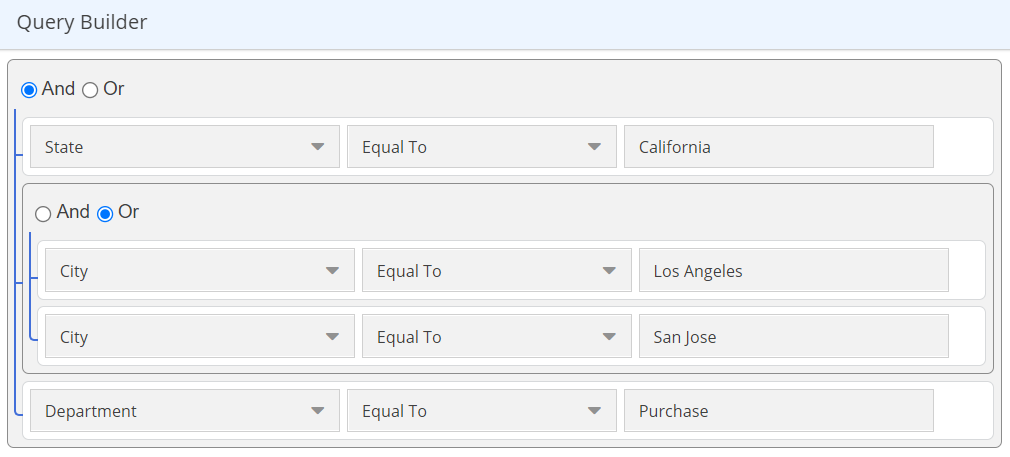
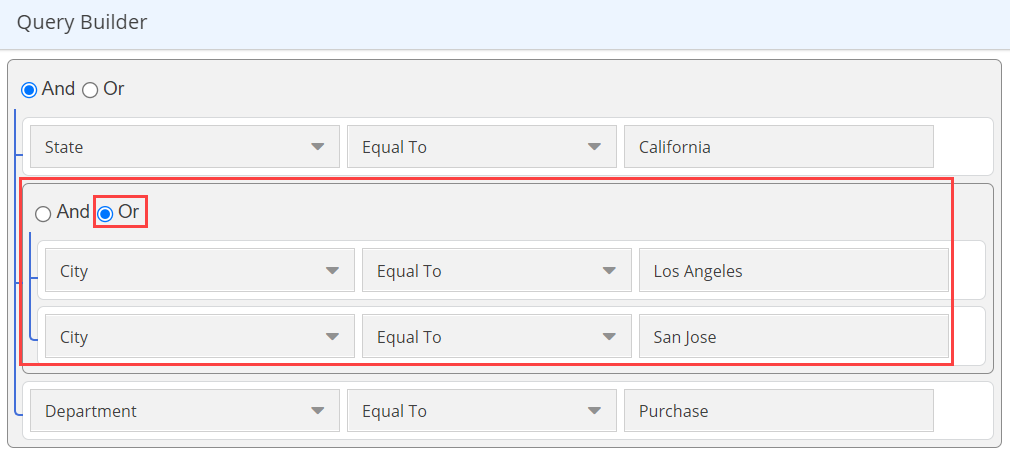
You can identify a group by the And and Or logical operators.
The rules within a group are linked by the logical operator selected for the group. For example, if the option Or is selected within a group, all the rules within that group are linked by the Or logical operator.
Specify conditions for the view by using the Add rule and/or Add group buttons where required.
A textual representation of the specified filter criteria appears in the Summary section in real time.
To delete a rule or group, hover over the rule or group, and then click theCloseicon.
Example
Suppose that you want to specify the following filter criteria for a contact view:
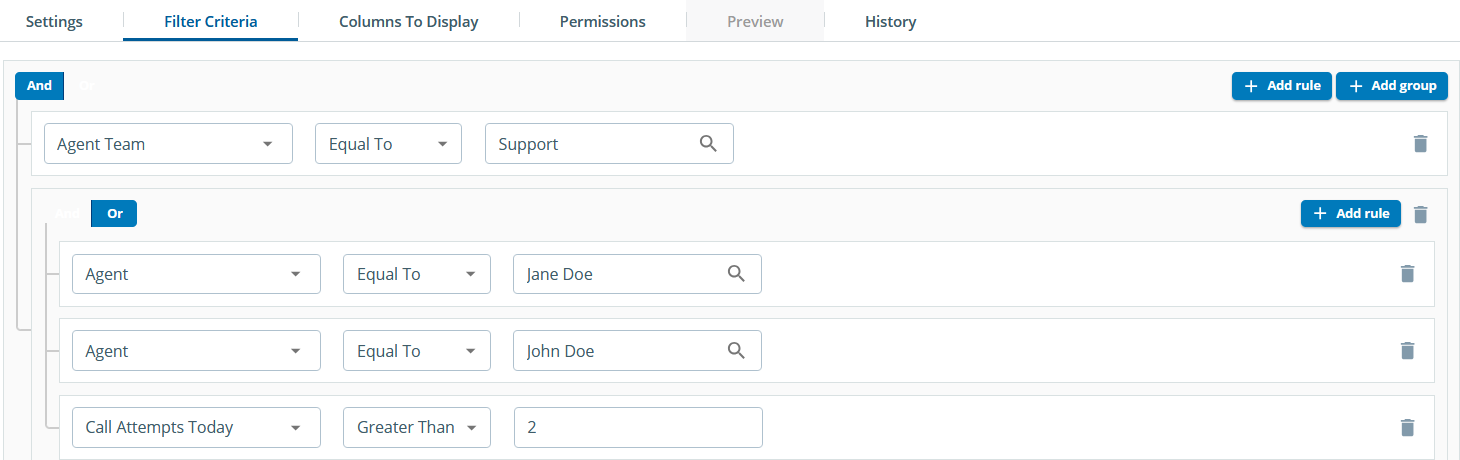
The name of the agent team assigned to contacts is Support; the names of the agents on that agent team are either Jane Doe or John Doe; and the number of call attempts for the current day is greater than two.
Then, in the Query Builder section, perform the following steps:
Click Add rule, and then specify the following condition.
Field
Operator
Value
Agent Team
Equal To
Support
Click Add group, and then specify the following condition.
Field
Operator
Value
Agent
Equal To
Jane Doe
Hover over the second group, click Add rule, and then specify the following condition.
Field
Operator
Value
Agent
Equal To
John Doe
Within the second group, select the Or option.
Within the first group, click Add rule, and then specify the following condition.