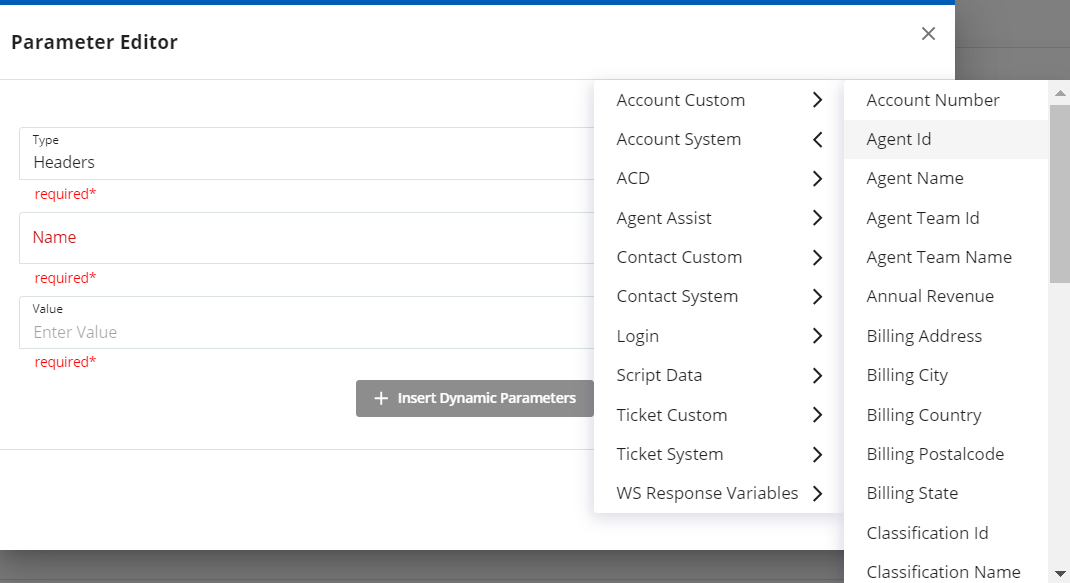
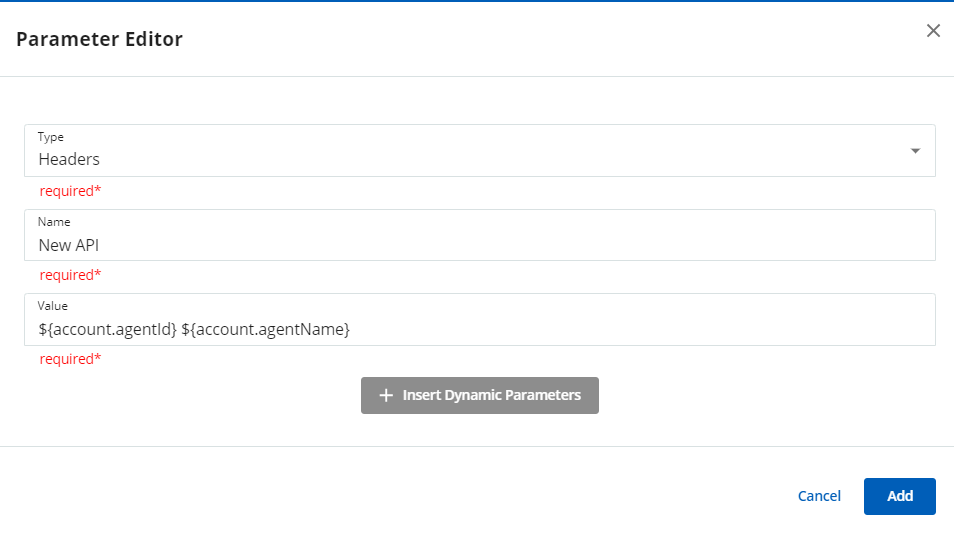
You can add header information in the Parameter Editor pop-up window. The header enables you to create workspaces, access reports, explore the public API network, and access your settings and accounts.
ClicktheInsert Dynamic Parametersbuttonand select a parameter from the list.
You can specify the parameter in the Value field or add it using the Insert Dynamic Parametersoption.
After selecting a parameter, clickAdd. The header is added.
To modify the parameter information, double-clickthe header.
To delete the header parameters, click.
To refresh the screen, click theRefreshbutton.
You can now add authorization information by clicking on the Authorization tab. For more information about adding authorization information, seeAdding Authorization.