Download PDF
Download page Secure Payment Capture 1.
Secure Payment Capture 1
Secure Payment Capture (SPC) Widgets
SPC widgets are available on Agent Panel, Agent Panel with Extended Panel, or Agent Panel with Designer desktop. Your manager must enable this feature.
If the SPC widget is enabled, you can guide the customer through the payment information gathering process by speaking the required instructions directly to the customer.
To initiate Secure Payment Capture, one or more of the following widgets must be configured by your manager and available on your desktop:
- Credit Card Basic
- Check Basic
- Credit Card Advanced
- Check Advanced
Once configured, you are presented with the credit card or check buttons.
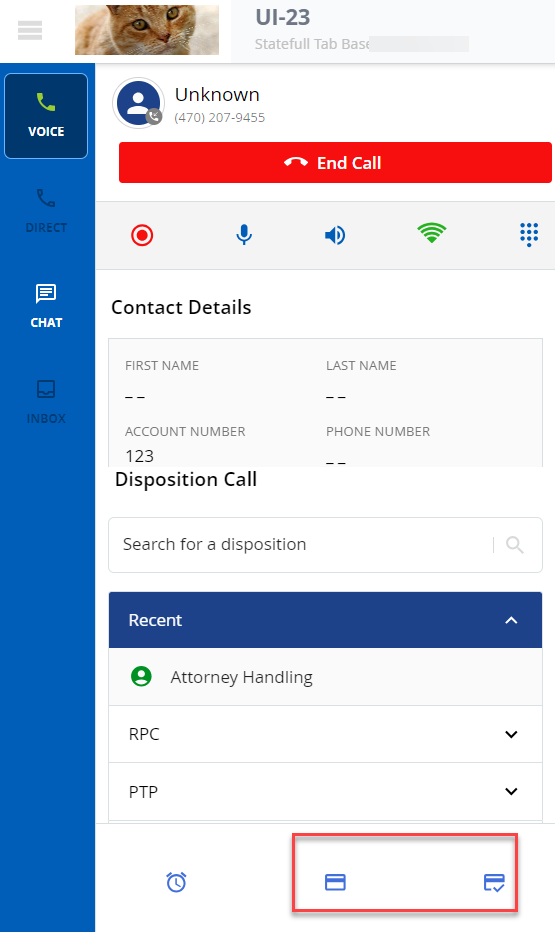
Clicking on the credit card ( ) or check (
 ) control buttons opens the widgets on the screen.
Credit Card Basic
After clicking the credit card () button, the configured Credit Card Basic widget is launched on your screen as shown below. Clicking Cancel removes the Credit Card Basic payment screen from your screen.

If configured, you can capture the payment for Visa, Master, American Express, or Discover cards.
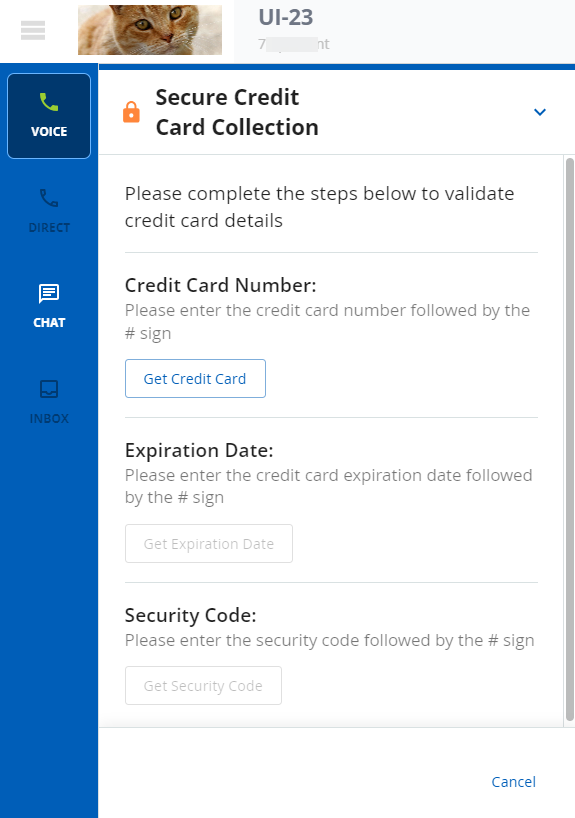
- Read the configured message prompt to the customer to get the Credit Card Number. Customer enters their credit card number using the telephone keypad. When the customer enters a valid credit card number, it is reflected on the screen.
- Read the configured message prompt to the customer for the Expiration Date of the credit card. Customer enters their credit card expiration date using the telephone keypad. When the customer enters a valid credit card expiration date, it is reflected on the screen.
- Read the configured message prompt to the customer to get the Security Code of the credit card. Customer enters their credit card security code using the telephone keypad. When the customer enters a valid credit card security code, a confirmation appears on the screen.
Check Basic
After clicking the check () button, the configured Check Basic widget appears on your screen as shown below. Click Cancel to close the Check Basic payment screen.
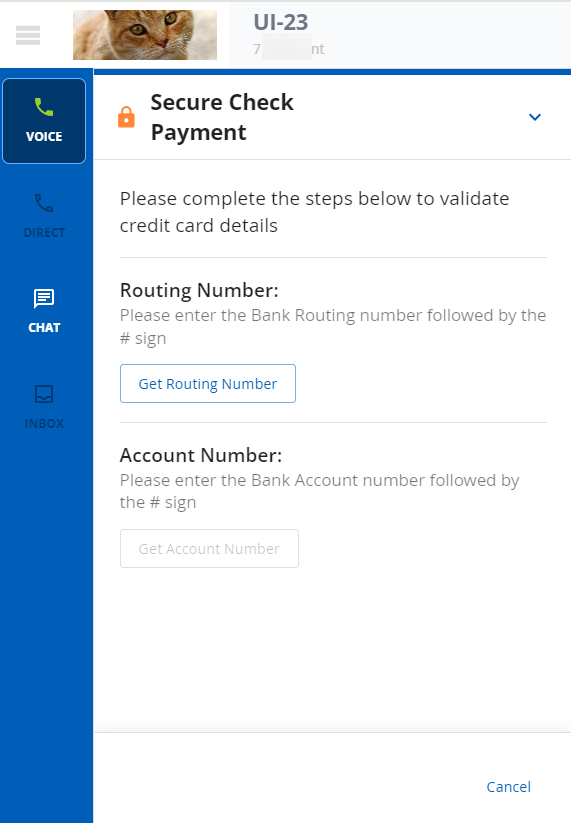
- Read the configured message prompt to the customer to get the Routing Number. Customer enters their routing number using the telephone keypad. When the customer enters their routing number, it is reflected on the screen.
- Read the configured message prompt to the customer to get the Account Number. Customer enters their account using the telephone keypad. When the customer enters a valid account number, it is reflected on the screen.
Credit Card Advanced
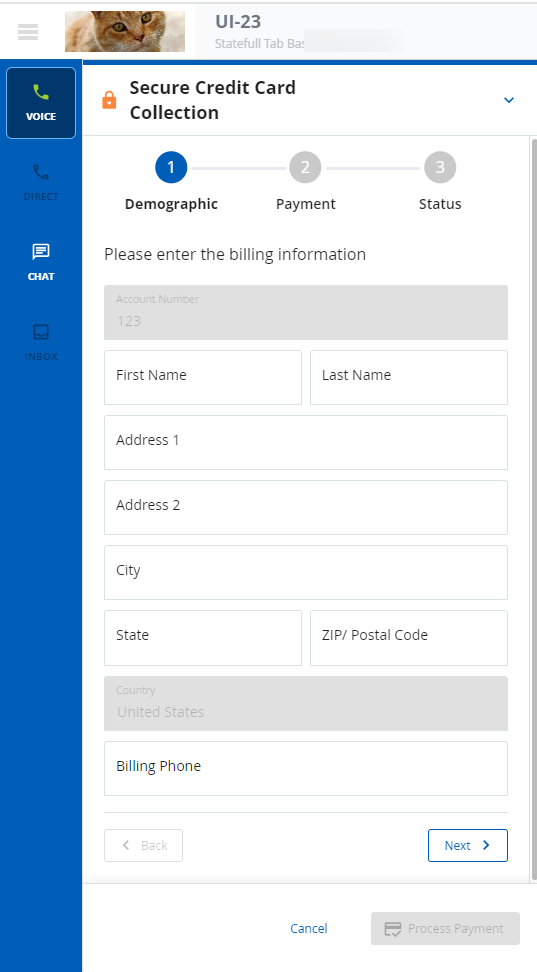
After clicking the credit card () button, the configured Credit Card Advanced widget appears on your screen as shown below. Click the Next or Back buttons to move to the next or previous field. Click the Process Payment button to complete the transaction. Clicking Cancel removes the Credit Card Advanced payment screen from your screen.
If configured, you can capture the payment for Visa, Master, American Express, or Discover credit cards.
- The screenshot below shows the customer Demographic tab of the Credit Card Advanced widget. Enter the billing information as it relates to the specific payment card.
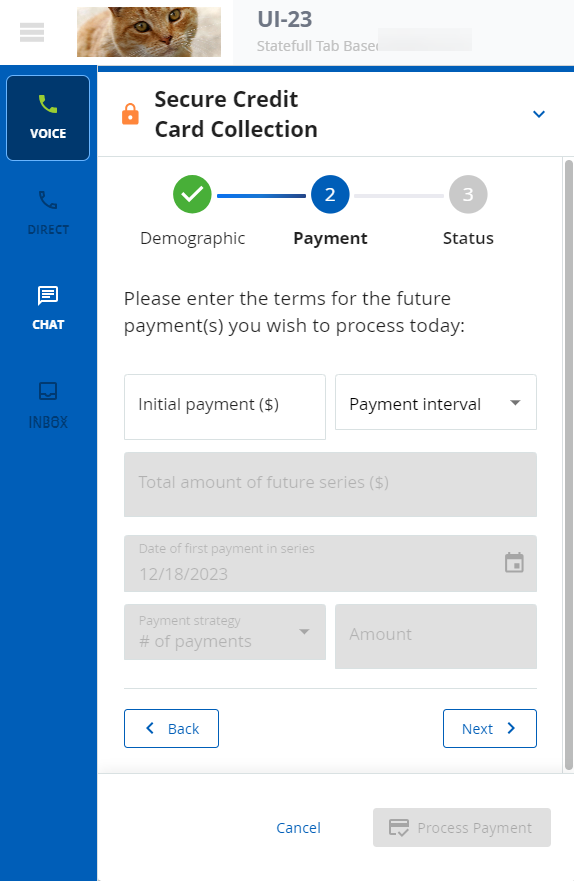
- The screenshot below shows the Payment tab of the Credit Card Advanced widget. Enter the customer payment information.
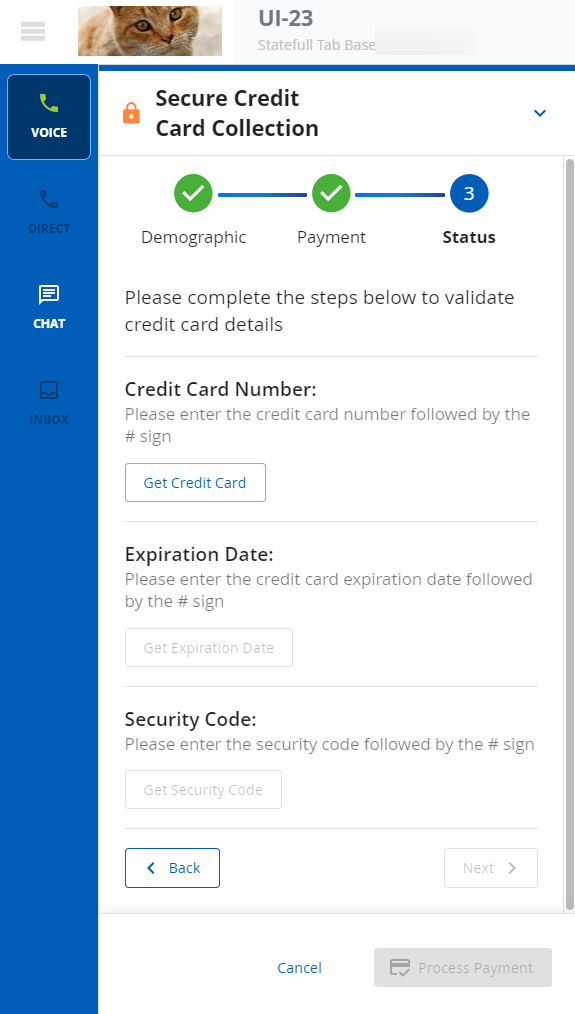
- The screenshot below shows the Status tab of the Credit Card Advanced widget.
- Follow the same procedure as with the Credit Card Basic widget.
- However, the payment details do not appear as these details are masked in the Credit Card Advanced widget. Instead, you can see an 'Obtained' message on your screen once the customer successfully enters their information.
- Once all the details are obtained, click the Process Payment button.
Check Advanced
After clicking the check () button, the configured Check Advanced widget is launched as shown below. Click the Next or Back buttons to move to the next or previous field. Click the Process Payment button to complete the transaction. Clicking Cancel removes the Check Basic payment screen from your screen.
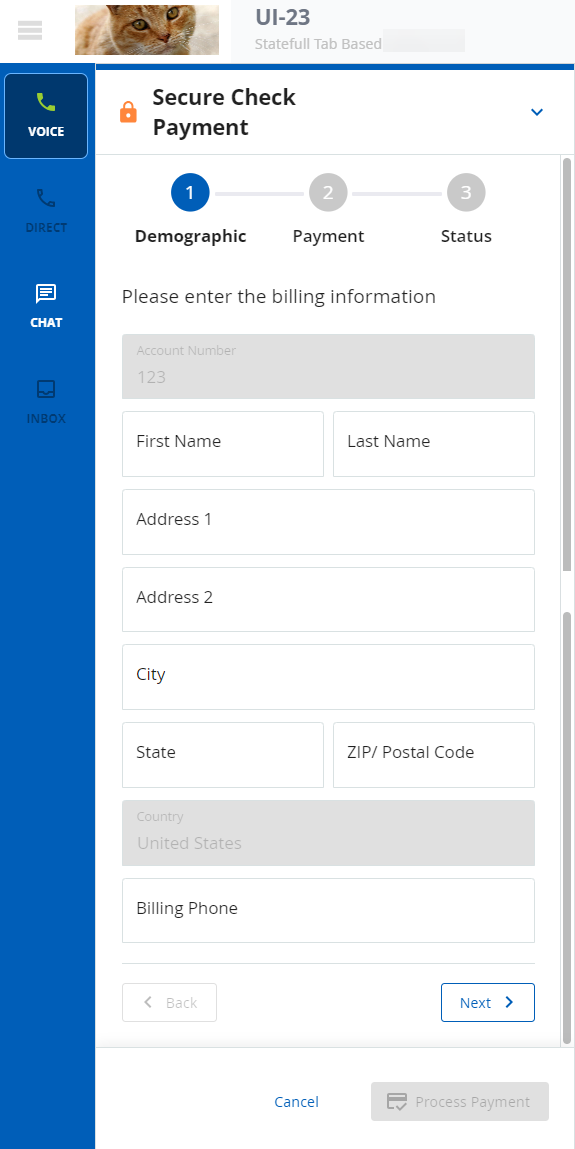
- The screenshot below shows the customer Demographic tab of the Check Advanced widget. Enter the billing information as it relates to the specific payment card.
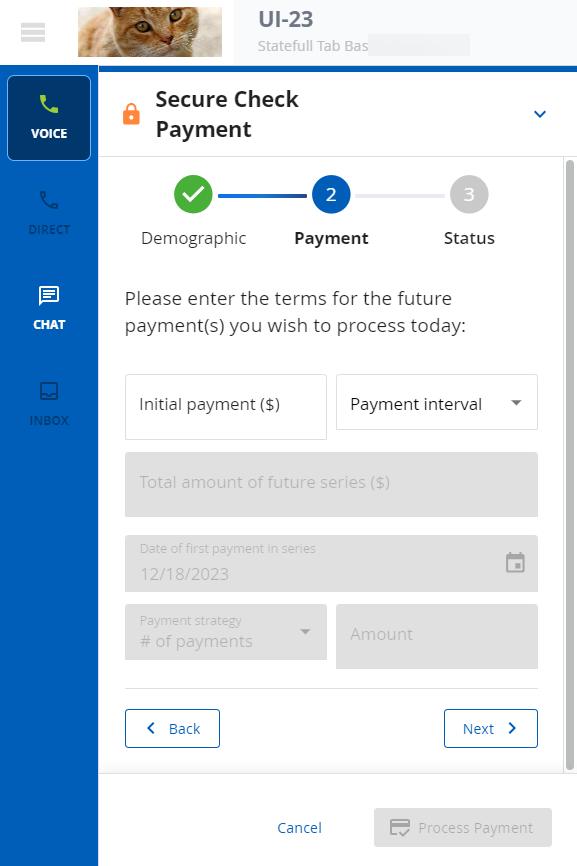
The screenshot below shows the Payment tab of the Check Advanced widget. Enter the customer payment information.
The screenshot below shows the Status tab of the Check Advanced widget.
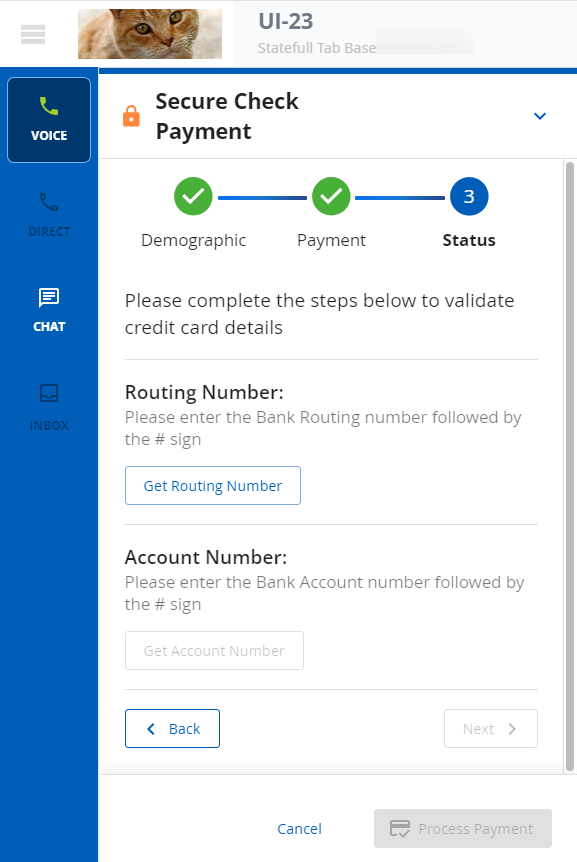
- Follow the same procedure as with the Check Basic widget.
- However, the payment details do not appear as these details are masked in the Check Advanced widget. Instead, you can see an 'Obtained' message on your screen once the customer successfully enters their information.
- Once all the details are obtained, click the Process Payment button.