You can add manual alerts on tickets from SmartReach and the agent desktop. Both managers and agents can send manual alerts to other agents and managers from the tickets. Alerts allow you to notify, remind or advise on tickets directly to an agent’s Work Queue task, LV Connect, work email, or SMS. Creating a manual alert on a ticket means that any urgent actions that need to be done immediately are communicated to those who should be notified.
To create an alert:
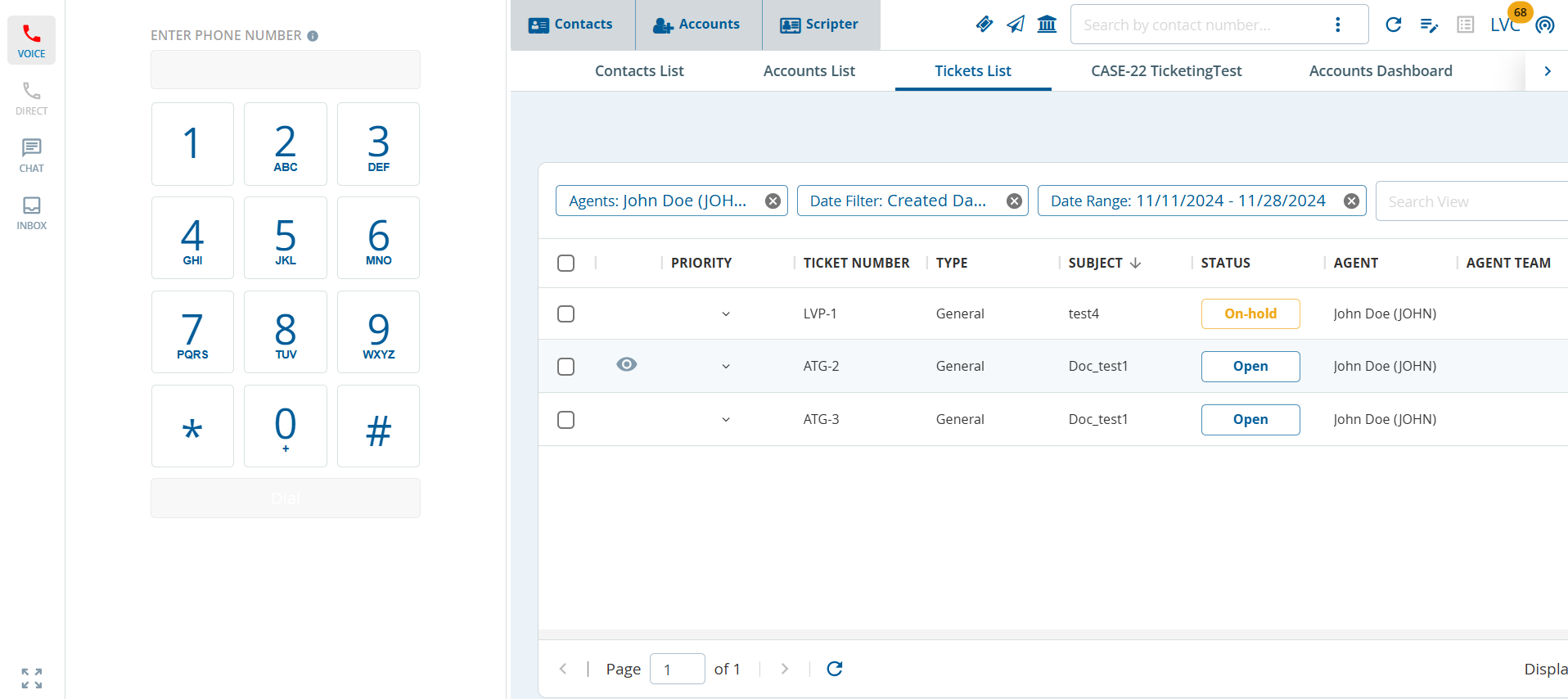
On the agent desktop, click theTicket Listtab. TheTicket Listtab appears.
Double-click and open a ticket for which you want to add an alert.
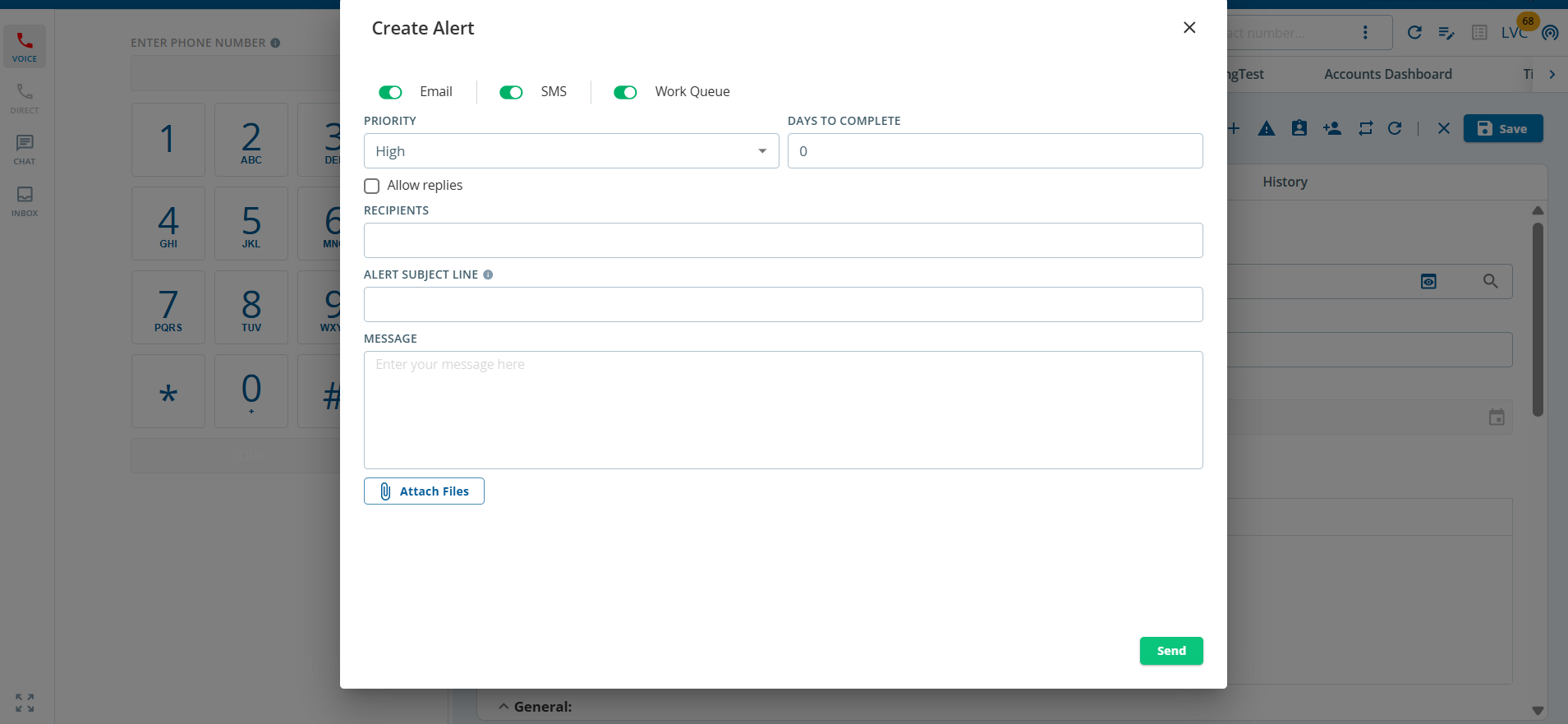
Click. TheCreate Alertswindow appears.
Click to enableEmail,SMS, andWork Queue, as required.
If you want to receive a response to your email, enable the Allow repliesoption.
Select theRecipientname from the list.
Specify the subject.
Enter a description and clickSend.
You can attach a file if required. Click theAttach Files button.
You can tag a customer or an agent in the description area of a ticket. For example, tag agent Adam by entering@adamand the message.