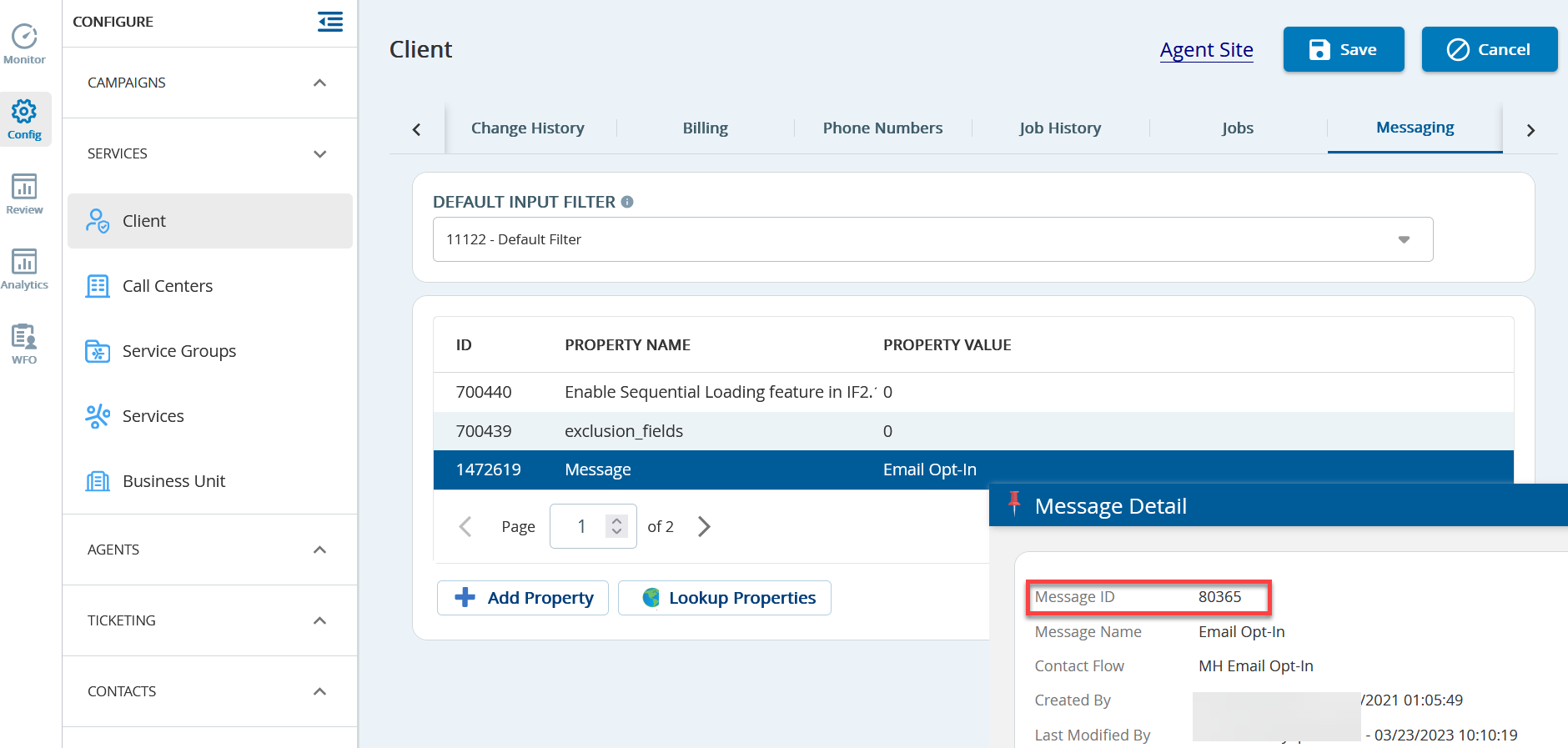
TheMessageproperty's Message ID used for the service. This is the message we will want to consult.The phrase template and message are interchangeable.
Option 1: In the Message Detail window, clickViewto open the message in theMessageseditor.
Option 2: Navigate to theMessageseditor. Use the Message ID to search for the message. The message is displayed along with all the phrases used.
Visualize the message
Click the visualization button in the upper-right of theMessageswindow to view the message in a Contact Flow. This reflects the verbiage in the Contact Flow message after the last save.
Validate a message
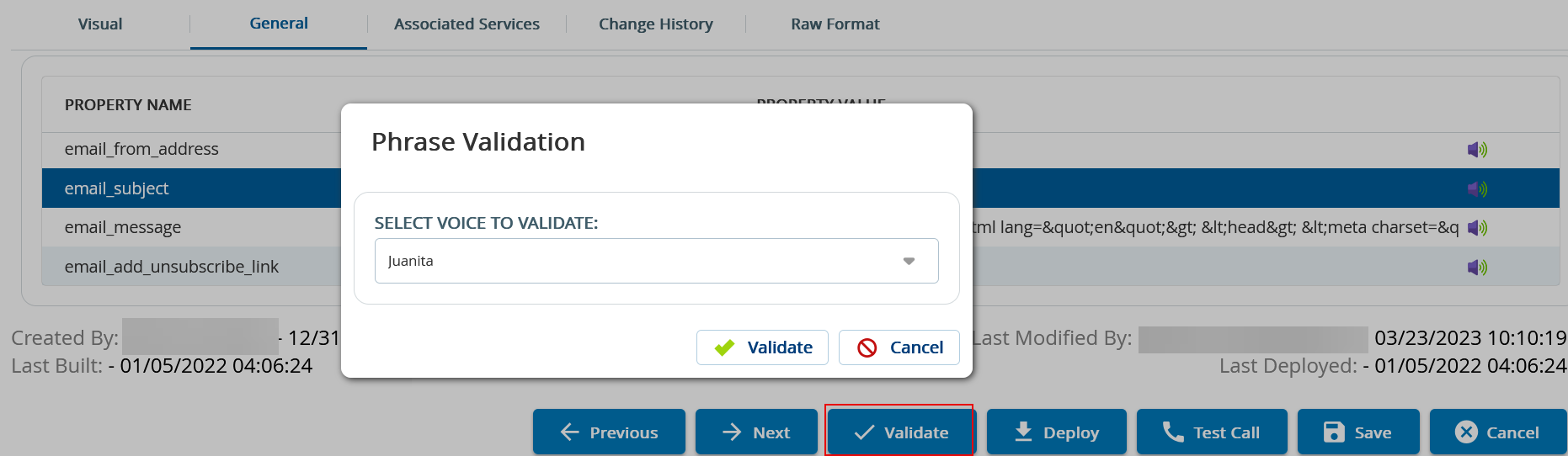
Verify a message, clickValidate. This confirms that all the prompts being used are available.
In theMessageswindow, select the message you want to validate.
Go to the Generaltab, select the property you want to validate, and clickValidate.
Choose the voice talent you wish to validate the messaging for and clickValidate.
Listen to a message
In the Messages window, select the line you want to listen to.
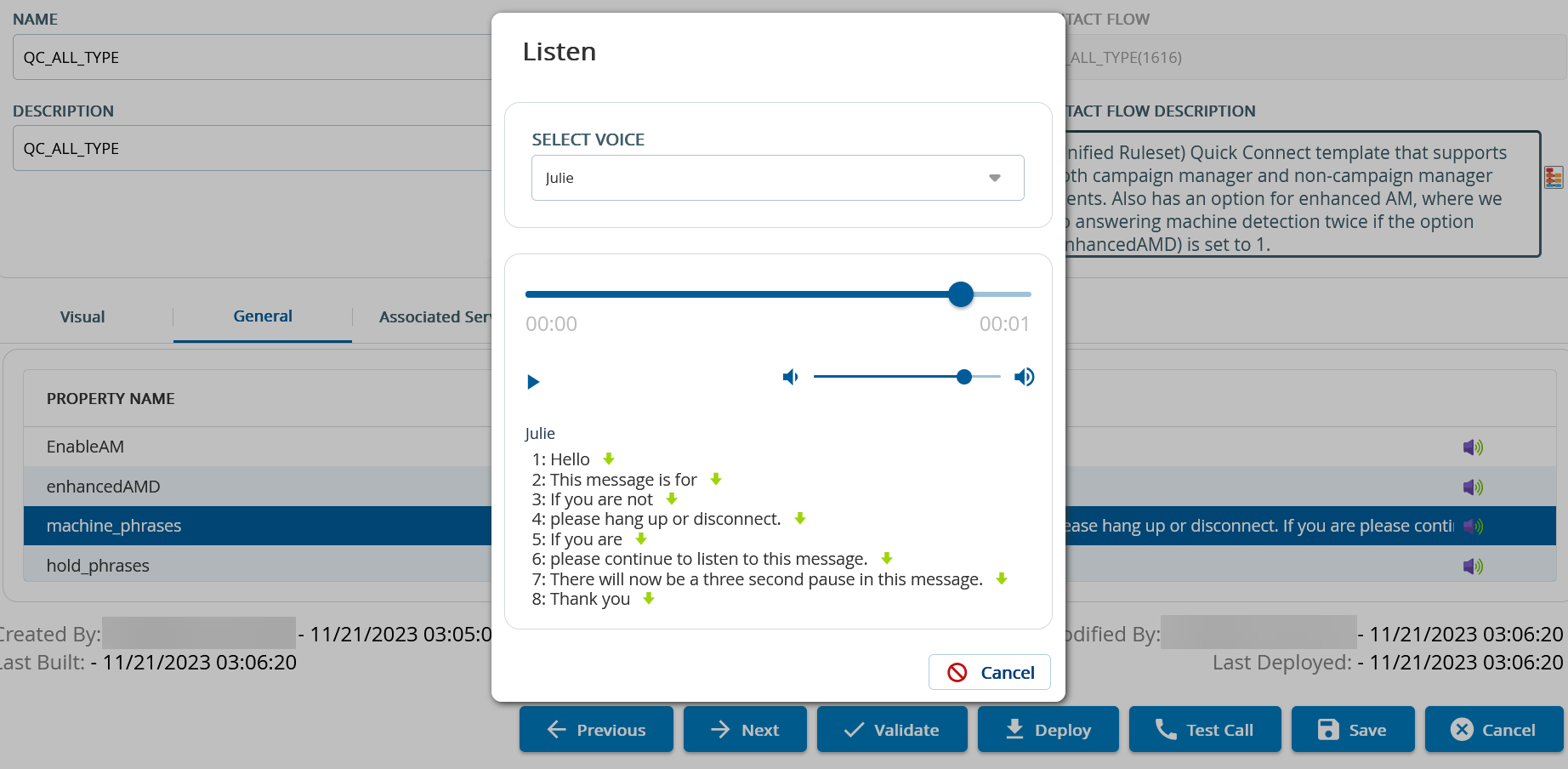
Click theListenbutton.
Choose the voice talent you want to hear the message in and clickPlay,
Repeat steps 1-3 for all the lines/voice talents.
You must build and deploy a message each time you edit it.
Make a test call and verify messages before building them.