A skill functions as a label or category assigned to interactions, making it easier to organize and manage them. You can filter interactions based on these skills. For example, if language is used as a skill, interactions can be labeled as Spanish, English, French, and so on. You can then filter only Spanish interactions for further review and processing.
In SpeechIQ, Service Names are typically used as skills for interactions. However, you also have the option to apply custom skills.
The Skill Maintenance window allows you to create and customize skills to suit your organization's needs. To use a custom skill for your interactions, contact Customer Support.
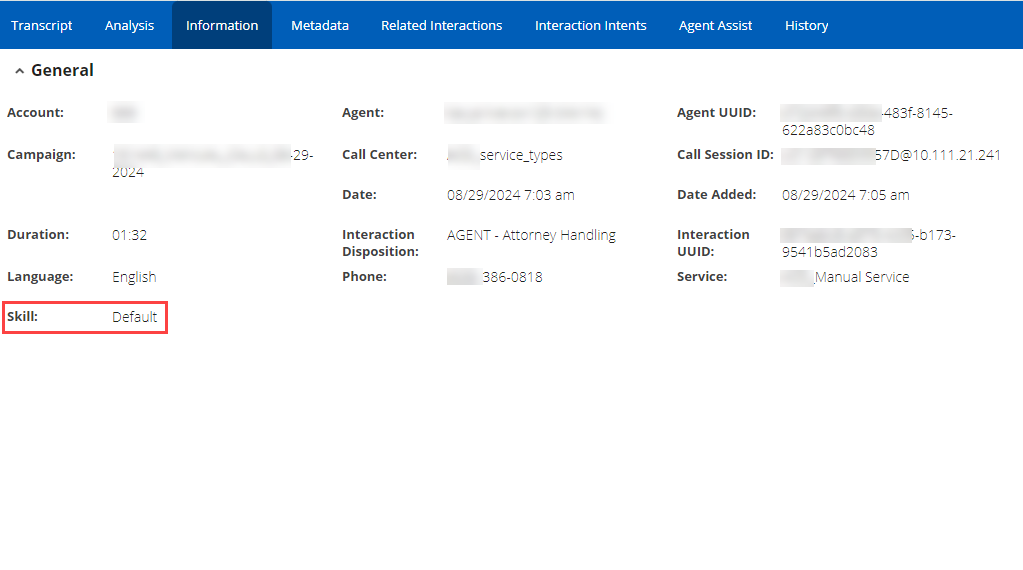
The Skill associated with an interaction is shown on the Information Tab within the Interaction Review window.
You can also assign a default skill for all the interactions. To set a default skill, contact the Customer Support.
Accessing the Skill Maintenance Window
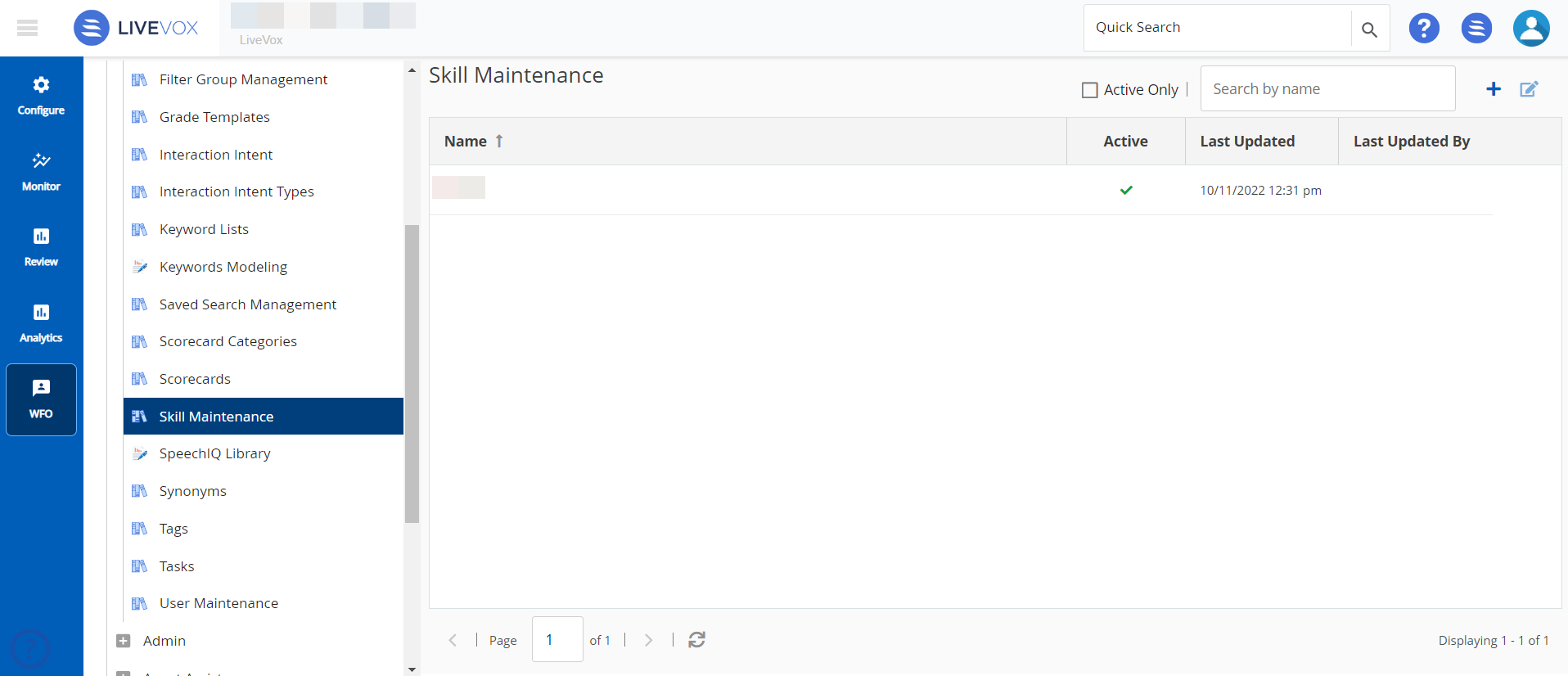
To access the Skill Maintenance window, on the WFO tab, click ConversationConfiguration > Skill Maintenance. The Skill Maintenance window with all the configured skills is displayed.
To search for a specific skill, use the Search by name field.
To list only the active skills, select the Active Only checkbox.
To refresh the list, click theRefreshicon ().
Adding a New Skill
To add a new skill:
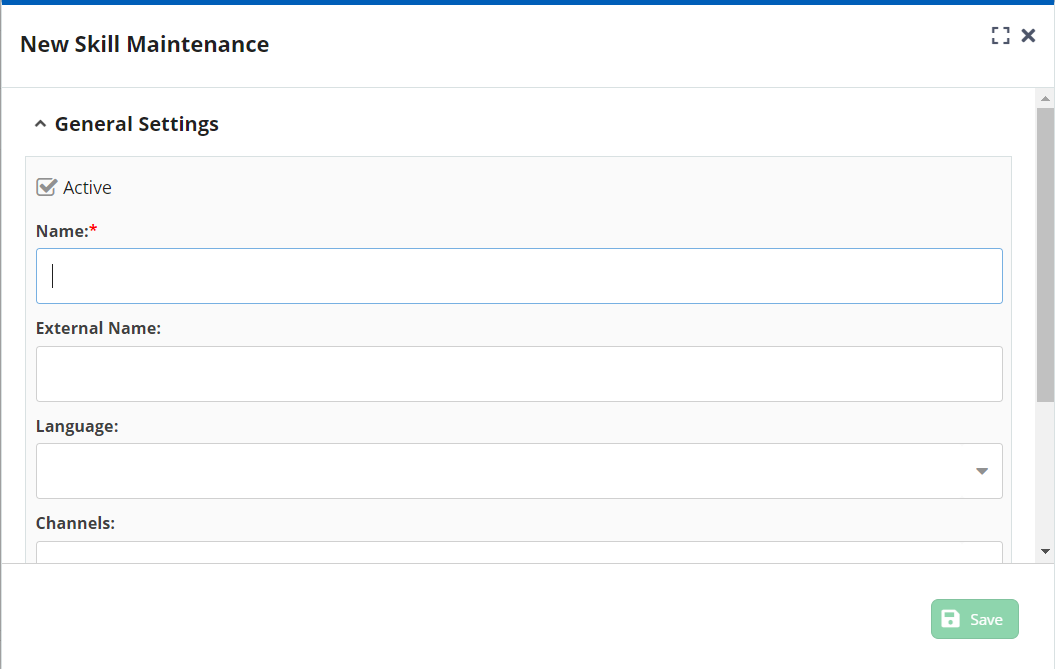
In the Skill Maintenance window, click . The New Skill Maintenance window appears.
Specify values in the following fields:
Name: Specify a name for the skill.
Active: Select the checkbox to make the skill active.
External Name: Specify a name that corresponds to the skill name.
Language: Select a language from the dropdown.
Channel: Select the channel from the dropdown.
Description: Describe the skill (optional).
Click.
To modify a skill, in the Skill Maintenance window, select the skill to modify and click or double-click the skill. You can modify the information in the Edit Skill Maintenance window.