Manual Service
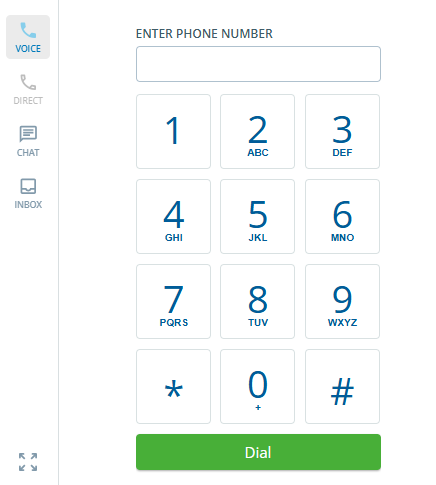
A Manual service is a human-initiated service in which an agent manually enters all 10 digits of a telephone number on a keypad to launch an outbound call, or the agent manually selects a phone number to launch a call from a CRM Agent Desktop. The same agent handles the call.
Typically, before launching a call, the agent searches for information about each customer from their records and links any information they receive to the customer's account number. Manual services can also receive inbound calls.
The following describes the overall actions required when setting up and making an outbound call using the Manual service.
- Create/copy the Manual Service.
- Associate the message with the Manual service.
- Specify the callback phone number.
- Configure the routing type.
- Assign the agent desktop to the agent.
- Configure the termination/disposition code.
- Assign agents to the Manual service.
- Connect to the customer through the agent desktop.

SmartReach sets up the services you intend to use when it creates your client portal. However, you can modify these settings or add a new service by copying an existing service, as required.
Below are the details for each step:
Create/copy the Manual Service.
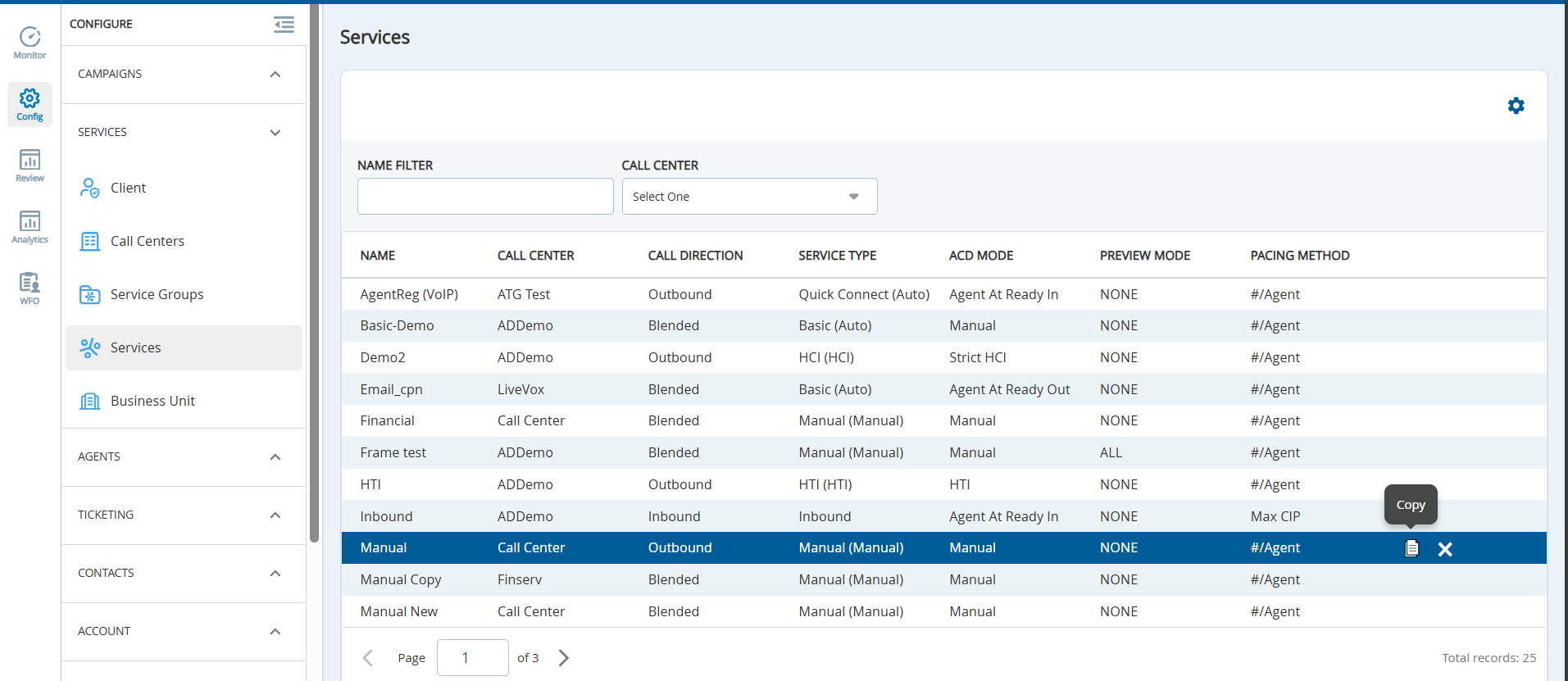
- Navigate to Configure > Services > Services.
- To create a new Manual service, copy an outbound or existing Manual service. Hover on the required service and click the Copy icon.
- The Copy Services pop-up appears.
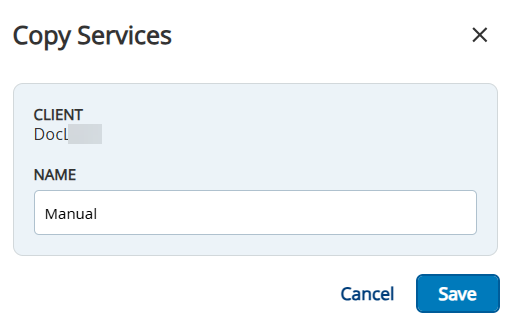
- Specify the Name of the new service.
- Click Copy.
- After the service is copied, double click the copied service. The Edit Service window appears.
- On the General tab, configure the following fields:
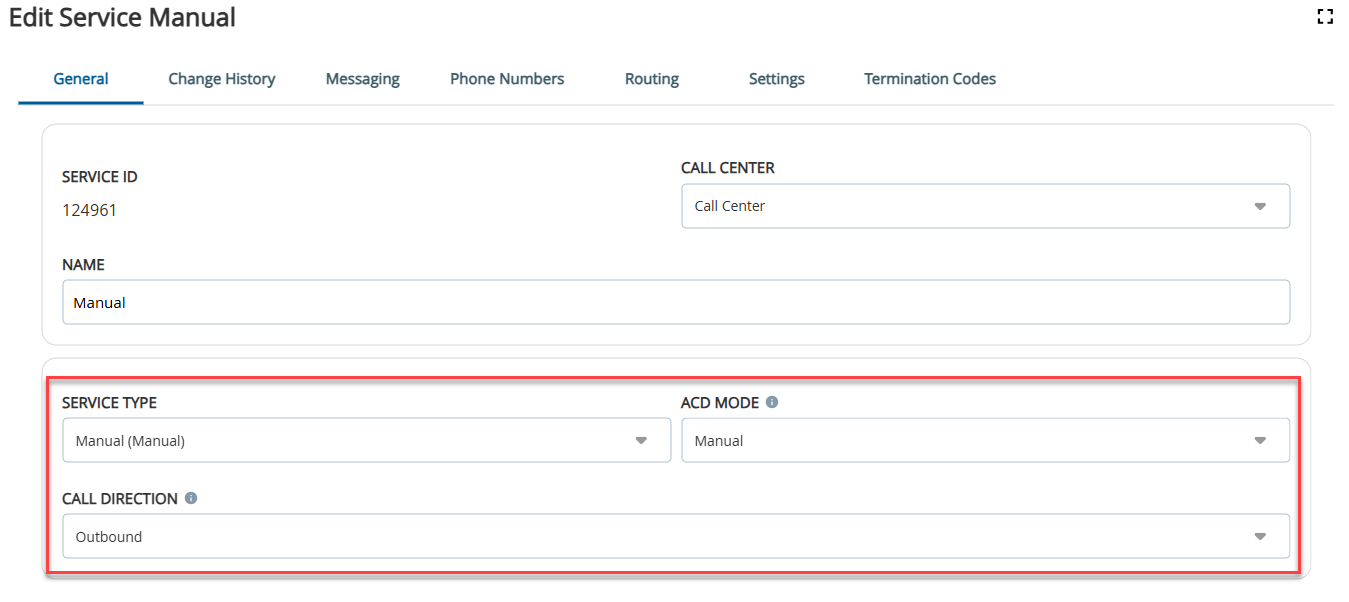
- Select the Service Type as Manual from the drop-down list.
- Select the Call Direction as Outbound from the drop-down list.
- Select the ACD mode as Manual from the drop-down list.
Associate the message with the Manual service.
On the Messaging tab, configure the following fields: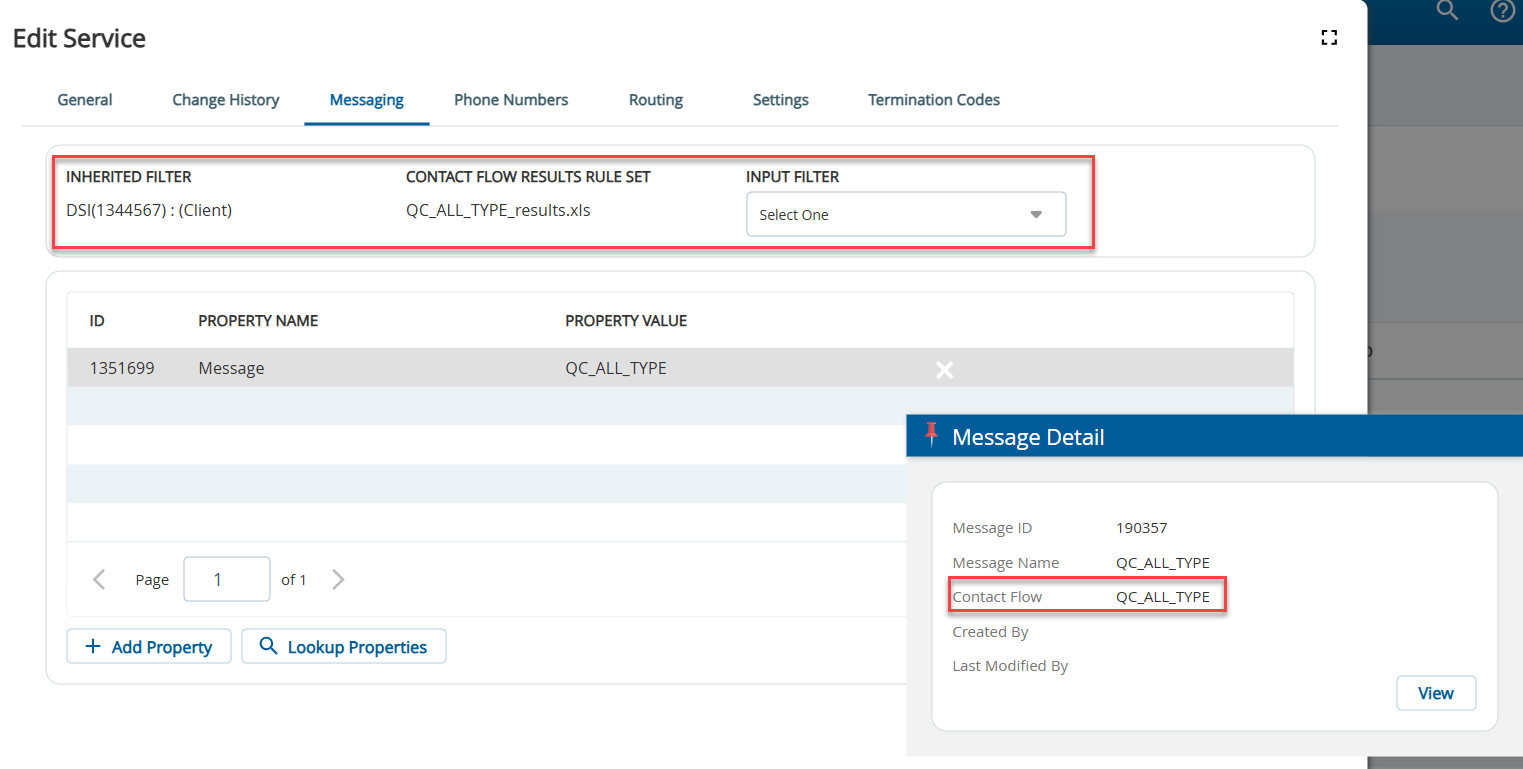
- The Inherited Filter displays the client-level default filter or the filter that is used, if nothing is specified in the Input Filter field.
- The service-level filter supersedes the inherited or client-level default Input Filter. If required, select the required Input Filter from the drop-down list.
- The Contact Flow Results Rule Set displays the Rule Set associated with the given Contact Flow of the specific message that is assigned to the service.
Specify the callback phone number.
In the Phone Numbers tab, configure the following fields: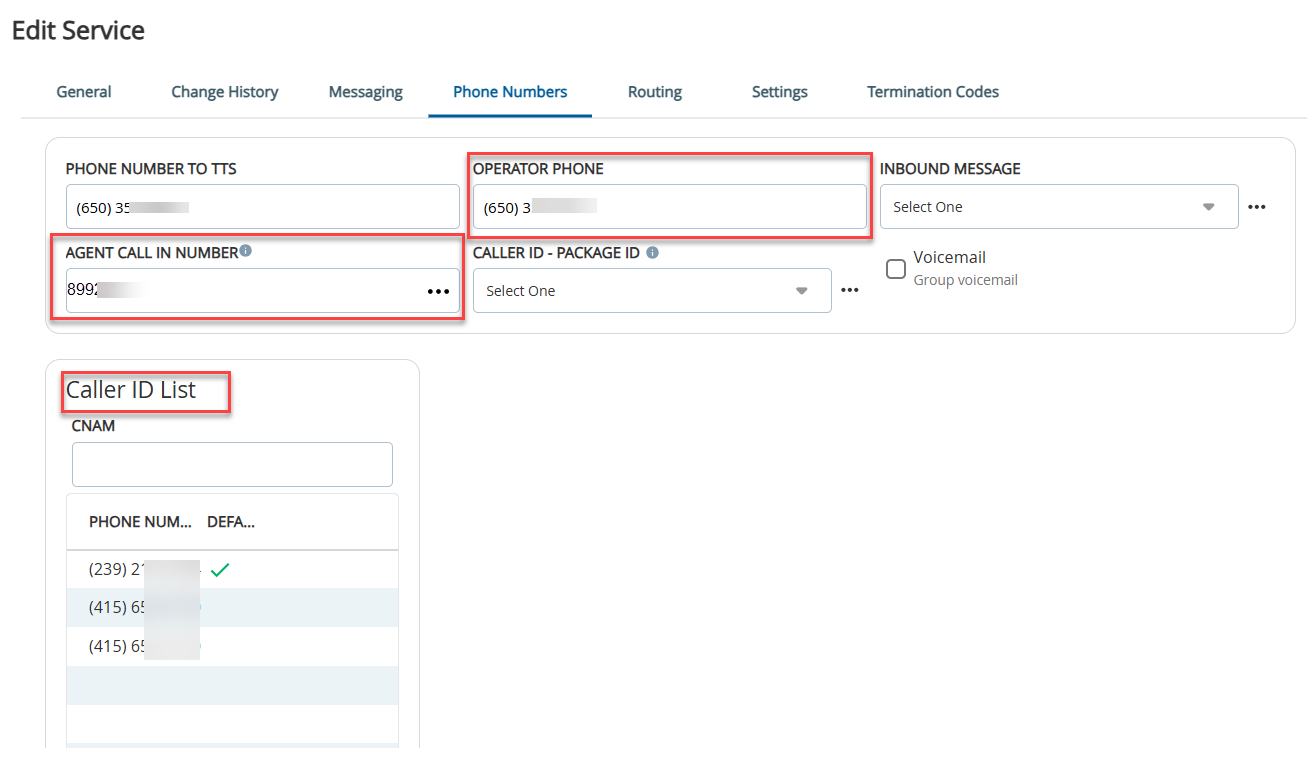
- Specify the Phone Number to TTS. This number is used in answering machine messages for text-to-speech (TTS).
- Specify the Operator Phone. This number is used when dialing using extensions rather than Direct Inward Dialing (DID).
- Enter the Agent Call In Number. This is the number that agents are prompted to dial when using Agent at Ready In ACD mode to establish their audio pathway to SmartReach.
- Add the Caller ID to the Caller ID List. This is the list of phone numbers that can be set (default option) to appear on the call recipient's caller ID display.
Configure the routing type.
In the Routing tab, select the ROUTING FOR SYNCHRONOUS CHANNELS as Service from the drop-down list.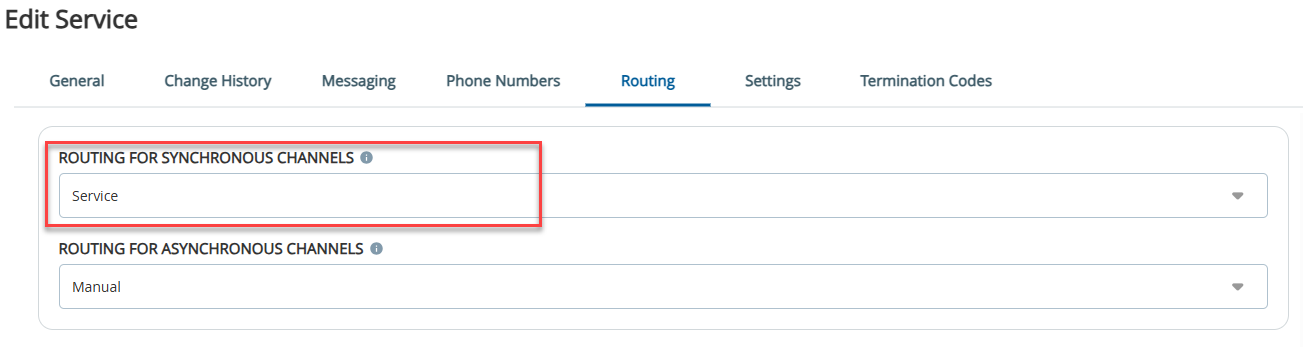
Assign the agent desktop to the agent.
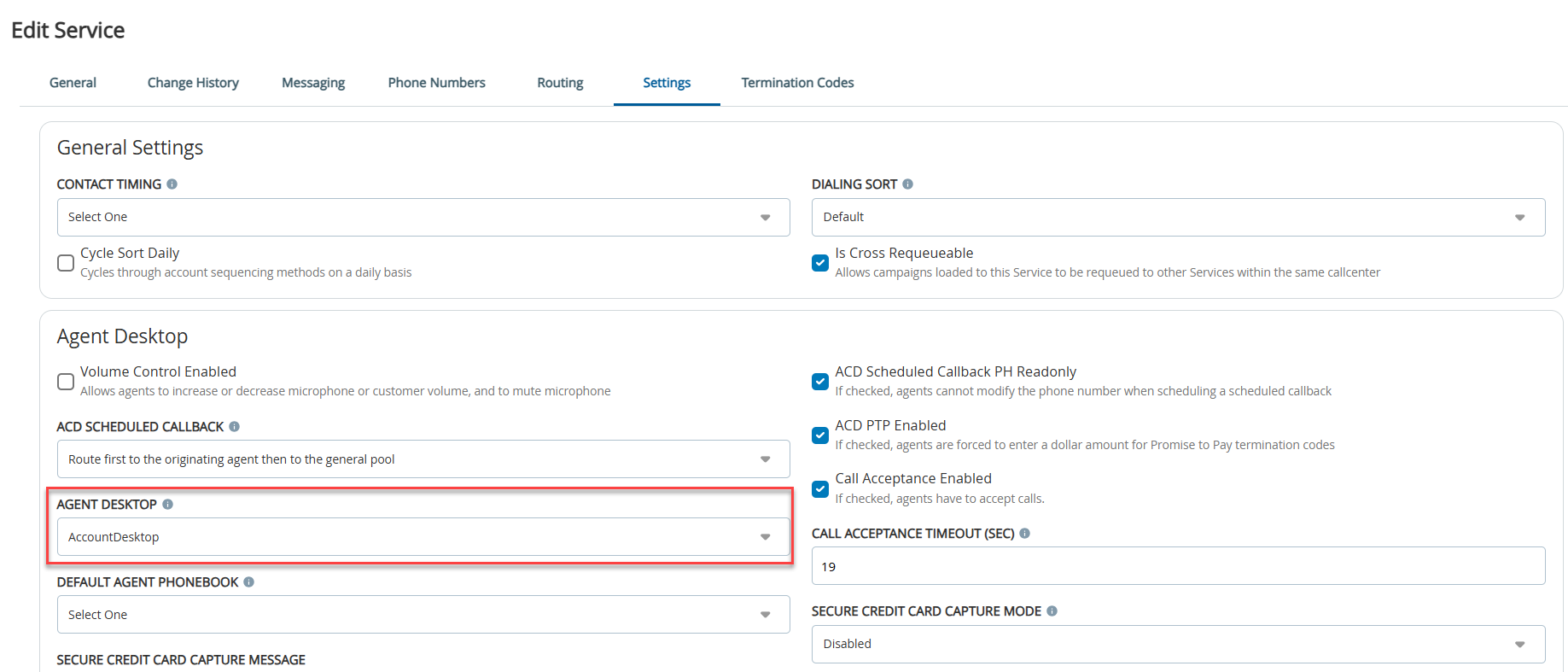
- In the Settings tab, select the required Agent Desktop from the drop-down list.
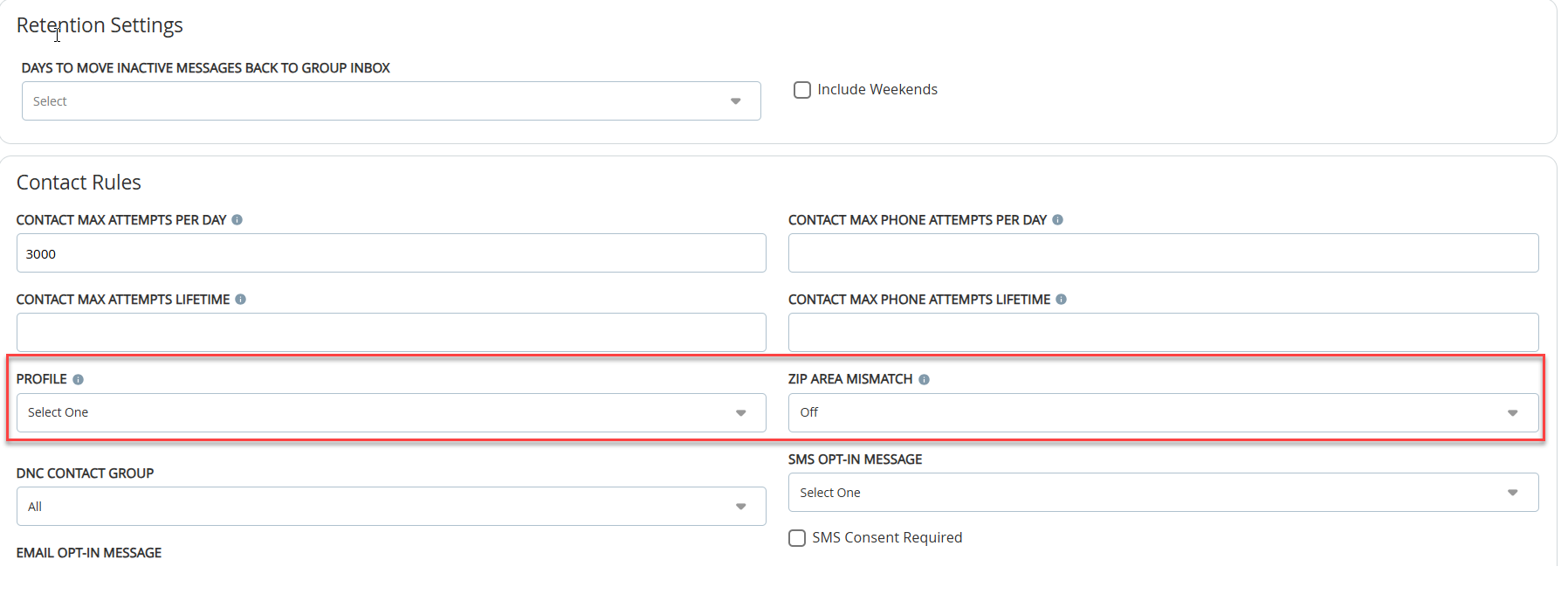
- Assign a Dialing Profile. The default dialing profile is LV_Standard_SDR_A. The recommended value for Zip Area Mismatch is Off.
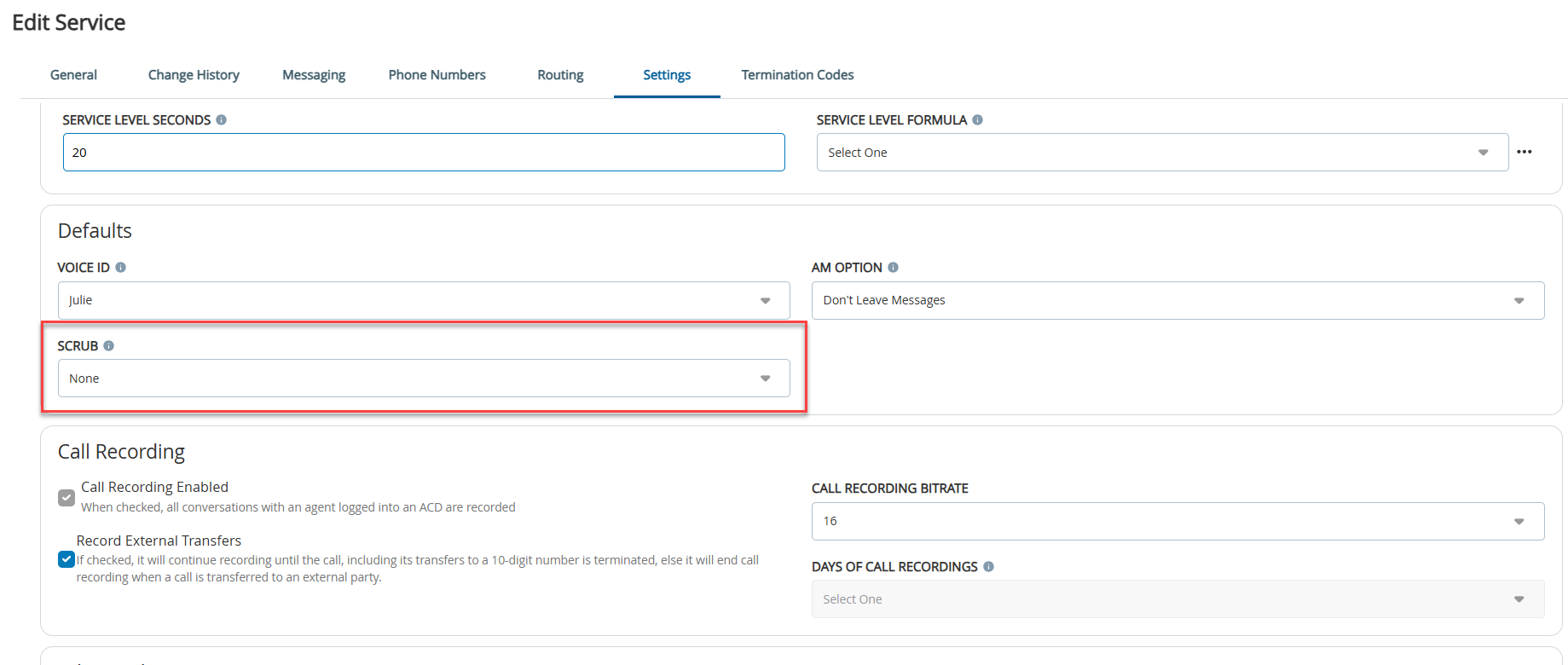
- Specify the Scrub option to scrub any wireless or landlines. If you do not want to scrub any numbers, then leave the Scrub option with the value “Select One”.
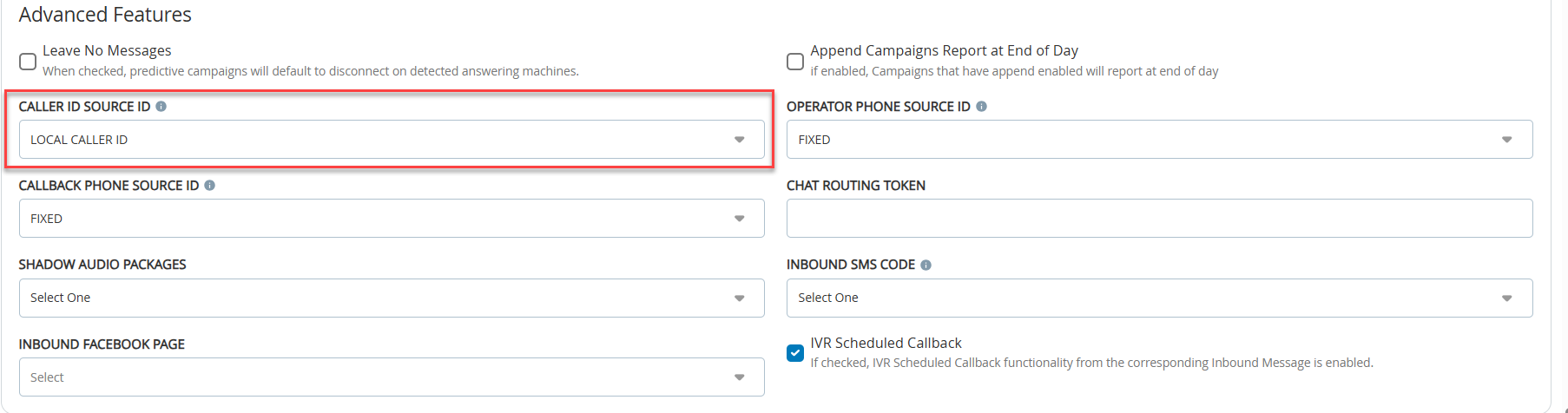
- Specify the Caller ID Source ID. If you are not using the LCID package, set it to FIXED.
- In the Settings tab, select the required Agent Desktop from the drop-down list.
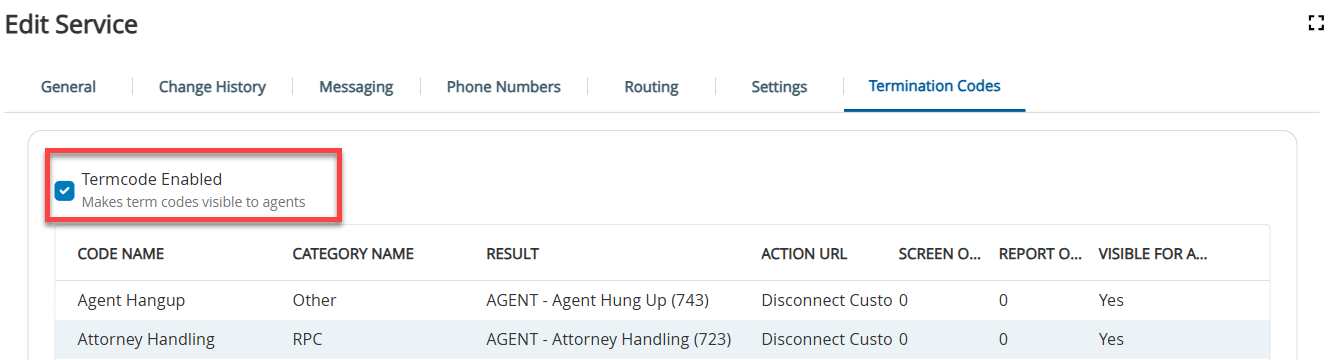
Configure termination/disposition code. On the Termination tab, select the Termcode Enabled checkbox to make term codes visible to agents.
- Click Save.
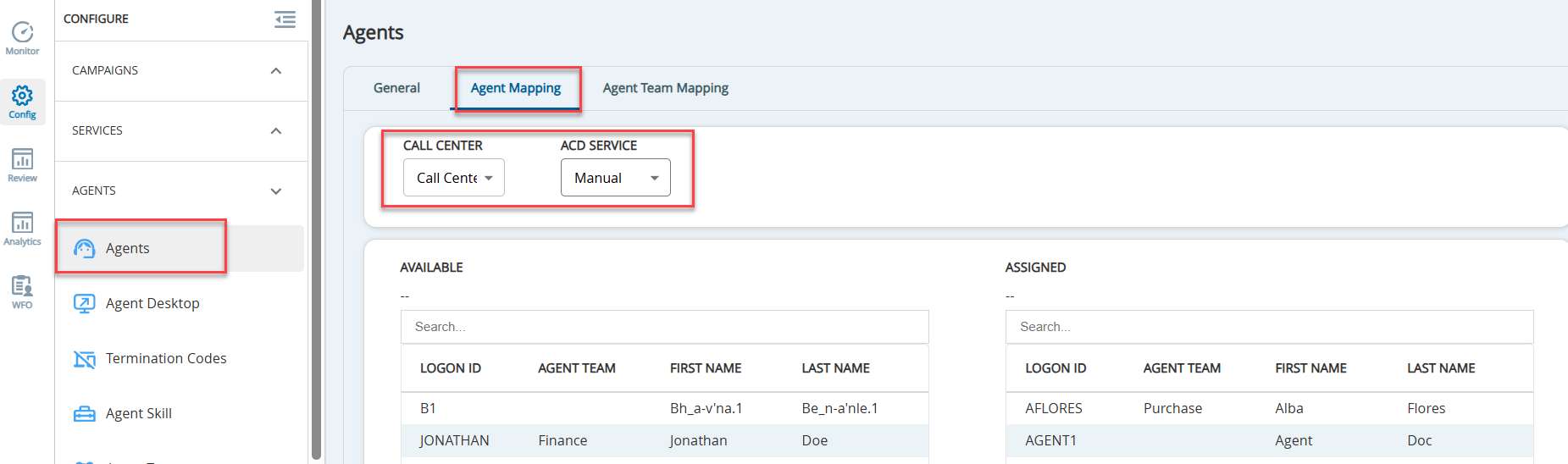
- Assign agents to the Manual service.
Connect to the customer through the agent desktop to make manual calls.