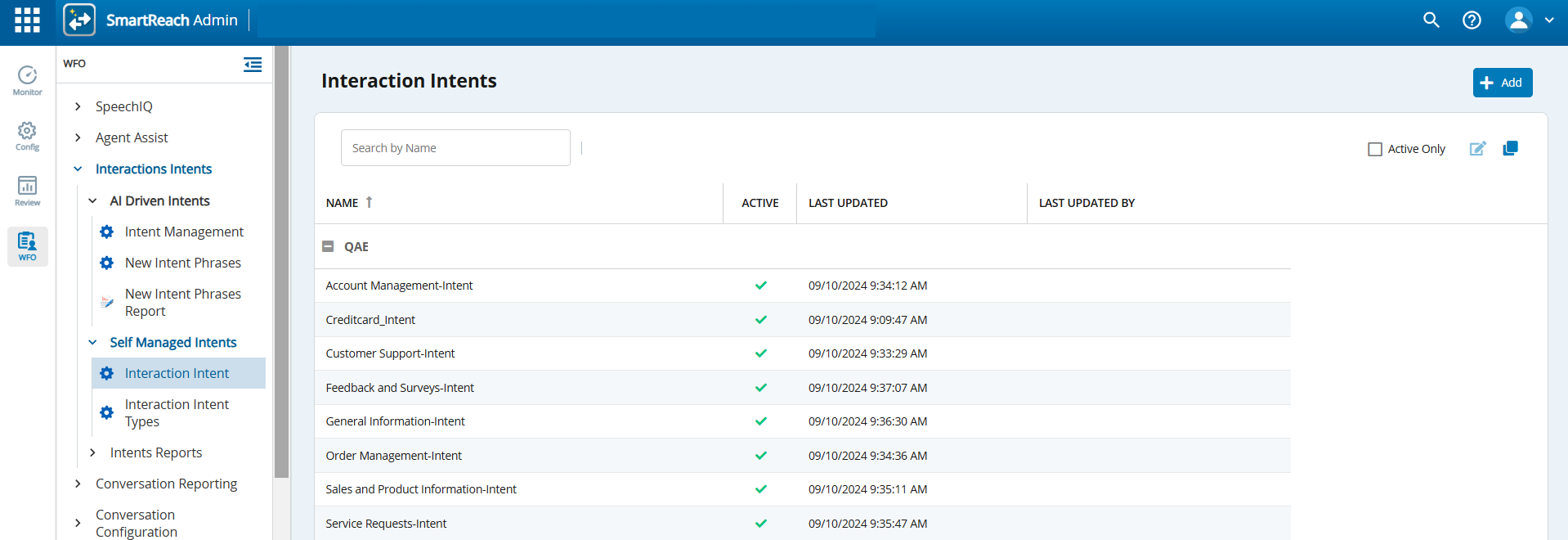
The Interactions Intents window within Self Managed Intents enables you to create interaction intents according to your organizational requirements. You have the flexibility to incorporate various keywords into the interaction intents you create.
Accessing the Interaction Intent
To access the interaction intents window, on the WFO tab, click Interactions Intents > Self Managed Intents>Interaction Intent. The Interaction Intentswindow with all configured interaction intents is displayed.
To view information about only active intents, select the Active Only checkbox.
To refresh the list, click theRefreshicon ().
Adding a New Interaction Intent
To add a new interaction intent:
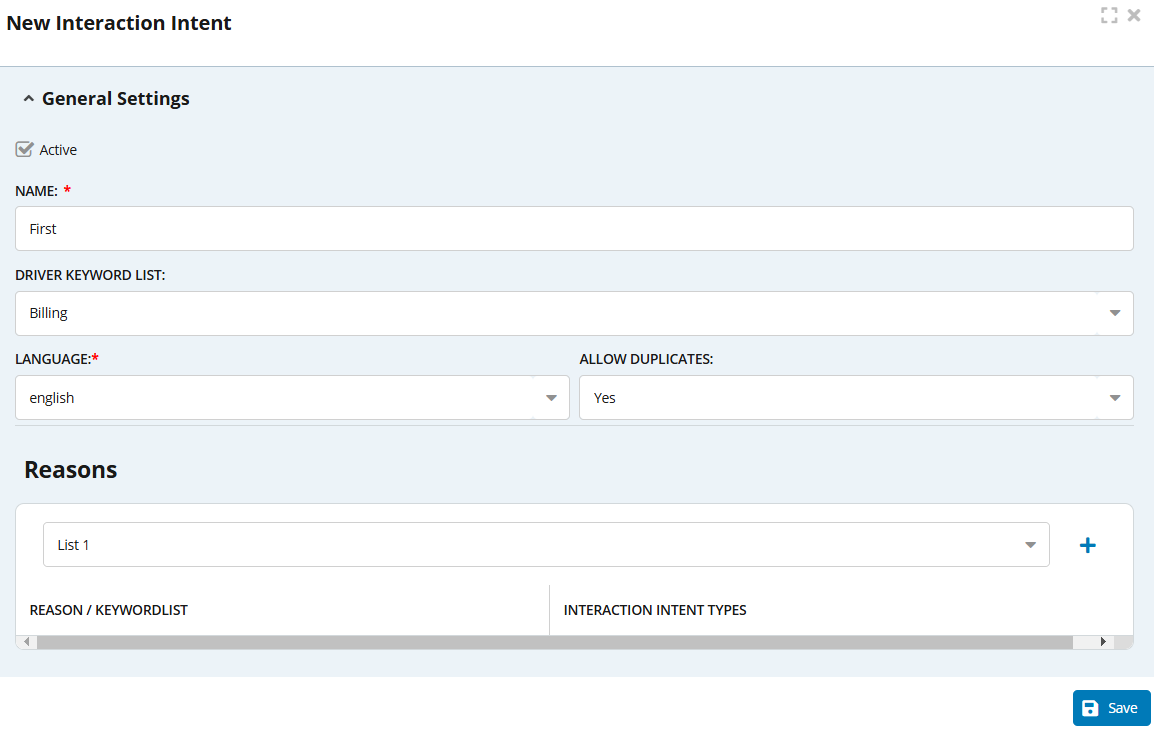
In the Interaction Intents window, click . The New Interaction Intent popup window is displayed.
Specify values in the following fields:
Active: Select the checkbox if the interaction intent should be set to active.
Name: Specify a name for the interaction intent.
Driver Keyword List: Select an existing keyword list from the drop-down list to represent the interaction intent.
Language: Select the language from the drop-down list. Currently English and Spanish are the available options.
Allow Duplicates: Select Yes if duplicate keywords are allowed.
Reasons: Select additional or subsidiary reasons/keyword lists from the drop-down list that correspond to the main interaction intent, and click the plus icon ().
ClickSave.
To copy an interaction intent, in the Interaction Intents window, select the interaction intent you want to copy and click , and then click Yes in the confirmation popup window that is displayed. A copy of the selected interaction intent appears in the table.
To modify an interaction intent, select the interaction intent that you want to modify and click , or double-click the interaction intent and make any changes necessary.