The Content Library enables you to create eLearning content. You can add and store documents in PDF, CSV, PPT, Word formats, and external links to the Content library. If you are an Assessor, you can mark a recording as an item for the Content Library and a Coaching task. With ELearning content, you can provide better guidance to your agents and help enhance their skills. To access the Content Library, navigate to WFO > Elearning> Content Library:
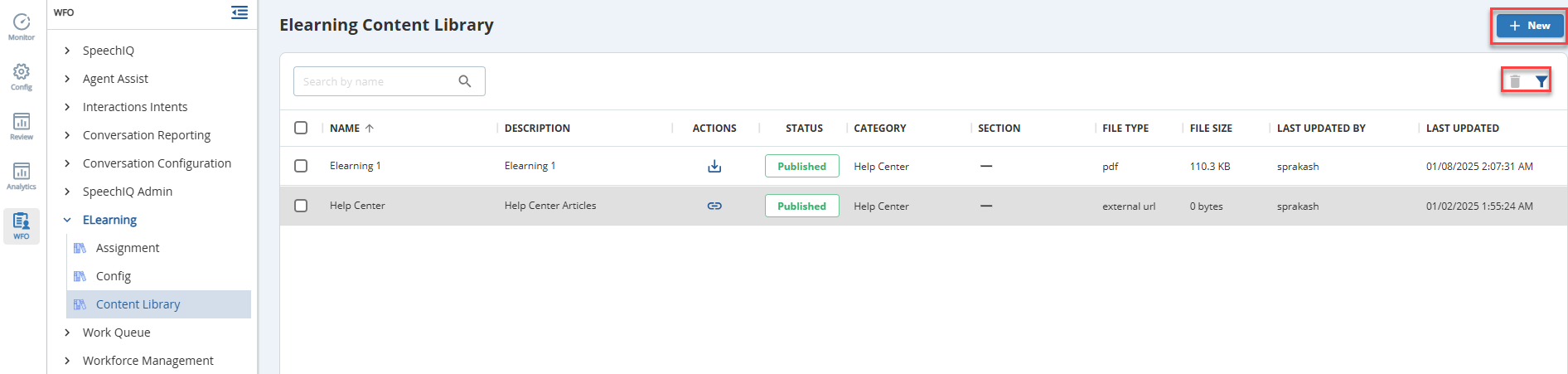
To add content to Content Library:
- In the Content Library window, click
 .
The New Content window appears.
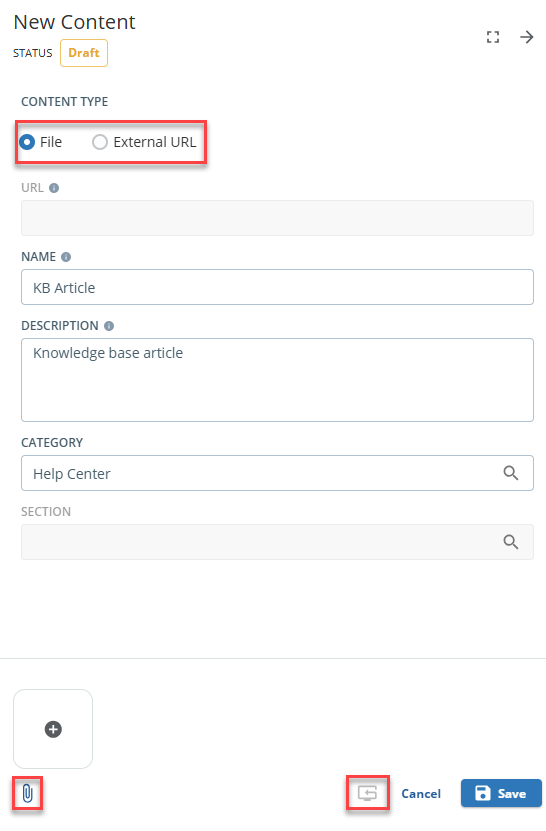
- Select from the following options to upload a content type.
- File: Allows you to upload the content from your system.
Click the  icon to navigate to the local directory that contains your e-learning content file.
Select the file you want to upload.
- External URL: Allows you to upload the content by specifying an external link. Specify the external link in URL text box that contains your e-learning content.
- Specify the name of the content in the Name text box.
- Enter a description in the Description text box.
- Select the required content category from the Category drop-down list.
- Click Save and then click Publish.
After the content is stored in the content library, you can assign this e-learning content to the agents.