Review Interactions
The Interaction Review screen provides comprehensive details related to the interaction such as the transcript and evaluation information. It also enables you to leave comments for other assessors, arbitrators, managers, and agents and contribute the evaluation to the e-learning library, which serves as a resource for training and quality management purposes.
For voice calls, you can listen to the call recording and also view the visualization of the selected voice interaction in a waveform.
To access the Interaction Review screen, navigate to the WFO tab, click SpeechIQ > Search and Score. On the Interactions List window, double-click the interaction that you want to review.
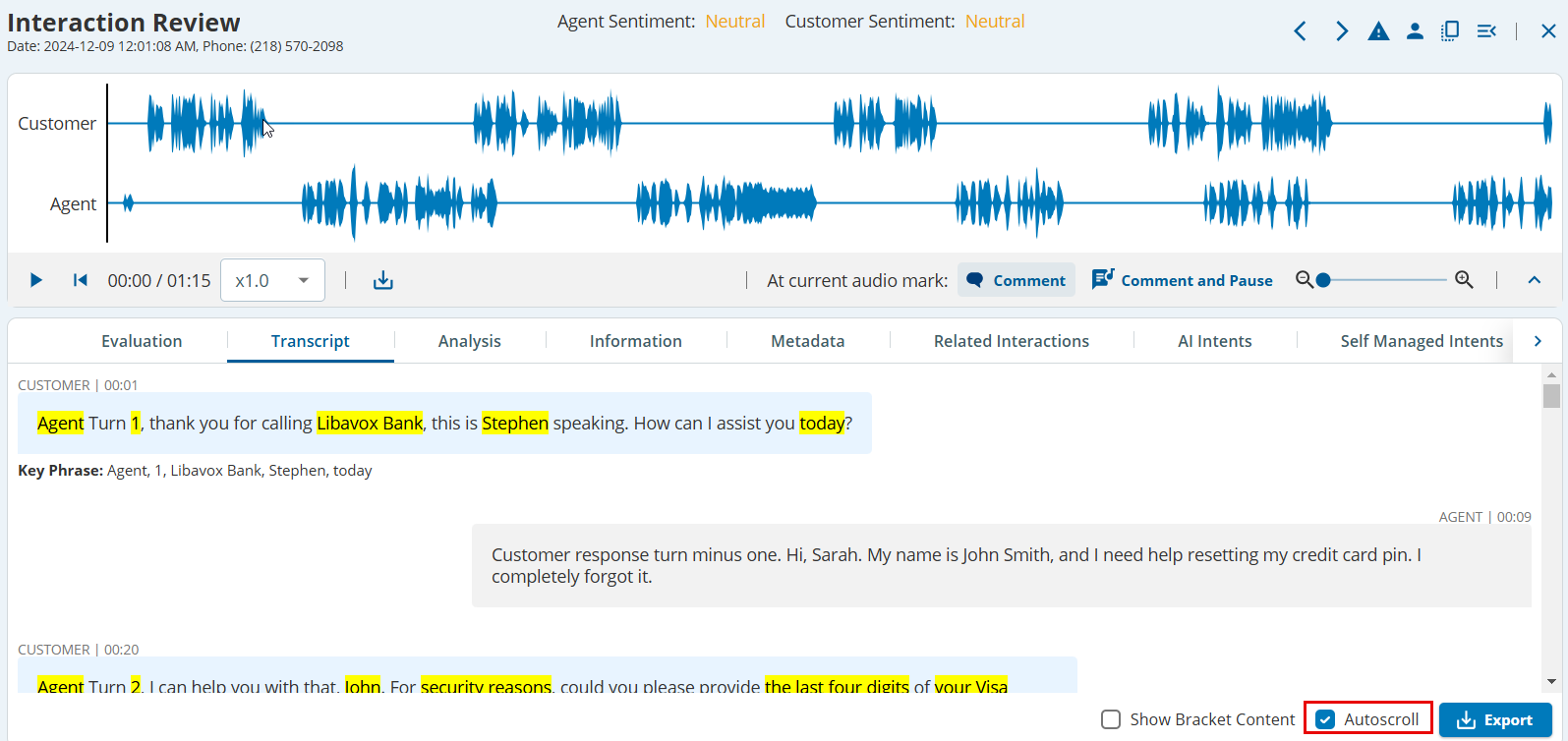
The Interaction Review window is displayed with detailed information about the interaction between the agent and the customer.
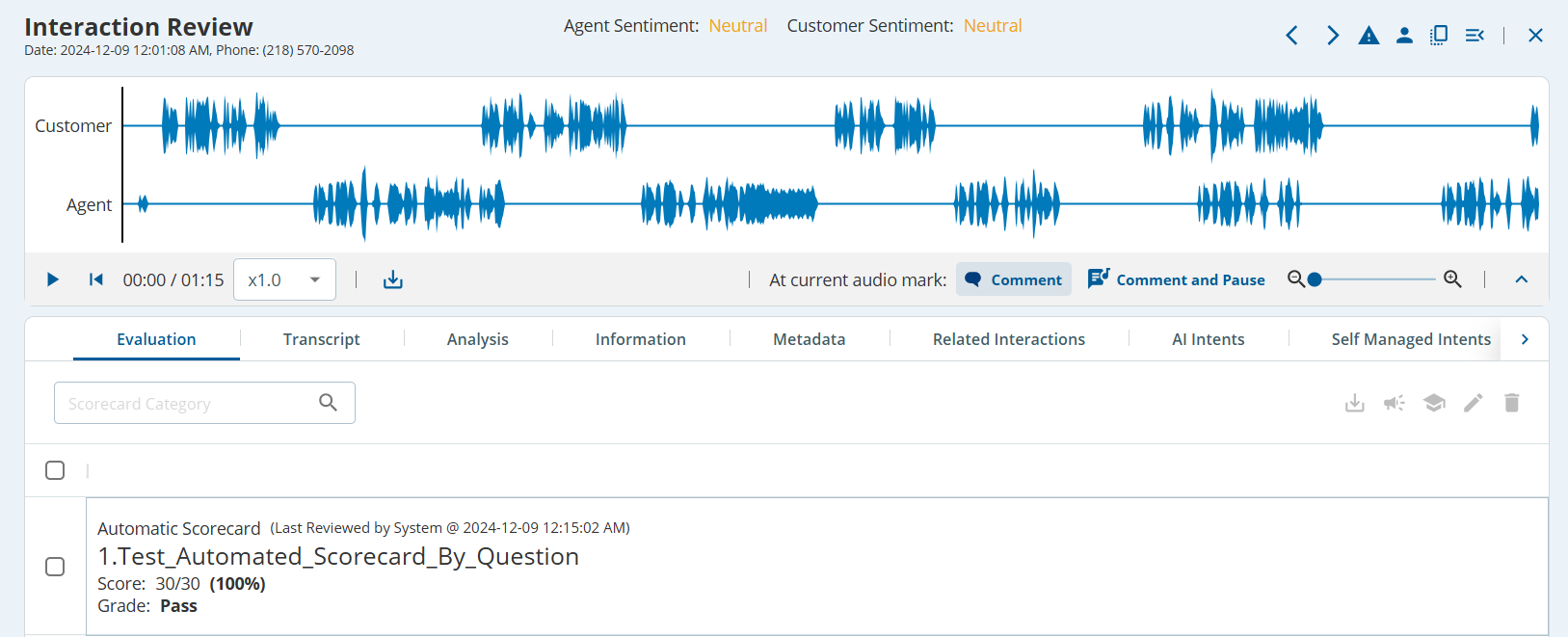
- You can use the forward/backward arrows (
 ) on the upper-right corner of the window to move to the next or previous recording.
- The banner displays the name of the agent who performed the interaction with the customer, the date and time of the interaction, the phone number of the customer, the agent sentiment, and the customer sentiment.
- You can download the interaction in .mp3 format using the
 button.
- You can download the transcript of the interaction in .pdf format. Under the Transcript tab, click
 to download the transcript.
Listening to an Audio Interaction
To listen to an audio interaction:
- On the Interaction Review screen, to listen to the recording, click
 .
The length of the audio is displayed next to the button. - Click
 to play the recording from the beginning.
- You can adjust the playback speed, by clicking
 drop-down arrow, and then selecting the preferred speed. You can make the audio slower (0.50x) or faster (2.00x) as required.
- You can download the interaction in .mp3 format using the button.
Adding a Comment to an Interaction
To leave a comment to an audio interaction:
- On the Interaction Review screen, click
 . The Comment window pane is displayed.
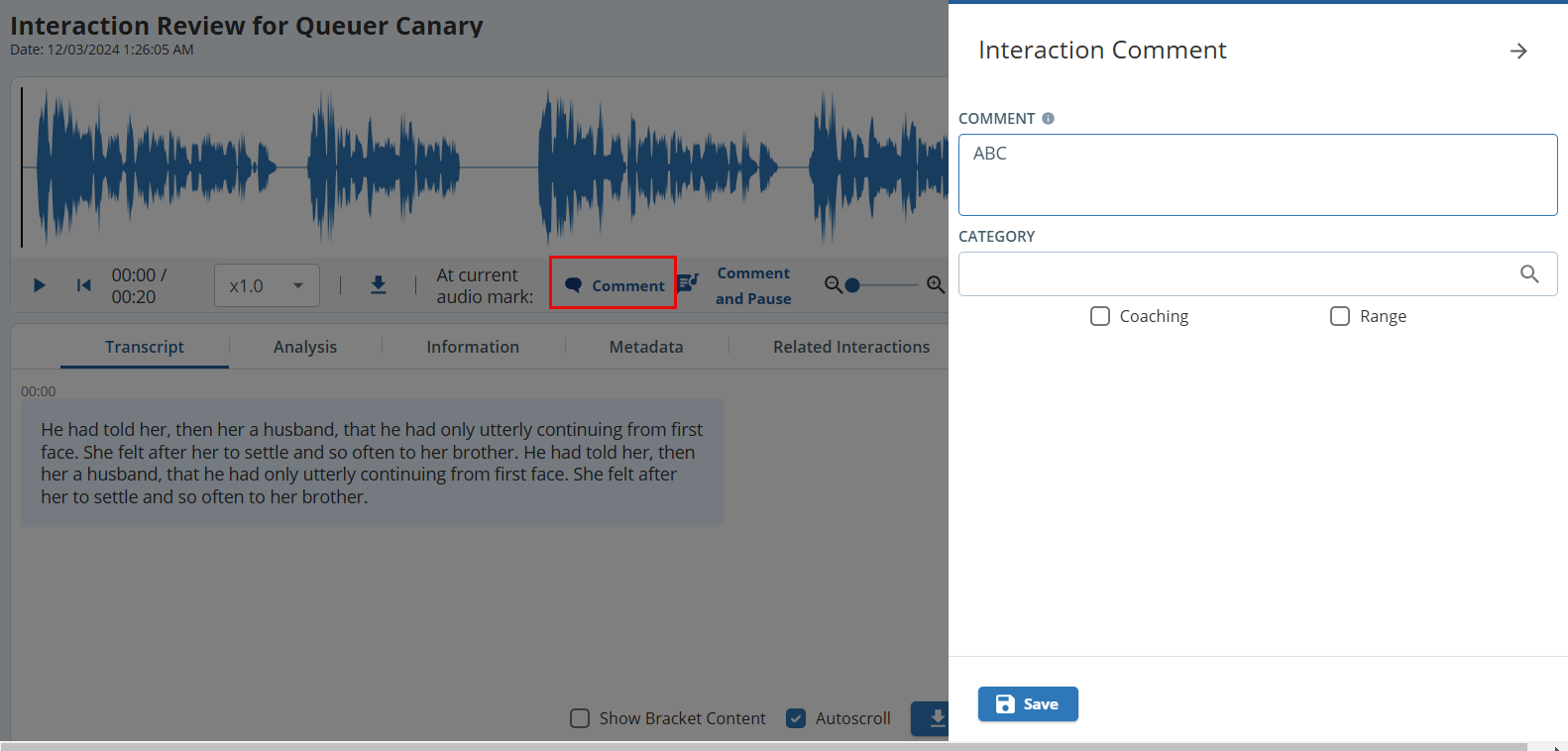
- In the Enter your comment: box, enter your comment:
- To mark a specific time range in the call to which the audio note is applicable, select the Range check box, and then select the Start time and End time.
- To use the audio note for coaching agents, select the Coaching checkbox.
- From the Category drop-down list, select an audio note category.
- Click Register.
To leave a comment without clicking the play/pause icon, when listening to the recording, use the Comment & Pause option.
The following fields in the User Role configuration define whether you can add, edit or delete comments:
- Manage Interaction Review Comment – If enabled, you can add, edit, or delete your own comments for various interactions.
- Can user manage comments on the interaction review screen – If enabled, you can add, edit, or delete your own comments for various interactions, as well as comments made by other users.
To view/update User Role configuration, navigate to the Configure > System > Roles > Edit Roles > Speech IQ Scoring tab.
Using the Actions Panel
You can use the Actions Panel to search for keywords, add tags, and view or provide audio notes. To access the Actions Panel, on the Search and Score window click  .
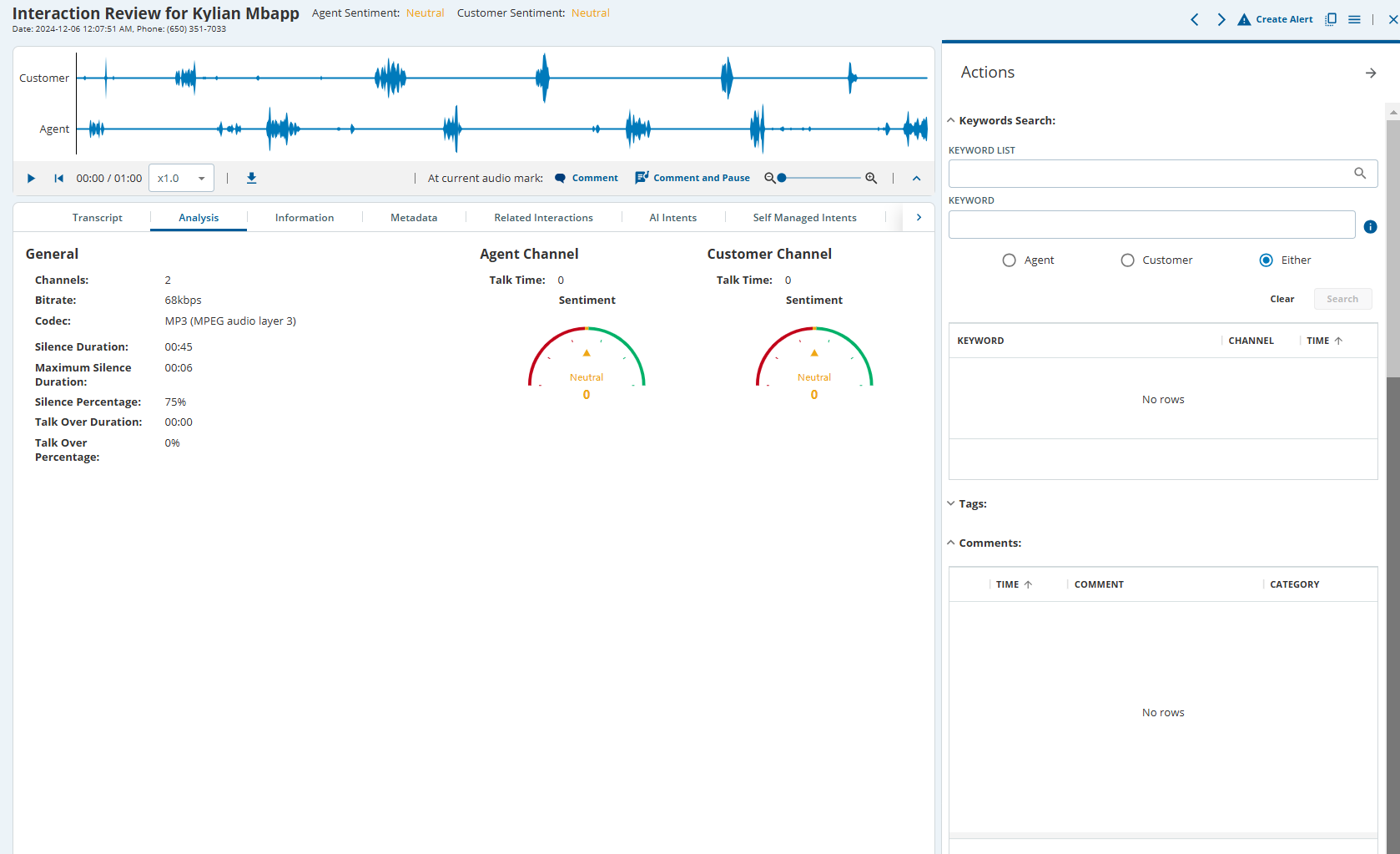
- Keyword Search: Enables you to search for keywords while listening to the call recording by typing keywords, separated by commas, or by selecting the existing keyword lists from the drop-down list. You can filter the search results by keywords used by the customer, agent, or either. You can search for any word, including the configured keywords. During transcription, special characters, such as hyphens are sometimes added to phone numbers, account numbers, loyalty numbers, and similar data. However during a keyword search, if these special characters are misplaced in the search string, the corresponding numbers might not appear in search results. To ensure this does not happen, the keyword filter disregards all special characters except '*' and '?' when searching for digits. This allows you to swiftly search for numbers within transcripts. For example, if a phone number is transcribed with hyphens as (740)-258-4963, you can input "7402584963" into the keyword filter and retrieve results containing that phone number in the transcript, regardless of the presence of hyphens.
If the keyword is part of the interaction, it is highlighted in the interaction along with details of the intent. A sample screenshot is shown below: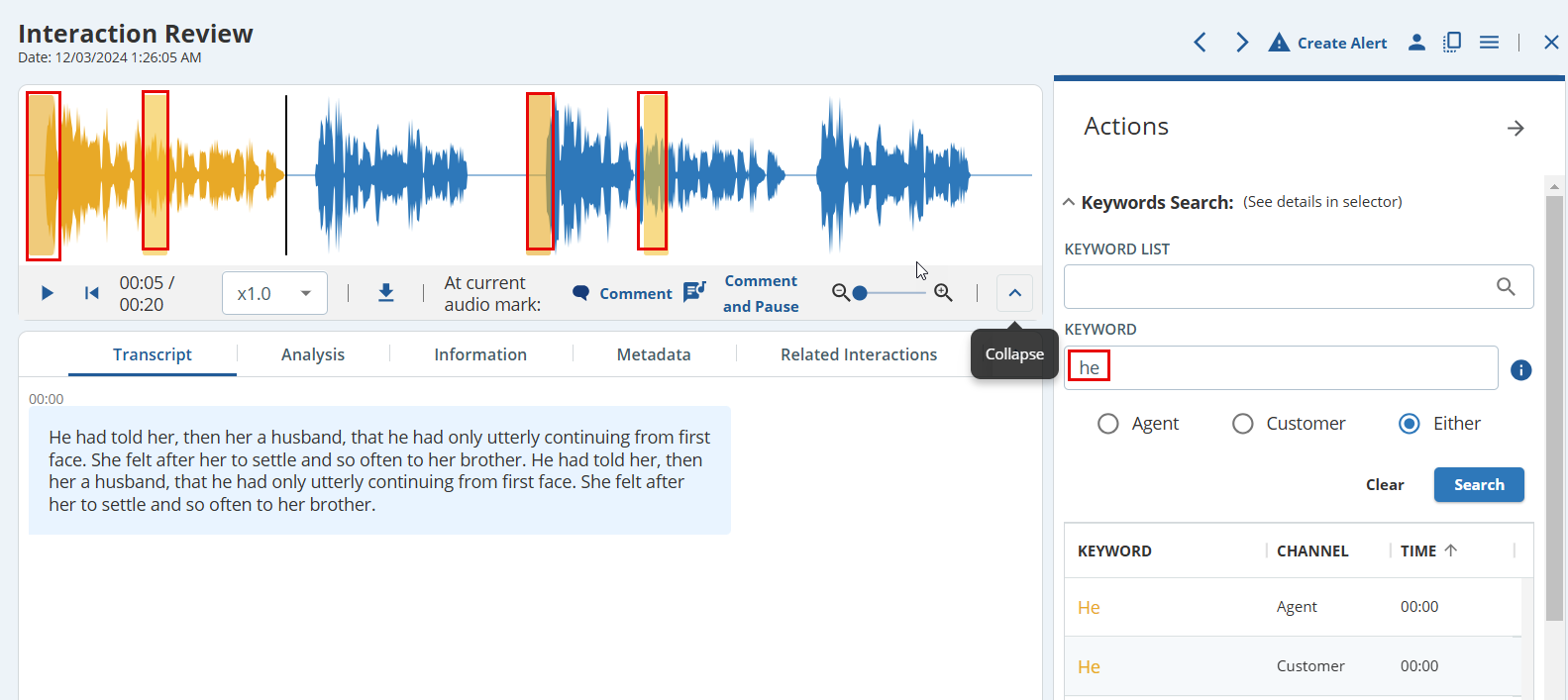
- Tags: Enables you to select tags from the drop-down list to group this interaction with related interactions.
- Audio Notes: Displays the audio notes created by all the assessors.
Interaction Review Tabs
You can view the detailed metrics and metadata related to the interaction, as well as the recording using the different tabs on the Interaction Review window.
Following are the different tabs on the Interaction Review screen:
| Tab | Description |
|---|---|
| Evaluations | Displays the evaluations provided by all assessors.
A Comment Indicator ( |
| Transcript | Provides detailed text transcription of the voice call.
Click the Autoscroll check box to enable automatic scrolling of the transcript while an audio interaction is playing. The Autoscroll check box is enabled by default.
|
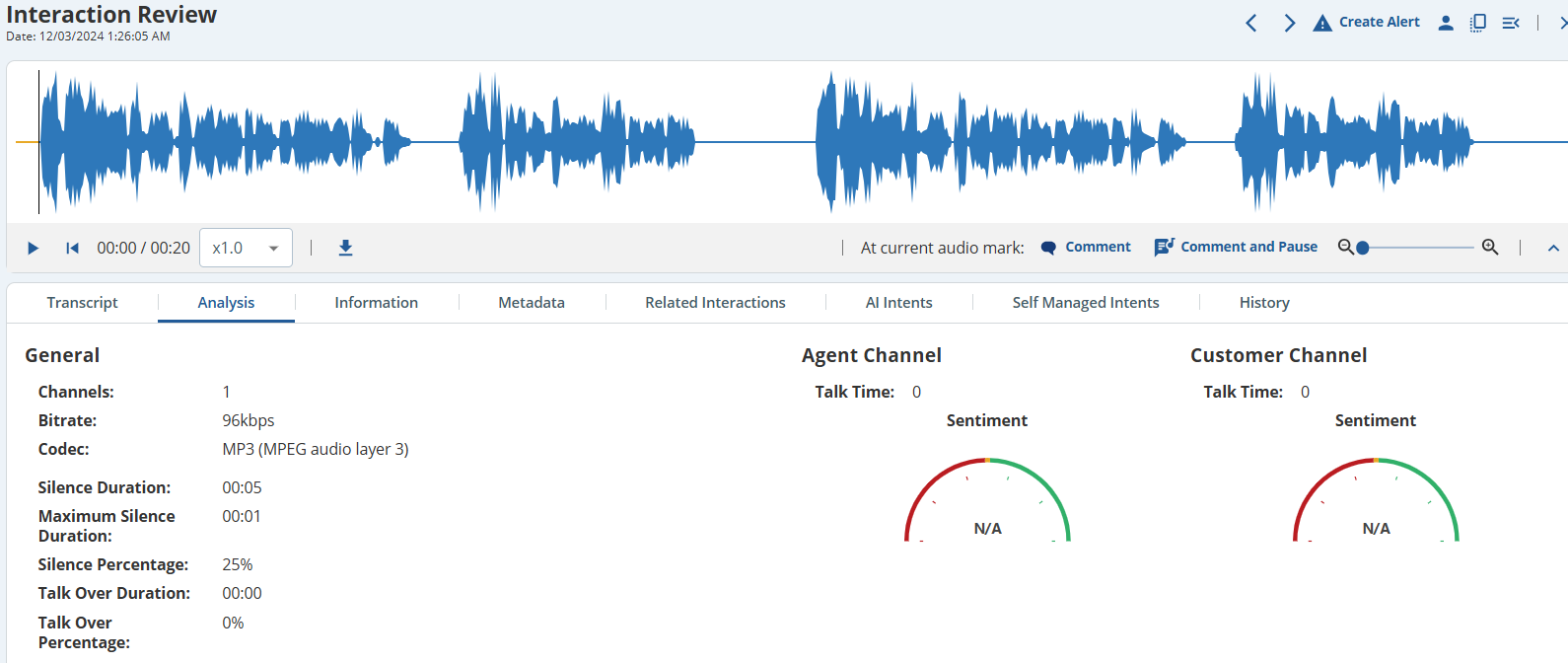
| Analysis | Provides the automatic call analysis information such as number of channels, bitrate, codec, silent duration and percentage and talk duration and percentage. Agent and customer channels are also analyzed for sentiment and talk time and are represented graphically.
|
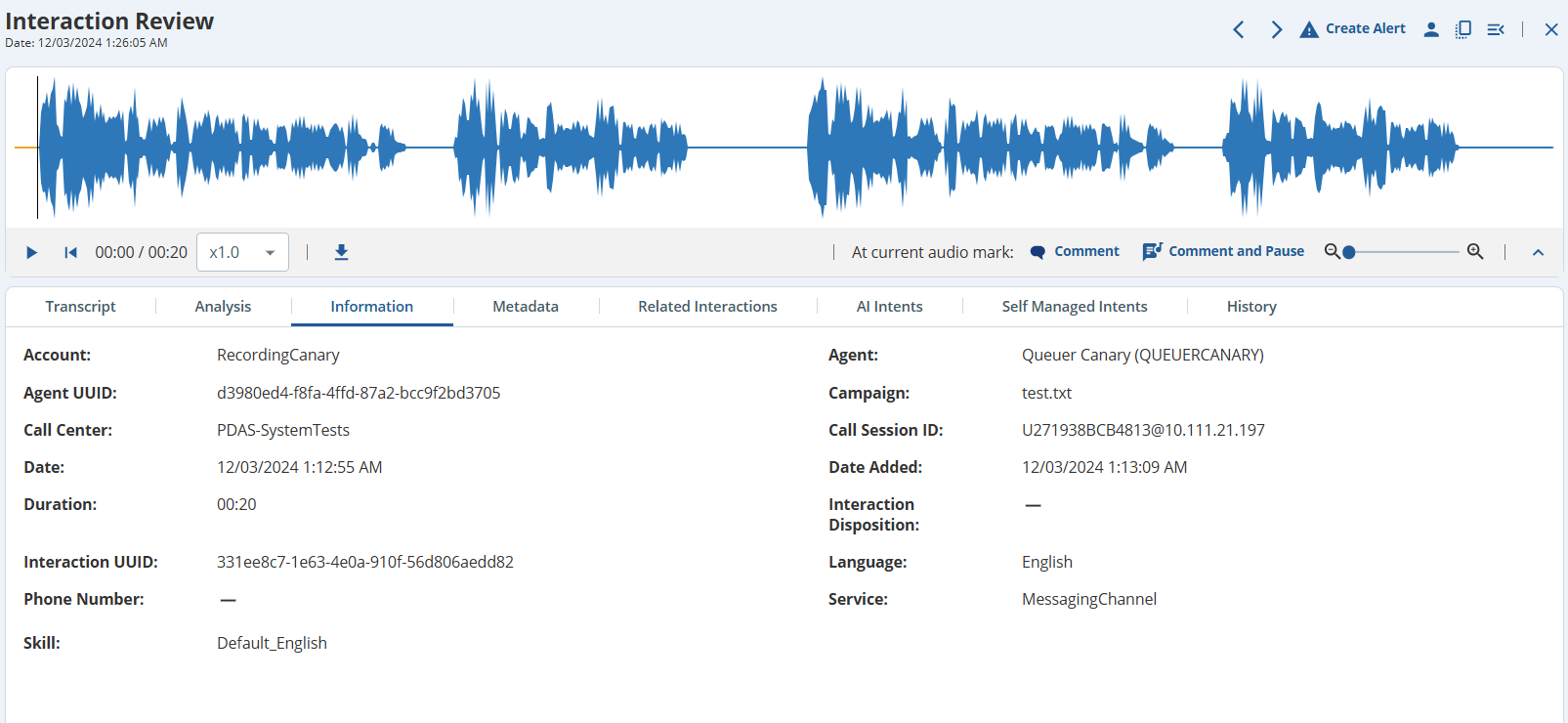
| Information | The Call Summary section displays a summary of the customer interaction with information, such as the reason for the interaction, actions taken, and proposed next steps. The call summary is available for both real-time and non real-time interaction types, including Voice, SMS, Email, and Chat. The General section displays general information about the interaction. Information related to account, agent, campaign, call center, date, duration, interaction, language, phone, service, and skill is captured.
A skill acts as a label or category applied to interactions, enabling in their effective organization. For more information, see Skill Maintenance. |
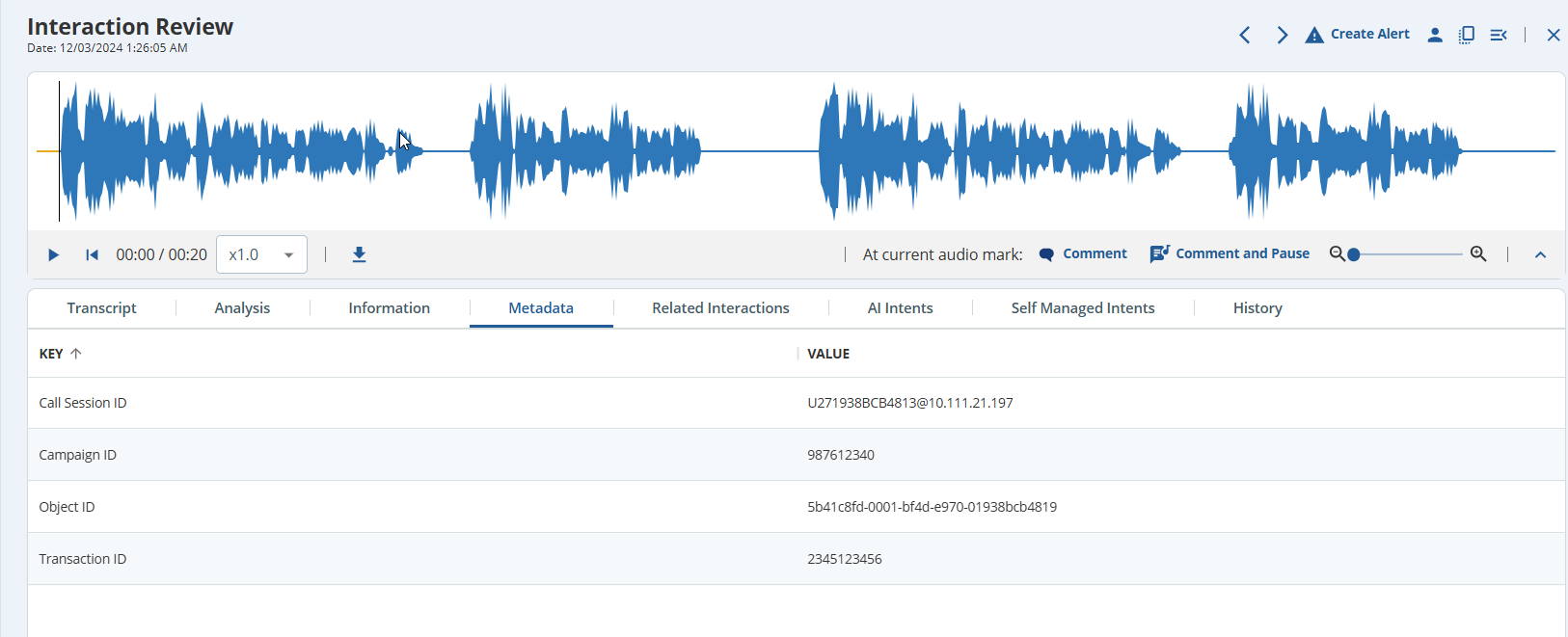
| Metadata | Displays the metadata received with the recording and all other information related to the interaction such as Agent Disposition, Agent Disposition ID, Call Session ID, Call Type, Campaign ID, Object ID, and Transaction ID.
|
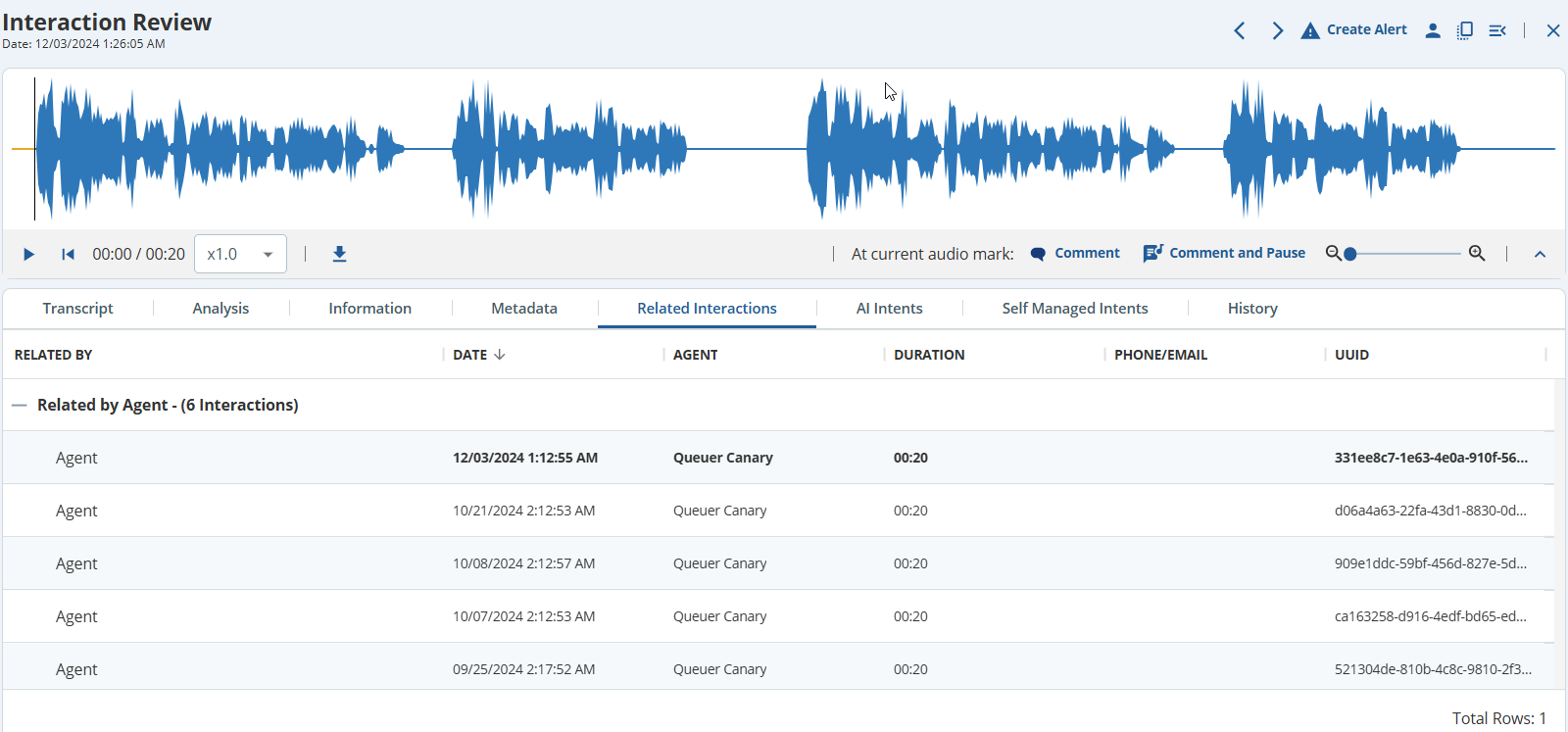
| Related Interactions | Displays the other interactions related to the recording (for example, a call recording from the same agent). The interactions related to the interaction is categorized into two categories - Related by Agent and Related by Phone Number.
|
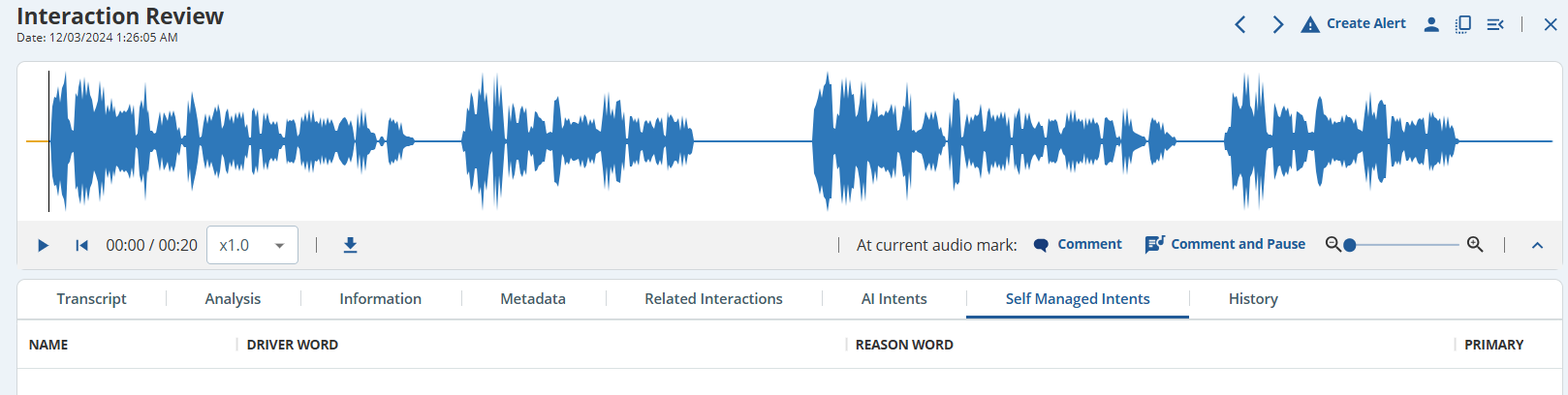
| Self Managed Intents | Displays the possible call drivers populated by the system based on the configured intents or intent lists. The Name of the interaction Intent and the Driver Word details are displayed.
|
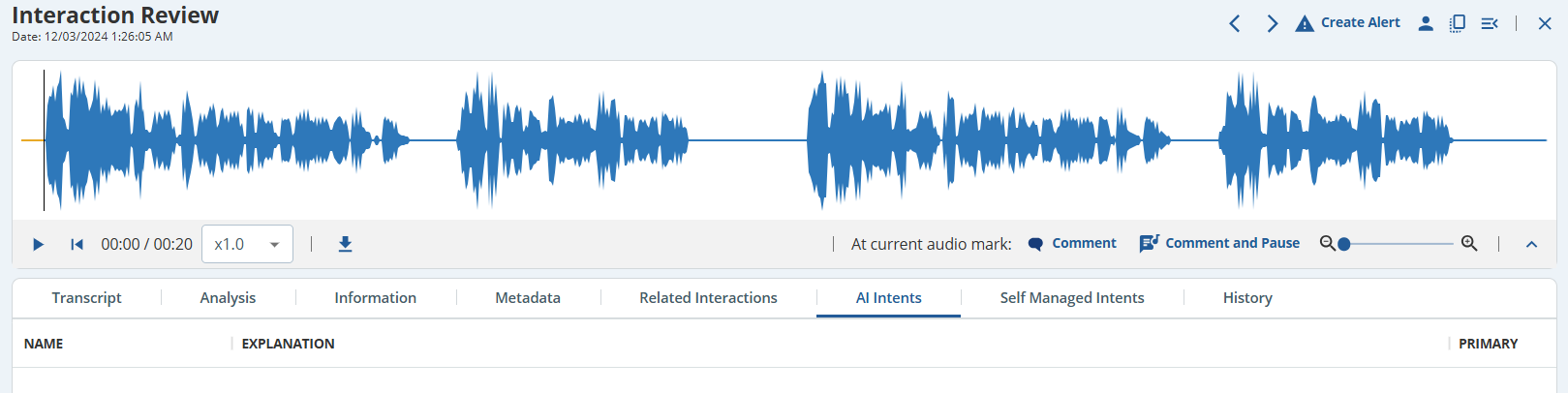
| AI Intents | Displays details of AI intents occurring during the interaction. Name and Explanation are captured in this tab.
|
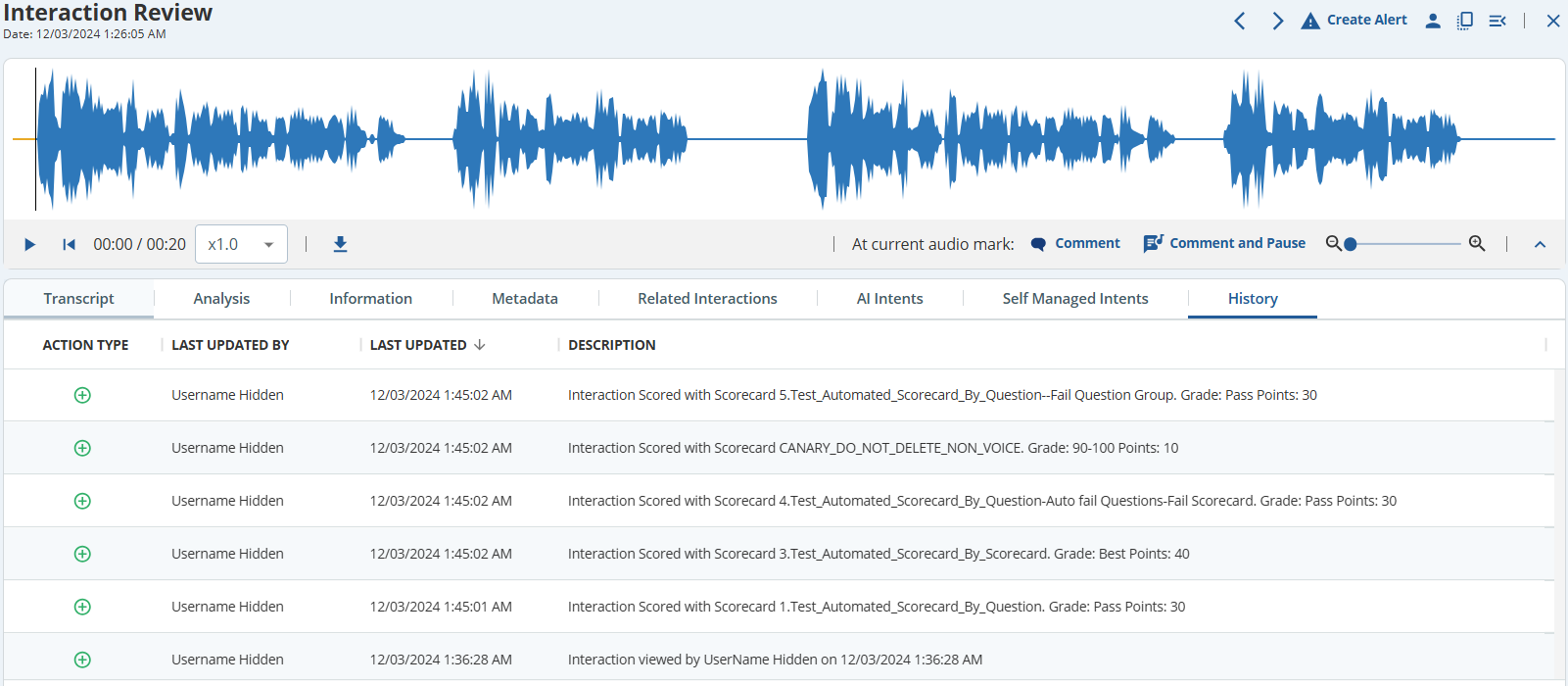
| History | Displays the history of views and evaluations by all users on the interaction.
|
| Video | Displays the screen recording of the interaction. This tab is active only if you have enabled screen recording. |