The AI Tasks feature generates resolutions and ticket summaries for all tickets. By using this feature, agents have a complete picture of the reason for the ticket, information involved in closing the ticket, and the ticket resolution.
By default, AI summary and resolutions are available for all tickets. When you create an AI Task for a specific ticket, the AI summary and resolution is available only for that specific ticket.
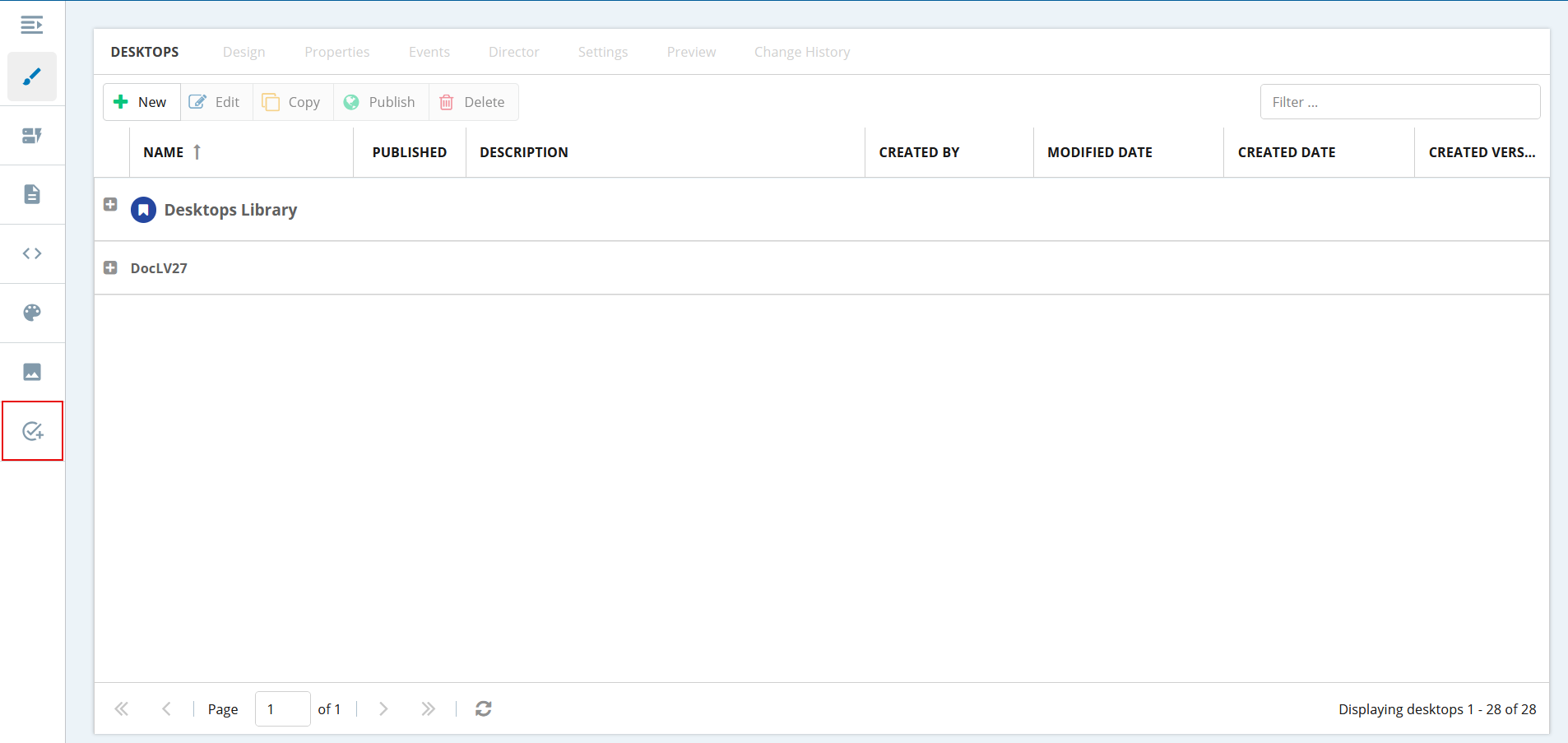
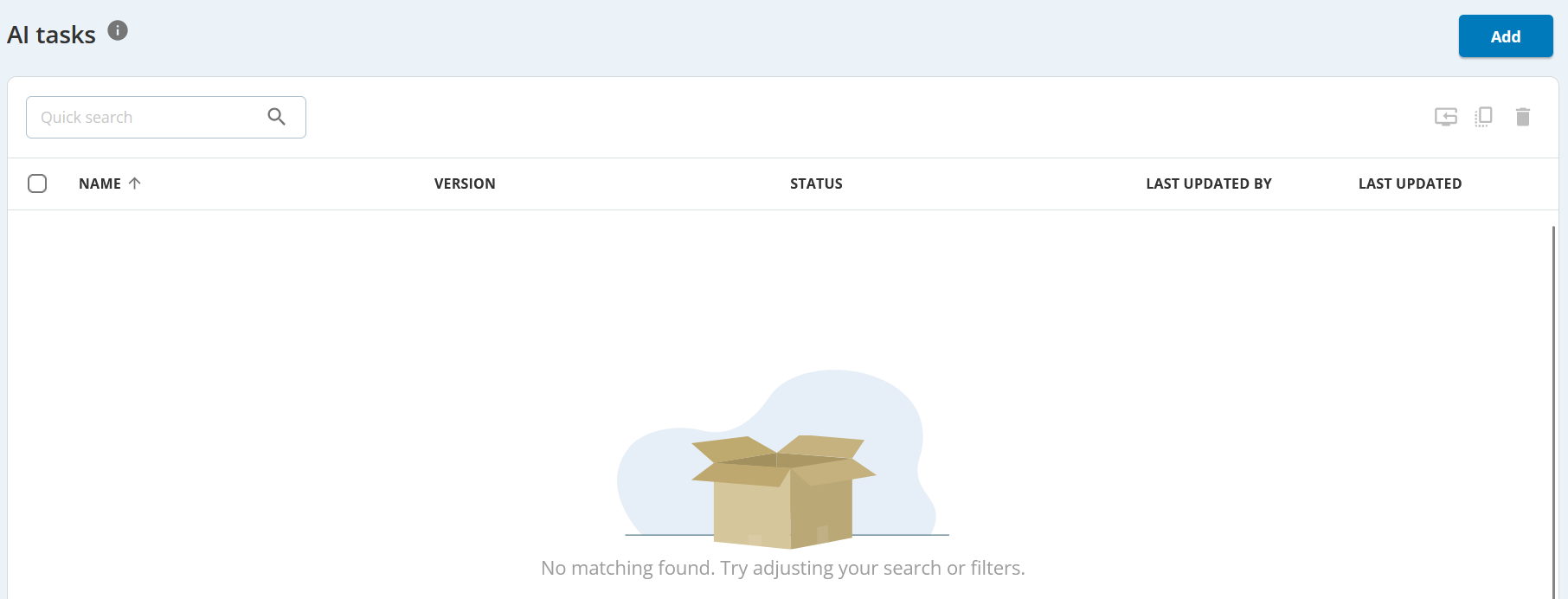
On the left pane, clickAI Tasks. The AI tasks window is displayed.
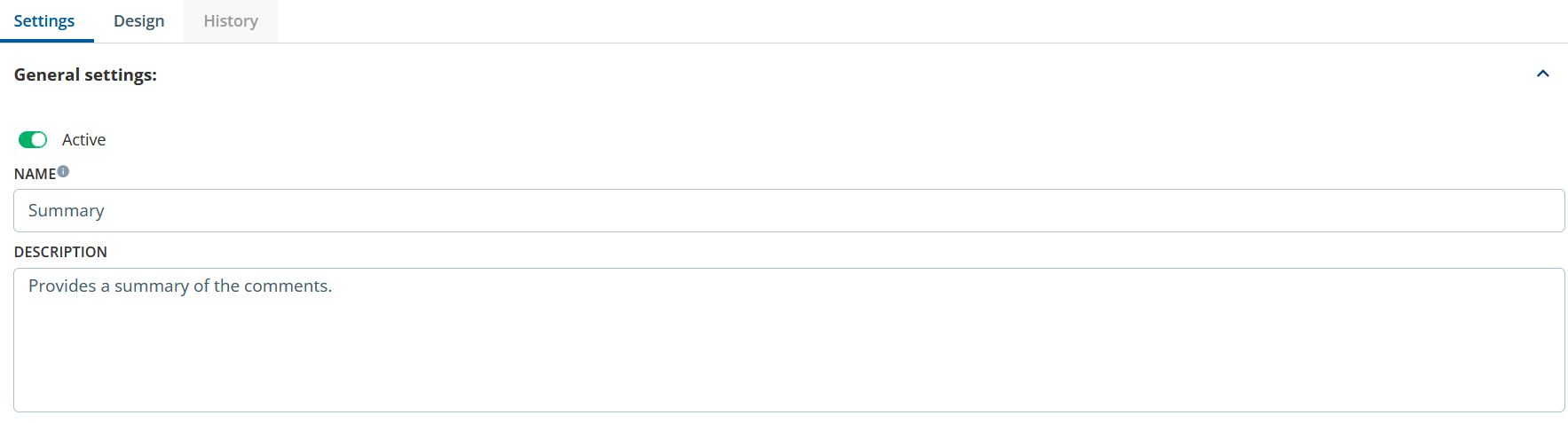
Click the Add button. The Settings tab appears.
Enter a name and description for your AI task.
By default, the Active button is enabled, which means that the AI summary is available for all tickets. When you create AI Task for a specific ticket, AI summary and resolution is available only for that specific ticket.
Click the Design tab.
From the AI Trigger drop-down, select one of the following options according to your requirement:
On Create Ticket
On Update Ticket
On Create or Update Ticket
From the Task Function drop-down, select one of the following options according to your requirement:
Create Summary
Create Resolution
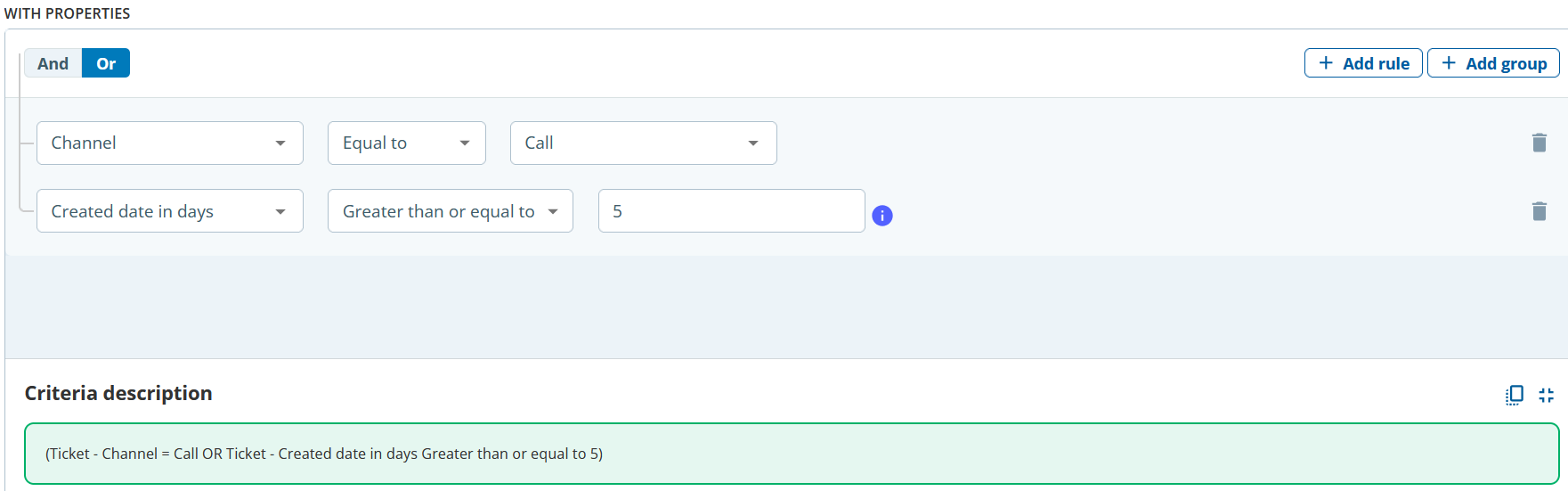
(Optional). If you want to generate a ticket summary or resolution summary for a specific ticket, create a filter by adding a rule.
(Optional). Click the Add rule button, and then select the required criteria. For example, you can generate summary of tickets that have Channel Type = Call and that were created five or more days ago.
(Optional). Click the Add group button, and then select a group from the drop-down. For example, you can generate summary of tickets that are in the Customer Group = Diamond.