The Import and Export features allow you to manage access rights and settings for large numbers of agents.
Exporting Agents
Export functionality allows you to export a list of all agents along with agent setup information inCSV format.
To export agent data to a file:
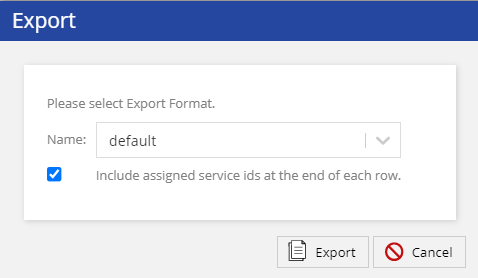
Click theExportbutton at the bottom-right of theAgentssection.TheExportpop-up window is displayed.
Select the required export format.
Select the checkbox to include assigned service Ids at the end of each agent row.
Click theExportbutton to generate afile.
Data formatfor each row is as follows: login ID, password, first name, last name, phone number, active, agent team name, service id1, service id2, and so on. For example, MSMITH,1234,Michael,Smith,4057786612,1,team1,67891,67892
Include valid or blank data in appropriate fields when importing bulk agent lists.
Importing Agents
To import agents:
Click theImportbutton from the Agents section.
Browse to the location of the file you want to upload.
The data format is specified on the screen and should be comma delimited. The import file format follows that of exported files so a best practice is to use an exported file as the template.
For upload entries where the username matches an existing agent, the new values for the agent name, password, and services are used to overwrite the old values.
To assign agent access to specific services, use the LiveVox service_ID found in theServicesorClient.
While no limitation exists on how many agent and service_ID entries can be included, the more agents that are imported, the longer it can take to process the request. SeeAgent Service Mappingfor instructions on how to map agents to services manually.