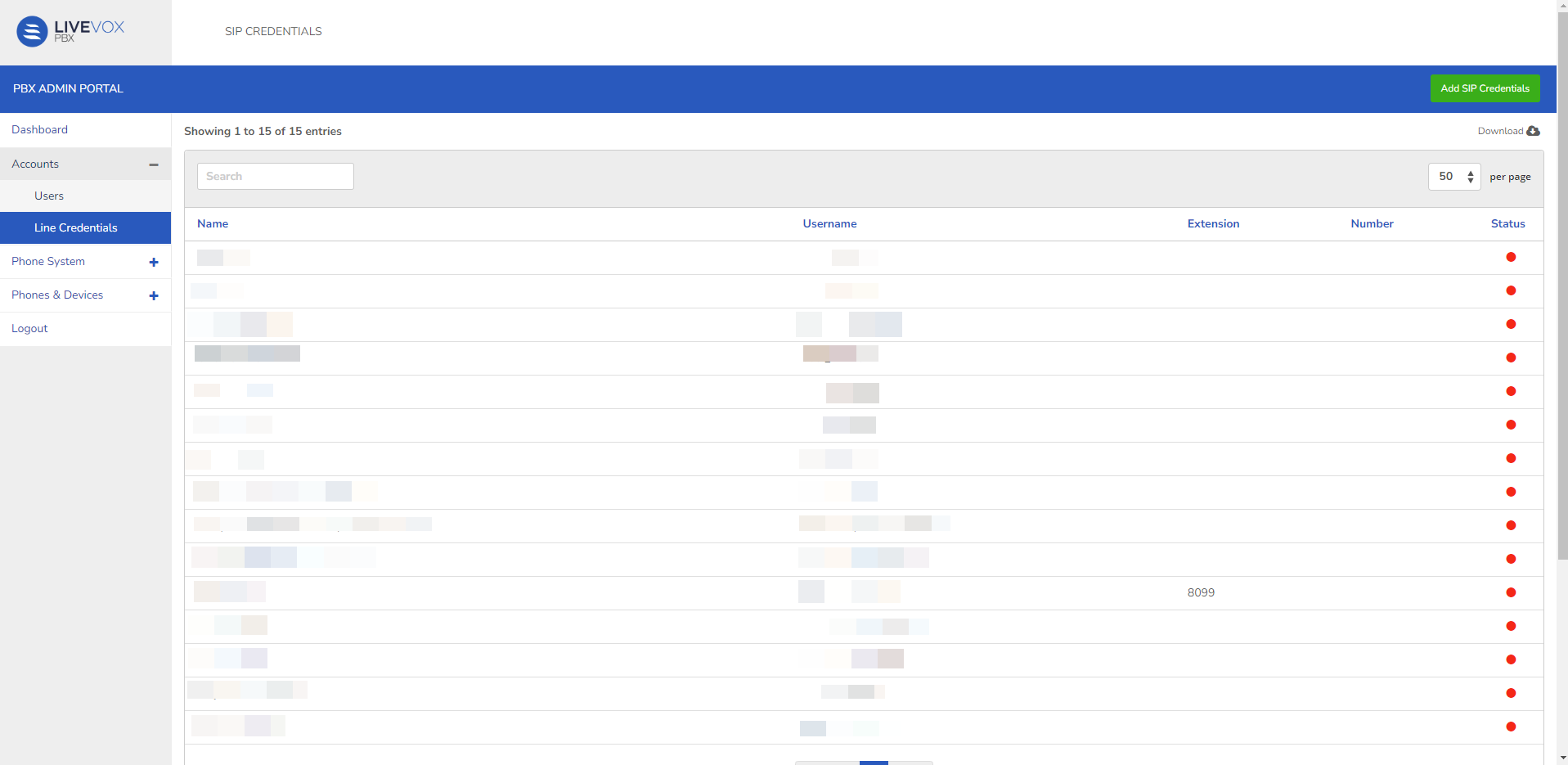
Session Initiation Protocol (SIP) credentials allow users to make and receive calls from SIP phones. TheSIP Credentialspage contains SIP user account details including configuration data for the LV PBX service.
The SIP Credentials added within LiveVox Portal (LVP) are available in LiveVox PBX. It is not possible to add new SIP Credentials in PBX. You can only edit the SIP Credential information using theSIP Credentialswindow.
To access theSIP Credentials window, navigate toAccounts>SIP Credentials from PBX Admin Portal.TheSIP Credentials screen lists the details of all the users currently in the system.
ClickDownload to save the SIP credentials database on your local computer in .csv format.
The SIP Credential information that is present in LiveVox PBX is obtained from LVP. This information can be updated to add further details specific to PBX.
To edit Line Credentials:
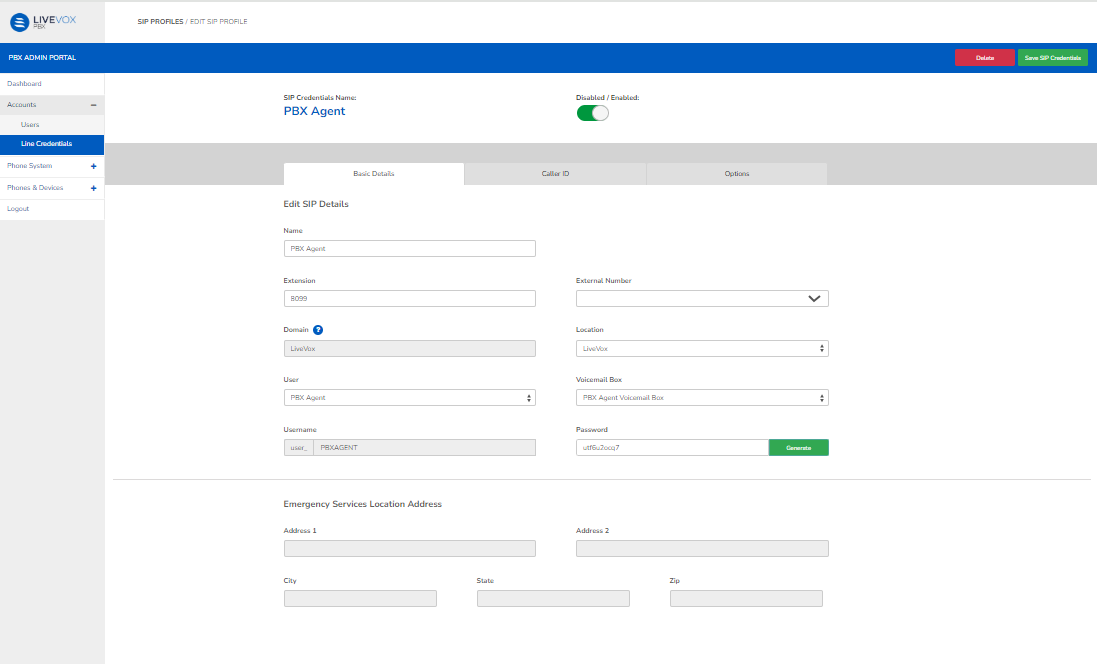
Select the SIP Credential you want to modify on the SIP Credentials window and double-click. The Edit SIP Profile window appears.
Make the necessary changes in the BasicDetails, CallerID, and Optionstabs. Use the information in the following tables for reference.
Basic Details Tab
Field
Description
Name
Enter the SIP user name
Extension
Enter the number that the SIP user can be reached at, using an SIP phone or deskphone.
External Number
Enter the number that the SIP user can be reached at, can be a number provided by the company.
Domain
This field is greyed out and cannot be set by the client.
Location
Select the site location that this SIP credential is associated with.
User
Select the LVP user that this SIP credential is associated with.
Voicemail Box
Select a voicemail box to associate with this credential. For information on adding a voicemail box, see Adding a Voicemail Box.
Username
This field is auto-populated.
Password
Use the default password or enter a password manually or click Generate to use a system-generated password.
Changing the password disables any device currently using these credentials. You will have to reconfigure your device accordingly.
Emergency Services Location Address
Address 1
Enter a valid, physical address that emergency service personnel may reach the user at.
Address 2
City
State
Zip
Caller ID Tab
Field
Description
Local Calls and Outbound Calls
Override Default Caller ID
Use the slider to determine the visibility of the default caller ID.
Caller ID Name
Enter the Caller ID Name for the agent.
Caller ID Number
Enter the Caller ID number.
Options Tab
Field
Description
Bypass Media
Never
Always
Live Transcribe
No
Yes
Allow International?
No
Yes
Redirects Calls To
Enter a valid telephone number
Record Calls
None
All
Inbound
Outbound
Local
An agent can record their calls only according to the option configured here.
Music On Hold
For information on managing files that can be used here, see Adding Hold Music.
Call Timeout
Duration in seconds that unanswered inbound calls will ring for before being disconnected.