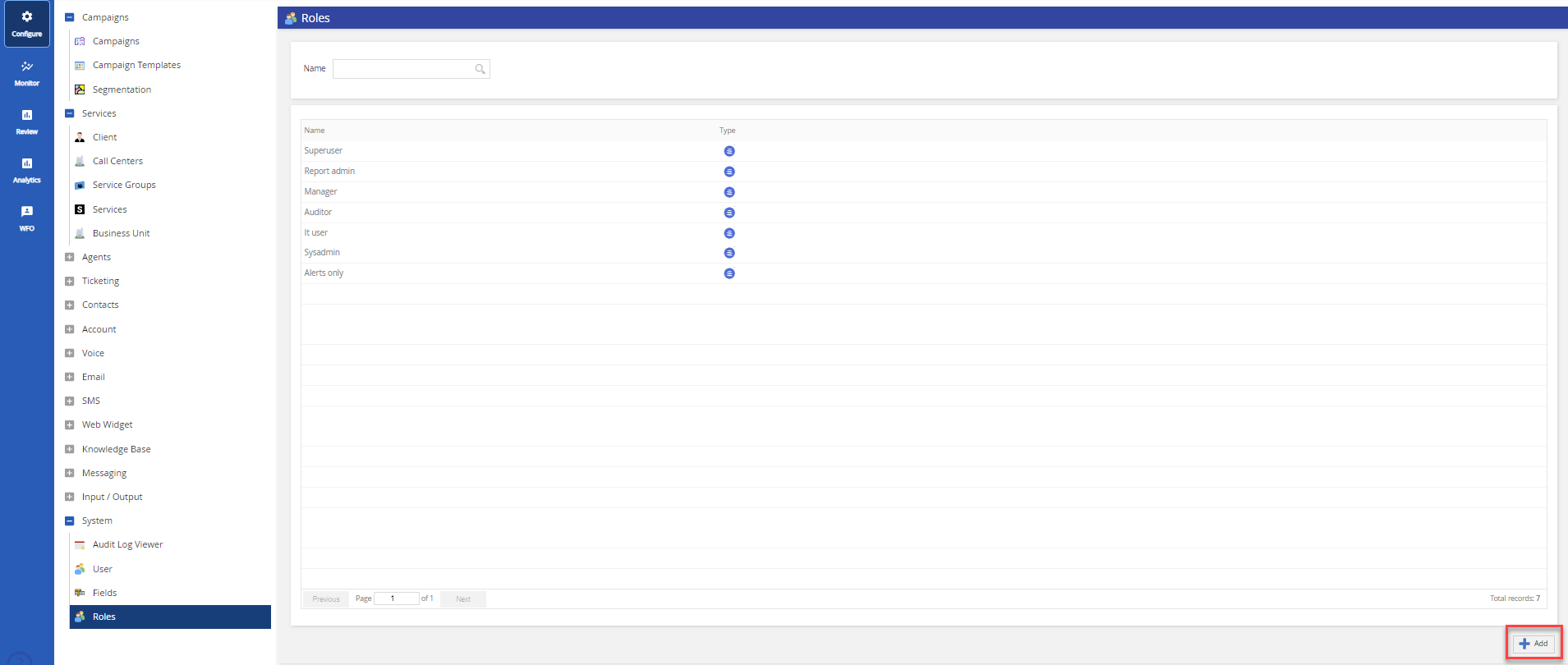
The default roles appear in the Roles window. You can create custom roles based on the default role types and modify the permissions and security powers of the custom roles. The custom roles that you create in the Roles window also appear in the Configure > System > User > Role drop-down list.
On the Configure tab of the LiveVox Portal, click System > Roles. The Roles window opens. Click Add.
In the General Info section:
Specify a name for the role in the Name field.
Select the LiveVox standard default role from the Select a role to start with drop-down list, on which the new role needs to be based.
Click the Next button to start defining security powers in various features in LiveVox Portal. Currently, LVP supports defining permissions from the following components: