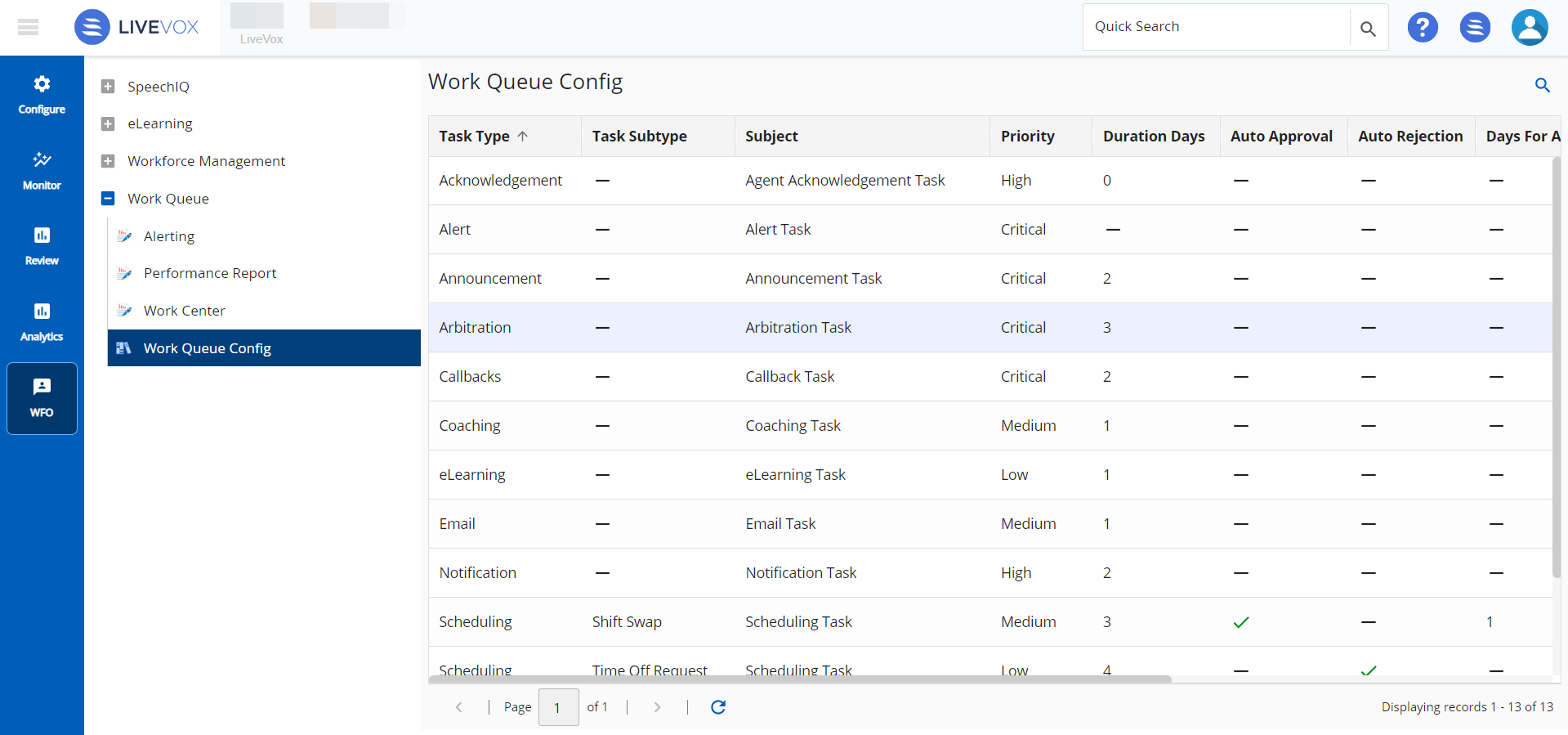
TheWork Queue Configoption underWork Queuein theWFOtab lists all the scheduling, e-learning, coaching, and acknowledgment tasksand their related information. This option enables you to capture information regardingTask Type,Task Subtype,Subject,Priority,Duration Days,AutoApproval, Auto Rejection,Days For Approval, and Days For Rejection. Use theFilterfield to narrow the list. For example, type Email to list additional information about the TaskType of Email.
Filtering Work Queue Task List
To filter the work queue task list:
On the WFO tab, click Work Queue > Work Queue. The Work Queue window appears.
Click the Search () icon.
Enter theDate Filter Option. Choose between Due Date, Completion Date, or Created Date.
SelectDate RangeorCustom Datesusing the radio button.
ForDate Range, choose an option using the drop-down menu.
ForCustom Dates, enter theFromandTodates.
Select the values for the following filters, as required:
Priority – Select the priority.
Status – Select the status.
Type – Select the task type.
Sub Type – Select the sub type for theTypefilter, selected above.
ClickApply. The report displays the information for the fields selected.
To view only tasks assigned to you, select My Tasks Onlycheck box.
Viewing a Work Queue Task
To view a work queue task:
Select the task from the list.
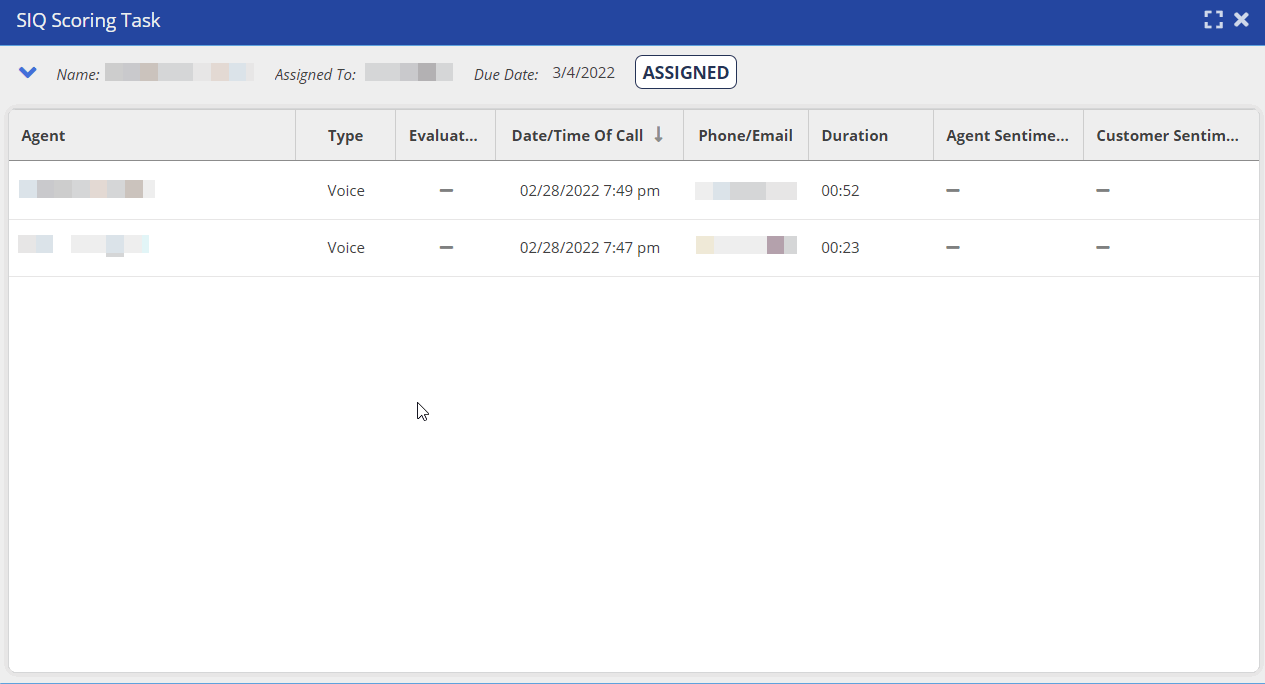
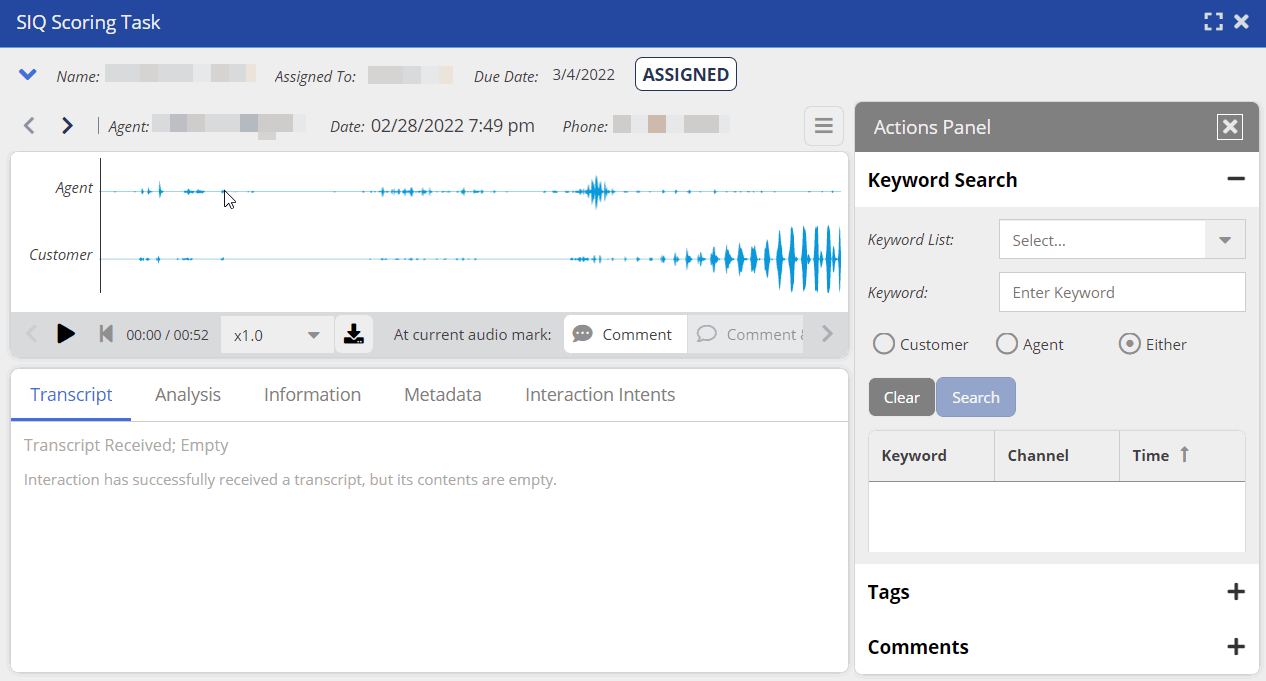
Double-click the task to view more details.
If a task has more sub-tasks, double-click the sub-task to view details of the sub-task.
Modifying a Task Type
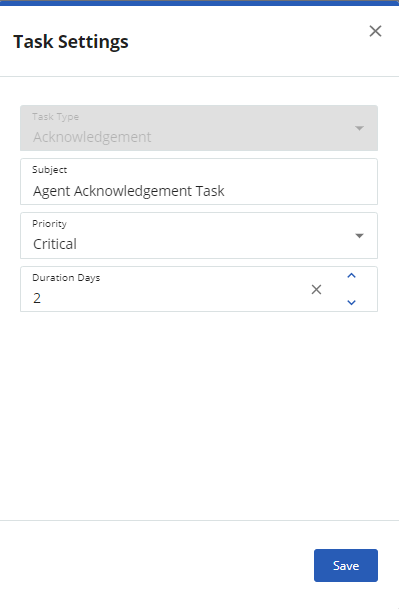
You can modify the Subject, Priority, and Duration Days for a Task Type. To make the modifications:
On the WFO tab, click Work Queue >Work Queue Config. TheWork Queue Configwindow appears.
Double-click the task type you want to edit. The Task Settings dialog box appears.
Modify the values in the following fields, as required:
Subject:Indicates the subject of the task.
Priority:Indicates the priority of the task. Default options are High, Medium, and Low.
Duration Days:Indicates the duration (in days) for the selected task type.
Click Save.
Note
The Auto Approve and Reject options are currently available only for the Scheduling task type.