Managing Hold Music
You can configure audio files to play for a caller who is put on hold so they don't hang up. You can use this music to fill in the silence or inform the user of promotions, or just reassure them that they are on hold but will be attended to. You can also combine multiple audio files into a playlist if you want the caller to hear different music on hold each time.
Navigate to Phone System > Hold Music. The Music On Hold screen tabulates the details of all the Music On Hold (MOH) files currently in the system.
Click Download to save the MOH files database on your local computer in .csv format.
Add a Music On Hold (MOH) stream
- In the Music On Hold screen, click Add MOH Stream. The Add MOH screen appears.
Enter the required details in each of the tabs.
Basic Details tab
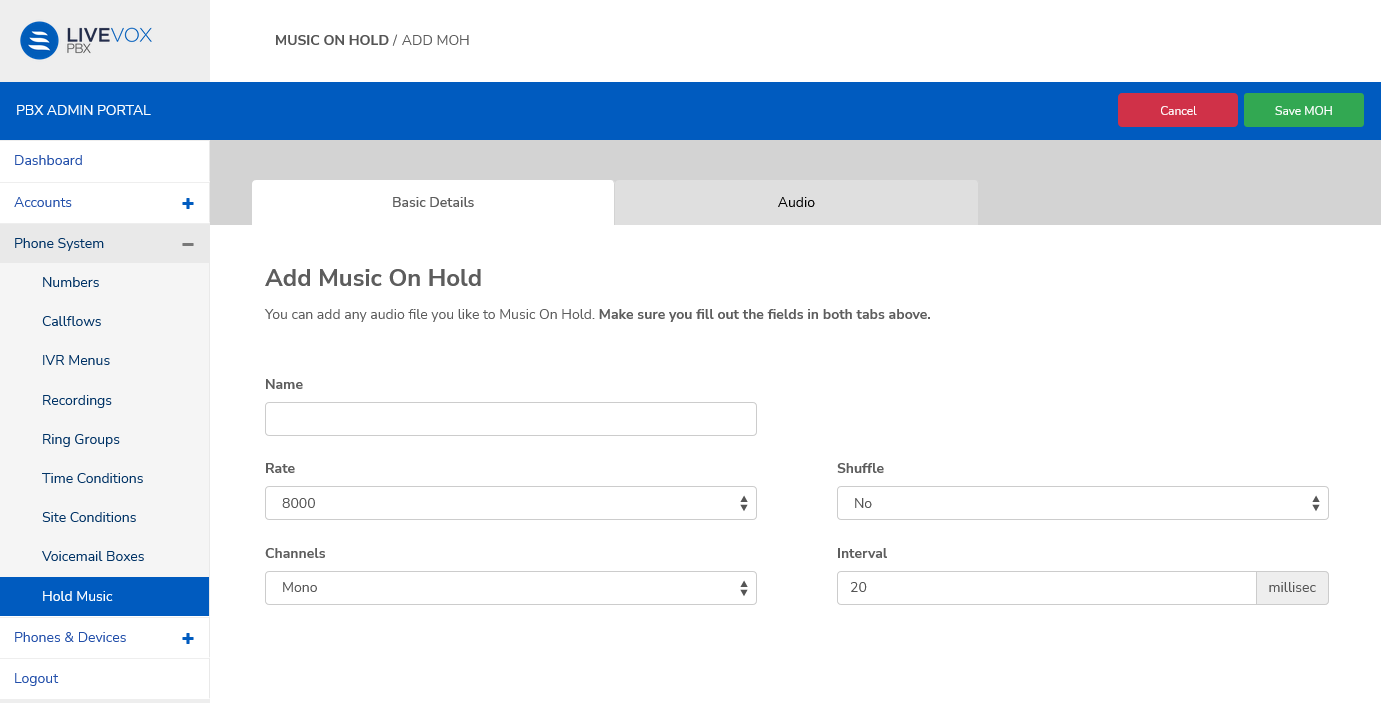
Field Description Name Enter the name of the MOH file Rate Select the desired playback frequency of the audio file.
(add a note about quality based on frequency.)
8000
16000
32000
64000
Shuffle Choose Yes if you want the audio files in the playlist to play in random order. Selecting No will play the audio files sequentially.
Channels Select if you want the audio file to be played on a single channel (Mono) or two different (left and right) channels (Stereo).
Interval Set the duration (in millisec) (what is this - duration of the hold music or how long before the file is played when the caller goes on hold or how long before the next file in the playlist is played?) Audio tab
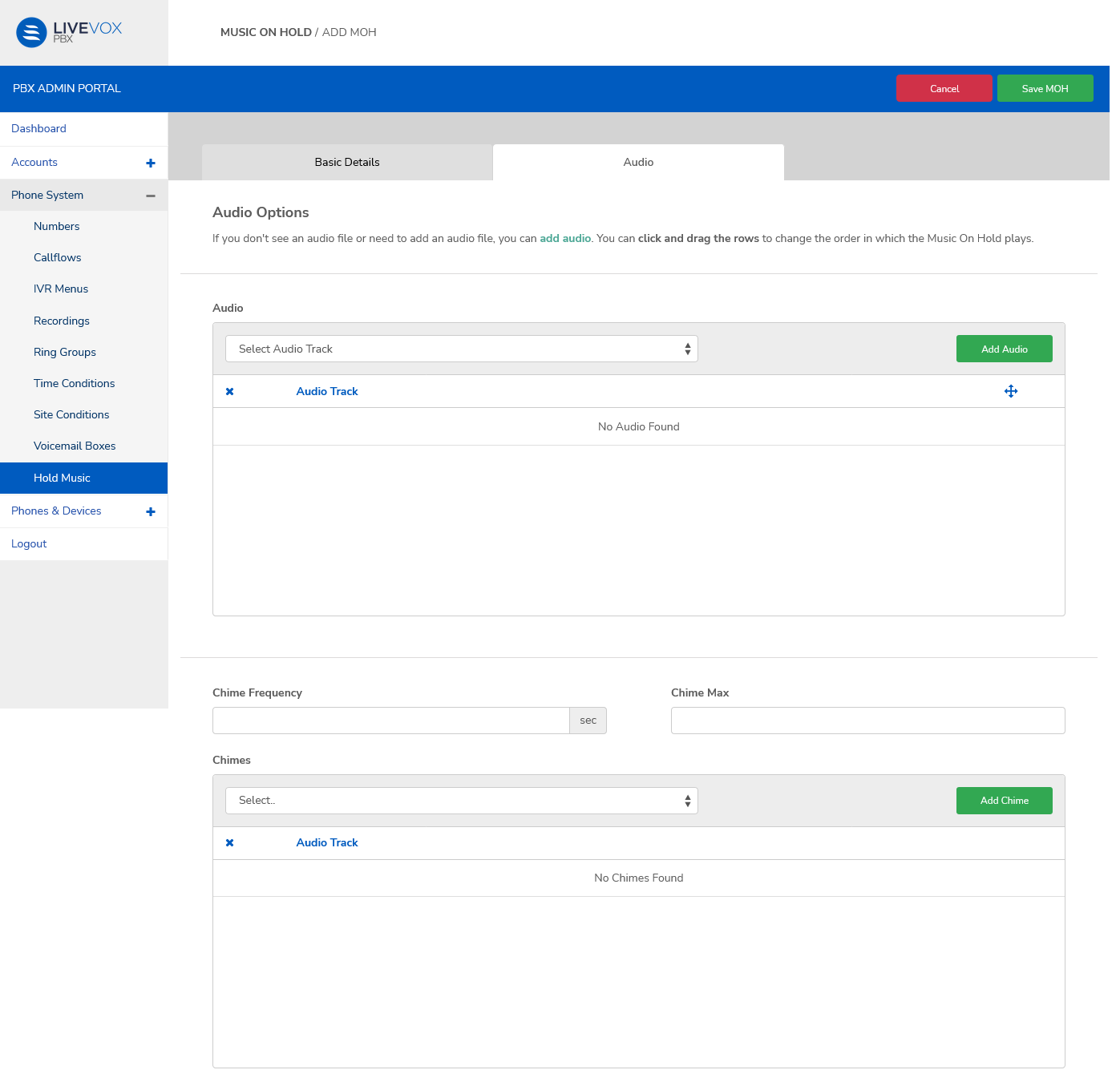

In the PBX Admin Portal, navigate to Phone System > Recordings to add audio files that you can then select from the drop-down fields in this tab.
To add an audio file to the playlist, select a file (audio track) from the Audio drop-down menu and click Add Audio.
You can click and drag the rows in the Audio Track table to change the order in which the Music On Hold plays.
(Add chimes - what is it and when is it used/played?)
To add a chime select a file (audio track) from the Chimes drop-down menu and click Add Chime.
You can click and drag the rows in the Audio Track table to change the order in which the Music On Hold plays.
Field Description Chime Frequency ? Chime Max ? Chimes ? - Click Save MOH to complete the process and return to the Music on Hold screen. The MOH stream appears as a new row in the table.
Edit or delete a Music On Hold (MOH) stream
(can't edit MOH files in stg4)