Categories
Categories help you classify the Agent Assist Rules into different groups to better manage the rules. A manager can define any number of categories to suit the needs of the organization. When a new rule is created, each rule is associated with a category.
To view the list of available categories, navigate to WFO > Agent Assist > Categories.
The Categories List page is displayed. All the available categories are displayed on this page. The page displays information, such as Name, Active, Created By, and Created Date.


Info
- Click the Active Only check box to list only the active categories.
- Click
 to search for a specific category.
Click
 to delete a selected rule.
Adding a New Category
To add a new category:
- Navigate to SpeechIQ > Agent Assist > Categories.
The Categories List page is displayed. All the available categories are displayed on this page. - To create a new category, click
 .
The Category window is displayed. - Enter a name in the Category field.
- Select the Active check box to make the category active. You can use only active categories when creating Agent Assist Rules.
- Click Save.
Setting Up Agent Assist on the Designer Desktop
To implement the Agent Assist feature on an agent desktop, complete the following steps:
- Navigate to the client environment.
- Navigate to the Designer application.
For more information about the Designer Desktop, see Working with a Designer Desktop. - Select the Designer Desktop you want to update, or create a new desktop.
- Ensure that you are on the initial page of the desktop.
- Ensure that the desktop includes a home bar, If the desktop does not include a home bar:
- Add a home bar to the desktop.
- Place the home bar at the top of the desktop.
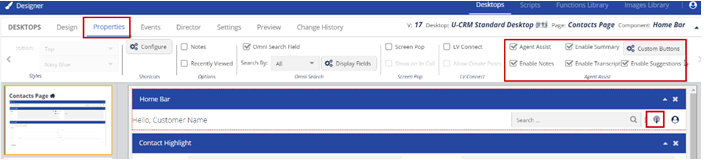
- Click on the home bar in the desktop to highlight it.
- Select Properties from the Desktop menu.
- Find the Agent Assist options section on the Properties menu.
- Check the Agent Assist check box (this enables the other options).
- Enable Notes – Enables the Notes tab within the Agent Assist Panel. This is a free form notes panel that allows the agent to post information. These notes are not saved after the interaction is terminated.
- Enable Summary – Enables a Summary tab within the Agent Assist Panel. The summary is automatically generated for the conversation based on the transcription.
- Enable Transcript – Enables a Transcript tab within the Agent Assist Panel. The agent can use this tab to review the transcription of the conversation.
- Enable Suggestions – Enables a Suggestions tab within the Agent Assist Panel. Suggestions are defined within the Action Rules Configuration tool under WFO > Agent Assist. Agents are presented with either a text-based suggestion, a URL, or the response to an API, based on the rule that is triggered.