With this report, you understand which clicker agents are the most efficient for HCI type services, if enabled. It provides the report of agents based on the amount of clicks and calls launched in an average hour.
Contact your Account team to enable Clicker Efficiency Report. |
Search Criteria
To access the Clicker Efficiency Report, navigate to Review > Agent Reports > Clicker Efficiency Report. This takes you to the Clicker Efficiency Reporting search tool to choose the parameters for generating the report.
This report may only be generated with a start and end time frame no greater than 31 days. Data can be generated from up to 90 days back. |

Specify the following options to generate the report. Only date range is required to generate the report and rest of the fields are optional. These optional fields can be used to get the specific records.
- Date Range – Enables you to type in dates in the format of MM/DD/YYYY or choose dates using the calendar button. Clicking on the calendar button opens the Date Picker interface.
- Call Center – Select a call center with a drop-down menu.
- Multiple Call Center Selection – Clicking on the link next to the Call Center drop-down menu opens the Select Call Center window.
- Search the required call center by typing the text in the Search textbox.
- Click a call center from the Available column to move it to the Assigned column.
- Click the Assign All button to add all the available call centers to the Assigned column.
- Click a call center from the Assigned column to remove the assigned call center. It will be moved to the Available column.
- Click the Remove All button to remove all the assigned call centers. They will be moved to the Available column.
- Service – A particular service can be selected using the service drop-down menu. If a particular call center is selected prior to selecting a service, services only available for that particular call center will appear.
- Multiple Service Selection – Clicking on the link next to the Service drop-down menu will open the Service Selection window:
- Agent – Select the specific agent for whom you want to view the report.
- Multiple Agent Selection – Clicking on the link next to the Agent drop-down menu opens the Select Agent window.
- Search the required agent by typing the text in the Search textbox.
- Click an agent from the Available column to move it to the Assigned column.
- Click the Assign All button to add all the available agents to the Assigned column.
- Click an agent from the Assigned column to remove the assigned call center. It will be moved to the Available column.
- Click the Remove All button to remove all the assigned agents. They will be moved to the Available column.
Generate Report and Results
Report columns and sequences can be easily modified to provide you with a report view that is important to your business operation.
Column Customization
To customize columns:
- Click the cog icon in the upper-right of the Results panel. You are presented with the Customize Column window.
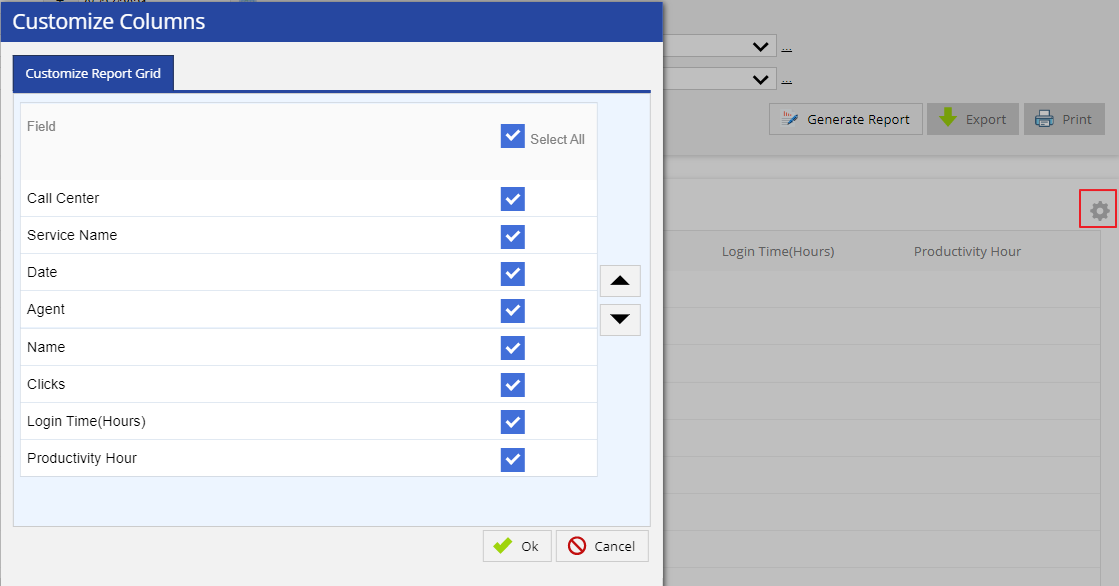
- Place a checkmark to the right of the field you want to be displayed and unchecked for those to be hidden. See below the Generate Report section for more information on available fields in the report.
- Re-sequence the displayed fields by selecting a column and moving it up or down using the appropriate button.
- Click OK to update the view.
Generate Report
After choosing the search parameters, generate the report by clicking the Generate Report button to the right of the search options. The generated report contains the following result columns.
When running the report for the current date, statistics will only be updated when the clicker agent changes state (Ex. from Ready to Not Ready or Break). |
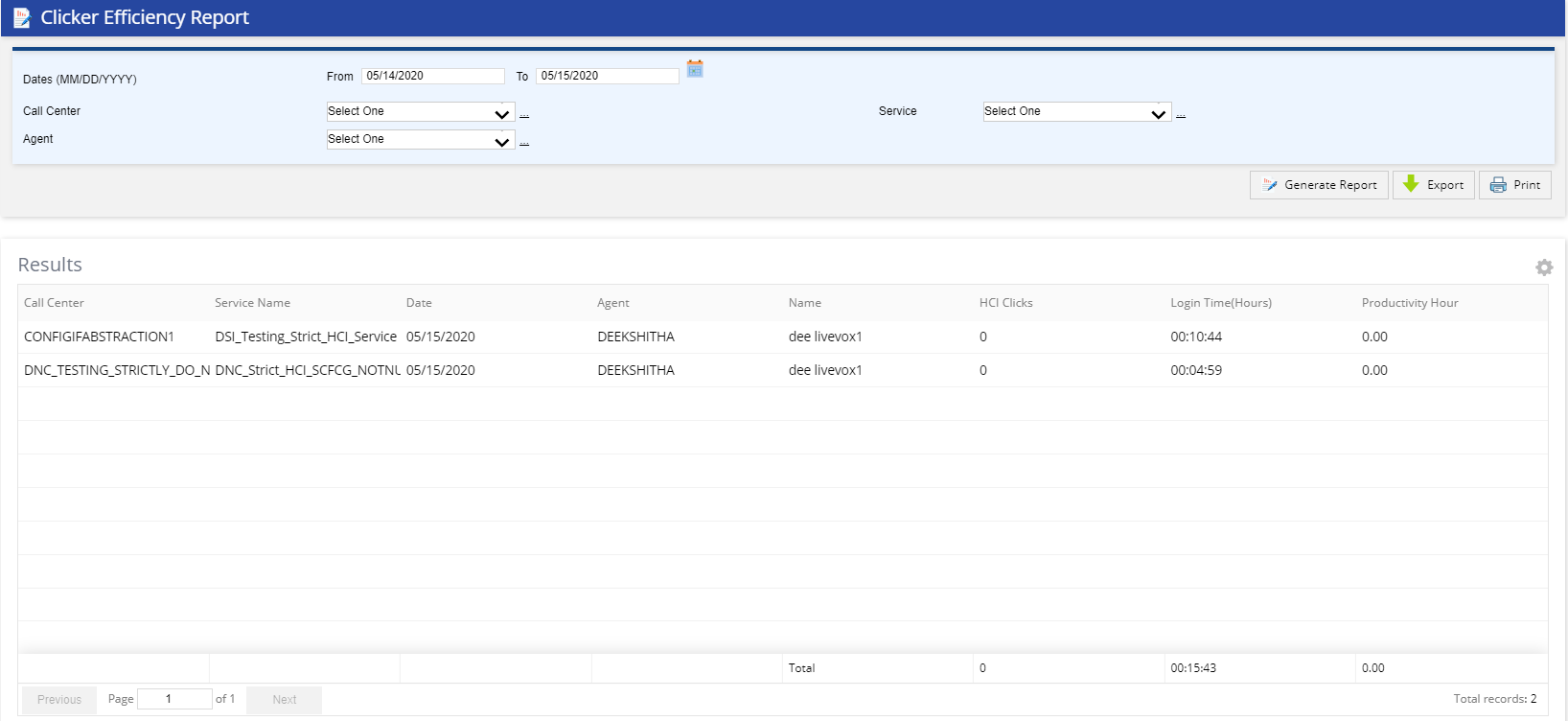
- Call Center: The call center associated with the agent.
- Service Name: The HCI service on which the agent was logged in.
- Date: Date of an agent session.
- Agent: Logon ID of an agent.
- Name: First and Last Name of an agent.
- Clicks: Total number of HCI or HTI clicks for the agent session.
- Login Time(Hours): Total amount of time the agent was logged in for a session listed as Hour: Minutes: Seconds.
- Productivity Hour: HCI or HTI Clicks divided by Login Time.
Additional Buttons
- To export the generated report, click the Export button (next to the Generate Report button) and select the required option of file type. The available options are PDF, Excel, CSV.
- To print the generated report, click the Print button (next to the Export button). The generated report opens in another tab. Select the details for printing the report and click the Print button.