Call Recording Report enables you to search for specific call recordings for monitoring quality control or to assist in agent training. To access the Call Recording Report, on the Review tab of the LVP, click Agent Reports > Call Recording Report.
|
The Call Recording Report displays a Search tool to select the parameters for filtering the report.
Select or specify values as required in the following fields to generate the report.
| Field | Description | |
|---|---|---|
| Date Range | Enables you to type in dates in the format of MM/DD/YYYY or choose dates using the calendar button. Clicking on the calendar button opens the Date Picker interface.
| |
| Call Center | Select a call center with drop-down menu.
| |
| Service |
| |
| Campaign | Allows you to select a particular campaign for the report. | |
| Campaign Pattern | Allows you to search by a portion of the campaign name. This is useful for running reports on a specific book of business with a similar filename.
| |
| Phone Dialed | Enables you to pull all recordings associated with an individual phone number entered. This could be the outbound number dialed or the inbound number's caller ID. | |
| Contact | Enables you to pull all the recordings of the multiple account number entered. A maximum of 10 account numbers can be searched at a time using comma as a delimiter. | |
| Agent | You can select an individual agent ID to search for recordings. | |
| Result | You can select an individual or group of result codes to search for recordings by clicking the Select Multiple Results link.
| |
| Sort By | You can sort the generated list by Call Start Time, Account Number, or Agent. | |
| Transfer Connect Duration | You can search for specific calls within a call length range. | |
| Service Type | Allows you to select a particular service type using the Service Type drop-down menu. If a particular service type is selected, only the services available for that service type appear in the Services drop-down list.
| |
| Filename Search | Allows you to search for a call recording report by its filename. |
Results columns and sequences can be easily modified to provide you with a report view that is important to your business operation.
To customize columns:

Click OK to update the view.
After your selection of search parameters, you can generate the report by clicking the Generate Report button located at the bottom of the search criteria. This generates the report as below.

The following optional fields are available as report columns:
| Field | Description | |
|---|---|---|
| Service | Service Name on which the account was attempted (or on which the inbound call was received). | |
| Name | First and Last Name of customer. | |
| Contact | Account number for the record. | |
| Phone | Phone number used to contact the account, or the inbound call's caller ID. | |
| Agent | Agent name (blank if agent disconnects from ACD prior to assigning a disposition code, and assigns generic Operator Transfer outcome). | |
| Session | A session number associated to the recording. | |
| Date | Date of the call. | |
| Start | Actual time the call was connected to the agent in Hours: Minutes: Seconds. | |
| End | End time of the call in Hours: Minutes: Seconds. | |
| Recording Duration | Total time of the recorded conversation in seconds (This metric is calculated as Transfer duration – Transfer hold duration). | |
| Campaign | Name of the campaign the phone number was found within. | |
| Results | The LiveVox result code assigned to the call. | |
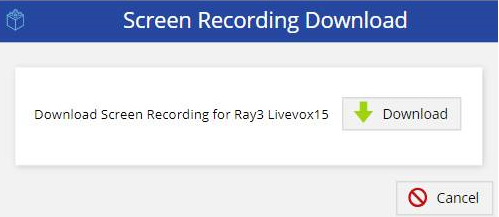
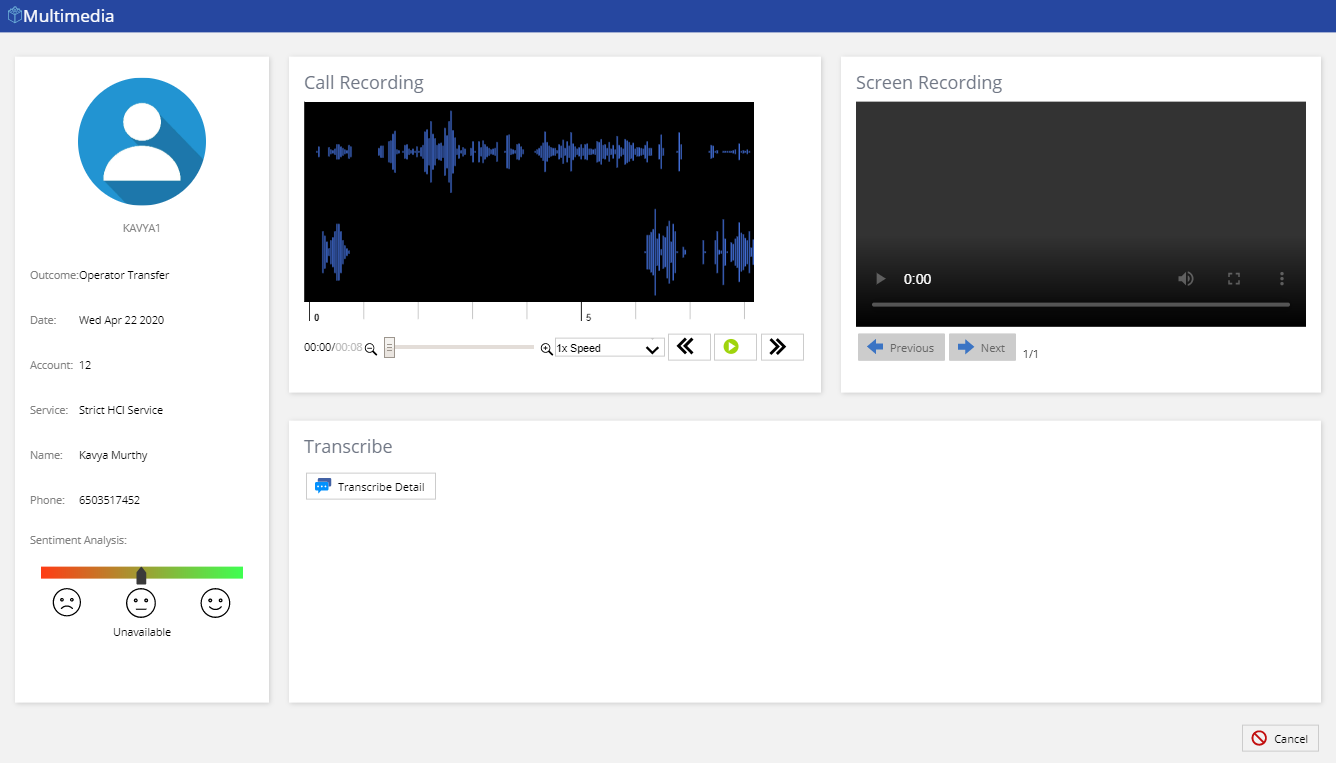
| Multimedia | You can access the multimedia (audio and video) recording of an agent by clicking on the following multimedia icon.
|
| You cannot access the recordings from the .pdf file. The links to the sound files are only available from the LiveVox Portal. |
Click Export ( ) to export the report and select the required option of file type. The available options are PDF, MS Excel, and CSV.
Click Print ( ) to print the report. The generated report opens in another tab. Select the settings for printing the report and click Print.