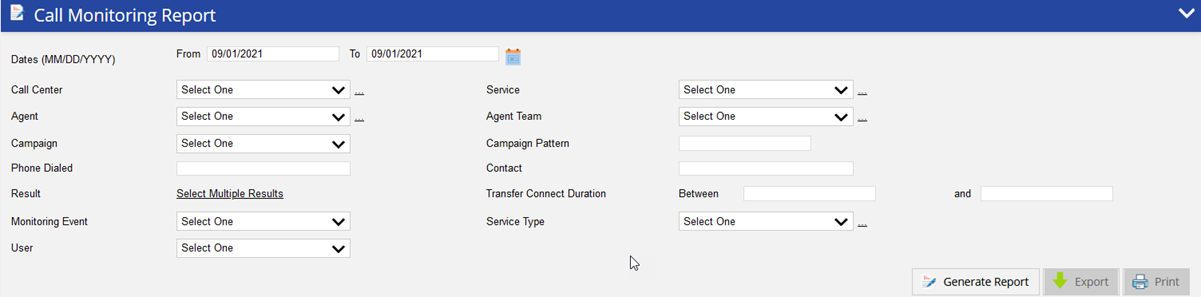
The Call Monitoring Report allows you to see agent monitoring events such as monitoring, coaching, or barging. The data for the report is only logged whenever a monitoring event is triggered.
To access the Call Monitoring Report, navigate to Review > Agent Reports > Call Monitoring Report. This takes you to the Call Monitoring Reporting search tool to choose the parameters for the report
You can generate a report for a 3-day period occurring during the previous 180 days. The report can be exported via PDF, CSV and Excel. |
Specify the following options to generate the report. Only the date range is required to generate the report and the rest of the fields are optional. Use the optional fields to get specific records.
Under the MultiSelect tab, you can select multiple sequential or non-sequential dates.
Call Center – Select a call center from the Call Center drop-down list.
Click the Remove All button to remove all the assigned services. They will be moved to the Available column.
Click the Remove All button to remove all the assigned results. They will be moved to the Available column.
Report columns and sequences can be easily modified to provide you with a report view that is important to your business operation.
To customize columns:
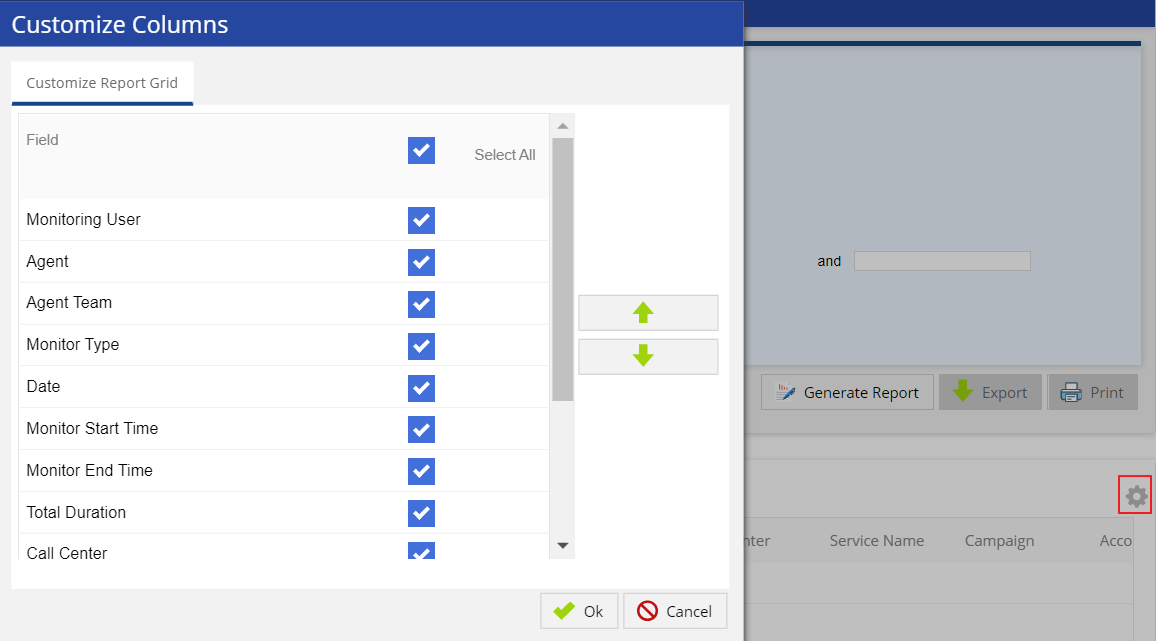
After choosing the search parameters, generate the report by clicking the Generate Report button to the right of the search options. The following optional fields are available as report columns:
