A table of scripts appears.
The Copy Script window appears.
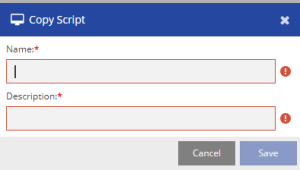
A copy of the script is created, and it appears in the table on the SCRIPTS subtab.
Managing a script involves copying, deleting, importing, and exporting a script. The Script tab enables you to manage scripts.
To copy the properties of an existing script to a new script, use the Copy option present in the SCRIPTS window.
To copy a script:
To delete a script, use the SCRIPTS window.
To delete a script:
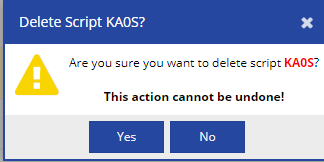
Click Yes.
The script is deleted, and it does not appear in the table on the SCRIPTS subtab.
Once the script is deleted from the SCRIPT window, it is also deleted from the LVP database. |
Importing a Script
You can import a script from your local system to the Designer desktop. However, you must have LVP functional values set in the script for it to work. Contact the LiveVox customer team if you run into issues while importing a script.
To import a script:
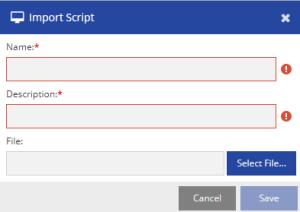
Specify the Name, Description, and then select the file from your local system.
After the file is imported successfully, the script appears in the Script table.
The script should be in either HTML or JSON format |
Exporting a Script
You can download a script using the Export option present in the SCRIPT window. The script gets downloaded to your local system in JSON format.
To export a script: