
After you add the content in the Library, you can easily determine the training needs of agents and assign one or more items to an agent. E-Learning Assignment allows you to search for the appropriate training material from the Content Library. This assignment of the e-Learning module creates an e-Learning task in the Work Queue of the selected agent.
To access the eLearning Assignment window, on the WFO tab, go to eLearning > Assignment.
In the eLearning Assignment window, search for the appropriate training material from the Content Library and select one or more items.
You can use the following search criteria while searching the Content Library:
Category
Sub-category
Creator of Library item
Template
Type of material - PPT, recording
Title of Library item
Select an agent or agents who require the training.
Assign a Due Date for the e-Learning material. The task associates with the library content should have a due date assigned to it.
Set the priority for the task. Priority types would be High (to be completed immediately), Medium (to be completed within the next 48 hours), or Low (to be completed as work allows).
Click Accept.
To view only specific assignments, you can use the Advanced Search option.
Click on the Advanced Search ( )icon on the top right corner of the Assignment window.
Enter appropriate values in the fields as required.
To create an e-learning assignment:
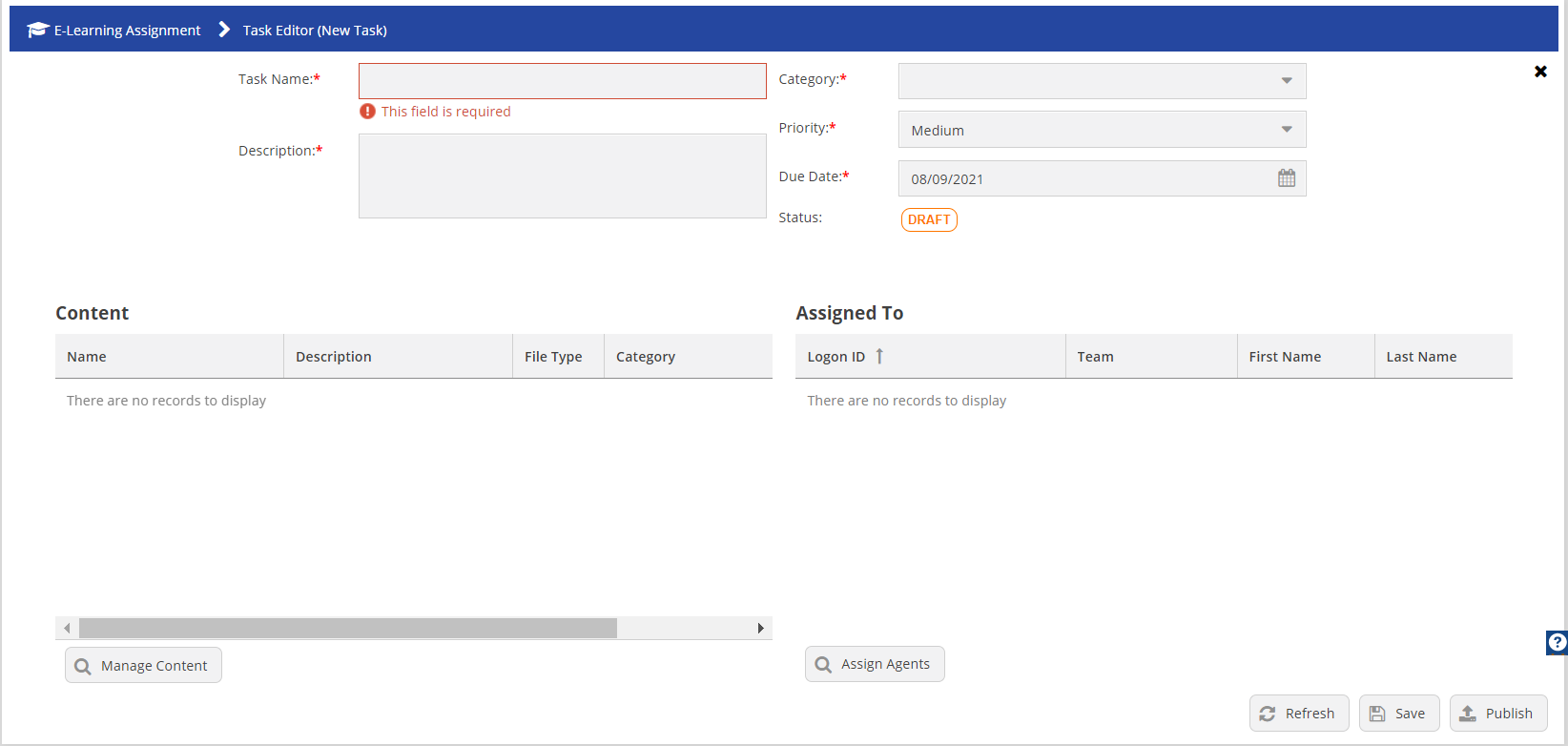
Specify values in the following fields.
| Field | Description |
|---|---|
| Task Name | Specify a name for the assignment. |
| Category | Select an assignment category from the drop-down list. |
| Description | Specify a description of the assignment. |
| Priority | Set priority from the drop-down list for the assignment. |
| Due Date | Specify the due date in MM/DD/YYYY format or click the Calendar icon and select the date. |
| Status | Shows the current status of the assignment. |
| Contents | Shows the available content that you can assign for the e-learning assignment. |
| Assigned To | Shows the list of available agents. |