Click Desktops > DESKTOPS.
On the DESKTOPS subtab, double-click the row displaying the Designer Desktop that you want to design.
The Design subtab appears.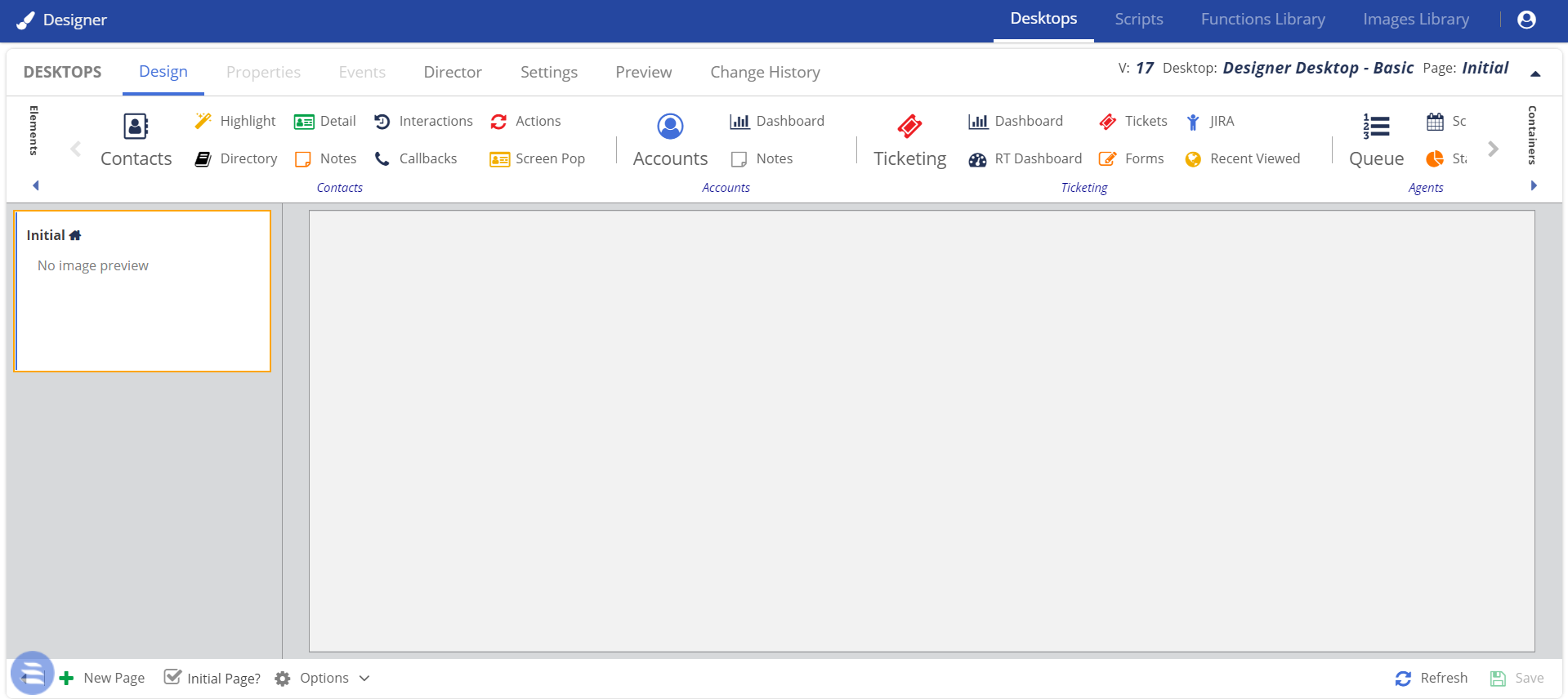
|
- On the Design subtab, click New Page.
The New Page window appears. Specify values in the fields.
Name: Name to identify the page.
Description: Description of the page.
Set as initial page: Indicates if the page is initial (that is, if the page appears first on the Agent Desktop).
Click Save.
The page is created, and it appears in the left pane of the Design subtab.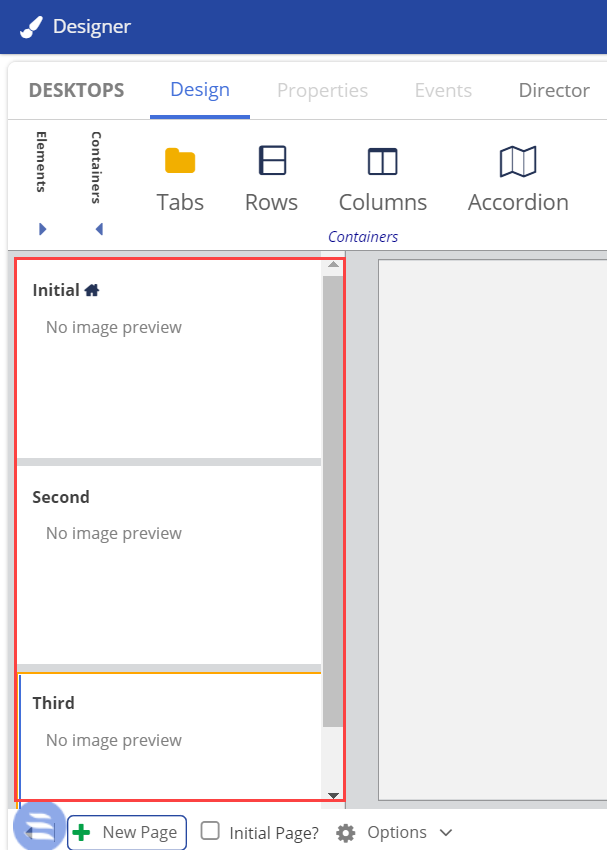
You can create multiple pages.
In the left pane, select the page that you want to design.
On the toolbar, in the Elements section, select the required elements.
Add the Home Bar element to each page to allow the agent to navigate on the Agent Desktop. |
The selected elements appear on the canvas.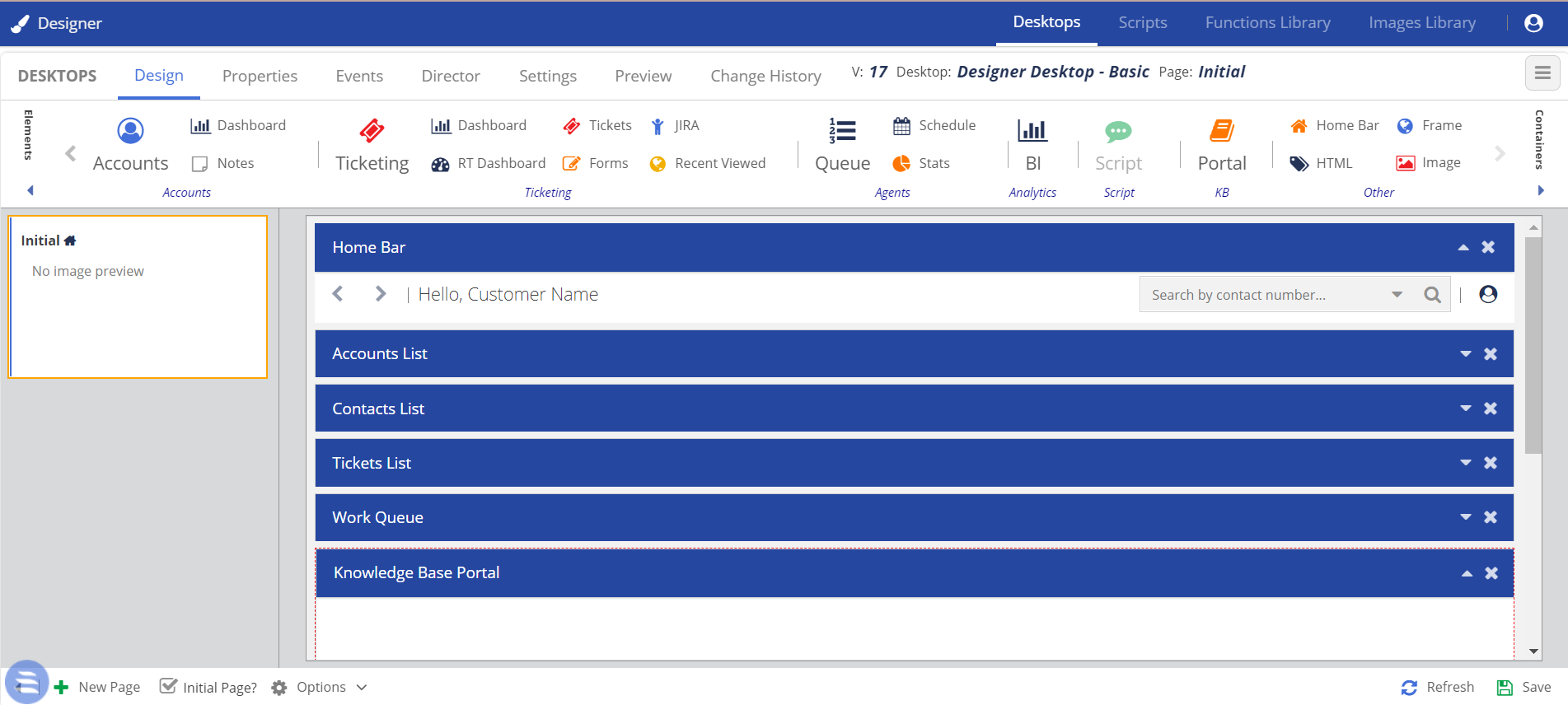
|
 .
 .
On the toolbar, expand the Containers section, and then click any of the following buttons: Tabs, Rows, Columns, Accordion

For information about the containers, see Containers.
The selected container appears on the canvas.
On the toolbar, expand the Elements section, and then drag the required elements to the container on the canvas.
Add the Home Bar element to each page to allow the agent to navigate on the Agent Desktop.
For information about the elements, see Element Descriptions.
The selected elements appear within the container on the canvas.
Click Save.
The design is saved.