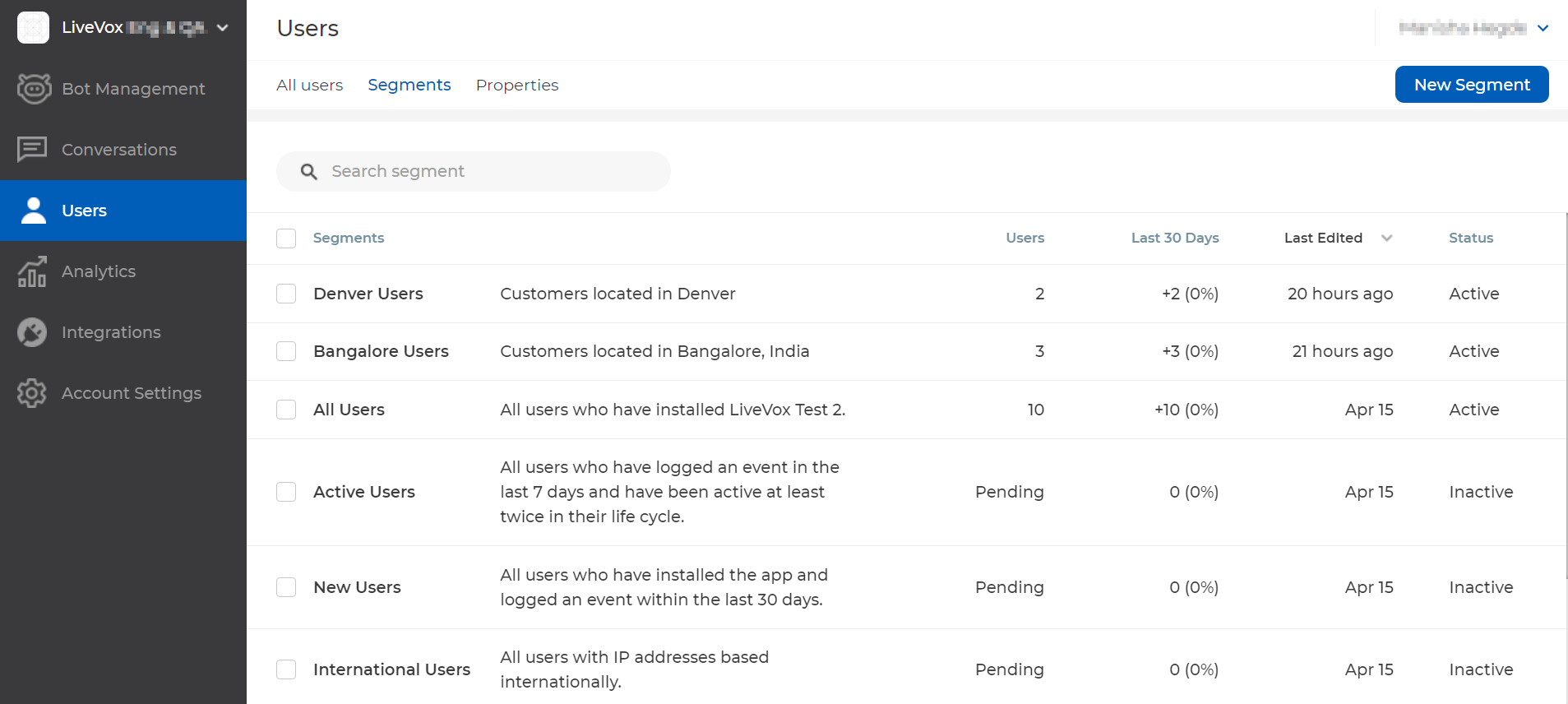
A segment is a group of customers who meet the conditions that you define (for example, a group of customers who reside in California or a group of customers who have rated a service poorly during a bot conversation). The conditions can be based on your business needs to effectively use segments.
You can manage segments on the Segments tab of the Users window.
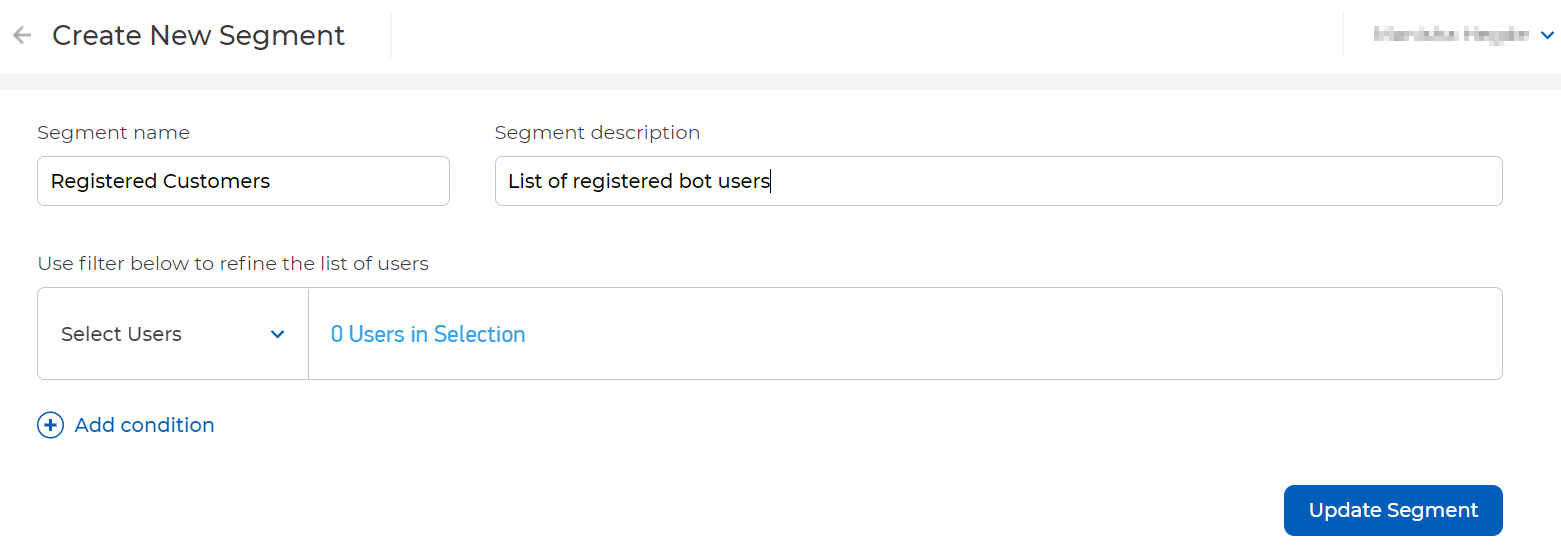
To create a segment:
Specify values in the following fields.
| Field | Description | ||
|---|---|---|---|
| Segment name | Name to identify the segment. | ||
| Segment description | Description of the segment. | ||
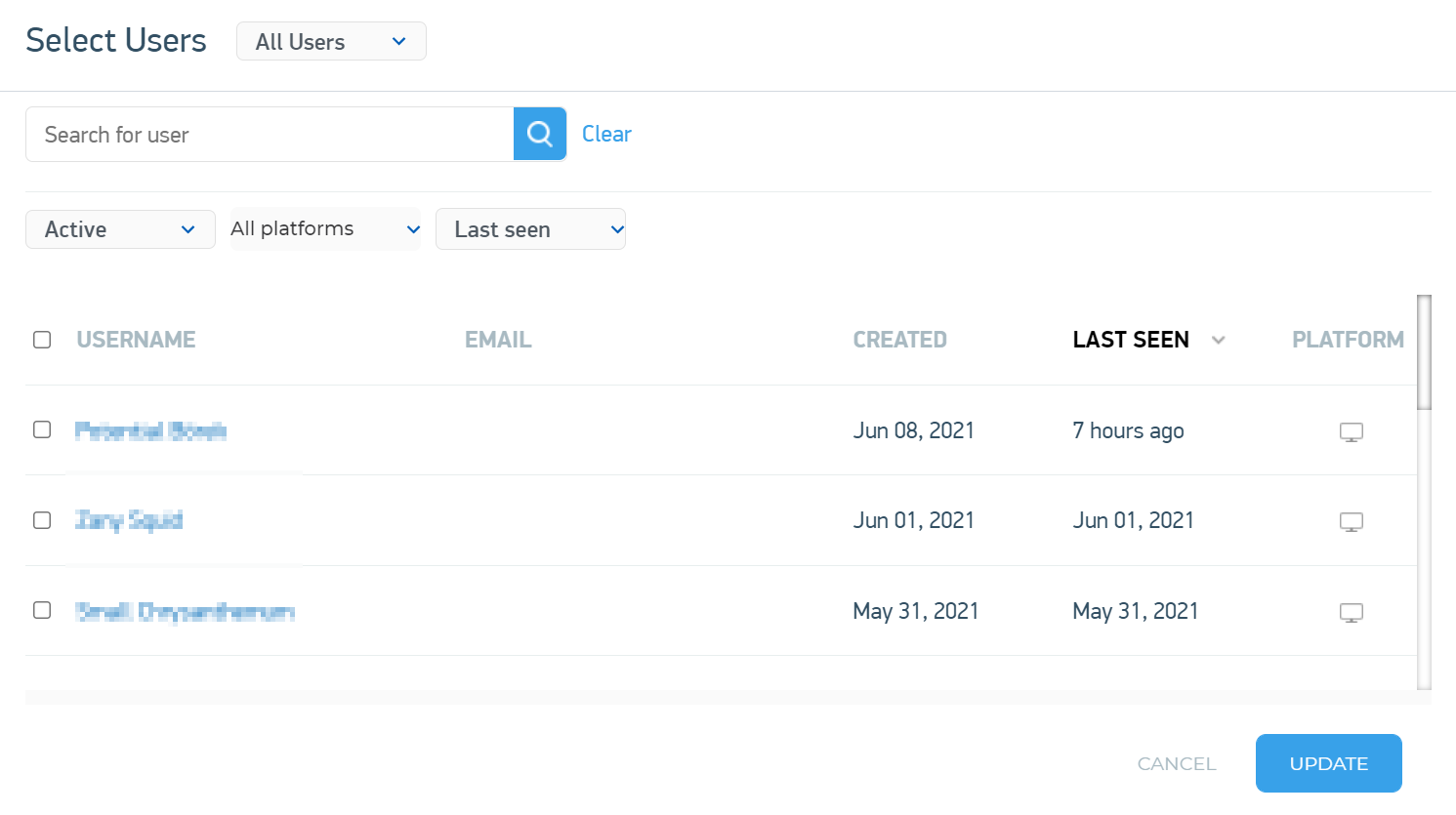
| Use filter below to refine the list of users | Conditions for the segment. To add a condition:
|
Last Seen: Time stamp of when the customer last engaged with a bot, represented in the time zone specified on your profile.
|
The following table describes the columns that appear in the table on the Segments tab.
| Column | Description | |
|---|---|---|
| Segments | Name and description of the segment. | |
| Users | Number of customers who meet the conditions specified in the segment. The value Pending in this column indicates that there are no customers meeting the segment conditions. | |
| Last 30 Days | Number of customers who meet the segment conditions and who engaged with bots in the last 30 days. This column also displays the value in percentage, within parentheses.
| |
| Last Edited | Date when the segment was last modified. | |
| Status | Status of the segment (Active or Inactive). |
|
You can simultaneously deactivate or delete multiple segments. To do so:
As required, click Deactivate or Delete.
The segments are deactivated or deleted.
If you clicked Deactivate, the value Inactive appears in the Status column of the segments. You can activate the segment by clicking its name in the Segments column and then clicking the Inactive option. |
 next to it.
