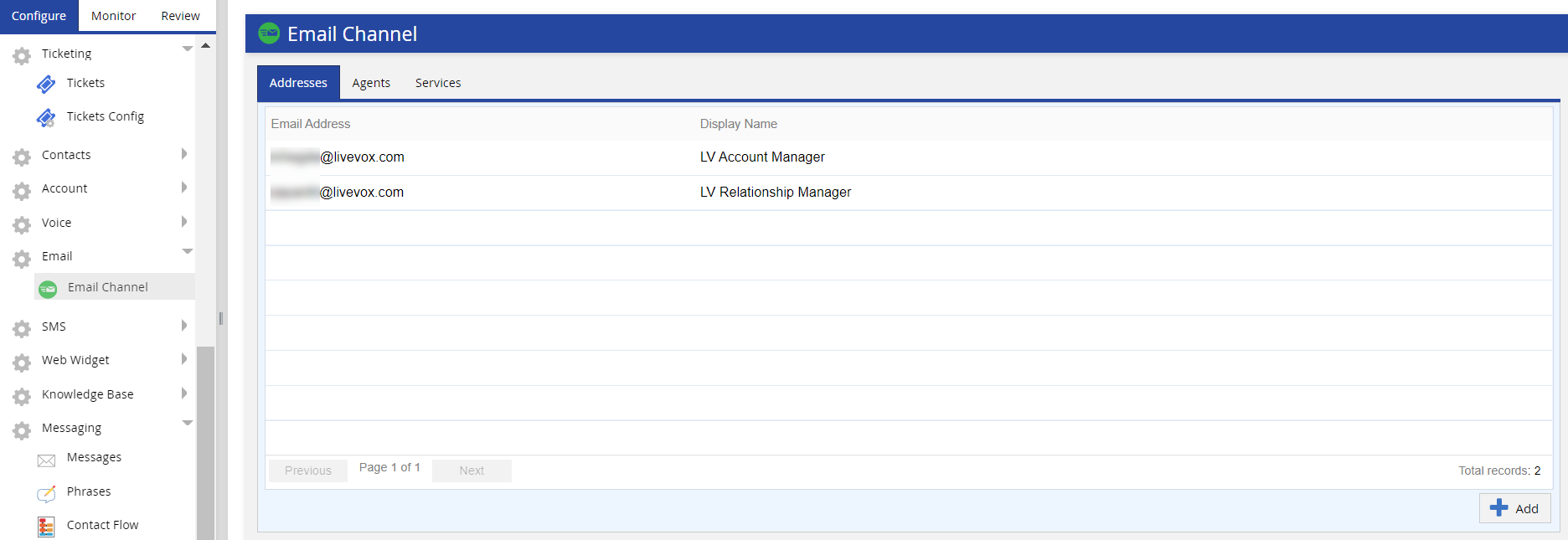
Using the Email Channel window, you can:
To access the Email Channel window, on the Configure tab of the LiveVox Portal (LVP), click Email > Email Channel.
The following table describes the columns that appear on the tabs in the Email Channel window.
Addresses | |
| Column | Description |
|---|---|
| Email Address | Email address used to send and receive emails. |
| Display Name | Name that appears next to the email address in the outbound emails (for example, LiveVox johndoe@livevox.com). When customers reply to the emails, the display name appears in the To field. |
Agents | |
| Column | Description |
| Login ID | Login ID of the agent who can access the email channel. |
| First Name | First name of the agent. |
| Last Name | Last name of the agent. |
| Last Login | Date and time when the agent last logged in to the Agent Desktop. |
| Active | Checkmark to indicate that the agent is active. |
| Checkmark to indicate that the agent can access the email channel. | |
| Voice | Checkmark to indicate that the agent can access the voice channel. |
| SMS | Checkmark to indicate if the agent can access the SMS channel. |
| Chat | Checkmark to indicate if the agent can access the chat channel. |
Services | |
| Column | Description |
| Id | ID of the service associated with the email channel. |
| Name | Name of the service. |
| Inbound Message | Inbound message template for inbound emails. |
| Inbound Domain | Unique email address for routing inbound emails to the service. |
| Opt In Message | Message displayed in the email when an email campaign is launched for the service. |
| Consent Required | Checkmark to indicate if the customer's consent is required for sending an email to the customer. |
To add an email address:
Specify values in the Display Name and Email Address fields, and then click Save.
The email address is created, and it appears on the Addresses tab.
On the Addresses tab of the Email Channel window, you can:
|
You can assign an email address to certain services so that only the assigned email address is available to the agents logged in to those services when the agents send an email message (transactional).
When an agent responds to an email, by default, the email address used in the response is the same as that associated with the original email thread; the agent cannot modify the email address. |
To assign an email address to certain services:
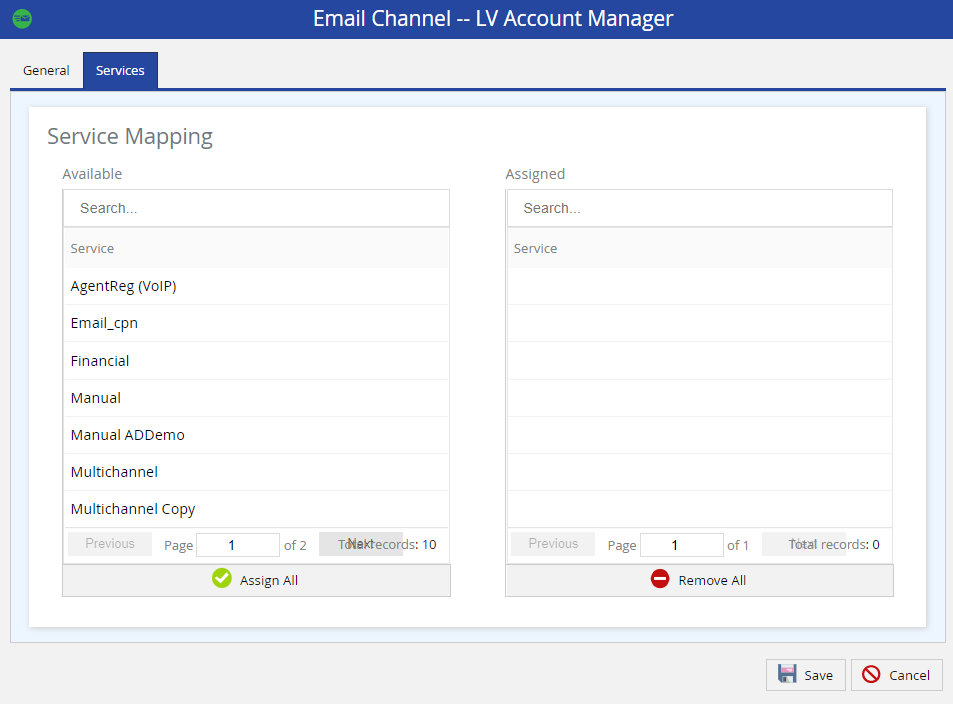
On the Services tab, in the Available section, select the services to which you want to assign the address.
To select all services together, in the Available section, click Assign All. |
The selected services appear in the Assigned section.
Click Save.
The email address is assigned to the selected services.
 , which appears when you hover over the row displaying the address.