The Import/Export Jobs tab allows you to create multiple import and export jobs, also provides you one central view of all jobs. This tab displays the following fields:
- Job Type
- File Name
- Filter Name
- Enabled
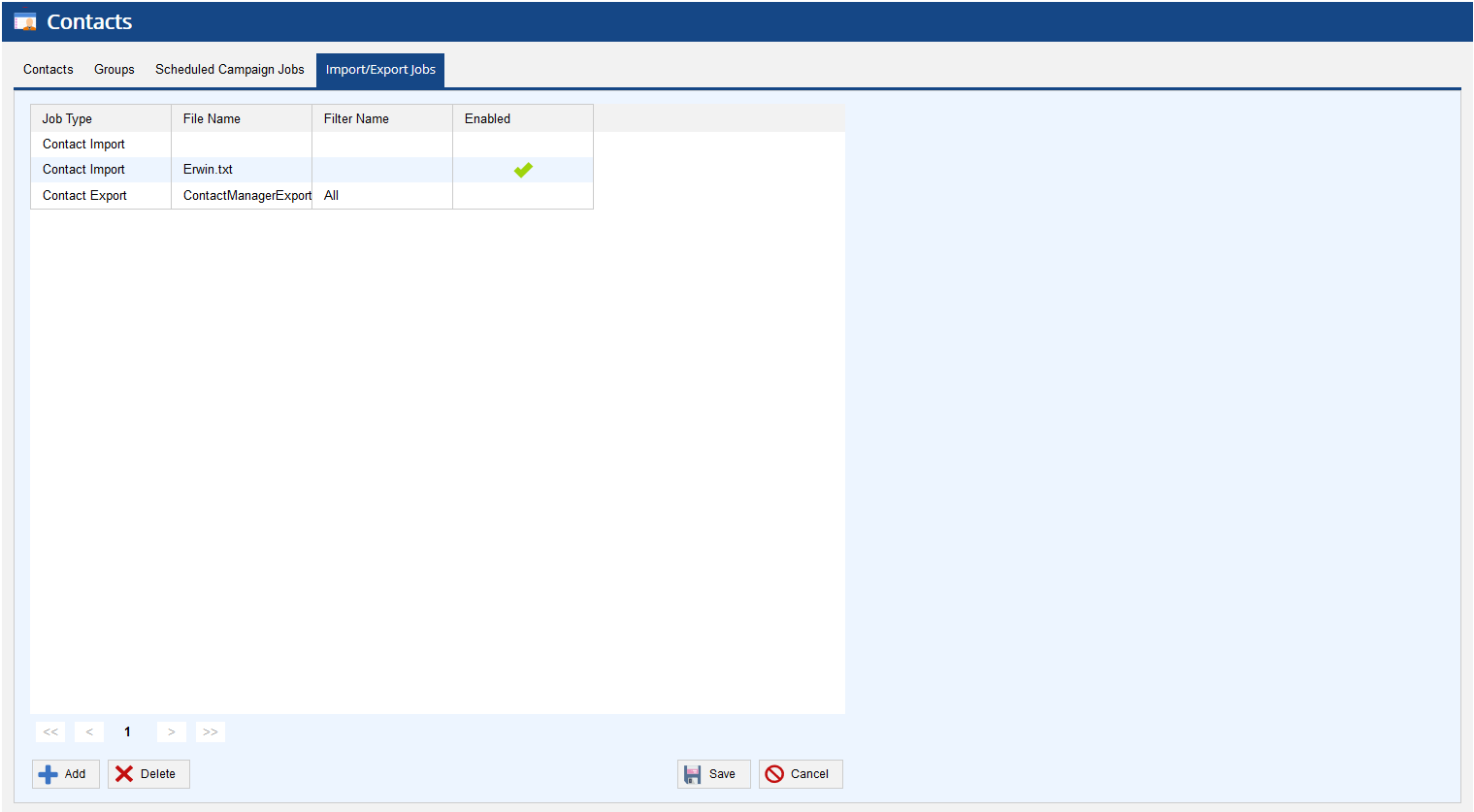
To add multiple import/export jobs click the Add button at the bottom, left-hand corner of the Import/Export Jobs tab. This brings up the Jobs screen.
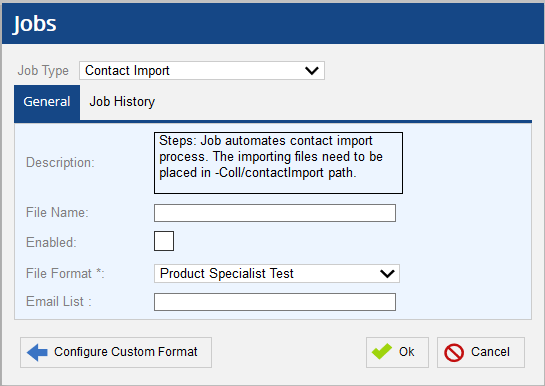
Select the Job Type as Contact Import to schedule an import job
The Jobs screen offers General and Job History tabs.
The General tab allows you to define the following fields:
- Description- Describes the automated Job contact import process. The importing files should be placed in -Coll/contactimport path.
- File Name - Enter the file name which you would like to import into Contacts manager.
- Enabled - Allows you to enable the automated import job option.
- File Format - Assign the file format to the import job from the available drop down options.
- Email List - Enter the email address/addresses to send success or failure notification email for each import attempt.
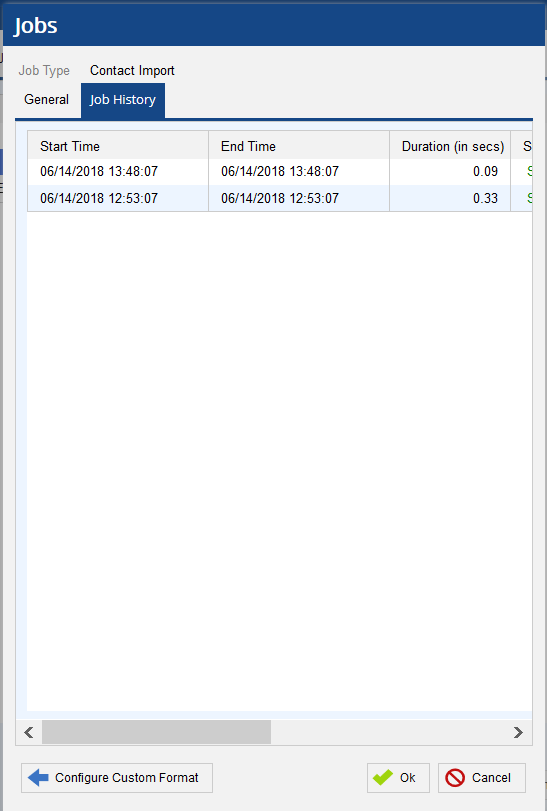
The Job History tab displays the detailed import job history where you can view the following:
- Start Time - Start time of the import jobs.
- End Time - End time of the import jobs.
- Duration (in secs) - Duration of the import jobs in secs.
- Status - Displays the successful completion or failure status of the import jobs.
- Message - Displays the details of the email notifications sent for the import jobs.
You can define different file formats and configure contact column mapping via Input Filter or by clicking the Configure Custom Format button. You can also save the format to Input Filter by clicking Save As Input. See Input Filter section for more information on defining file formats and creating input filter layouts to be used for Contacts manager imports.
- You can create up to 4 Contact manager import jobs at the same time.
|
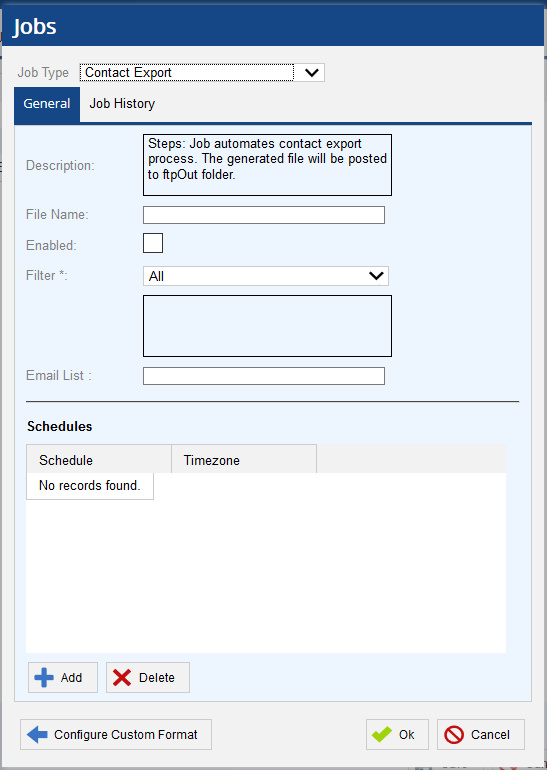
Select the Job Type as Contact Export to schedule an export job.
The General tab allows you to define the following fields:
- Description- Describes the automated Job contact export process. The files generated in this process are posted to ftpOut folder.
- File Name - Enter the file name which you would like to export from Contacts manager.
- Enabled - Allows you to enable the automated export job option.
- Filter - Allows you to select the exportable accounts from the available Contact manager filters.
- Email List - Enter the email address/addresses to send success or failure notification email for each export attempt.
- Schedules - Allows you to schedule the export job. Select the Add button on the left-hand corner of the Schedules section, this will make available Schedule options.
- Select the Days on which you wish to schedule the export job.
- Select the Start Time, the hour and minute from the drop down menus.
- Select the Timezone to schedule the job.
- Click Ok to save the schedule and Cancel to discard the changes.
The Job History tab displays the detailed export job history where you can view the following:
- Start Time - Start time of the export jobs.
- End Time - End time of the export jobs.
- Duration (in secs) - Duration of the export jobs in secs.
- Status - Displays the successful completion or failure status of the export jobs.
- Message Displays the details of the email notifications sent for the export jobs.
To delete a configured import/export job, select that particular job and click the Delete button at the bottom, left-hand corner of the Contacts manager. Confirm deletion by clicking OK.