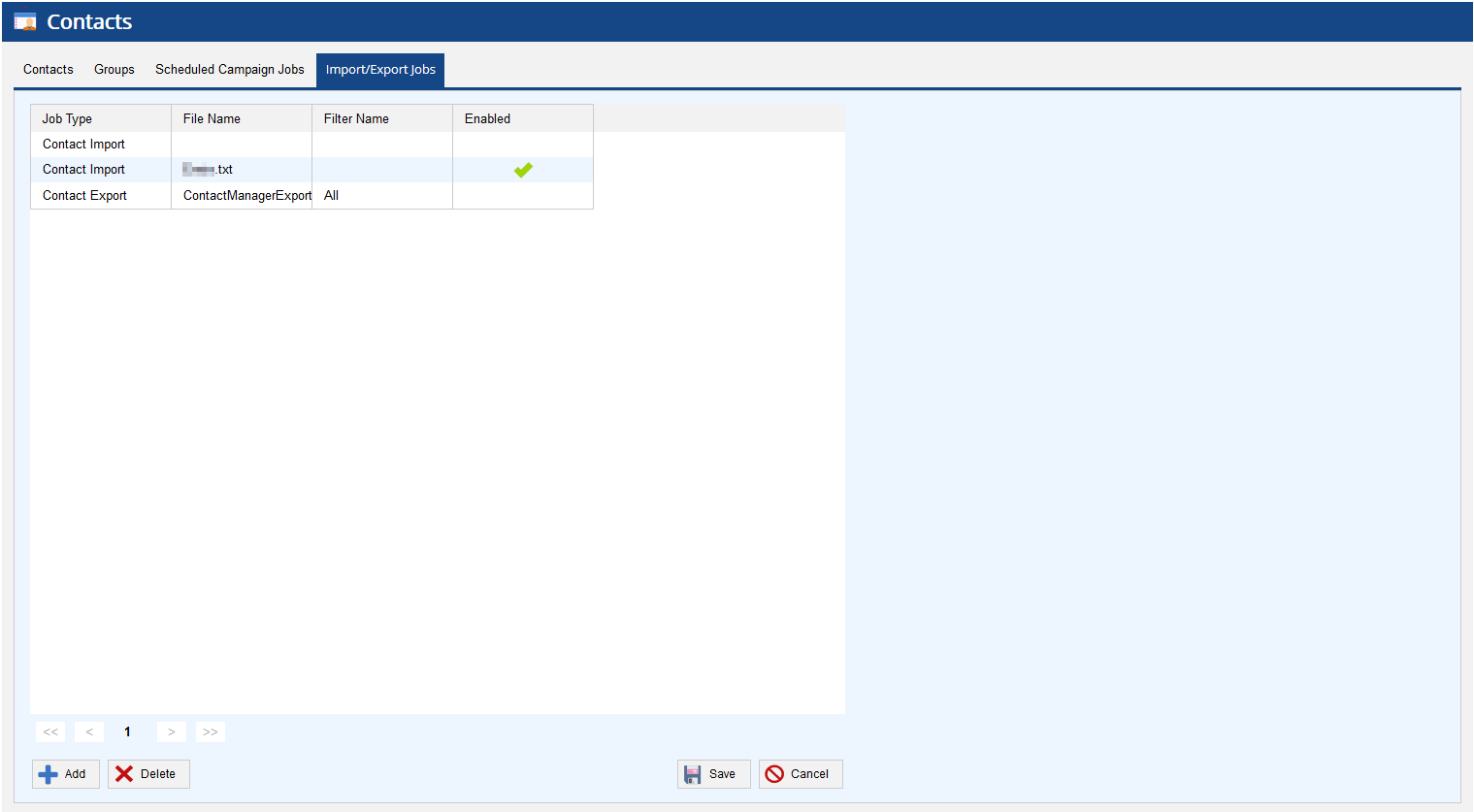
The Import/Export Jobs tab enables you to create multiple import and export jobs for importing contacts from a file into Contact Manager or exporting contacts from Contact Manager to a file. It also provides you with a central view of all jobs.
To create a contact import job:
Email List: Enter single or multiple email addresses to which you want email notifications for each import attempt.
The Description field displays a description of the process. The files to be imported must be placed in the -Coll/contactimport path. |

|
You can create up to four contact import jobs at the same time. |
To create a contact export job:

Email List: Enter single or multiple email addresses to which you want email notifications for each export attempt.
The Description field displays a description of the process. The files generated in this process are placed in the ftpOut folder. |
You can define different file formats and configure the mapping for the contact columns by using Configure Custom Format. |
To view the history of an import or export job:
To delete a contact import or export job, in Contact Manager, on the Import/Export Jobs tab, select the row displaying the job, and then use Delete.